 Martin Jørgensen
RustDesk – free remote desktop with full control
RustDesk is a free, open-source remote desktop app and an interesting alternative to TeamViewer and AnyDesk. You can use it for remote support, working from home, file transfers, and accessing your own computer when you’re away from it.
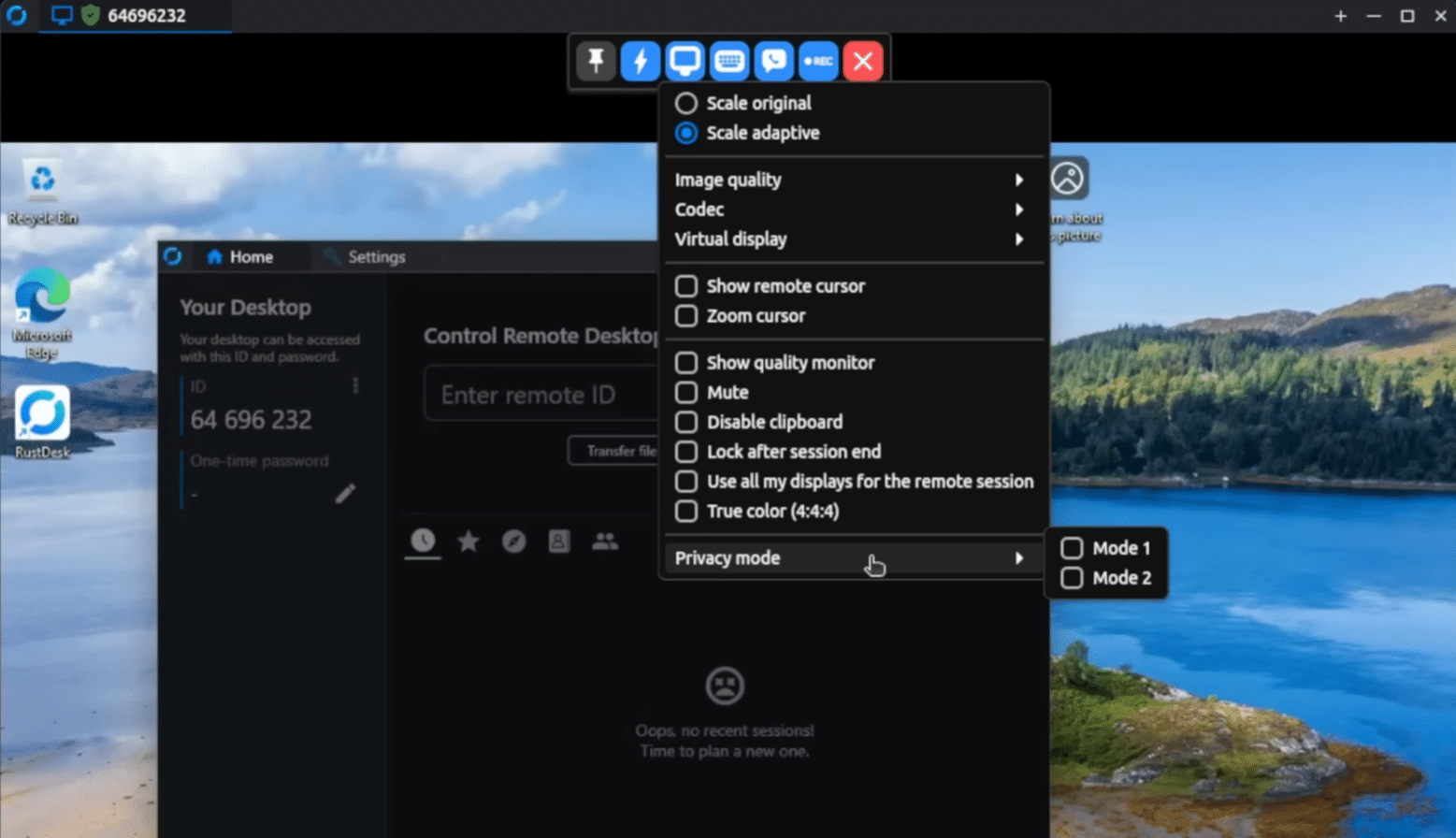
We tested RustDesk on a Windows 11 PC and used it to connect to another computer. The first connection was surprisingly straightforward: RustDesk immediately shows an ID and a temporary password, which you enter on the other device. The interface isn’t quite as polished as the biggest competitors, but it’s quick to understand—even if you’re just helping a family member with a computer problem.
What is RustDesk?
RustDesk is remote desktop software—also called remote access or remote control. It lets you view and control another computer’s desktop over the internet.
What sets it apart is that it’s open source. The source code is publicly available, and more technical users can deploy their own RustDesk server. That means you’re not forced to route connections through a specific commercial service.
For typical personal use, you can use RustDesk with the project’s public servers. There’s no subscription or complex server setup required to get started.
Download RustDesk for Windows, Mac, and Linux
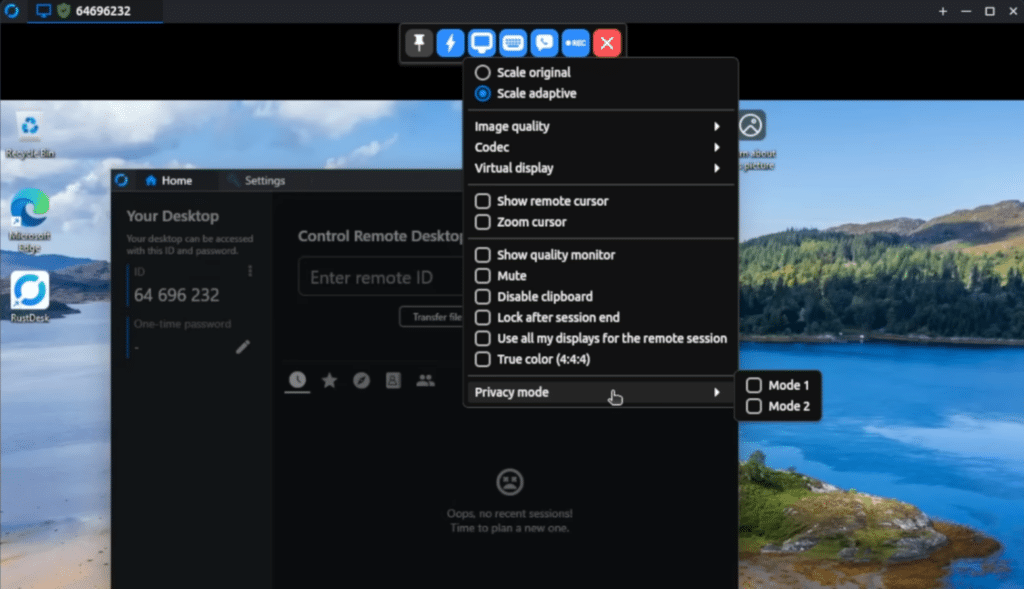
RustDesk is available for Windows, macOS, Linux, Android, and iOS, plus a web client. On Windows, you can either install it or run a temporary, portable version.
That’s handy for ad-hoc remote support. The person who needs help can open the app and share the on-screen ID and one-time password without going through a lengthy installation.
On Mac, RustDesk needs permissions for Screen Recording and Accessibility before full remote control works. Linux users can choose DEB, RPM, Flatpak, or AppImage. On iPhone and iPad, RustDesk can be used to control other devices, but the iOS device itself cannot be remotely controlled.
At the time of our review, the latest stable version was RustDesk 1.4.9. The update included improvements to file transfer and the clipboard, fixes for Wayland, and better connection tracking in the audit log.
Remote access without a complicated account
For typical remote support, you don’t need to create an account. On the computer being controlled, RustDesk shows an ID and a one-time password. Enter those details on the computer that’s initiating the connection.
During a session you can:
- Control mouse and keyboard
- Transfer files between devices
- Sync the clipboard
- Switch between multiple displays
- Adjust image quality and resolution
- Stream audio from the remote computer
- Record a remote session
- Reboot the PC and reconnect
File transfer worked well in our testing, even if the window feels a bit more technical than Windows File Explorer. It’s also nice that you don’t need to send documents by email or through a third-party cloud service.
Is RustDesk secure?
RustDesk uses peer-to-peer connections with end-to-end encryption based on NaCl. If a direct connection between devices can’t be established, traffic can be relayed through a server.
The option to use your own server is RustDesk’s biggest security advantage. Businesses and technical users can control the ID and relay infrastructure instead of relying solely on an external cloud service.
Remember, RustDesk is still remote-control software. If you give a stranger your ID and password, they can potentially see and operate your computer. Never share these details with an unexpected "Microsoft support representative," bank advisor, or anyone who cold-calls you.
For permanent, unattended access, use a long, unique password and limit permissions to only the features you actually need.
RustDesk with your own server
RustDesk Server OSS can be installed for free on a VPS, a local server, or certain NAS devices. The server handles identification and connection setup, while a relay server can carry traffic if a direct connection fails.
This option is especially appealing for:
- IT teams with data-control requirements
- Companies that provide remote support
- Users with multiple personal computers
- Organizations that don’t want to be locked into a single SaaS provider
- Technicians who want to place servers closer to users
Setup does require familiarity with Docker, networking, ports, and server administration. For helping a relative with a printer problem, the regular RustDesk client is far simpler.
RustDesk Server Pro adds web administration, an address book, 2FA, access control, an audit log, OIDC, and LDAP. It’s primarily relevant for businesses and larger deployments.
RustDesk compared to the alternatives
| App | Best for | Open source | Self-hosting | Note |
|---|---|---|---|---|
| RustDesk | Free remote access and data control | Yes | Yes | A bit more technical |
| TeamViewer | Professional support and enterprises | No | Not in the standard edition | Polished but expensive for business |
| AnyDesk | Fast, simple remote support | No | Only via special offerings | Very simple interface |
| Chrome Remote Desktop | Simple personal remote access | No | No | Fewer advanced features |
RustDesk is ideal if open source and the ability to self-host matter to you. TeamViewer and AnyDesk feel a bit more polished, while Chrome Remote Desktop is simpler for basic remote access. RustDesk lands in a great middle ground.
A strong free alternative to TeamViewer
RustDesk makes remote control accessible without immediately pushing you into a subscription. A typical connection requires only a few details, file transfer is built in, and the Windows version can run without a permanent installation.
Its biggest strength is the freedom to choose between public servers and a self-hosted setup. The flip side is that advanced options get technical quickly, and a few menus lack final polish. For home users, small businesses, and IT-savvy users, RustDesk is still one of the most compelling free remote desktop apps right now.
Top 5 RustDesk tips
1. Use one-time passwords for ad-hoc support
If you only need to help someone once, it’s safest to use the automatically generated one-time password instead of setting up permanent access.
2. Limit permissions
Disable file transfer, the clipboard, or keyboard control if the person on the other end doesn’t need those features.
3. Adjust image quality on slow connections
Switch to a lower image quality or resolution if the cursor stutters. It often makes a bigger difference than you’d expect.
4. Protect unattended access properly
Use a long, unique password if you want to access your own computer without someone approving the connection locally.
5. Consider your own server for regular use
A self-hosted RustDesk server gives you more control over the infrastructure and can be relevant for businesses, IT supporters, and advanced home users.
Frequently asked questions about RustDesk
Is RustDesk free?
Yes. The RustDesk client and the open RustDesk Server OSS are free to use. There are also paid Pro solutions for businesses.
Is RustDesk safe to use?
RustDesk uses end-to-end encryption. Security also depends on not sharing your ID or password with unknown people.
Can I use RustDesk without installing it?
Yes, the Windows version can run as a portable app. Installation is best for permanent, unattended access.
Does RustDesk work on Mac and Linux?
Yes. RustDesk supports macOS and several Linux distributions, as well as Windows, Android, iOS, and the web.
Can RustDesk replace TeamViewer?
For personal remote support and many small businesses, RustDesk can be a solid alternative. Larger organizations may want the Pro edition.
Can you remotely control an iPhone with RustDesk?
No. An iPhone or iPad can be used to control other devices, but the iOS device itself can’t be remotely controlled via RustDesk.