 Martin Jørgensen
Keeping your grafikkortdrivere up to date is essential to ensure the best performance, stability, and compatibility with the latest games and applications. An outdated driver can lead to lower FPS, graphical glitches, and even system crashes, which is especially frustrating for gamers and for those who work with graphics-heavy apps like video and photo editing.
When a new driver is released, it often includes optimizations for the latest games, delivering noticeable improvements in visuals, stability, and frame rate. If you’re seeing stuttering, screen flicker, slow performance, or even sudden shutdowns, a quick driver update often fixes the issue.
Even for everyday users without heavy graphics needs, it’s smart to keep your graphics driver up to date, as it ensures that Windows works correctly with your display, resolution, and any external monitors. Older drivers can also contain security vulnerabilities that may expose your system to malware and hacking.
In this guide, we walk you through, step by step, how to easily and safely update your graphics card drivers on Windows. Whether you have an NVIDIA or AMD graphics card, or you’re using Microsoft’s built-in driver, we’ll show you the best methods to keep your computer running smoothly. 🚀
Why is it important to update graphics card drivers?
Updated drivers ensure your GPU runs at its best, which is crucial for gaming, creative work, and the overall user experience. Gamers will often see noticeable gains in FPS (frames per second) and stability, while creative pros working with 3D rendering, video, and photo editing benefit from more accurate colors, faster render times, and fewer errors.
Here are some of the most important reasons (grunde til) to keep your graphics card drivers up to date:
✅ Improved performance – New drivers include optimizations for the latest games and apps, which can significantly improve visuals, speed, and stability. NVIDIA and AMD frequently release Game Ready drivers fine-tuned for specific titles to maximize FPS and minimize input lag.
✅ Bug fixes – Outdated drivers can cause artifacts, screen tearing, or black screens. Driver conflicts may also lead to crashes or unstable system behavior. Vendors continually work to eliminate these issues through driver updates.
✅ Better compatibility – New games, applications, and Windows updates often require the latest drivers to work correctly. With an outdated driver, a game might refuse to launch, or a new software feature may not function as intended.
✅ Security – Old drivers can contain vulnerabilities that attackers may exploit to gain access to your system. Such attacks are increasingly common, so keeping drivers current helps protect your PC from potential threats.
✅ Lower power usage – Newer drivers can optimize how your GPU manages resources, reducing power consumption and heat. This is especially important for gaming laptops, where thermals and battery life matter a lot.
If you’re experiencing low FPS, visual glitches, or system crashes, it’s a good idea to check whether your driver is up to date. Even if your PC seems fine, updating can still improve stability and security and help you get the best possible experience on your Windows computer. 🚀
How to check your current graphics card driver
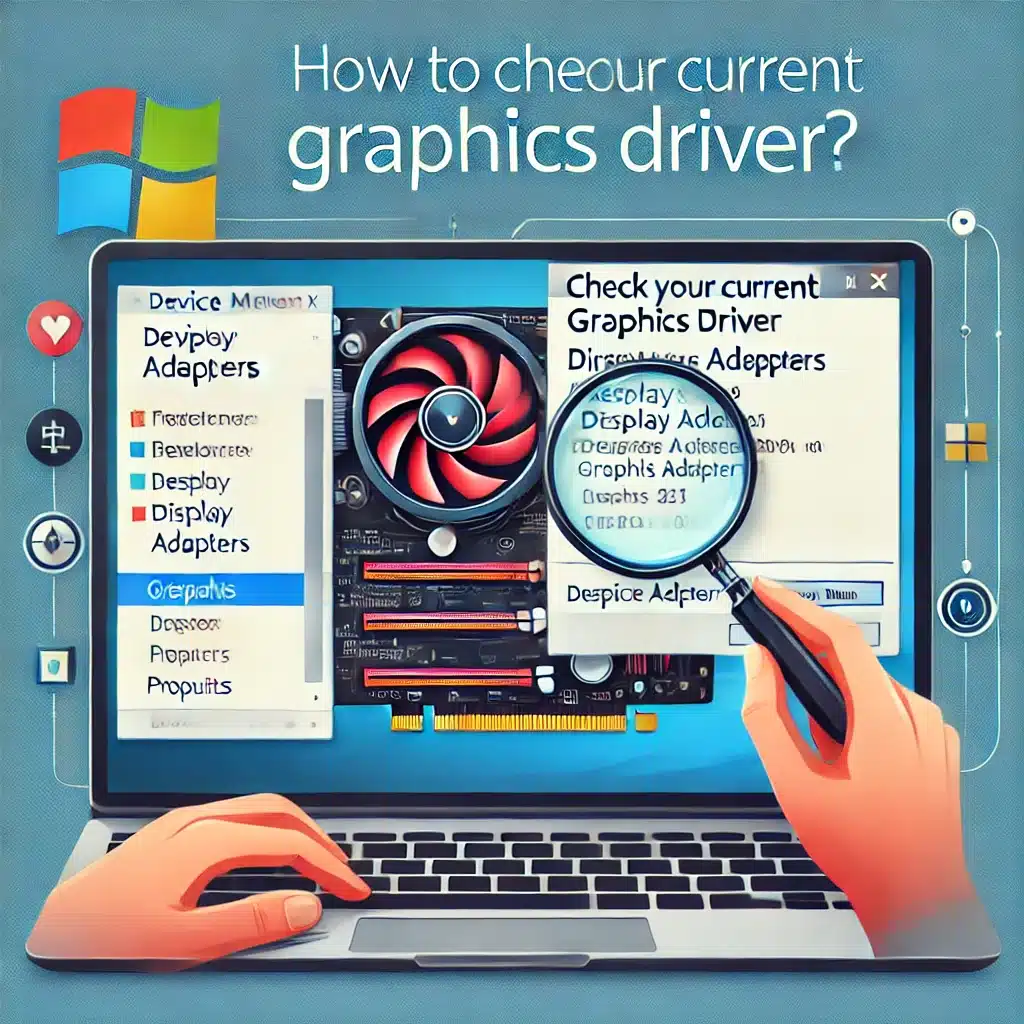
Before updating, find out which driver you have installed. This helps you decide whether you’re on the latest version or it’s time to update.
🔹 Method 1: Use Device Manager
This is the easiest way to view your current driver directly in Windows:
1️⃣ Open Device Manager by pressing Win + X and selecting Device Manager.
2️⃣ Find and expand Display adapters.
3️⃣ Right-click your graphics card and choose Properties.
4️⃣ On the Driver tab, you’ll see the version number, release date, and manufacturer of your current driver.
If your driver is more than a couple of months old, consider updating—especially if you play newer games or work with graphics-intensive applications.
🔹 Method 2: Use the DirectX Diagnostic Tool (dxdiag)
If you want more details, use the DirectX Diagnostic Tool:
1️⃣ Press Win + R, type dxdiag, and press Enter.
2️⃣ Go to the Display tab.
3️⃣ Under Drivers, you can see the version number and release date for your current driver.
This tool also shows your GPU specifications, which is helpful if you’re not sure which model you have.
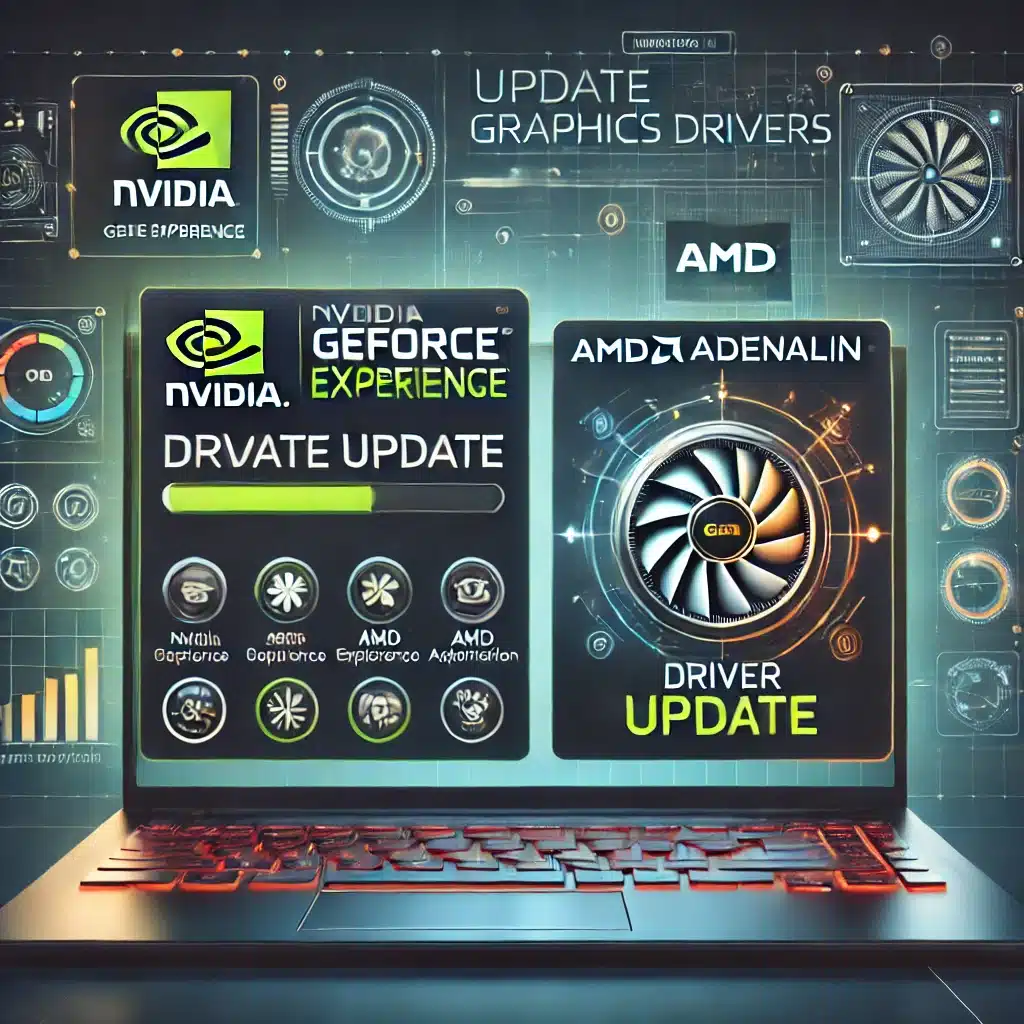
🔹 Method 3: Use the manufacturer’s software
If you have an NVIDIA or AMD graphics card, use their official software to view your current driver and check for updates:
- NVIDIA GeForce Experience: Open the app, go to the Drivers tab, and view the current version.
- 1 Software: Go to System > Software to find the driver version and check for updates.
🔹 Method 4: Use Windows Command Prompt
For advanced users, you can also check via Command Prompt:
1️⃣ Open Command Prompt (Win + R, type cmd, press Enter).
2️⃣ Enter the following command and press Enter:
wmic path win32_videocontroller get caption, driverdate, driverversion 3️⃣ You’ll now see your GPU name along with the version number and driver release date.
What now?
If your driver is old or not from your GPU manufacturer, it’s recommended to update it. This helps keep your system stable, fast, and protected against security threats. 🚀
Method 1: Update your graphics driver via Windows Update
Windows Update is the easiest way to update drivers because the system automatically finds and installs updates, including hardware drivers. It’s a good option for typical users who don’t want to deal with manual installs.
🔹 How to update via Windows Update:
1️⃣ Open Settings with Win + I and go to Windows Update.
2️⃣ Click Advanced options >Optional updates.
3️⃣ If a new driver is available, it will appear under Driver updates.
4️⃣ Select the driver and click Install.
5️⃣ Restart your PC if prompted to complete installation.
How does it work?
Windows Update pulls drivers from Microsoft’s database, which contains certified drivers from vendors like NVIDIA, AMD, and Intel. This ensures a stable, compatible installation, but Windows Update drivers are often a version behind what you can get directly from the manufacturer’s site.
When should you use this method?
✔️ If you don’t game or do graphics-intensive work and just want a stable, secure update.
✔️ If you want to avoid manual downloads and prefer a fully automated solution.
✔️ If you’re experiencing general stability issues in Windows and want to make sure all components are current.
When should you avoid this method?
❌ If you’re a gamer, as these drivers may not be optimized for the newest titles. NVIDIA and AMD often release Game Ready drivers that deliver better performance in specific games.
❌ If you work with video editing, 3D rendering, or CAD software, where the latest drivers can offer better hardware utilization.
❌ If you have an older PC where Windows Update may struggle to find the correct driver.
Tip: Make sure Windows Update finds the newest drivers
1️⃣ Check Windows Update manually at least once a month for driver updates.
2️⃣ Combine Windows Update with the manufacturer’s software (e.g., NVIDIA GeForce Experience or AMD Adrenalin Software) for the newest optimizations.
3️⃣ Watch for Optional updates, as Windows sometimes lists driver updates there instead of as critical updates.
While Windows Update is a simple and safe method, consider the alternatives below if you have more advanced needs. 🚀
Method 2: Update via the manufacturer’s software
If you have an NVIDIA or AMD graphics card, it’s recommended to use their official software to update your drivers. These tools ensure you get the latest optimizations, stability improvements, and bug fixes that often don’t arrive via Windows Update.
For NVIDIA (GeForce GPUs)
NVIDIA GeForce Experience is the official app for managing driver updates, game optimizations, and features like ShadowPlay (screen recording) and Ansel (in‑game photography).
1️⃣ Download and install NVIDIA GeForce Experience (official site).
2️⃣ Open the app and go to the Drivers tab.
3️⃣ Click Check for updates.
4️⃣ If a new driver is available, click Download.
5️⃣ After download, choose Express installation (quick) or Custom installation (lets you remove old drivers).
6️⃣ Restart your PC if required.
💡 Tip: If you have issues after updating, you can roll back to an earlier version by downloading an older driver from NVIDIA’s archive on their website.
For AMD (Radeon GPUs)
AMD Adrenalin Software not only updates drivers but also provides features like Radeon Boost (dynamic FPS optimization), Radeon Anti-Lag, and FreeSync for a better gaming experience.
1️⃣ Download AMD Adrenalin Software (official site).
2️⃣ Open the app and click Check for Updates.
3️⃣ If a new driver is available, click Download & Install.
4️⃣ After installation, you may need to restart your PC.
💡 Tip:AMD offers a “Factory Reset” option during installation. If you’ve had problems with previous versions, select this to remove old driver files and perform a clean install.
When should you use this method?
✔️ When you want the latest optimizations for games and software.
✔️ If you play modern games and want access to Game Ready drivers (NVIDIA) or Adrenalin optimizations (AMD).
✔️ If you want extra GPU features such as auto performance tuning, screen recording, or anti‑lag technologies.
When should you avoid this method?
❌ If you don’t want additional software on your PC.
❌ If you have an integrated GPU (Intel HD Graphics), which is best updated via Windows Update or manually from Intel’s site.
❌ If you don’t game or use graphics‑intensive apps, since Windows Update is often sufficient.
How to choose the right update method
- Gamers: Use the manufacturer’s software for the newest optimizations.
- Creative users: Update via the manufacturer’s software for better performance in video and photo editing.
- Everyday users: Windows Update is usually enough unless you have specific issues.
Using GeForce Experience or AMD Adrenalin Software is a quick, safe, and easy way to ensure your GPU runs the best available driver. 🚀
Method 3: Manual installation from the manufacturer’s website
If you want the newest driver without extra software, download it manually.
1️⃣ Find your GPU model
- Press Win + R, type
dxdiag, and press Enter. - On the Display tab, you’ll find your GPU name.
2️⃣ Download the latest driver
3️⃣ Install the driver
- Run the installer and follow the on‑screen instructions.
- Restart your PC after installation.
Pros:
✔️ No unnecessary software.
✔️ You get the newest driver directly from the vendor.
Cons:
❌ Manual steps — can be confusing for beginners.
Troubleshooting: What if something goes wrong?
If a new driver causes issues, you can roll back to the previous version:
1️⃣ Open Device Manager (Win + X >Device Manager).
2️⃣ Under Display adapters, right‑click your GPU and choose Properties.
3️⃣ On the Driver tab, click Roll Back Driver.
4️⃣ Restart your PC.
Other fixes:
🔹 Try reinstalling the driver from the manufacturer’s site.
🔹 Use System Restore if the issue is severe.
🔹 If you get a black screen after updating, boot Windows into Safe Mode.
What’s the best way to update your driver?
Your needs determine the best method:
✔️ Beginners: Windows Update is the easiest solution.
✔️ Gamers: Use NVIDIA GeForce Experience or AMD Adrenalin for optimal performance.
✔️ Advanced users: Download the driver manually from the manufacturer’s website.
By keeping your graphics card drivers up to date, you ensure your Windows PC runs at its best—whether you game, work on graphic design, or just want a stable experience.