
 Martin Jørgensen
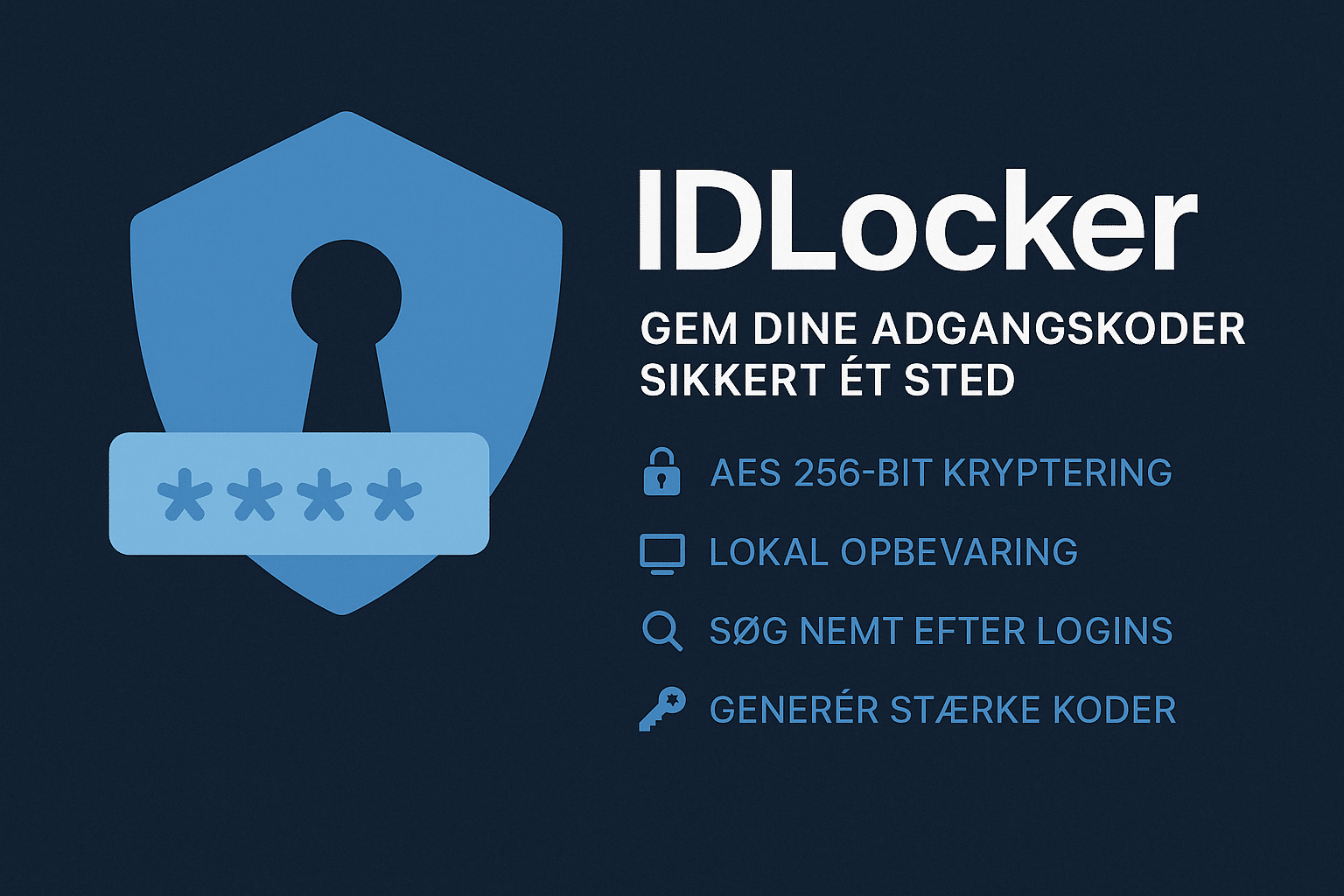
🔐 IDLocker – Securely store all your passwords in one place.
Are you tired of forgetting your passwords—and frustrated with resetting them over and over? With IDLocker, you only need to remember one master password—the app takes care of the rest.
1 is a free, user-friendly password manager that stores all your logins and sensitive data in an encrypted, secure way. With AES encryption, automatic form filling, and search, it’s a solid solution for keeping your digital keys under control.
Features in IDLocker
- 🔑 Store unlimited passwords securely in one database
- 🔐 AES 256-bit encryption — the same standard used by banks and government agencies
- 🔍 Built-in search — find the right login fast
- 📄 Form autofill — stop retyping your name, address, and email again and again
- 🧠 Password generator — create strong, unique passwords with one click
- 💼 Also save details like bank accounts, cards, or license keys
Easy to use and secure
IDLocker runs locally on your computer and doesn’t require cloud integration or a subscription. That means you have full control over your data, and nothing is shared with third parties.
You can take your database with you — for example on a USB drive — and the app doesn’t need constant updates or an internet connection to work.
Top five tips and tricks for IDLocker
1. Use two-factor authentication (2FA) for extra security
Even though IDLocker is protected with strong encryption, we highly recommend enabling 2FA — for example with an app like Google Authenticator or Authy. It adds an extra layer of protection so your passwords don’t depend on a single master password.
2. Organize your logins with folders and tags
If you have many passwords, things can get messy fast. Use IDLocker’s folders and optional tags to group logins into “Personal,” “Work,” “Bank,” “Social media,” etc. It saves time and reduces mistakes.
3. Enable automatic password generation
When you create a new account, IDLocker can automatically generate strong, unique passwords. This is crucial since many breaches stem from reused or weak passwords. Use it every time — and save automatically.
4. Store more than just passwords
IDLocker can also store credit card details, license keys, notes, and documents. Use it as a secure digital safe — especially for things you often lose track of. For example, your Social Security number (SSN), Wi‑Fi passwords, insurance policies, and more.
5. Use the browser extension for quick access
Install IDLocker’s browser extension for Chrome, Firefox, or Edge. It lets you autofill login fields, save new passwords with one click, and quickly access your data — without signing into the main app each time.



