
 Martin Jørgensen
Windows Shutdown Assistant – smart Windows shutdown automation
Windows Shutdown Assistant is a small but very handy tool that lets your PC shut down, sleep, or perform other power actions automatically. We tested it on a Windows 11 machine, where installation was quick, while setup took a couple of minutes to get used to—especially if you want multiple automated actions to run at the same time.
The app is especially useful if you tend to forget to power off, download large files overnight, or work on machines that shouldn’t be left on unnecessarily.
Features and automation
Windows 1 offers far more than just automatic shutdown. Among the most useful features we found:
• Automatic shutdown by timer or at a specific time
• Shutdown triggered by CPU usage
• Shutdown on low battery (e.g., laptops running unplugged)
• Actions on inactivity
• Schedule multiple tasks at once
In our test, fungerede CPU-triggeren overraskende (the CPU trigger worked surprisingly well)—perfect if you let the PC run jobs that finish at an unknown time.
Interface and reminders
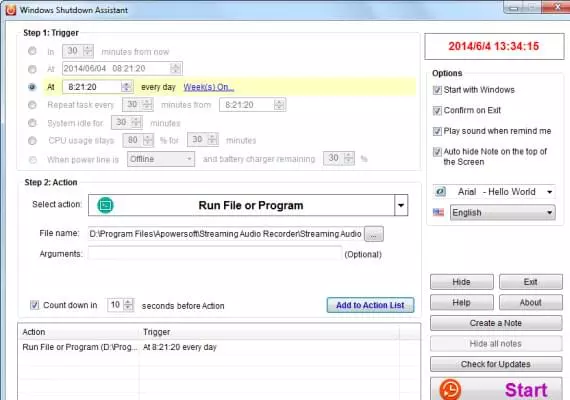
The app has a simpel og meget overskuelig brugerflade (a simple, very easy-to-use interface). When a scheduled action is about to run, you get a small on‑screen countdown where you can cancel if you’re still working. That’s one of our favorite features—many auto‑shutdown tools don’t offer this kind of failsafe.
Reminders can appear in different ways, and we saw no issues with pop‑ups or notifications in Windows 11.
Performance and stability
During testing, Windows Shutdown Assistant used virtually no system resources. It ran quietly in the background without noticeably affecting CPU or RAM—important for a tool that’s often left running around the clock.
When is this tool most useful?
In the United States, automatic shutdown timers are often used for:
• Gaming PCs downloading large updates
• Workstations that shouldn’t stay on overnight
• Older computers with unstable power management
• Kids’ PCs with time limits
• Small offices without centralized management
Here, fungerer det klart bedre (it clearly works better) than many built‑in Windows options because it offers more triggers and greater flexibility.
Top 5 tips for Windows Shutdown Assistant
Use the CPU trigger for long downloads or rendering
That way, your PC shuts down only when the job is finished.
Create multiple concurrent tasks
For example, shut down at 11 PM and sleep after 30 minutes of inactivity.
Enable countdown with warning
It gives you time to cancel if you’re still at the keyboard.
Use reminders for work routines
You can show a small note before shutdown—especially useful in office environments.
Set different actions based on power status
Switch between Sleep and Shut down depending on whether the PC runs on battery power.



