
 Martin Jørgensen
Get rid of “Can't delete file” in Windows
IObit Unlocker is a lightweight yet powerful Windows utility that helps when files or folders refuse to be deleted, moved, or renamed. If you’ve seen the classic Windows message that a file is in use by another program—without knowing which one—this is exactly the kind of problem IObit Unlocker is built to fix.
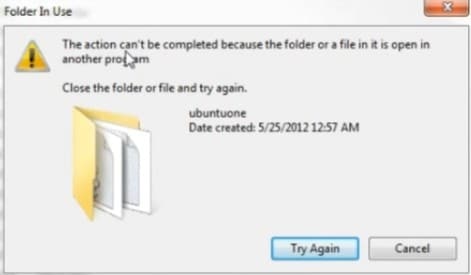
We tested the tool on a standard Windows 11 PC where a leftover folder from an uninstalled app couldn’t be removed manually. With IObit Unlocker, it took under 10 seconds to identify the process and release the folder—no restart required.
How IObit Unlocker works in practice
Instead of guessing which program is locking a file, IObit Unlocker shows exactly which processes are holding onto it. The utility integrates directly into the Windows right-click menu so you can work quickly without extra steps.
When you run IObit Unlocker on a file or folder, you typically get these options:
- Unlock & Delete
- Unlock & Rename
- Unlock & Move
- Unlock & Copy
Alternatively, you can drag a file or folder directly into the program window if right-click isn’t possible (e.g., for system folders).
Ease of use and stability
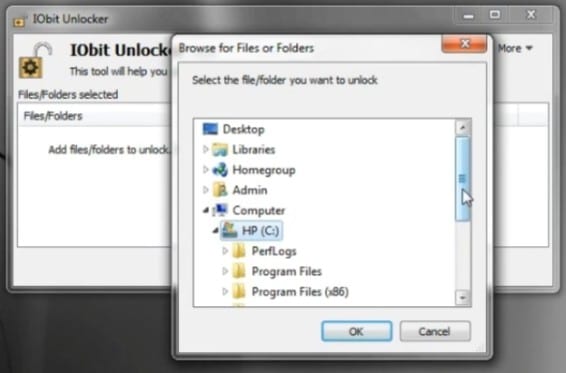
The interface is very straightforward and free of unnecessary features. That makes the program suitable for everyday home users as well as more technical users who want a quick fix.
In our testing, we encountered no crashes or conflicts, and the program used virtually no system resources—even while working on locked files.
When does IObit Unlocker make the most sense?
IObit Unlocker is especially useful in these situations:
- When Windows refuses to delete files after an uninstall
- When temporary files are locked by unknown processes
- When folders can’t be moved or renamed
- When you want to avoid rebooting just to delete a file
It’s not a must-have for daily use, but an extremely effective troubleshooting tool that’s great to have installed.
Top 5 tips for IObit Unlocker
Use right-click first
In most cases, right-clicking the file or folder is the fastest and most reliable solution.
Avoid forcing system files
If IObit Unlocker warns about critical system processes, pause and double-check what you’re deleting.
Use “Unlock & Rename” if unsure
If you’re unsure whether a file can be deleted, rename it first and see if the issue returns.
Combine with a restart for tough cases
In rare cases, a restart together with unlocking at boot can deliver the best result.
Use it for troubleshooting — not just deleting
The program is also useful for identifying which application is holding onto a file.
A simple tool that solves an annoying Windows problem
IObit Unlocker does exactly what it promises without bloating your system with unnecessary features. It’s one of those tools you rarely use—but when you need it, it’s invaluable.



