
 Martin Jørgensen
McAfee Antivirus – reliable antivirus protection focused on peace of mind
McAfee Antivirus is a well-known antivirus solution that delivers effective protection against viruses, malware, and ransomware. It’s especially suited to users who want a stable, well-tested security product without having to fiddle with advanced settings. In our test on a standard Windows 11 PC, installation was quick, and the app ran steadily in the background with no noticeable impact on system performance.
In some regions McAfee is marketed as 1 Plus, but functionally it’s the same core antivirus solution.
Features and security technology
McAfee Antivirus combines real-time protection with cloud-based threat analysis. That means new threats can be identified almost instantly, even if they haven’t yet been added to traditional virus databases.
In practice, we saw suspicious files blocked at download, and the web protection reacted quickly to known phishing sites.
The program includes:
- Real-time antivirus and anti-malware protection
- Ransomware protection
- Firewall and network traffic monitoring
- Automatic virus definition updates
- System vulnerability scanning
It’s not the most feature-packed suite on the market, but as a pure antivirus solution McAfee delivers a high level of security.
Performance and system impact in daily use
One of the classic issues with antivirus software is slowdowns. Here McAfee performed surprisingly well. During everyday use—browsing, office work, and light gaming—there were no obvious performance drops.
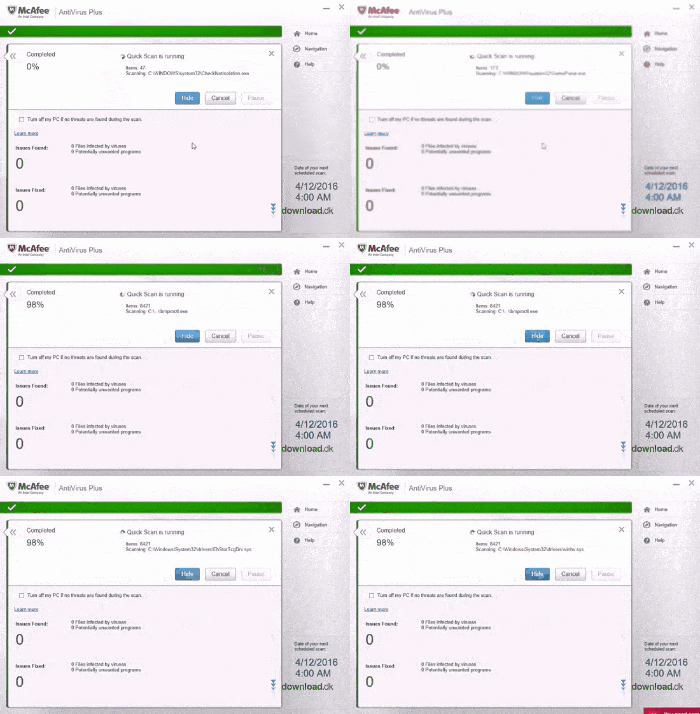
Scans run by default when your computer is idle, and you can schedule full system scans yourself. That makes the program suitable for both work and home PCs where you don’t want interruptions.
Installation, interface, and ease of use
Installation takes only a few minutes and requires creating a McAfee account. It’s one extra step, but you get centralized license management, a device overview, and support in one place.
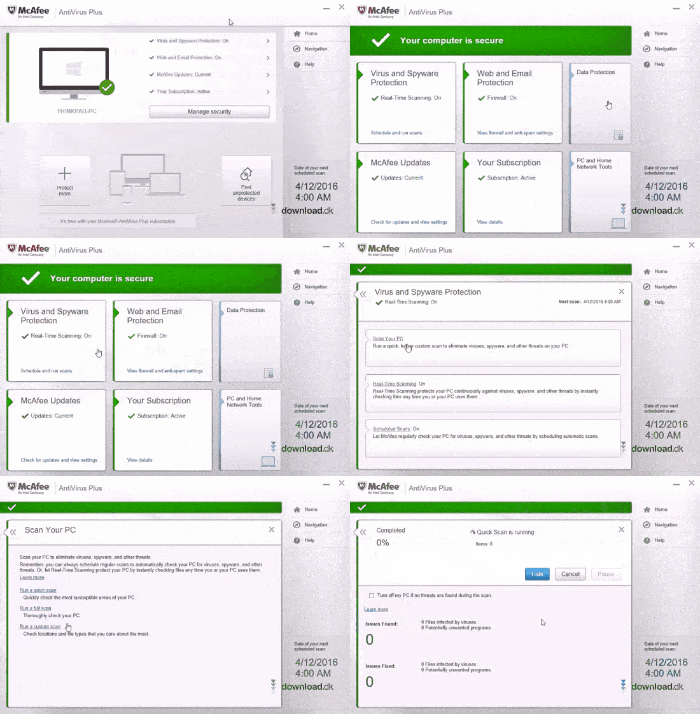
The dashboard is clean and easy to navigate, with the most important features front and center. Even non-technical users can quickly see what’s active and whether the computer is protected.
Notifications can be tuned, which we especially appreciated in testing—particularly if you use your PC for work or gaming.
McAfee Antivirus in the US – who is it for?
In the United States, McAfee is particularly popular among users who prefer a “set-and-forget” antivirus. You pay for the solution, but in return you avoid ads, limitations, and constant upsell prompts.
If you also want a VPN, password manager, and identity protection, consider McAfee Total Protection instead. McAfee Antivirus is primarily a strong core package.
Alternatives to McAfee Antivirus
If you want to compare, here are several relevant alternatives:
- McAfee Total Protection – a more comprehensive security suite with VPN
- AVG AntiVirus Free – free antivirus with more limited protection
- 1 Plus – a strong competitor focused on performance
We always recommend choosing based on your needs: free vs. paid, simple vs. advanced.
Top 5 tips for McAfee Antivirus
Create your McAfee account right away
When you install McAfee Antivirus, you’ll be asked to create an account—and you should do it right away. Your account is the key to your subscription and makes it far easier to manage your license if you switch computers or reinstall Windows. During our test, we used the account to quickly reactivate the software after a reinstall without contacting support. You also get a device overview, remote management, and access to McAfee’s support hub directly in your browser, which saves time if problems arise.
Make sure real-time protection is on
Real-time protection is the backbone of McAfee Antivirus. It scans files and apps the moment they’re opened or downloaded and stops threats before they reach the system. It’s worth checking this setting after major updates or system changes, as it can rarely be turned off. If you’ve disabled it temporarily to test an app, remember to turn it back on—otherwise you lose the most important layer of protection.
Schedule scans outside work hours
McAfee lets you decide when full system scans run. We recommend scheduling them overnight or early in the morning when the computer isn’t in use. That way you avoid unnecessary load while you work, game, or stream—delivering strong security without daytime slowdowns.
Review the threat log regularly
The threat log is an underrated tool in McAfee Antivirus. It shows which files, websites, or actions were blocked and when. Reviewing it monthly gives you a clear picture of your own risk behavior—for example, whether certain websites frequently trigger alerts, or a specific program repeatedly attempts suspicious actions. That insight helps you adjust habits and improve overall security.
Customize notifications
By default, McAfee sends a number of messages about scans, updates, and security events. Some users find that reassuring, while others find it distracting. Fortunately, notifications are easy to customize in settings. In our testing we chose alerts only for real threats and critical events, which made for a calmer experience—especially during work and gaming, where pop-ups can get annoying fast.



