
 Martin Jørgensen
Microsoft Paint – The classic for quick and easy image editing
This free, user-friendly drawing app for Windows has been a staple on millions of PCs for years. It offers simple tools to draw, color, and edit images—perfect for everything from lightning-fast cropping to basic illustrations.
Whether you want to make a quick sketch, save a screenshot as a PNG, or draw something for your kids, Paint is still a favorite among many Windows users—and you can download it free here.
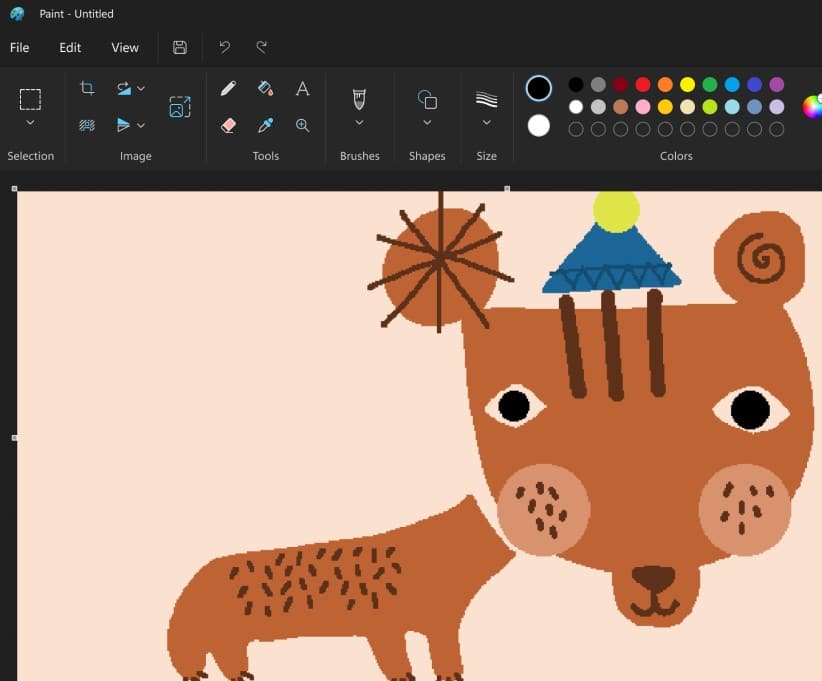
Drawing tools and features

Paint’s toolbar includes classic tools such as:
- Brush, pencil, and spray can
- Fill bucket
- Selection tool and crop
- Text, shapes, and color picker
- Zoom and eraser
All features are easy to access and intuitive. With its simple layout, both kids and adults can get started quickly—no manuals or technical knowledge needed.
Colors and shapes
Paint includes a large collection of built-in shapes: arrows, stars, hearts, callouts, and many more. You can easily change size, color, and position, and the Edit Colors button gives you an advanced color mixer with full control over RGB and HSL.
Save in multiple formats: PNG, JPEG and GIF

When you’re done with your image, you can save it in popular file formats such as:
- PNG – high quality, supports transparency
- JPEG – great for photos and compression
- GIF – ideal for simple graphics and animation
You can also use it as a quick tool to open and convert images between these formats.
Paint 3D – A modern successor

In 2017, Microsoft launched Paint 3D, which builds on the classic Paint with 3D features and a more modern design. Still, many prefer the original version because it’s fast, simple, and not overloaded with features.
Is Paint still relevant?

Yes—especially for quick tasks. Don’t underestimate its ability to:
- Quick image editing
- Teaching and kids’ activities
- Simple illustrations for social media and emails
It’s not Photoshop—and it doesn’t need to be.
Top 5 tips for Microsoft Paint
Use keyboard shortcuts
If you want to work faster in Microsoft Paint, learn the keyboard shortcuts. The most useful are Ctrl + Z to undo, Ctrl + Y to redo, Ctrl + S to save, and Ctrl + A to select the entire canvas. You can also use Ctrl + E to view image properties and change the resolution. These shortcuts don’t just save time—they make the app much more efficient, especially if you often make small edits or sketches.
Create your own colors
Paint offers a range of standard colors, but you’re not limited to them. Click Edit Colors to open the color mixer, where you can define colors using RGB or HSL values. If you need a very specific shade for brand colors or a logo match, enter the values manually. You can save up to 16 custom colors, which appear at the bottom of the palette, ready to reuse in your projects.
Use zoom for detail work
If you need to change single pixels or work on tiny details, the zoom tool is essential. Use the magnifying glass in the toolbar or press Ctrl + Page Up/Page Down to zoom in and out quickly. Zoom up to 800% so you can see and adjust every pixel precisely—especially useful for icons, game sprites, or cleaning up old images.
Make use of shapes and callouts
Paint includes a surprisingly good selection of shapes that can save you a lot of manual work. Drag circles, rectangles, arrows, lightning bolts, stars, and more into your image with a few clicks. Shapes can be freely scaled and rotated, and the Outline and Fill menus let you style them exactly how you want. Callouts—speech and thought bubbles—are great for fun captions, posters, or simple comics.
Combine with Paint 3D
Paint 3D isn’t a replacement for the classic Paint, but it’s an excellent companion. Install it free via the Microsoft Store and open your old .png or .bmp files directly in the app. Here you can take your drawings to the next level by adding 3D objects, textures, stickers, or painting with a 3D brush. It also lets you export your creations in 3D formats and even print them on a 3D printer if you have access to one.



