

 Martin Jørgensen
Take all your software on the go with PortableApps.com — a completely free download for your Windows PC.
Want to carry your favorite programs with you so you can access them anywhere? Or maybe you’d like to keep your personal apps and your work apps separate on your home PC or work computer? Then PortableApps.com might be the answer to your needs! This platform can be used for both purposes and much more.
In short, the PortableApps.com platform is a program launcher you can install on, for example, a USB drive or Google Drive. From there, you get access to a huge library of some of the most popular and widely used desktop programs that you can install and take with you everywhere. For example Apache OpenOffice and many other programs.

What’s clever about PortableApps.com is that each program runs isolated in its own folder. In other words, the apps are “portable.” You can use them on any computer you access via your USB drive or preferred cloud service. That way, you can also keep your files and programs separate and protect your privacy.
Installation and the launcher
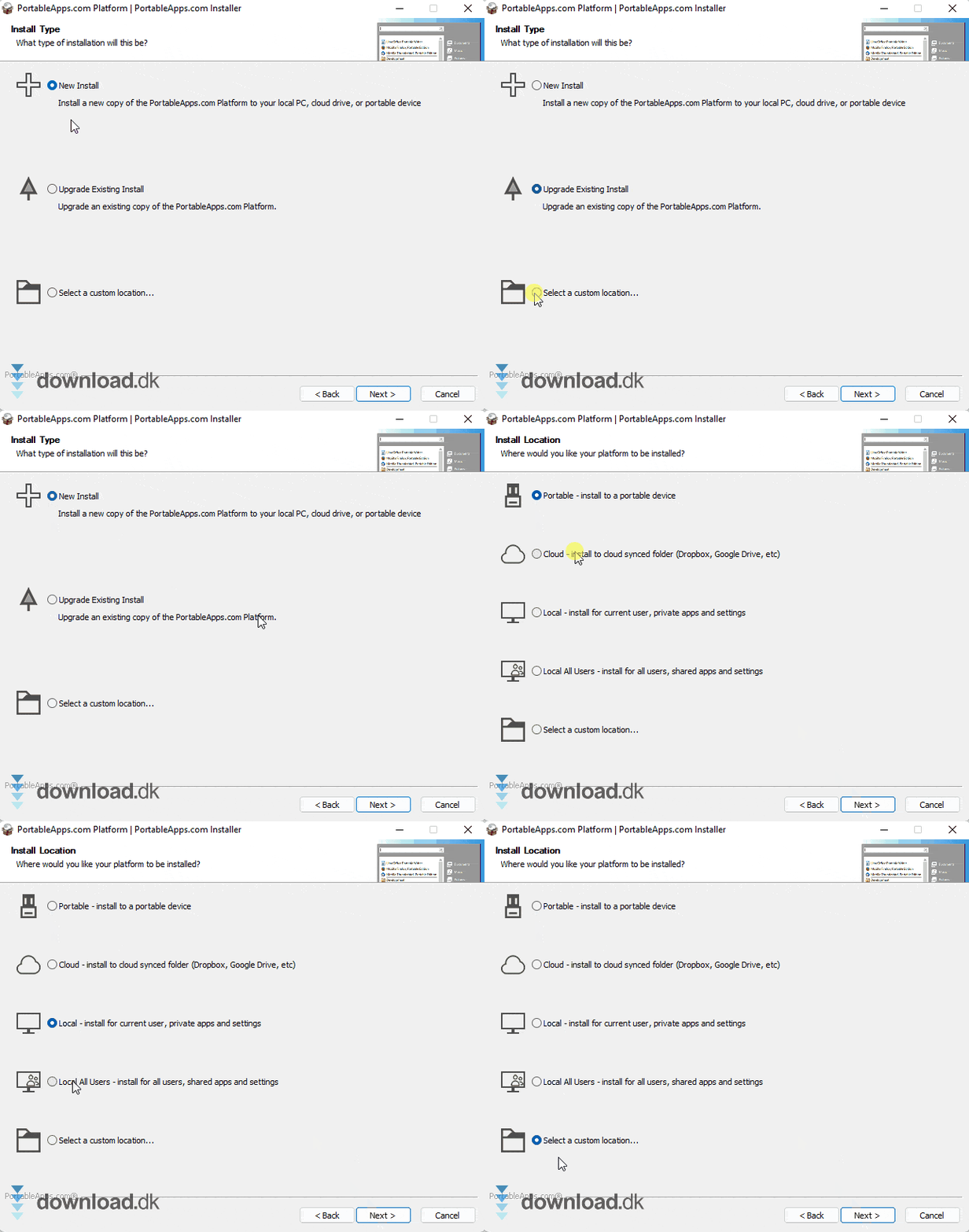
We tested PortableApps.com on a computer running Windows 11. The installation was smooth and took only a moment. You can choose to create a new installation or upgrade an existing one. We chose a new installation and placed it in a new folder on the desktop. The installer also asks whether you want to install the platform directly to a USB drive or to a cloud service such as Google Drive or Dropbox.
After installation, you’re presented with the launcher, which lives in the bottom-right corner of the screen as a small icon. The launcher is the app’s interface for opening your “portable” programs or fetching new ones. You can access it at any time.
The program launcher also lets you store your Documents, Music, Pictures, Videos, and other file types. This is super handy: when you use PortableApps.com on a new computer, you not only have your favorite apps with you, but you can also access all your files and documents.
Downloading “portable” apps
When the installation finishes, PortableApps.com immediately asks if you want to download some apps so you can get started quickly. The list is long, and you can download everything from text editors to email clients and web browsers. Many are well-known open-source programs such as the image editor Gimp.
In our test, we used the launcher to download the web browser Mozilla Firefox and the audio editor Audacity. The process was simple and problem-free, so we believe most users can get up and running with PortableApps.com quickly. This isn’t just a tool for power users or techies—PortableApps.com can be used by anyone, whether you’re a programmer or you primarily browse the web and write documents.
If you want to add more apps later, just click the PortableApps.com icon in the bottom-right corner, choose the “Apps” button, and open the app store. You can browse apps by name or category.
The launcher and its settings
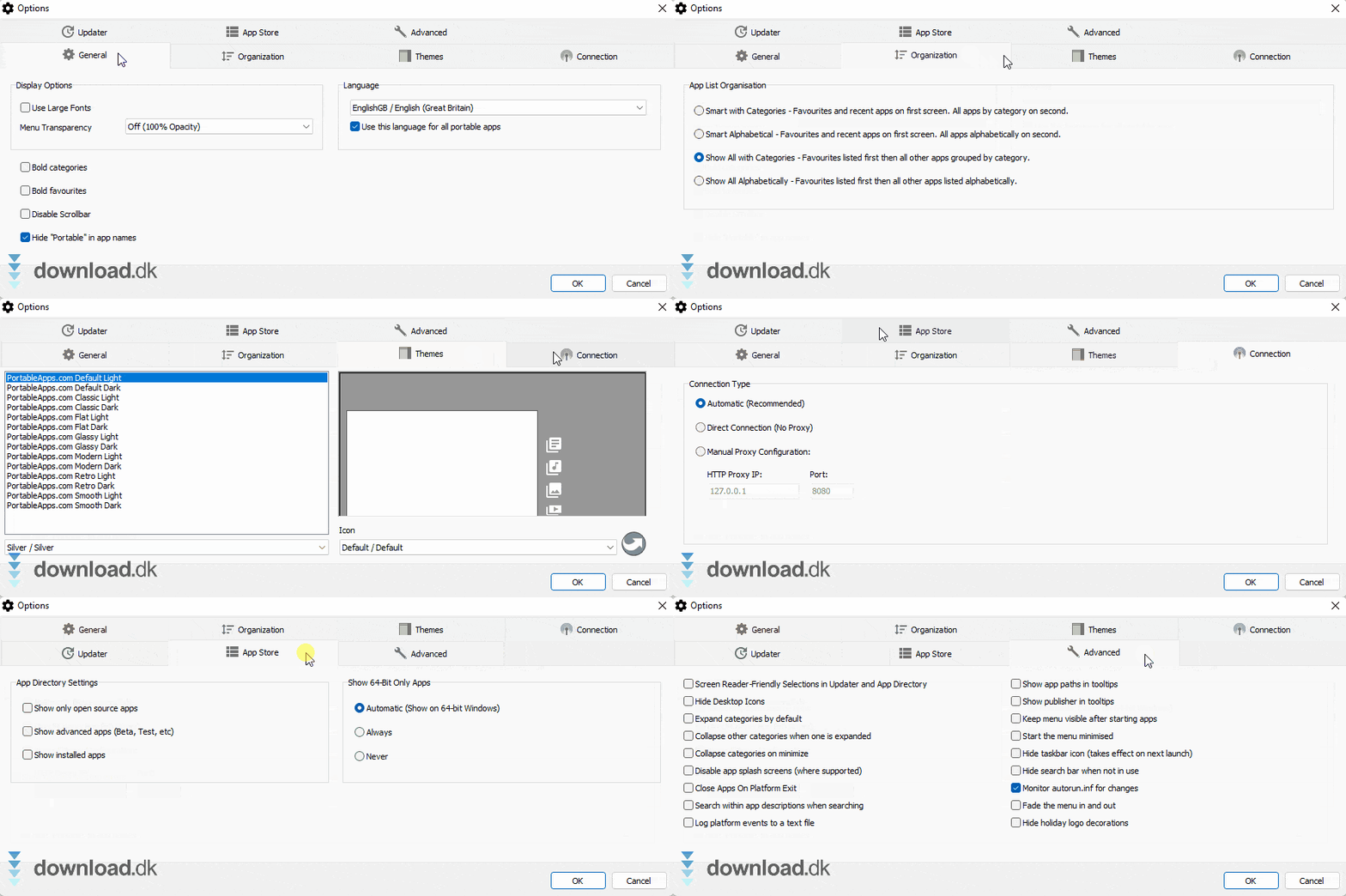
If you want to dive deeper into the launcher, there are various settings to explore. You can customize its look with different themes and colors. That’s great if, for example, you want the PortableApps.com launcher to match your desktop theme.
There are also more advanced options. For example, you can set the launcher to automatically check for app updates or choose how you want to categorize your apps. We didn’t tweak many settings, and we don’t think most people need to change much either—but you can, of course, tailor it to your personal needs.
Different possibilities
As mentioned at the top of the page, the great thing about PortableApps.com is that you can always take your apps and files with you. That’s especially useful if you want to protect your privacy and therefore don’t want to use an internetbrowser on a public computer. Instead, you can quickly carry a portable edition of Mozilla Firefox on your USB drive and use it anytime, anywhere.
Overall, PortableApps.com is also a smart way to organize your files if you don’t always use the same computer or if, for example, you want to keep your personal life and work life separate. You could set up PortableApps.com on a USB drive with all your personal files and use it at the office whenever you need access to them on your work PC.
There’s also a backup feature worth mentioning. It’s easy to find—the button is in the middle of the launcher on the right side. We didn’t test this function, but it appears you can quickly back up all your apps and files. If you already created a backup earlier, you can also restore it and get everything back. Smart!

Conclusion
In short, we’re big fans of PortableApps.com! It’s incredibly convenient to take your favorite programs and files with you wherever you go. You won’t always be at a computer that already has everything you use day to day. It’s also great that the launcher lets you organize your files and back them up. We recommend that all our users check out PortableApps.com!
Download PortableApps.com


