
 Martin Jørgensen
Resource Tuner – Edit and customize EXE files and Windows resources
Resource Tuner is a unique Windows utility that lets you peek under the hood of your EXE and DLL files. We tested it on a Windows 11 PC and were impressed by how easy it was to extract, modify, and replace graphical assets in applications—without breaking the files.
With Resource Tuner, you can view, edit, extract, and replace everything from icons and logos to dialog boxes, text, bitmaps, and menus. It’s an ideal tool for anyone who wants to customize software or translate interfaces into English.
Features and use cases
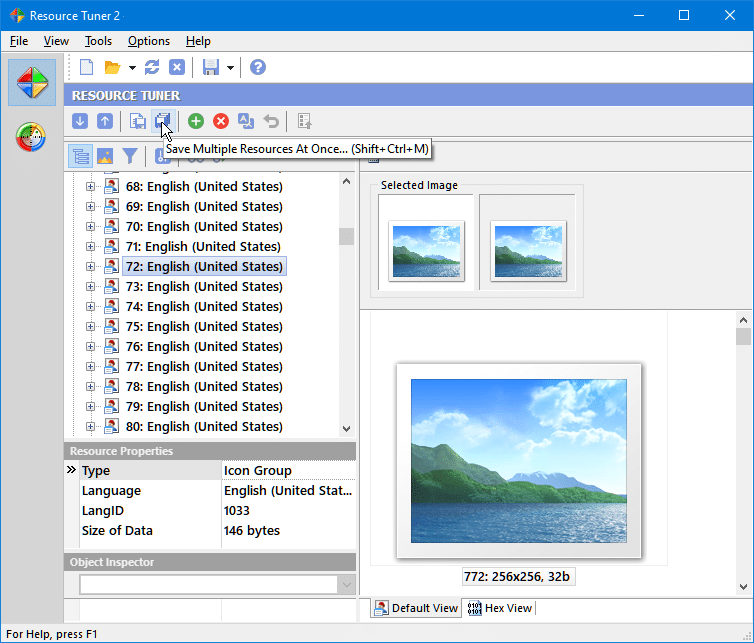
The app is built for users who want full control over visual and text-based resources in Windows applications:
🧩 View and edit resources: Open EXE, DLL, or CPL files and see the structure in a clear hierarchy.
🎨 Replace graphics and icons: Swap images, icons, and logos without affecting the program’s functionality.
🗂️ Extract content: Save individual elements such as icons, dialog boxes, or string tables.
🌍 Perfect for translators: Edit string tables in apps and create English language versions.
🔒 Preserve stability: Changes are saved directly to the file without harming its functionality.
In our testing, it opened even large EXE files in seconds, and we could save changes without errors. The interface is technical but very intuitive—especially for anyone who has worked with development or resource tools before.
Ideal for power users and developers
For power users, designers, and translators, Resource Tuner is a hidden gem. It lets you change everything from button labels to app icons, so you can craft your own visual style or localize software into English.
Developers also use it to quickly check which resources an application contains without opening heavyweight IDEs like Visual Studio.
Limitations and licensing
You can try Resource Tuner free for 30 days; after that, a license is required. It’s actively maintained and compatible with the latest versions of Windows 10 and 11.
Top 5 tips for Resource Tuner
Get the most out of the program:
1. Always make a backup before editing
Save the original file first so you can easily restore it if something goes wrong.
2. Use “Replace Resource” for icons
It’s the fastest way to update an icon without touching the app’s metadata.
3. Translate text strings
Open the “String Table” on the left—this is where you can translate dialogs and menu items.
4. Export graphic assets
Save images and icons as separate files if you want to reuse them in your own designs.
5. Inspect unknown EXEs
Open any EXE to view developer information, languages, and internal structure.



