
 Martin Jørgensen
PingPlotter Free – Visually find bottlenecks and network issues
PingPlotter Free is a network analysis tool that makes it easy to pinpoint where connection problems occur between your computer and the internet. It combines traceroute, ping, and latency measurements in a clear, visual interface so even complex network issues are easier to understand.
We tested PingPlotter Free on a typical Windows 11 PC over both wired and Wi‑Fi. Installation took under a minute, and after just a few clicks we could see exactly where the connection started to falter—in our case, the router, not the internet provider we initially suspected.
Real-time graphical network monitoring
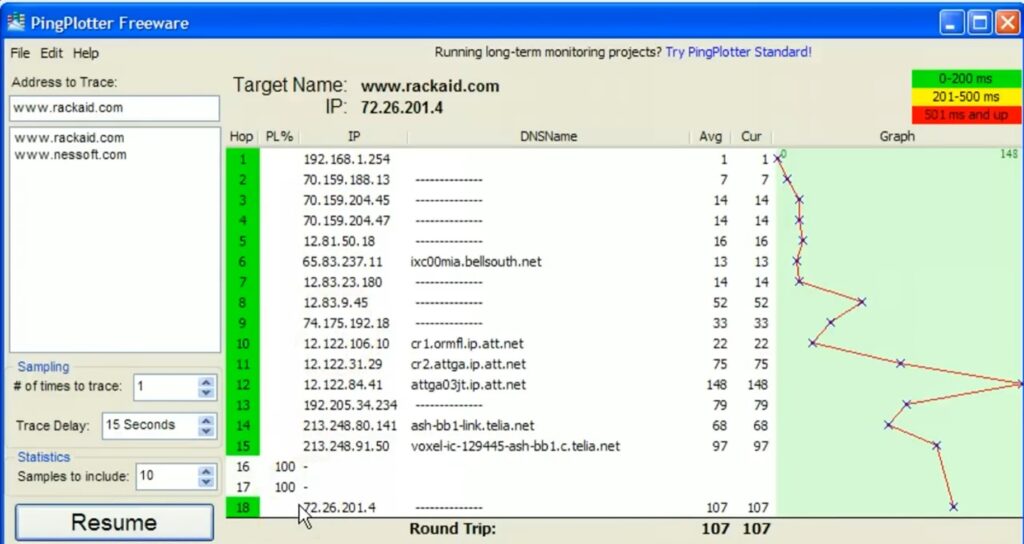
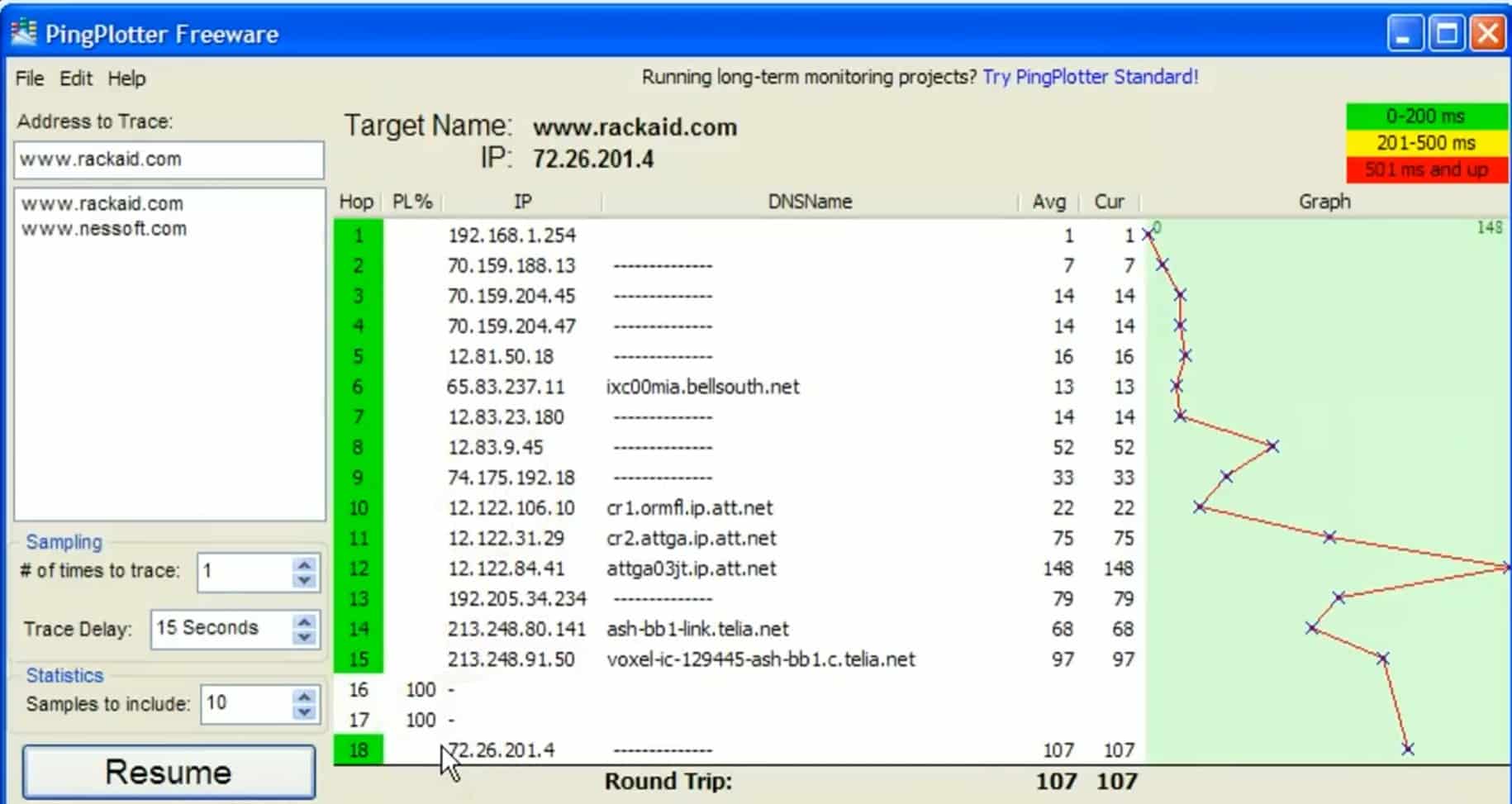
What sets PingPlotter apart from classic network tools is its visual approach. Instead of raw numbers, you get graphs, timelines, and a hop‑by‑hop view of the path your data takes to a server.
This makes the program especially useful if you experience:
- Unstable internet connection
- High ping in games
- Choppy video calls
- Intermittent dropouts that are hard to reproduce
PingPlotter Free can run in the background for extended periods and reveal patterns that only show up occasionally—such as in the evening or under heavy load.
Long-term monitoring—even in the free version
Although PingPlotter Free has limitations compared to the paid editions, you can still monitor your connection in real time and see when and where issues arise. The program stores measurements temporarily and makes it easy to take screenshots or export data if you need to document problems for your ISP or a network administrator.
A handy feature is the ability to receive alerts when the connection becomes unstable—something we often see used by gamers and remote workers.
When does PingPlotter Free make the most sense?
PingPlotter Free isn’t a one‑click fix—it’s a diagnostic tool. It’s perfect when you want to know where the problem is—not necessarily how to fix it automatically.
In the U.S., we most often see interest in PingPlotter for:
- Fiber and cable internet with intermittent dropouts
- Online gaming (CS2, Valorant, Fortnite, etc.)
- Remote work and VPN connections
- Troubleshooting before contacting support
Top 5 tips for PingPlotter Free
Always test both wired and Wi‑Fi
If the issue only happens on Wi‑Fi, PingPlotter will often reveal it’s on your local network—not your ISP.
Let the test run for at least 10–15 minutes
Short tests can miss intermittent problems that only occur sporadically.
Use well-known servers as targets
Test against Google DNS or game servers to avoid false positives from unknown destinations.
Grab screenshots when the issue occurs
They’re invaluable when documenting issues for your provider.
Watch for packet loss—not just ping
Low ping isn’t everything. Even small amounts of packet loss can cause major problems in practice.



