

 Martin Jørgensen
Use your favorite photos to create beautiful collages with ShapeX! Download the free tool for Windows!
On this page, you can learn about ShapeX. With this free tool, you can turn your photos into stunning, truly unique collages! It’s super handy, because you can finally put those pictures of family and friends to creative use instead of letting them collect dust on an external hard drive in a drawer.

One of the really cool things about ShapeX is that you can choose the shape of the collage yourself. For a concrete example, you can add some family photos to the program, then choose to form the collage as a heart, a tree, or something else entirely. ShapeX will generate a collage in the shape you want with a unique pattern, which you can adjust using the buttons in the app. And if you want, you can export the collage in high resolution so it’s ready to be printed and framed for the wall. Smart!
In the following sections, we cover how to set up ShapeX and use its different features. At the very bottom of the page, you can read our overall verdict on the program.
Platform, language, and installation
ShapeX unfortunately only works on computers running Windows. If you use another platform, feel free to look for other programs here on Download.dk. For example, check out our Mac category. In addition, ShapeX is available in English only.
The ShapeX tool is a so-called “portable” application. That means you don’t need to install anything. You simply download ShapeX as a compressed ZIP folder and extract it on your computer—e.g., on the desktop. You can quickly delete ShapeX later if you no longer need it.
We tested ShapeX on a PC running Windows 11 Home. As you can see in the GIF below, it only takes a moment to extract the ZIP folder with the program.

Once you’ve extracted the file, just open the folder and click the program’s EXE file. ShapeX will start.
User interface and functionality
When you open ShapeX for the first time, it can be a bit confusing. The interface is very visual, and there isn’t much text explaining how to use it. You can, however, watch a short YouTube video at the link right here.
Start by clicking the “Load images” button to add photos. Some small sample images of various figures are included, but you can also pick your own images from your computer—for example, photos of family, friends, or coworkers if you want to make a personal collage.
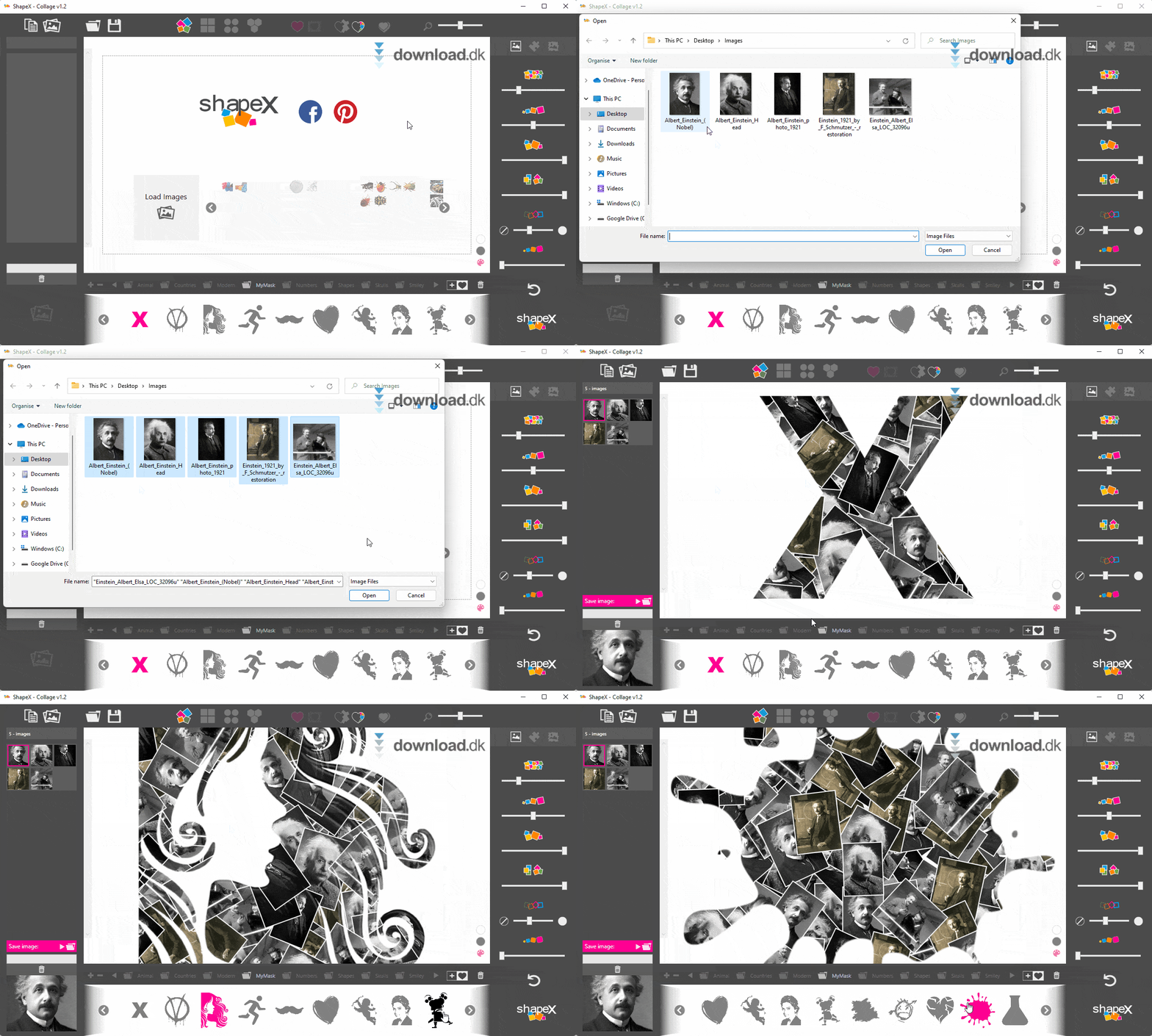
As shown in the GIF above, we used a few photos of Albert Einstein to test the program. Next, choose the desired shape for your collage at the bottom of the app. ShapeX includes many different shapes out of the box, and you can add new ones by clicking the plus button on the right.
After you’ve imported your images and selected a shape, you can go wild with the various controls at the top and along the right side.

All of these buttons control the pattern the program uses to generate your collage. It’s a bit hard to explain, but we hope the GIFs give you a feel for how ShapeX works.
When you’re done with your collage, click the save button in the top-left corner—the one shaped like an old-school floppy disk. You can choose different export sizes, which is handy. Finally, pick the folder where the collage should be saved, and voilà—you’ve got a beautiful, one-of-a-kind photo collage!
Other tools from the same developer
Here on Download.dk, we’ve also checked out several other exciting tools from the same developer, Dan Stromi. You can visit the developer’s website by clicking here.
For example, you can grab rEASYze, a simple tool for batch-editing many images at once. If you have a folder of vacation photos to upload to your website, you can quickly resize them and add watermarks to all of them in no time. Compared to editing each image individually, rEASYze can save you a lot of time.

Dan Stromi also created Sniptool. It’s a super-handy utility for saving screenshots and screen recordings. The program is easy to use and can export images and videos to many different file formats. You can see the interface in the GIF below.
Conclusion
In short, we think ShapeX is a really fun little tool. Instead of keeping your photos hidden away for years on your hard drive, you might as well use them to create something creative—like these photo collages with ShapeX.
Because the program only takes a moment to download and extract, we recommend everyone give it a try. You can always delete ShapeX again if you decide it’s not for you. Rather than just reading this, you’ll get a much better feel for ShapeX by actually using it—your collages will be completely unique and personal when you’ve imported your own photos and chosen your preferred collage shape in the program.
If you have the time and interest, try the developer’s other tools as well—such as rEASYze and Sniptool.
Download ShapeX


