
 Martin Jørgensen
Shotcut – free and flexible video editing for all skill levels
Shotcut is an open-source video editor that combines an intuitive design with a range of powerful features. It’s one of the best free alternatives to paid programs like Adobe Premiere Pro and is ideal for both beginners and experienced users.
Easy start – advanced capabilities
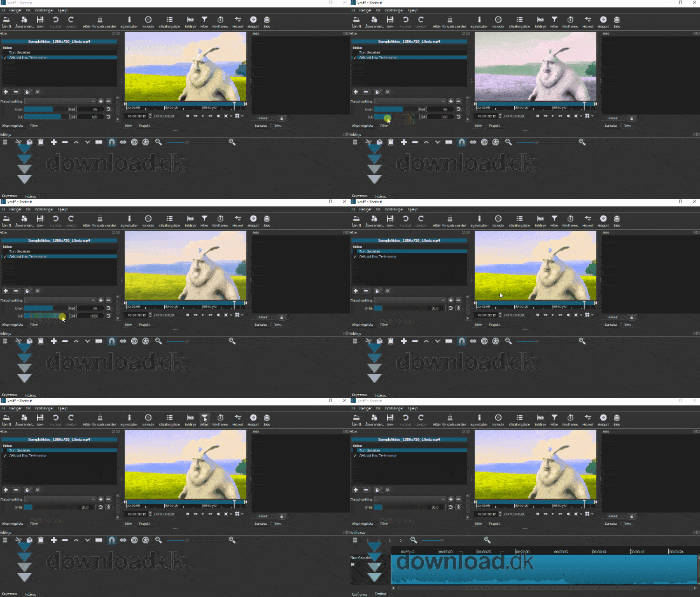
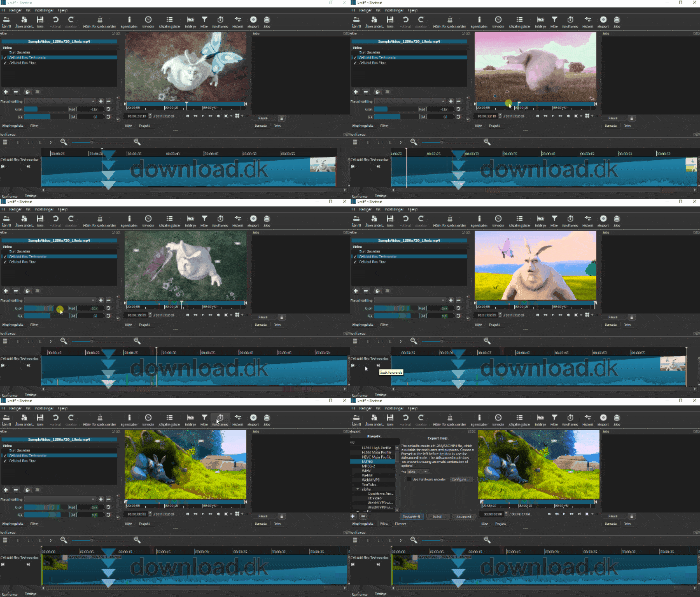
Shotcut requires no sign-up or registration, and you can start editing your video right after installation. The interface consists of four main sections:
- Video preview
- Effects and filters
- Project management and export
- The timeline at the bottom
Shotcut supports drag-and-drop and uses non-destructive editing, so your original files remain unchanged.
Supports all major formats
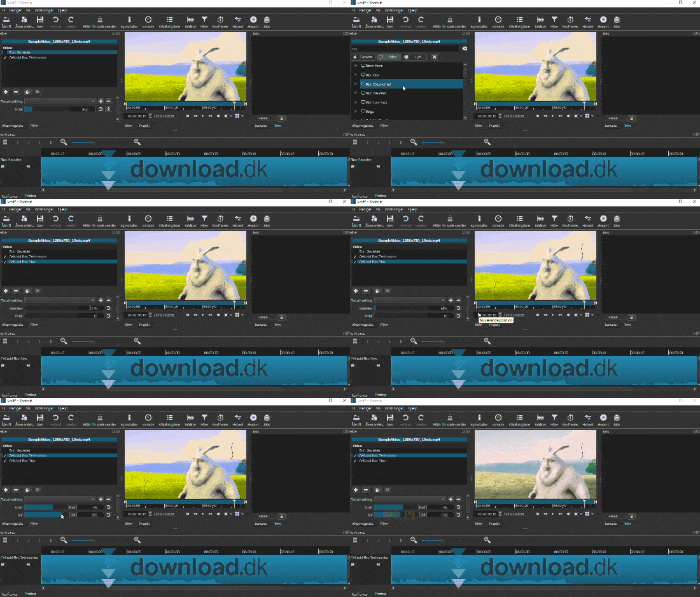
Shotcut is known for its wide format support—for both import and export. You can work with:
- MP4, MOV, AVI, WebM, MKV, FLV, and many more
- Audio formats like MP3, AAC, WAV, OGG
- Image formats like JPG, PNG, BMP
So you don’t have to convert your files before you get started.
Effect filters and color correction
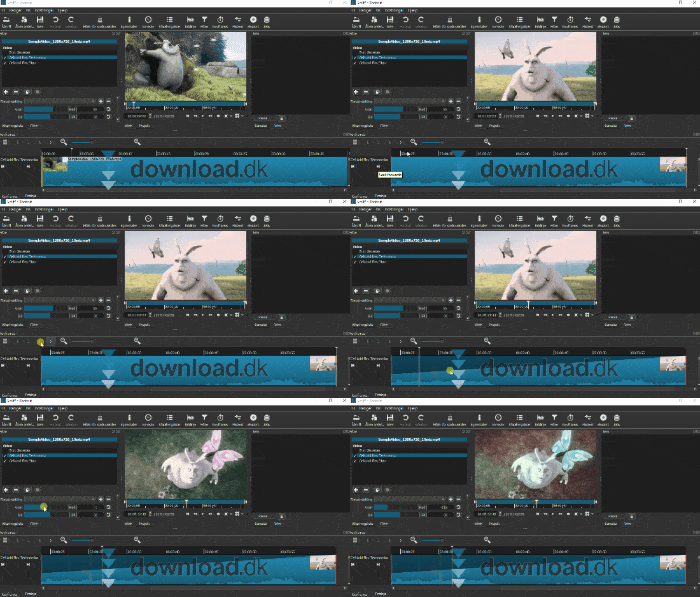
The program includes an impressive selection of effects and filters you can apply to both video and audio:
- Adjust contrast, brightness, and saturation
- Green screen (chroma key)
- Audio filters like EQ, compression, and normalization
- Fade in/out, wipes, and picture-in-picture effects
All filters can be adjusted and combined through an easy-to-use interface.
Timeline and multi-track editing
Shotcut offers a flexible timeline where you can work with multiple video clips, images, and audio tracks at the same time. That makes it easy to:
- Sync audio and video
- Adjust volume per clip
- Add text or logos
- Split and trim in just a few clicks
Customize the timeline with zoom, magnetic snapping, and layering for precise, organized editing.
Top 5 Shotcut tips
1. Use “snapping” on the timeline for precise edits
Enable “Snap” (the magnet icon above the timeline) so your clips automatically align with each other or with markers. This makes precise cutting easier and helps you avoid unintended gaps on the timeline.
2. Add filters directly to clips for better control
Instead of editing the entire project globally, select a single clip and click “Filters”. From there, you can add color correction, fade in/out, text, green screen effects, and much more—right down to the individual video segment.
3. Use proxy files for faster editing
If your computer struggles with large, high-resolution video files, enable “Proxy editing” under Settings > Proxy > Enable Proxy. Shotcut then creates temporary low-resolution files for smooth editing and exports in full quality.
4. Save your own filter presets
When you’ve found the perfect effect or color correction, save it as a preset so you can quickly reuse it in future projects. It saves time and ensures visual consistency.
5. Learn keyboard shortcuts for a faster workflow
Shotcut supports a range of efficient keyboard shortcuts – for example:
Sto split a clipCtrl + Zto undoIandOto set in and out points
You can even customize them via Settings > Keyboard Shortcuts.



