 Martin Jørgensen
How to move your Skype contacts to Microsoft Teams – the easy guide
Microsoft is shutting down Skype, and Teams is taking over – what does that mean for you? Whether you use Skype personally or for work, you’ll soon need to switch to Microsoft Teams. Fortunately, moving your contacts and conversations is easy if you set it up correctly from the start.
In this guide, we walk you through, step by step, how to transfer your Skype contacts to Teams without hassle, so you can continue your conversations seamlessly.
📢 When is Skype shutting down?
In Skype it says that Skype will close in May 2025, but Microsoft has not yet announced a final date for when Skype will disappear entirely. The focus is clearly on moving users to Microsoft Teams, so it’s likely to happen soon. If you still use Skype, you should start planning the switch now, especially if you have many contacts or use it professionally.
🔄 Transfer Skype contacts to Microsoft Teams – step by step

Microsoft has made it relatively easy to move your contacts. Here’s how:
🔹 For individuals
- Sign in to Microsoft Teams
- Download and install Microsoft Teams if you don’t already have it.
- Sign in with your Microsoft account (the same one you use for Skype).
- Find your Skype contacts in Teams
- Go to "Chat" in the left menu.
- Click "New chat" and search for your Skype contacts.
- Many Skype users are already available in Teams automatically!
- Invite contacts that weren’t transferred
- If some of your contacts don’t appear, you can manually send them an invitation to Teams.
- If some of your contacts don’t appear, you can manually send them an invitation to Teams.
- Syncing chats and calls
- Microsoft does not automatically sync old Skype conversations to Teams. If you want to keep old messages, you can export your chat history from Skype manually (see below).
🔹 For businesses
If your company uses Skype for Business, the process is a bit different:
- Check your Microsoft 365 plan
- Skype for Business has already been replaced by Teams in most Microsoft 365 subscriptions.
- Automatic migration
- Many virksomheder get their Skype contacts automatically transferred to Teams.
- The IT administrator can check this via Microsoft Admin Center.
- Manual import of contacts
- If your contacts aren’t transferred automatically, you can export them from Skype and import them into Teams.
- Employee training
- Teams has more features than Skype. Make sure your employees know the differences — e.g., meeting settings, file management, and team channels.
📥 How to export your Skype data

If you want to keep your chat history or contact list from Skype, do this:
- Go toSkype’s eksportværktøj
- Sign in with your Microsoft account
- Select the data you want to download (contacts, chat history, mediefiler)
- Click "Send request"
- When the file is ready, you can download it as a ZIP-fil
OBS: Microsoft Teams does not support direct import of Skype chat log files. You must save them locally if you want to keep them.
🔍 Should you choose Teams or a Skype alternative?
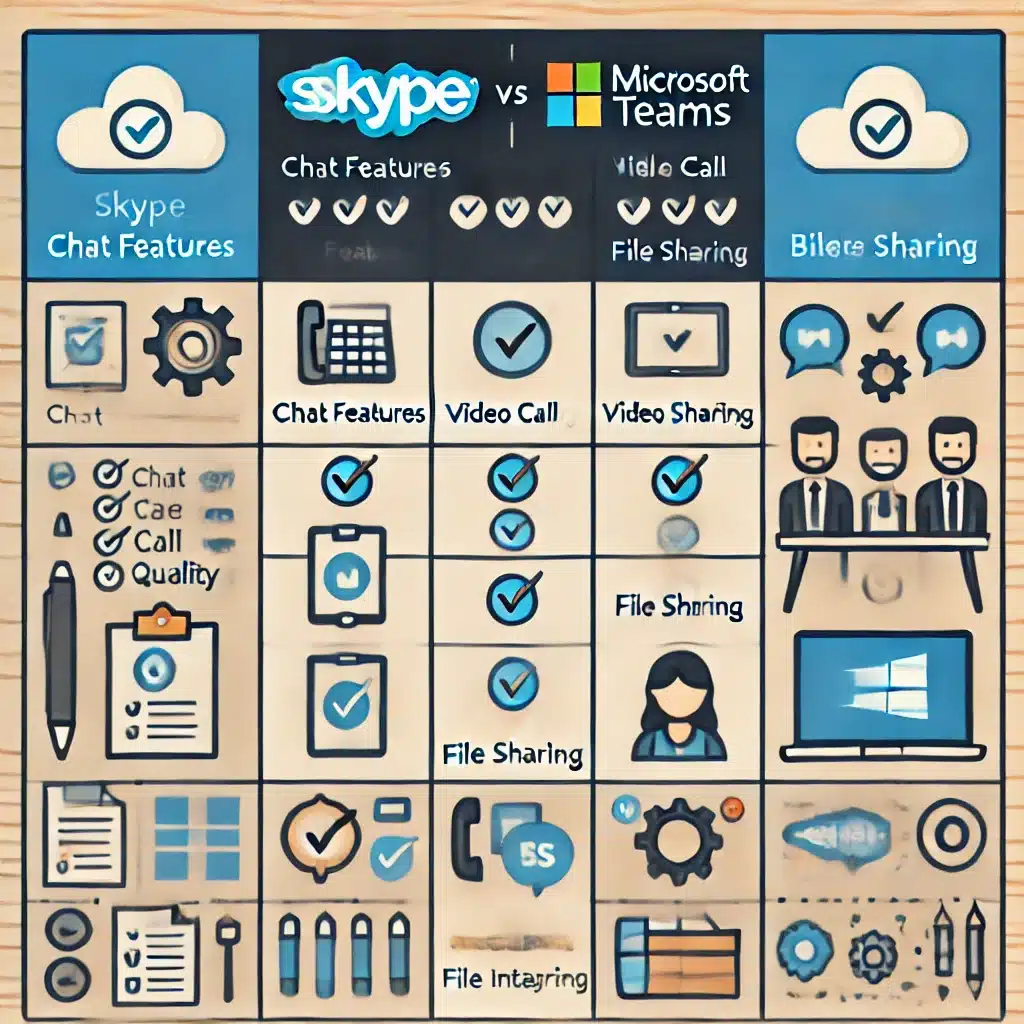
Microsoft Teams isn’t the only option. If you primarily use Skype for personal communication, alternatives like Zoom, WhatsApp, Google Meet or Discord may also be relevant.
But if you already use Microsoft 365, Teams offers the best integration and the most features for both personal and business use.
📌 Get started with Microsoft Teams
Microsoft Teams is the future for Skype users, and the transition doesn’t have to be difficult. By signing in with your Microsoft account in Teams, many of your Skype contacts will already be available. For businesses, much of the process will happen automatically, but it may be necessary to check manual import and employee training.
If you want to save your old Skype conversations, you must export them manually, since Teams does not sync history from Skype.
Ready to switch to Microsoft Teams? Download det her and start moving your contacts today!
Top 10 tips for Skype users moving to Microsoft Teams

Microsoft Teams is far more advanced than Skype, but for new users it can feel like a big change. If you previously used Skype for chat, calls, and meetings, here are the 10 best tips to help you get off to a great start with Teams.
1️⃣ Sign in with your Microsoft account
If you already use Skype, you have a Microsoft account. Use the same account to sign in to Microsoft Teams so you automatically get access to some of your contacts.
How to do it:
- Download Microsoft Teams from Microsoft’s website.
- Sign in with your Microsoft account (the same as on Skype).
- Check whether your contacts have already been transferred.
2️⃣ Find your Skype contacts in Teams
Many of your Skype contacts are already in Teams! Use the search feature to find and chat with them.
How to do it:
- Go to "Chat" in the left menu.
- Click "New chat" and search for a contact.
- If the contact uses Skype, you can still send messages via Teams.
3️⃣ Get to know the new chat features
Skype was simple — Teams can do much more! You can still send messages as before, but now you can also:
✅ Create group chats with more features
✅ Add reactions (emojis) to messages
✅ Format text with bold, italic, and 🎨 colors
✅ Schedule meetings directly from the chat
4️⃣ Use "Meetings" instead of Skype calls
In Skype you could easily start a call. In Teams it’s called "Meetings", and they offer more options:
📅 Schedule meetings in advance
🔗 Share meeting links directly in chats
🎥 Turn video on/off during the call
💬 Use live chat during the meeting
Tip: Use the small "camera" button at the top of the chat to quickly start a meeting!
5️⃣ Turn on captions in meetings
Having trouble hearing what’s being said? Teams has a brilliant live captions feature!
How to do it:
- When you’re in a meeting, click "More actions" (···)
- Select "Turn on live captions"
Perfect for noisy environments or if someone speaks softly.
6️⃣ Create "Teams" for better collaboration
Skype only had chats and calls. In Microsoft Teams, you can create Teams — groups where you can share files, post messages, and work together.
👥 For businesses: Create Teams for departments or projects
👨👩👧👦 For families: Create a Team for your family so everyone has one shared chat
📎 For clubs: Share files and plan events
7️⃣ Use Microsoft 365 integration
Microsoft Teams isn’t just a Skype replacement — it’s integrated with Office 365!
📂 Share Word and Excel files directly in chat
📌 Pin important documents in a channel
🗂 Create shared notes in OneNote
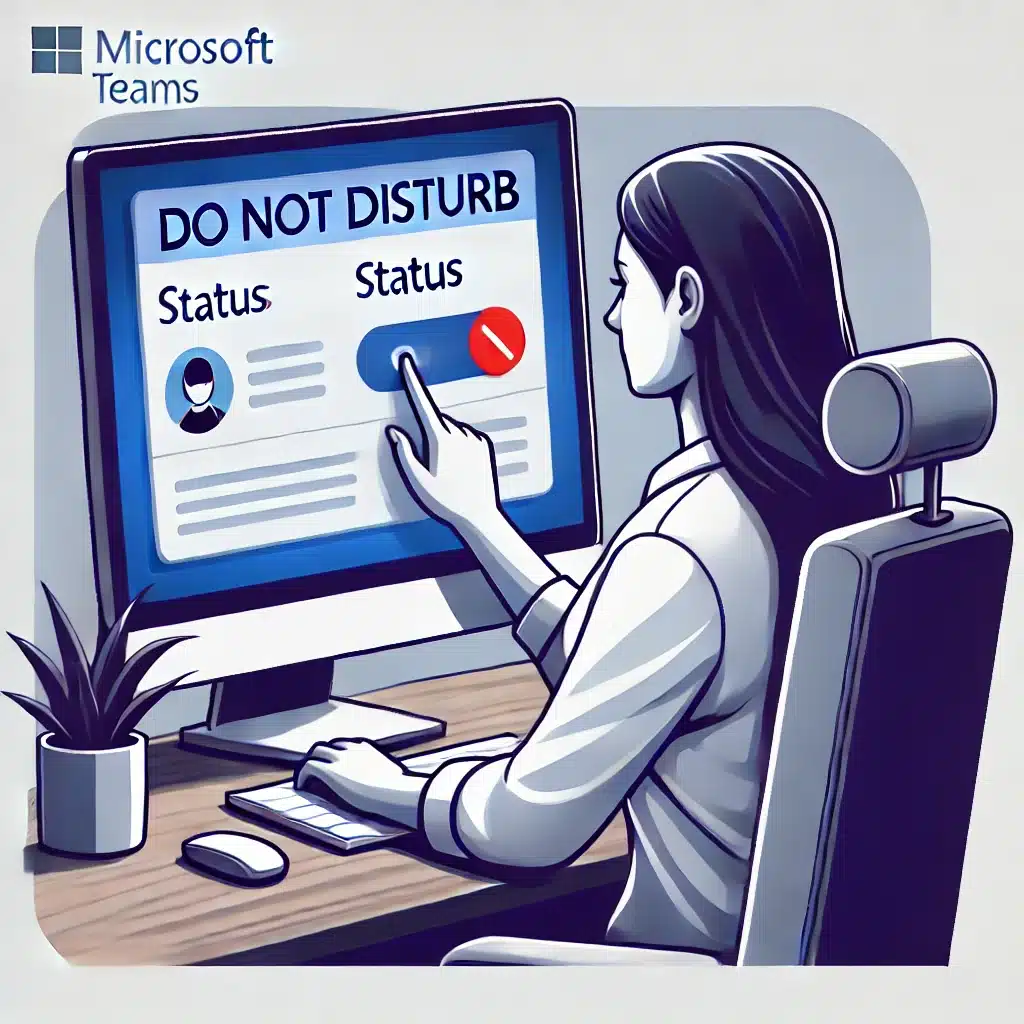
8️⃣ Turn on "Do not disturb" during important tasks
In Skype you could switch your status to "Busy" — in Teams you can go a step further!
How to do it:
- Click your profile picture in the top right corner.
- Select "Do not disturb".
That way you won’t be interrupted when you need to focus.
9️⃣ Mobile app: Stay connected on the go
Microsoft Teams has an excellent mobile app for both iPhone and Android.
✅ Reply to messages and calls from your phone
✅ Join meetings wherever you are
✅ Share photos and files directly from your phone
Get the app from Google Play or App Store.
🔟 Export your old Skype chats before it’s too late!
Teams does not sync your old Skype messages. If you want to keep them, you must export them manually.
How to do it:
- Go to Skype’s eksportværktøj
- Sign in with your Microsoft account
- Select "Download chat history"
- Save the file to your computer