
 Martin Jørgensen
SoftPerfect Network Scanner – a quick overview of your network
SoftPerfect Network Scanner is an efficient network scanning tool for Windows that quickly gives you a detailed overview of devices, ports, and shared resources on your network. It’s built for both IT administrators and tech‑savvy home users who want to know exactly what’s happening on their network.
We tested SoftPerfect Network Scanner on a standard Windows 11 PC connected to both a wired network and Wi‑Fi, and within seconds we had a complete list of active devices.
Network scanning and features

SoftPerfect Network Scanner is multi‑threaded, so scans run very fast — even on larger networks. The program supports IP scanning, NetBIOS, and SNMP, and can identify computers, printers, routers, and other network devices.
In our tests, Windows machines, NAS devices, and a network printer were correctly identified with IP address, MAC address, and hostname.
Among other things, the program can:
- Ping computers and devices on the network
- Scan TCP and UDP ports
- Show shared folders and resources
- Identify operating systems (where possible)
- Export results to files for further analysis
Interface and workflow
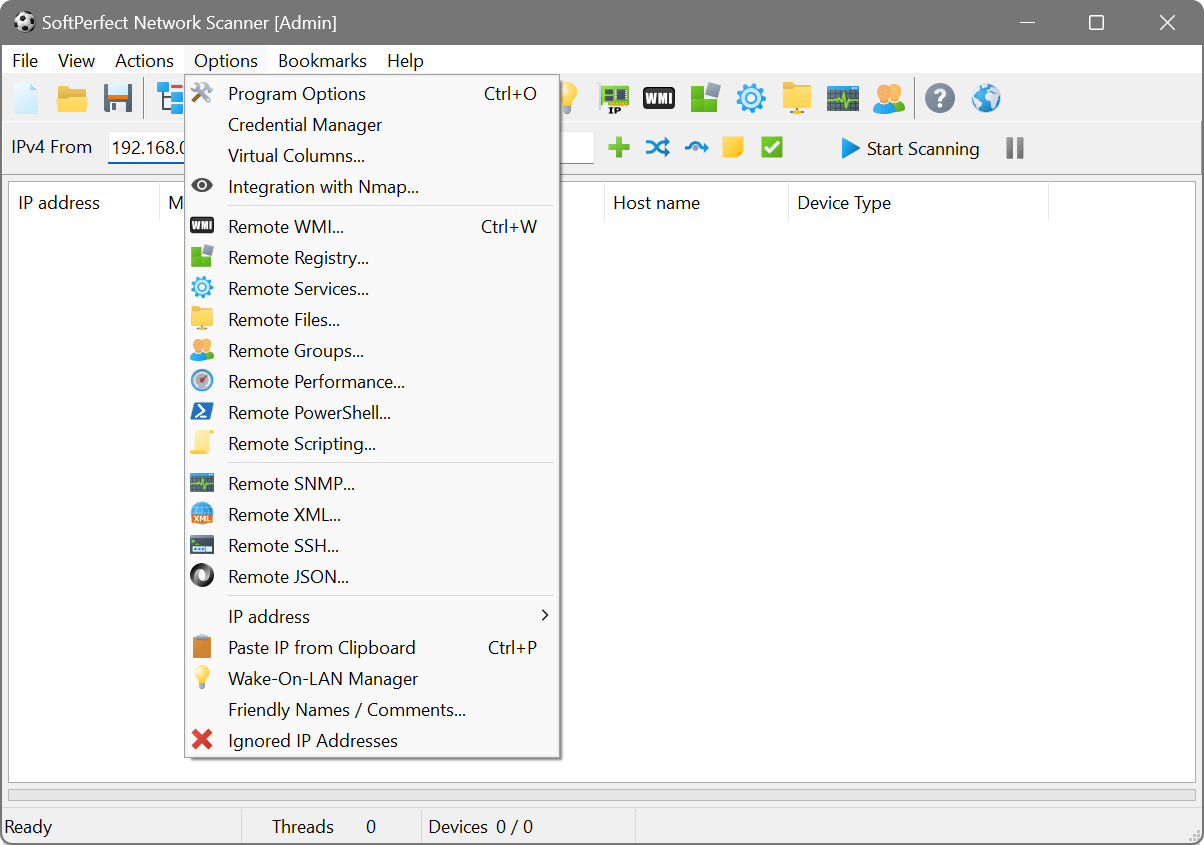
The interface is classic Windows‑style and fairly compact, yet logically organized. In testing, we found it easy to navigate — even if you don’t manage networks for a living.
You can start a scan in a few clicks, and results appear in a clear, real‑time list. That makes it easy to spot unknown devices or open ports that shouldn’t be there.
Security and practical use
SoftPerfect Network Scanner is often used to complement security work. It’s not antivirus, but it’s a powerful way to detect potential issues like unknown devices on the network or open ports that could pose a risk.
In the U.S., it’s especially popular with small businesses, IT teams, and home users with advanced network setups.
Who is this for?
- IT administrators and technicians
- Advanced home users
- Small businesses without costly network monitoring
- Users who want full control of their network
Top 5 tips for SoftPerfect Network Scanner
Run a quick scan first
Start with a quick IP scan to get an overview before enabling deeper port scans.
Sort by MAC address
During testing, it was easy to spot unknown devices by sorting by MAC addresses.
Export results
Save your scans as CSV or HTML so you can compare changes over time.
Scan outside business hours
Run larger scans outside peak hours so the network isn’t unnecessarily impacted.
Use SNMP on network gear
Enable SNMP for more detailed information from routers and switches.



