

 Martin Jørgensen
Make your Windows 10 and 11 taskbar transparent with TranslucentTB — free to download!
Do you want a sleeker, more creative Windows taskbar? Make it transparent with TranslucentTB! You can choose whether the taskbar should be completely transparent against your desktop background or give it a stylish color. And best of all, TranslucentTB is 100% free! You don’t have to pay anything to download the tool. Get a feel for how TranslucentTB works by looking at the GIF below!

This review is structured so that the first section includes a short guide to downloading and installing TranslucentTB. The next sections dive into the interface and features. Finally, we summarize our overall verdict in a short conclusion. We can already reveal that this is a really smart program — and we’ve awarded it our top score!
Whether you’re new or a regular visitor to Download.dk, remember that we have plenty of well-written reviews of both apps and games on our website! We’re constantly publishing exciting new content, so feel free to explore our many software categories. Enjoy TranslucentTB — and Download.dk!
Download and installation
Want to download TranslucentTB to your PC? If so, scroll to the bottom of this review and click our download button. You’ll be redirected to Microsoft’s official store, Microsoft Store, where it’s super easy to get the tool! As shown in the GIF from our own PC below, you simply click the blue download button.

The installation process finished quickly on our PC, and moments later we were ready to use TranslucentTB! Like most programs, you open it via the Start menu.
Regarding system requirements, TranslucentTB requires Windows 10 or newer. It does not work on Mac or Linux, since it’s specifically designed for Windows users who want a better, more personalized taskbar.
Interface and quick guide
When you open TranslucentTB for the first time, you’ll see the app’s welcome window. Just click “Continue,” and your taskbar becomes transparent right away! A small pop-up notification also informs you that TranslucentTB lives in the system tray at the lower-right of the taskbar, where it runs minimized. You can see this in the GIF we recorded on our PC and included below.

Access TranslucentTB and its features by clicking the app’s small icon in the system tray. You can also close it there if you no longer want the app active.
To adjust the look of the taskbar, click the app icon and choose “Desktop.” Here you have four options to choose from: “Normal,” “Opaque,” “Clear,” and “Acrylic.” By default, “Clear” is selected, which makes the taskbar 100% transparent. That means your desktop wallpaper shows through at the bottom of your screen. You can easily give your taskbar a specific color by clicking “Accent Color,” which opens the window shown in the screenshot below:

In the color settings window, you can set both the taskbar color and the level of transparency. It’s super handy, and it only takes a moment to fine-tune the look to your taste!
Extra features
If you want, there are even more features to explore. Open TranslucentTB and try “Visible window,” “Maximized window,” “Start opened,” “Search opened,” and “Task View opened.” These options let you give the taskbar a specific appearance when you open apps, the Start menu, Search, or Task View. Personally, we prefer the taskbar to look the same at all times, so we didn’t find these as relevant for us — but they might be exactly what you need to personalize your PC.
You can also choose whether TranslucentTB should launch automatically when you turn on your computer. Toggle this on or off by clicking “Open at boot.”
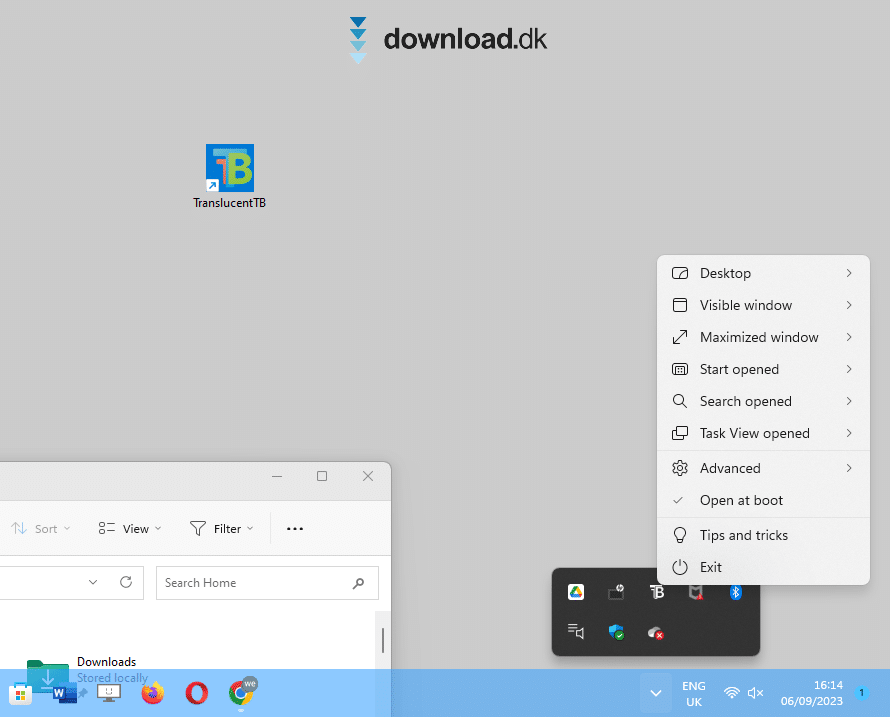
You can access the most advanced settings by clicking “Advanced.” There, for example, you can manually edit the program’s log file, but we don’t think many users will need this. You can also completely hide the TranslucentTB icon, though we don’t recommend it since it makes accessing the app’s settings later more cumbersome.
Conclusion
We’ve awarded TranslucentTB Download.dk’s top rating! It’s well deserved, because this is an app many people can enjoy. Since installation only takes a moment and the interface is incredibly simple, you can have a beautiful transparent taskbar in your favorite color within minutes if you choose to download TranslucentTB! How many other programs can boast being this easy to use? Not many — and that’s why our score is a full 5 out of 5 stars! We hope you enjoy the app, too!
Download TranslucentTB


