

 Martin Jørgensen
Create beautiful, creative stick-figure cartoons with Pivot Animator! Download the program free for Windows!
Ready to unleash your creativity? If so, we highly recommend downloading Pivot Animator, a 100% free piece of software for Windows. It’s a stop-motion tool that lets you build short movies with stick figures frame by frame—your imagination is the only limit! When you’re done, you can export your cartoon to a GIF or a video format and share it with others. The image below shows the interface in Pivot Animator!

We tested version 5 of Pivot Animator, and you can read our hands-on impressions in this review! First, we explain how to install the program, and then we dive into the interface and its many features. Our overall verdict is summarized in the conclusion, after which we finish with a recommendation of Paint 3D, which is also an exciting tool for anyone who loves drawing on a computer!
Download and installation
Want to try Pivot Animator? If the answer is yes, simply scroll to the bottom of this review and click the download button. You’ll then be redirected to the program’s official website, where the newest version is available! We tested version 5, and the GIF below shows the installation process on our PC with Windows 11.

Your computer may flag the installer as suspicious because you’re also offered programs from other vendors during setup. However, the Pivot Animator developer promises on the official FAQ page that the program is 100% safe, and if you click the “Skip all” button, Pivot Animator should be the only program installed on your PC. The extra offers are of course annoying, but we also understand that this compromise may be what keeps Pivot Animator free!
Interface
Pivot Animator has a simple interface and is therefore very easy to use. Each time you start a new project, the program automatically creates a stick figure you can move around by clicking the orange circle. Use the red circles to move body parts such as the head, arms, and legs. You create the animation by making a small adjustment and then clicking the “Add Frame” button to generate a new frame. Finally, press “Play” to preview your cartoon.

In the GIF above, we animate a stick figure’s arm so it looks like the figure is waving! This process only took us a moment!
If you make a big movement with very few frames, the animation will likely look choppy. Fortunately, you can make the motion perfectly smooth by adding “inbetweens,” which are extra frames automatically generated by Pivot Animator. In the GIF below, we set the value for “inbetweens” to 2 for all frames and increase FPS (frames per second) to 25, which delivers a much more natural animation. We also insert a background image that we drew in the image editor Paint.NET!

We can therefore confirm that it’s incredibly easy to make small, simple cartoons with Pivot Animator. If you want to create something more ambitious with many characters and a real story, the work will naturally be more demanding. Fortunately, there are plenty of guides and help for the program, which we describe in the next section.
User guides and help
Even though it’s easy to get started with Pivot Animator, the program also includes a number of features we haven’t explored in this review. For example, you can create your own stick figures, and you can also control the virtual camera! You can find help for these things and much more on the program’s website, where you’ll find guides to all the features in Pivot Animator.
You can visit the official help page by clicking right here!
Download new figures in the STK library
While you can certainly create your own stick figures in Pivot Animator, you can also download a long list of great figures on the official STK library at this link! All figures are 100% free, and we’ve included a screenshot of the website below so you can see a small part of the selection!
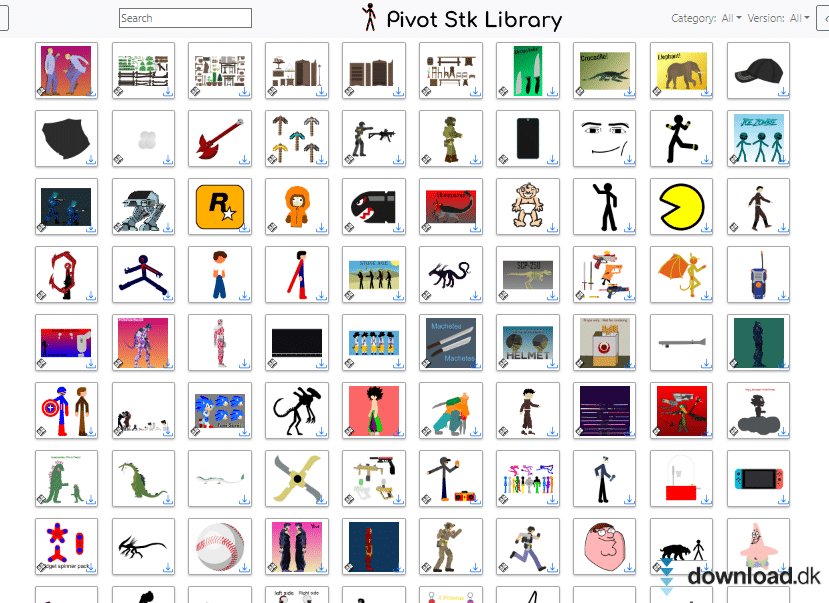
For example, you can download characters from Marvel, DC, and Dragon Ball. There are also many figures of items such as swords, weapons, vehicles, and so on!
Overall verdict
Here at Download.dk, we think Pivot Animator is fantastic software overall, and we recommend it to all our users! The program is so simple that you don’t need any animation experience to create great, entertaining cartoons! The only noteworthy downside is that the installer also offers to install other tools besides Pivot Animator, but fortunately it’s possible to decline this. It’s also hard to complain about this small minus when Pivot Animator is 100% free!
Tip: Also try Paint 3D!
If you love to draw and express your creativity, we’d also like to recommend downloading Paint 3D, which we’ve of course reviewed here on Download.dk! It’s Microsoft’s upgraded version of their classic Paint program, where you can finally work with true 3D. It’s 100% free, and the interface in Paint 3D is shown in the GIF below!

Unfortunately, Paint 3D can’t be used to create animated shorts like Pivot Animator, since it isn’t a stop-motion tool. If you only have experience with 2D drawing, however, this program is a great introduction to 3D! Later on, you can move to more advanced 3D tools such as Blender, where you can also create 3D short films!
Download Pivot Animator


