
 Martin Jørgensen
Windows 10 Pro is still relevant — with one important caveat
Windows 10 Pro is Microsoft’s professional edition of Windows 10, designed for power users, businesses, and advanced PC owners who need extra security, Remote Desktop, BitLocker, and better control over the system.
Even though Windows 11 is taking over, Windows 10 Pro is still relevant for many US users. That’s especially true if you have an older PC, specialty software, a small office setup, or simply prefer an operating system that feels familiar and stable. The key difference today is that Windows 10 is no longer something you should install uncritically on a brand-new primary machine.
Microsoft ended mainstream support for Windows 10 on October 14, 2025, so you need to be extra mindful of security, updates, and potential ESU options if you continue using the system after that date. Microsoft still offers the official Windows 10 installation media and ISO, which you can use for a reinstall or to create a USB installer.
What is Windows 10 Pro?
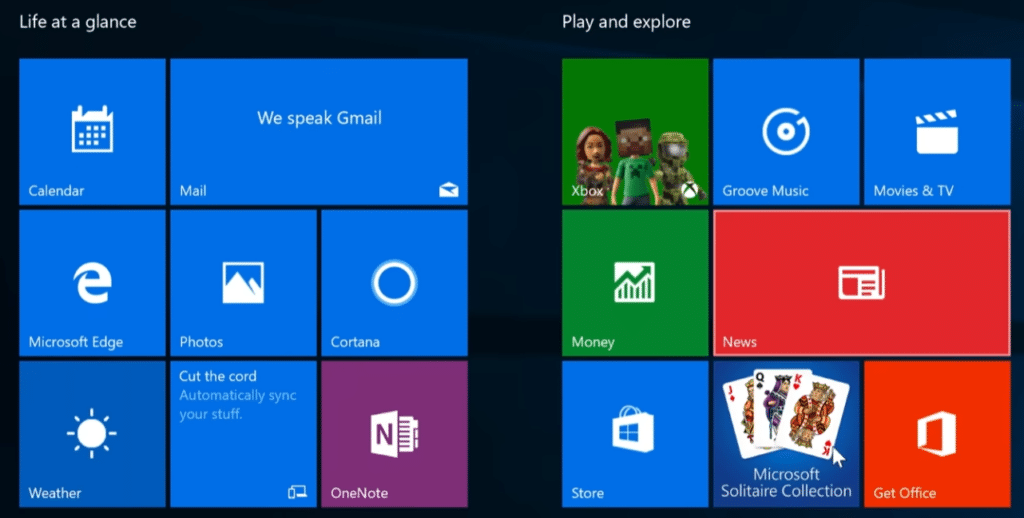
Windows 10 Pro sits above Windows 10 Home. It looks almost identical in everyday use, but adds features that make sense for work, IT administration, and more secure PC usage.
The most notable difference is BitLocker, which can encrypt your drive so your files are better protected if the computer is stolen. Microsoft states that BitLocker requires Windows Pro, Enterprise, or Education and is not available in Windows Home.
Windows 10 Pro also unlocks features like Remote Desktop, Hyper-V, Group Policy, and better options for domain and business setups. Not every home user needs these, but they can be crucial if the PC is used for work, a home office, or technical testing.
Windows 10 Pro vs Home — what’s included beyond Home?
For most everyday users, Windows 10 Home will still handle the web, email, streaming, games, and common apps without trouble. Windows 10 Pro becomes attractive when you need more control.
With Windows 10 Pro you get, in particular:
✅ BitLocker encryption for stronger data protection
✅ Remote Desktop so you can connect to your PC from anywhere
✅ Hyper-V for virtual machines
✅ Group Policy for advanced system controls
✅ Better options for use in business and domain networks
✅ More flexible control over updates and security policies
BitLocker and Remote Desktop are the standout reasons to choose Pro. On a laptop with sensitive files, BitLocker is one of those features you only miss when you don’t have it.
Is Windows 10 Pro still secure?
Windows 10 Pro can still be used, but it requires care. After end of support, regular Windows 10 users no longer receive the same ongoing security and feature updates unless they’re covered by Microsoft’s Extended Security Updates (ESU) program. Microsoft describes ESU as a way to keep receiving critical security updates for a transition period after support ends.
That doesn’t mean your PC stops working. Apps, files, and installations can still function. But the risk increases over time because new vulnerabilities may not be patched the same way as before.
For a secondary PC, an older machine without Windows 11 support, or a specific app environment, Windows 10 Pro can still make sense. For online banking, work, sensitive documents, and daily use, consider Windows 11, Linux, or a new PC if security is the top priority.
Download Windows 10 Pro safely
The safest way to get Windows 10 Pro is from Microsoft’s official download page. There, you can use the Media Creation Tool or download an ISO to install or reinstall Windows 10. Microsoft notes that the Windows 10 download covers multiple editions, including Home and Pro, while Enterprise is handled separately.
You still need a valid license or digital activation to use Windows 10 Pro properly. If your PC was previously activated with Windows 10 Pro, it will often reactivate automatically after reinstalling on the same hardware.
Install with USB or ISO
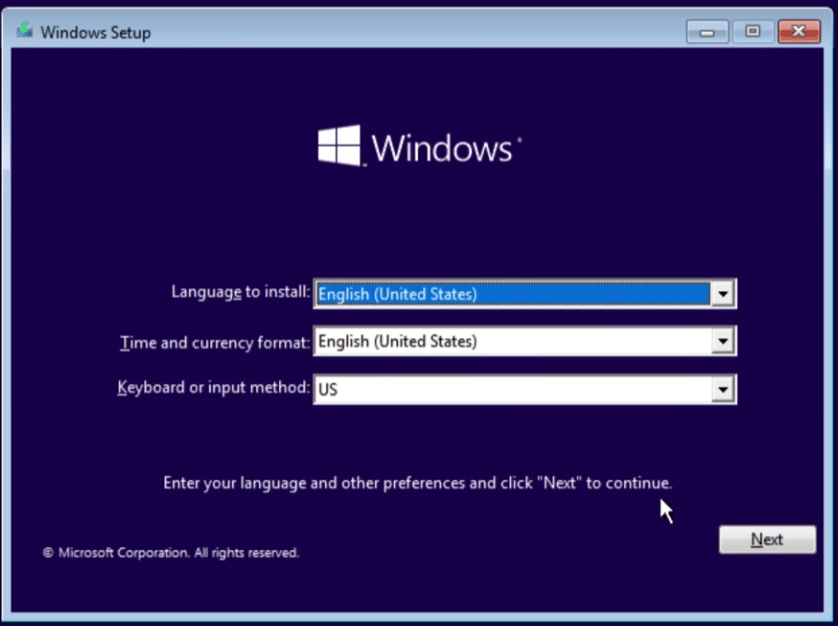
When you download Windows 10 from Microsoft, you can typically choose to upgrade the current PC or create installation media. For a clean install, a USB drive is usually the most practical option.
Back up your data before you begin. A Windows installation can overwrite files, partitions, and programs if you pick the wrong options. On older PCs, also download drivers from the manufacturer’s website—especially for network, graphics, and chipset.
During setup, the choice between Home and Pro depends on your license, product key, and prior activation. If the computer has a digital Windows 10 Pro license, the Pro edition will normally activate again.
When does Windows 10 Pro make sense today?
Windows 10 Pro makes the most sense in three scenarios.
First, it’s ideal if you need to reinstall a PC that already has Windows 10 Pro and is still used for specific software. Many small businesses run older accounting software, manufacturing tools, or hardware that works better on Windows 10 than on Windows 11.
Second, Windows 10 Pro is relevant for older PCs that Windows 11 doesn’t officially support. You should, however, plan for security from the outset and avoid using that machine for highly sensitive tasks.
Third, the Pro edition is useful for testing, virtual machines, and IT environments where BitLocker, Hyper-V, and remote access make work easier.
For a new computer in 2026, Windows 10 Pro is rarely the best first choice. Windows 11 should usually be the default unless you have a specific reason to choose Windows 10.
Windows 10 Pro alternatives
If you’re unsure whether Windows 10 Pro is still the right pick, consider these alternatives:
✅ Windows 11 Pro — best for new PCs with longer future support
✅ Windows 11 Home — great for most home users
✅ Linux Mint — a solid choice for older PCs and free everyday use
✅ Ubuntu — a strong alternative for school, web, and development
✅ Windows 10 Home — enough for simple use, but without Pro features
Linux Mint is especially appealing if you have an older Windows 10 PC that can’t upgrade to Windows 11. It takes a little getting used to, but for browsing, email, office work, and streaming, it can be a surprisingly good solution.
Top 5 tips for Windows 10 Pro
Enable BitLocker on laptops
Windows 10 Pro gives you BitLocker, and it’s one of the best reasons to choose the Pro edition. On a laptop, encryption protects your files if the device is lost or stolen.
Back up before you reinstall
Save documents, photos, license keys, and browser data before using the Windows 10 ISO or a USB installer. A clean install can be effective, but it’s unforgiving if you delete partitions.
Check if your PC already has digital activation
If the computer previously ran Windows 10 Pro, it can often activate automatically again after installation. That makes reinstalls much easier because the license is tied to the hardware.
Install only what you need afterward
Windows 10 Pro can feel snappy on older hardware if you keep the setup clean. Start with drivers, a browser, security, and the apps you actually use — not the entire old clutter.
Plan your next step early
Windows 10 Pro can still be practical, but it’s not the future of Windows. Start thinking now whether your next move should be Windows 11, a new PC, or maybe Linux on older hardware.
A powerful system for the right users
Windows 10 Pro remains one of Microsoft’s most familiar and stable operating systems, and its Pro features make a real difference for users who want more security and control. But it’s no longer an OS you should choose without careful consideration.
If you have a valid license, an older PC, or a specific need for Windows 10, the Pro edition is still worth downloading from Microsoft’s official page. If you’re setting up a new computer for the years ahead, Windows 11 Pro will usually be the best first choice.



