
 Martin Jørgensen
Windows 10 Home is still relevant — but only with the right caveats
Windows 10 Home is Microsoft’s familiar operating system for home users who still have an older PC, a computer that doesn’t support Windows 11, or who simply prefer a stable, recognizable Windows environment.
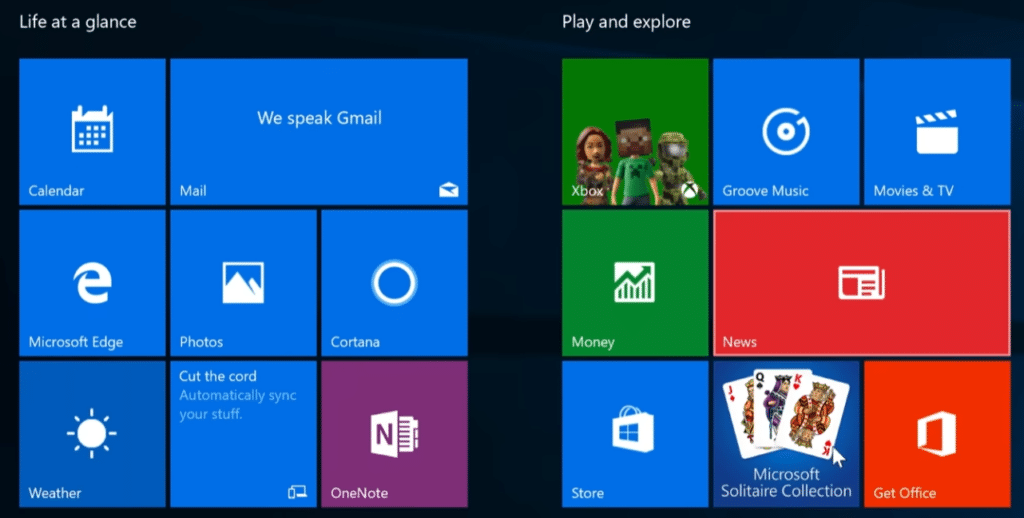
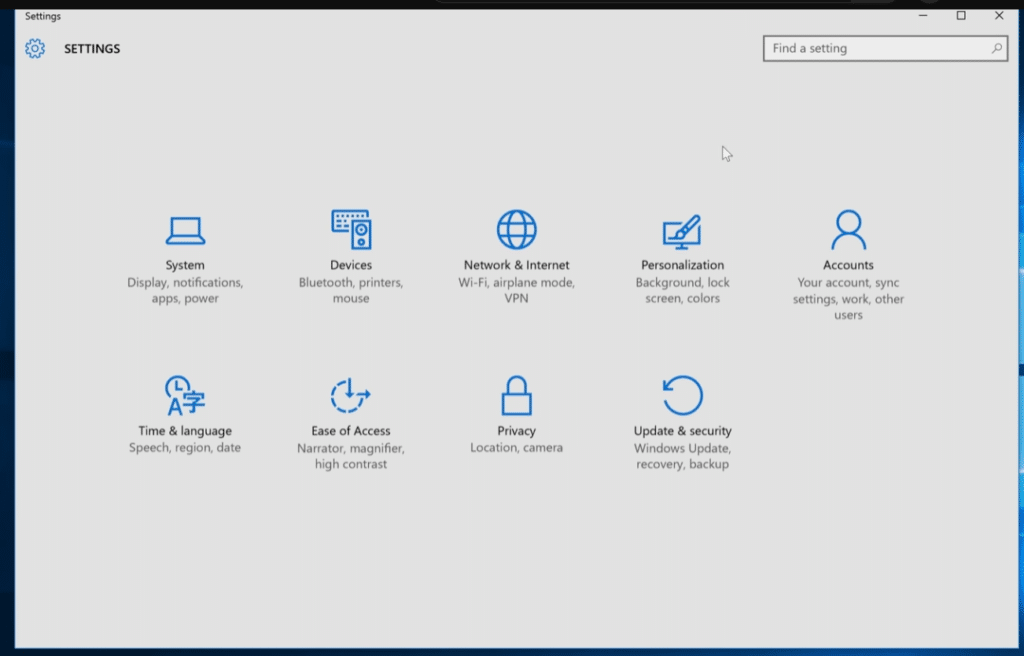
We tested Windows 10 Home on a typical Windows PC, focusing on speed, compatibility, and everyday use. Our quick take: Windows 10 still feels fast, easy to navigate, and surprisingly comfortable on hardware where Windows 11 can feel heavier. The Start menu is straightforward, Settings are fairly logical, and many older apps, games, and drivers still work without hassle.
However, there’s one big thing you shouldn’t overlook: Microsoft’s mainstream support til Windows 10 sluttede den 14. oktober 2025, so Windows 10 PCs no longer receive regular security updates unless you use Microsoft’s Extended Security Updates (ESU) program. Microsoft also notes that you can continue using Windows 10 after end of support, but the lack of security updates makes it less safe over time.
Download Windows 10 Home safely from Microsoft
The safest way to get Windows 10 Home is through Microsoft’s official download page. There you can grab the Setup tool or a Windows 10 ISO file that you can use to install or reinstall Windows 10 on a PC. Microsoft notes that the ISO can be used both for direct installation and for creating installation media on USB or DVD.
Who should still use Windows 10 Home?
Windows 10 Home makes the most sense on older computers that don’t support Windows 11, or when you have apps, games, printers, or other peripherals that work best on Windows 10. In our testing, classic desktop software, older games, and simple office tasks still felt completely problem-free.
For a brand-new PC, however, we don’t recommend Windows 10 Home as the first choice. Windows 11 is more future-proof because it’s Microsoft’s current platform with ongoing support, security updates, and new features. Microsoft itself recommends moving to a supported Windows version after Windows 10 reaches end of support.
Installation, ISO file, and license
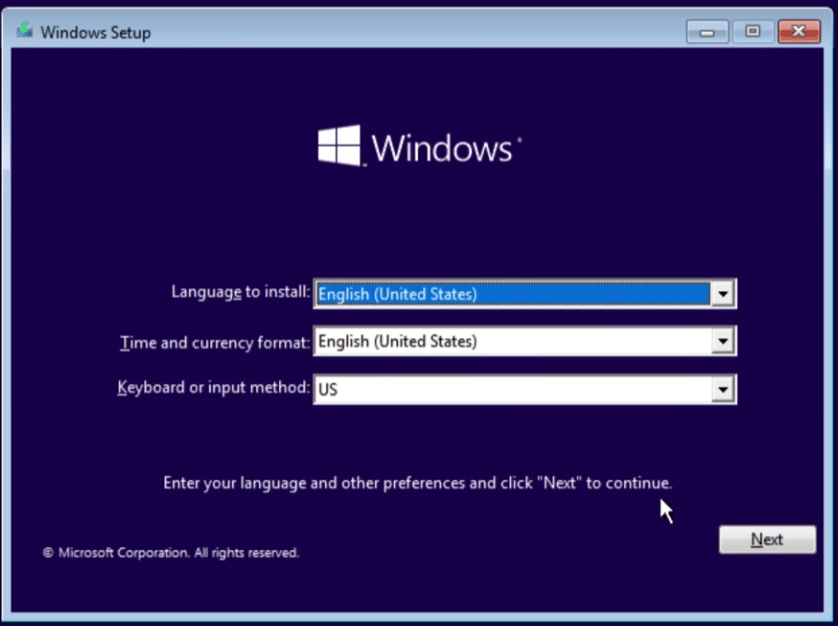
Windows 10 Home requires a valid license if you want to activate the OS properly. You can download the installation files from Microsoft, but the download is not the same as a free license. During setup you can usually choose the edition, language, and whether to install via USB media.
We recommend using Microsoft’s own tool rather than third-party sites with “direct ISO links.” It can be tempting to grab a quick ISO from a random site, but you risk getting a modified, outdated, or bundled installer. For an operating system, stick to the official source.
Windows 10 Home vs. Windows 10 Pro
Windows 10 Home is the edition for everyday home users. It covers most needs: browsing, gaming, streaming, Office apps, printers, photos, email, and general desktop work.
Windows 10 Pro is aimed more at businesses and advanced users who need features like domain join, BitLocker, and more management options. For most home users, Windows 10 Home is still the simplest and most obvious choice.
Security after end of support
The key question is no longer “Does Windows 10 Home work?” but “Is it secure enough?” The OS still works, but after end of support you should be extra mindful of antivirus, browser updates, backups, and suspicious downloads. Microsoft’s ESU program offers ongoing critical and important security updates as an add-on for users and organizations that continue with Windows 10 after end of support.
If the computer is used for online banking, work, sensitive documents, or your kids’ school logins, consider Windows 11, a newer PC, or another supported operating system. If the PC is mostly used offline, for older games, or as a secondary machine, Windows 10 Home can still be practical.
Top 5 tips for Windows 10 Home
Always download Windows 10 Home from Microsoft
Use Microsoft’s official download page when you grab Windows 10 Home. It reduces the risk of tampered ISOs, outdated installers, and unwanted software.
Create a USB installer instead of a DVD
A USB drive is faster and more convenient than a DVD. In our testing, installing from USB was by far the smoothest method, especially on newer laptops without an optical drive.
Check whether Windows 11 is the better choice
Windows 10 Home still works well, but on a newer PC, Windows 11 is usually the better pick. First check if your computer supports Windows 11 before reinstalling Windows 10.
Back up before you reinstall
Save photos, documents, browser bookmarks, and license keys before you begin. It sounds basic, but this is where the most annoying mistakes happen.
Use Windows 10 Home cautiously after end of support
If you keep using Windows 10 Home, keep your browser, antivirus, and key apps updated. Also maintain a solid backup so you’re not stranded by malware or disk failures.
A solid operating system that’s past its prime
Windows 10 Home remains one of the most pleasant Windows releases to use day to day. It boots quickly, feels familiar, and works with a huge range of software and hardware — which is exactly why many people still hesitate to move on.
But the timeline has changed. Windows 10 Home is no longer the obvious choice for a new computer, and it shouldn’t be installed uncritically on machines used for sensitive tasks. As a solution for ældre hardware, old games, test machines, or PCs that can’t run Windows 11 well, it still has its place.



