 Martin Jørgensen
What is Windows 11 – a quick overview
Windows 11 is Microsoft’s latest operating system, replacing Windows 10 with a more modern design, stronger security, and better support for new hardware. We’ve tested Windows 11 on both newer and older PCs, and the experience largely depends on whether your computer meets the system requirements.
For most everyday users, Windows 11 isn’t a revolution—it’s about stability, security, and a more streamlined desktop.
Windows 11 system requirements
Windows 11 has higher requirements than previous versions of Windows. The key requirements are:
- 64-bit processor with at least 2 cores
- At least 4 GB of RAM
- At least 64 GB of storage
- TPM 2.0 (Trusted Platform Module)
- Secure Boot enabled
- Compatible graphics card with DirectX 12 support
TPM 2.0 and Secure Boot are the most confusing for many users and often cause PCs to be flagged as “not compatible,” even if they can technically run Windows 11.
What is TPM 2.0 – and why does Windows 11 require it?
TPM is a security chip that protects encryption, sign-in credentials, and system integrity. Microsoft made TPM 2.0 a requirement to raise the overall security baseline in Windows 11.
On many PCs, TPM is present but not enabled in the BIOS/UEFI. That means a PC can be compatible even if Windows initially says it isn’t.
Can my PC run Windows 11?
Based on our tests, most PCs from around 2018 and newer can run Windows 11 without issues—provided TPM and Secure Boot are enabled.
Typical scenarios:
- Newer laptops: almost always compatible
- Desktop PCs from 2016–2018: often compatible after BIOS tweaks
- Older PCs: can often be installed, but without official support
If your PC runs Windows 10 smoothly, there’s a good chance Windows 11 will work well in practice too.
Windows 11 on unsupported PCs – what you need to know
You can install Windows 11 on PCs that Microsoft doesn’t officially support. In practice, it often runs stably, but there are important caveats:
- Microsoft may limit future updates
- No guarantee of security updates
- You assume all responsibility
For typical home use, it often works fine, but understand the risks—especially on work or school machines.
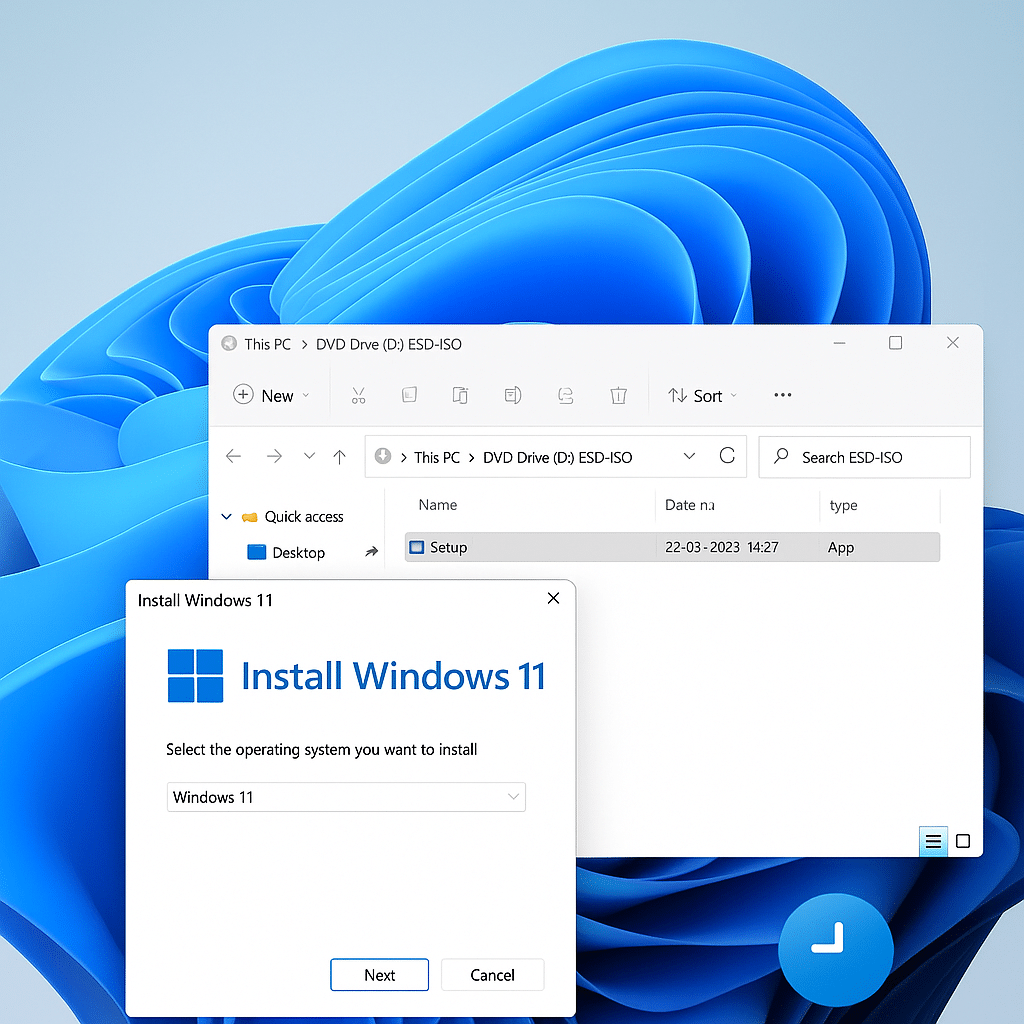
Upgrade from Windows 10 or clean install?
You have two options:
- Upgrade: Keeps files, apps, and settings. Fastest and easiest.
- Clean install: Best if the PC is slow or you want a completely fresh start.
We recommend upgrading for most users, while a clean install can deliver the best performance on older systems.
English language, license, and activation
Windows 11 installs automatically in English if your PC already runs English Windows 10. Your existing Windows license usually carries over, so you don’t need to buy a new one.
Activation typically happens automatically via your Microsoft account or a digital license tied to your hardware.
Common issues after installing Windows 11
Some users experience minor challenges after installation. The most common are:
- Changed Start menu and taskbar
- Lack of support for older apps
- Devices that need new drivers
In most cases, updates or a few settings tweaks solve the problems.
Is Windows 11 the right choice for you?
Based on our experience, Windows 11 is a solid choice if:
- Your PC meets the system requirements
- You want better security and longer support
- You’re already considering upgrading from Windows 10
If you use older hardware or specialized software, it can make sense to wait.