 Martin Jørgensen
F.lux makes your screen easier on the eyes at night
F.lux is a free app that automatically adjusts your screen’s color temperature throughout the day, making the image warmer and less harsh at night. The idea is simple, but in practice it makes a real difference—especially if you’re at your computer late and don’t want a screen blasting blue light right before bed.
We tested F.lux on a Windows 11 PC for typical office work—email, browsing, writing—and a bit of YouTube in the evening. It’s exactly the kind of software you quickly forget is installed—until you turn it off. Only then do you notice how cold and harsh a default screen can feel in a dark room.
How F.lux works in practice
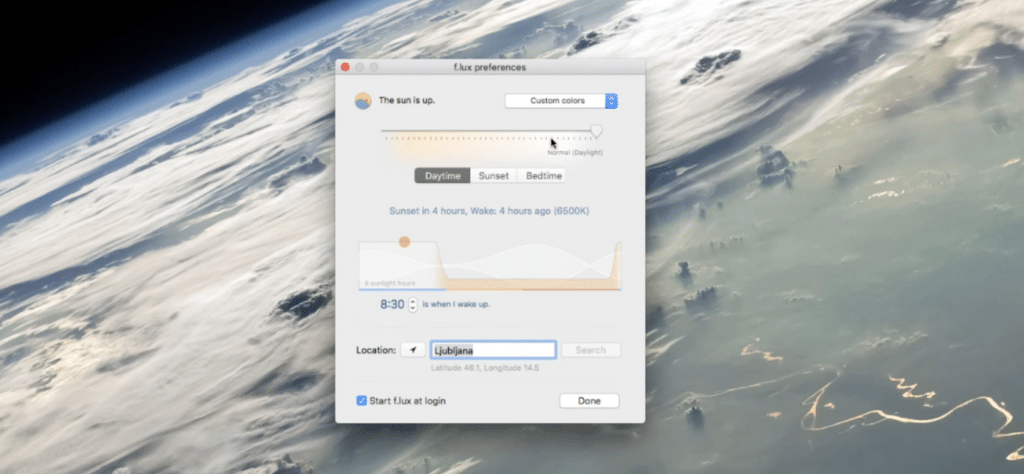
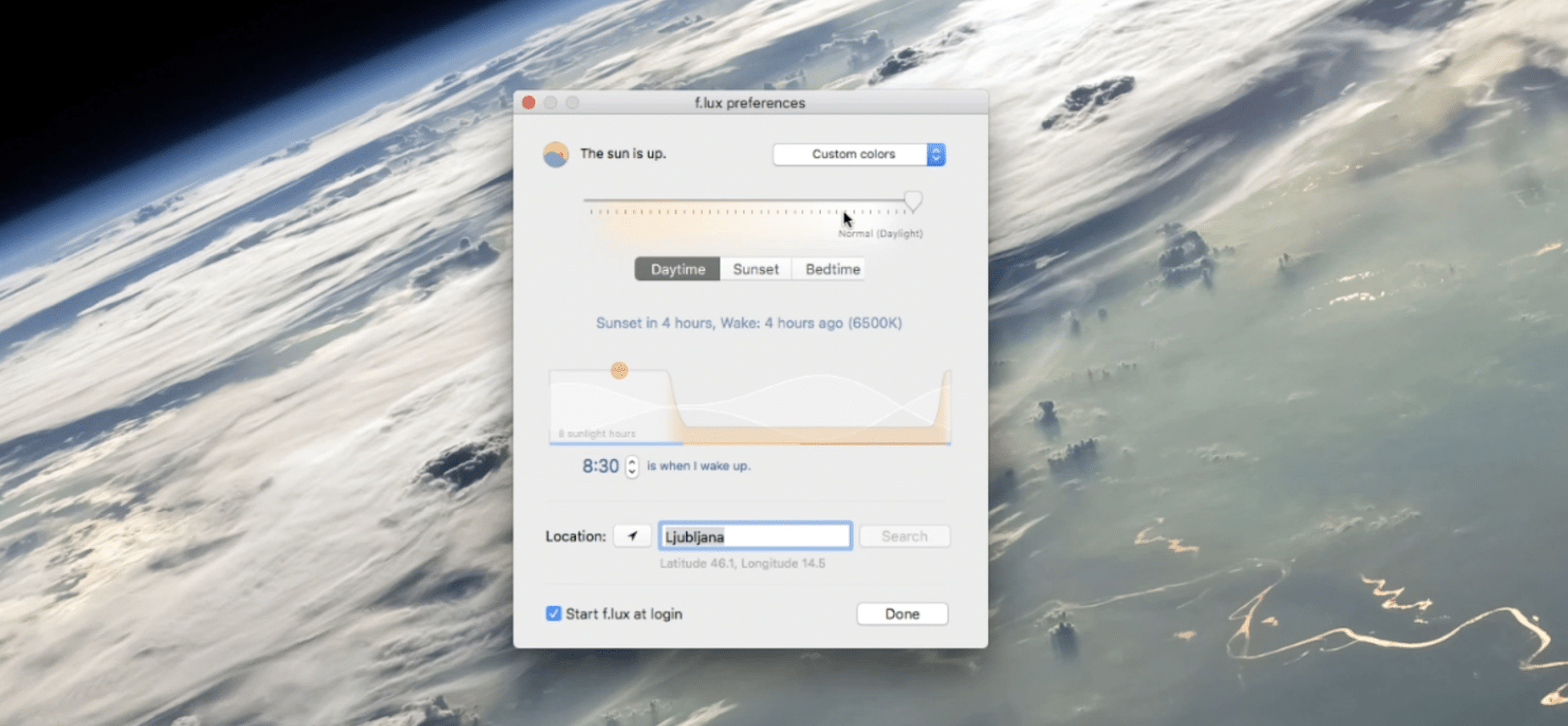
F.lux uses your location and the time of day to automatically tune your screen’s brightness and color tone. During the day the display looks normal, then after sunset it shifts warmer and more golden. That way the screen light better matches your surroundings instead of standing out with a harsh blue cast.
The beauty of F.lux is that it needs very little setup. Install it, set your location, and choose how warm the screen should get at night. The app sits quietly by the clock and mostly runs itself. According to the official F.lux site, the whole point is that your screen warms automatically at sunset and returns to normal at sunrise.
Why F.lux is still relevant
Many will say Windows and other systems already include a night mode. That’s true. But F.lux is still more finely tuned than most built-in options. You get more control over transitions, color temperature, and how the app adapts to your routine.
That’s especially useful if you work late, study, game, or just end up with your laptop open longer than planned. In the United States, where shorter winter days and lots of indoor screen time are common, this kind of software still makes a lot of sense. It’s not revolutionary, but it solves a real problem quickly and without hassle.
F.lux’s own pages also highlight features like a stronger bedtime mode, ongoing circadian adjustments, and fine-tuning for colors and wake time—keeping the app relevant instead of being just a classic living off its name.
Our experience with F.lux on Windows
In our testing, F.lux worked best for typical evening tasks. Text, research, and email were noticeably easier on the eyes when the screen wasn’t stuck in its usual bluish tone. The evening transition felt smooth, which matters a lot—harsh shifts get annoying fast with this kind of app.
That said, F.lux isn’t a miracle tool for everyone. If you work with photo, video, or design where color accuracy is critical, you’ll likely need to disable it at times. The same applies if you simply don’t like very warm screen tones. Fortunately, adjustments are quick, and the app makes it easy to pause when needed. F.lux’s FAQ also notes it’s not built for advanced color-critical work and explains temporary ways to turn the effect off.
Is F.lux better than Windows Night Light?
It depends on how much control you want. The built-in Night Light in Windows is fine for many users, but F.lux still feels more polished if you care about the details. It’s been around for years, it’s lightweight, and it does exactly what you expect.
For most people, the biggest plus is that F.lux practically runs itself. You don’t need to keep tweaking settings. Once it’s set up properly, it just becomes a natural part of your daily workflow.
Who should download F.lux?
F.lux is especially worth trying if you:
✅ work on your computer late at night
✅ often feel the screen is too bright in dark rooms
✅ want more control than the built-in Night Light offers
✅ want a small free app that’s unobtrusive and lightweight
It’s less compelling if you mostly use your computer during the day, or if you do color work where accuracy matters more than comfort.
A small app that still makes everyday use better
F.lux isn’t flashy—and it doesn’t try to be. It’s a small, free utility that removes a very specific annoyance for anyone who uses their computer long after dark. For some, Windows’ own feature will be enough, but if you want more control and a more polished experience, F.lux remains a solid choice.
Top 5 tips for F.lux
Give your eyes time to adjust
When we tested F.lux on our Windows 11 PC, the warm tone felt a bit intense the first evening. The best trick was to start gently and gradually increase the warmth over a few days. That way the transition feels more natural, and you won’t end up disabling the feature after five minutes.
Otherwise the light shifts at the wrong times
F.lux works best when it knows exactly when the sun sets where you are. If your location is off, the screen can go warm too early or far too late. It sounds minor, but in practice it makes a big difference in whether the app feels smart or just annoying day to day.
Where it made the most sense in our testing
We noticed the biggest difference when working late with browser tabs, email, and writing. For that kind of use, F.lux makes the screen calmer to look at. For gaming and video it’s more of a personal preference, but for evening office work it’s one of those small tools you quickly appreciate.
Colors simply get too warm
If you’re editing photos, creating graphics, or need to judge colors accurately, temporarily disable F.lux. We found images could look warmer and nicer than they really were. That’s not a bug—it’s just a limitation to keep in mind for color-critical tasks.
That combo gave the best evening experience
F.lux helps a lot on its own, but we got the best results by also lowering the display’s brightness a bit at night. In a dark room, that makes a huge difference. The screen feels less aggressive, and F.lux’s benefits really shine when the panel isn’t blasting at full power.