
 Martin Jørgensen
Active KillDisk – permanent data erasure with no chance of recovery
Active KillDisk is a specialized tool for permanently wiping hard drives, SSDs, and partitions so data cannot be recovered — not even with advanced recovery tools. It’s typically used when a computer is being sold, returned, or disposed of, and you want to be absolutely sure personal or sensitive data is gone.
We tested Active KillDisk on a standard Windows PC, and it quickly becomes clear this isn’t a casual cleanup utility. It’s a technical tool built for one purpose: uncompromising data destruction.
Secure data destruction in practice
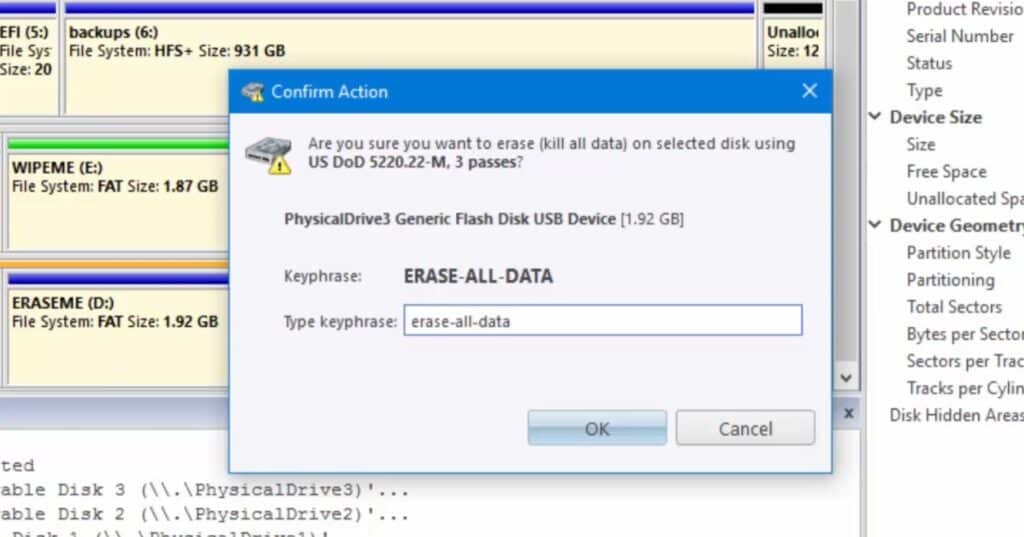
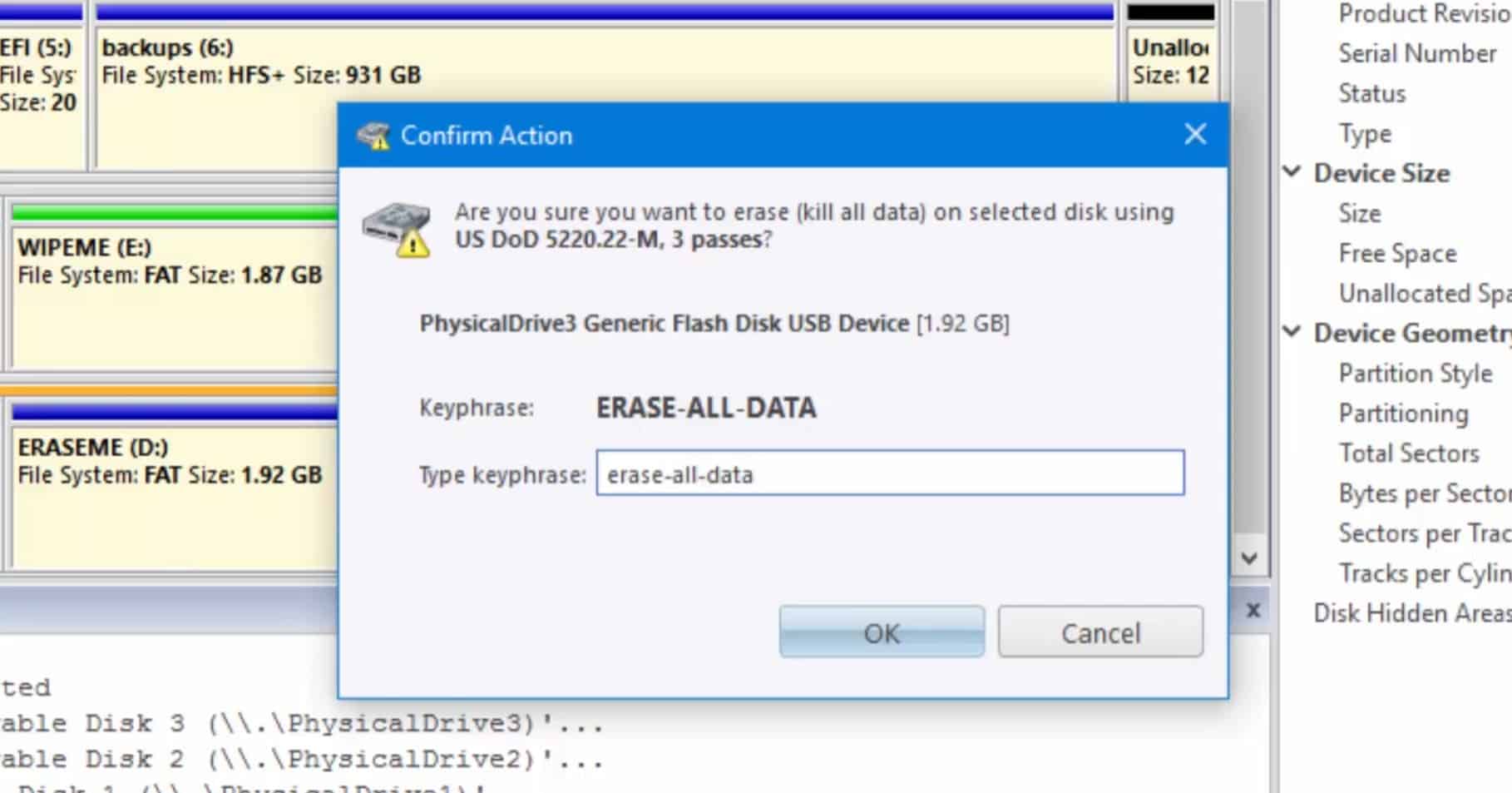
Active KillDisk can scan and display detailed information about all connected storage devices, including hard drives, SSDs, and partitions. From there, you can choose to wipe entire disks, individual partitions, or even just unused disk space.
Erasure is performed by overwriting, which replaces data with new patterns so it can’t be recovered later. After the wipe, the program can generate a report you can save as documentation — especially relevant for business and compliance purposes.
Boot-based solution for critical tasks
One of Active KillDisk’s strengths is the ability to run it as a bootable solution. That means you can wipe system drives without Windows running. It’s the most secure method when the entire machine needs to be sanitized.
The program supports modern drive types such as SSD, SATA, IDE, and SCSI and is aimed primarily at experienced users, IT administrators, and businesses — but it can also be used at home if you know what you’re doing.
Top 5 tips for Active KillDisk
1. Use the boot version for full wipes
If you need to erase a system drive completely, the bootable version is by far the safest method.
2. Always double-check your disk selection
Active KillDisk won’t ask “Are you sure?” multiple times — choose the wrong drive and your data is gone forever.
3. Save the erasure report
The report is useful documentation, especially if you’re wiping data for work, audits, or resale.
4. Use overwrite methods only when necessary
For everyday file handling, Active KillDisk is overkill — reserve it for situations where data truly must be erased.
5. Test on a non-critical drive first
If you haven’t used the program before, try it on a USB drive or a secondary hard drive first.



