
 Martin Jørgensen
ALLPlayer: Media player with subtitles at its core
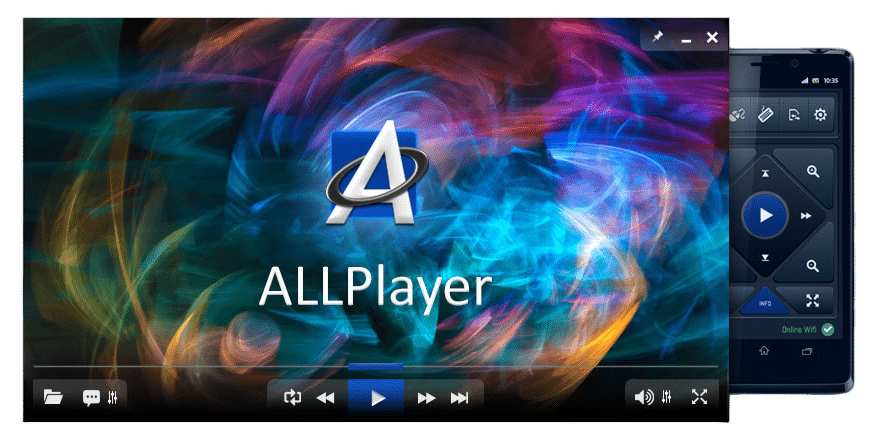
ALLPlayer is a versatile, easy-to-use media player that stands out for its strong focus on subtitles — a must-have for many viewers who prefer original audio with on-screen text. The app is free and updated regularly, making it a solid competitor to better-known names like VLC and PotPlayer.
Support for all formats and codecs
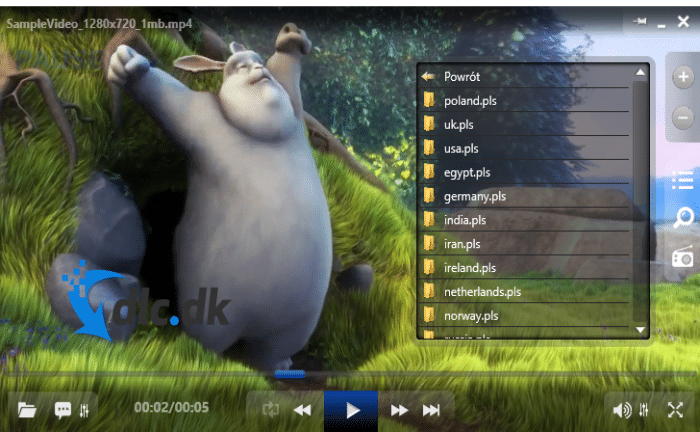
ALLPlayer can play virtually all video and audio formats, including MKV, MP4, AVI, FLAC, MOV, and many more. If a file doesn’t play on the first try, the app automatically looks for missing codecs and installs them for you — a feature beginners will appreciate.
Subtitles — automatic and intelligent
The most distinctive feature in ALLPlayer is automatic subtitle search and syncing. When you open a movie, the app suggests subtitles in multiple languages — including English — directly from online databases such as OpenSubtitles.org. The built-in Intelligent Subtitles feature ensures each line stays on screen long enough to read, which is especially helpful if you read slowly or are watching with kids.
Dubbing feature — read subtitles aloud
If you’d rather listen than read, ALLPlayer offers a unique Dubbing Mode that reads subtitles aloud. It’s particularly useful for language learning or for visually impaired users.
Repair and preview damaged files
With the AVI Doctor feature, you can try to repair damaged video files — for example, if you downloaded a file that didn’t finish. You can also play parts of torrent files without waiting for the entire download.
Streaming and playback on external screens
ALLPlayer supports playback on external displays via a 1:4 monitor setup. That means you can stream to your TV in full screen while you continue using your computer for something else.
Interface and customization
The app offers multiple skins and visual themes, though the interface feels a bit old-school compared with competitors like VLC or 1. In return, ALLPlayer compensates with powerful features and low resource usage.
Top 5 tips for ALLPlayer
Use automatic subtitle search
Use the automatic search to find English subtitles (or your preferred language) for both movies and TV shows. ALLPlayer searches databases like OpenSubtitles and matches them to the exact release — so you don’t have to adjust timing manually. As a bonus, the app remembers your preferences next time.
Adjust subtitle timing
In Settings, you can adjust how long subtitles stay on screen if Intelligent Subtitles isn’t perfect. You can also change position, color, and size — which is especially useful when watching from a distance or if you have specific accessibility needs.
Enable dubbing (text-to-speech)
Go to Features and enable dubbing to have the text read aloud — especially useful for documentaries, learning a foreign language, or for visually impaired users. The feature uses your system’s speech synthesis and can be adjusted for speed and voice, depending on your Windows setup.
Use AVI Doctor for torrent previews
If you download videos via torrents, you can often watch them before they’re finished — use AVI Doctor to open and repair incomplete files. This is particularly handy for checking quality before you spend bandwidth on the rest. The tool is simple and requires no technical know-how.
Play on TV via HDMI
Switch the output under Settings > Monitor Settings to show the movie on your TV in full screen. ALLPlayer supports a 1:4 monitor setup, which means you can keep working on your PC while the video plays on another screen — for example, via HDMI to your TV or projector.



