

 Martin Jørgensen
Download a free 15-day trial of the powerful CorelDRAW image editing and graphic design software here.
CorelDRAW is built for visual creatives—there’s virtually no limit to what you can make. For years our go-to image editor has been Adobe Photoshop, but we’re increasingly leaning toward CorelDRAW. CorelDRAW can do everything Photoshop does—and then some.
If you’re not a hardcore graphics enthusiast, you can still jump in. However, if you’re a beginner, we recommend starting with a simpler image editor.
Unique
We compare Adobe Photoshop and CorelDRAW only to indicate how deep and capable this app is. In practice, CorelDRAW is quite different from Photoshop. It’s purpose-built for graphic design—whether you’re creating website assets or T-shirt designs, CorelDRAW has you covered. It can also handle simple photo edits, but if that’s all you need, consider another program. Check the Alternative programs section below for inspiration.
Many competing editors look alike, but CorelDRAW has completely reimagined how a billedbehandlingsprogram should look. It might feel overwhelming the first time you open it—take a deep breath, explore at your own pace, and before long you’ll feel at home with its many tools.
Unleash your creativity
In CorelDRAW, your imagination is the only limit. You can handle basic photo edits and sketch or build entirely original designs. If you need a spark, there are plenty of templates to choose from.
Templates
One of CorelDRAW’s biggest advantages is its templates. They guide your workflow, and you get a wide selection right after installation.
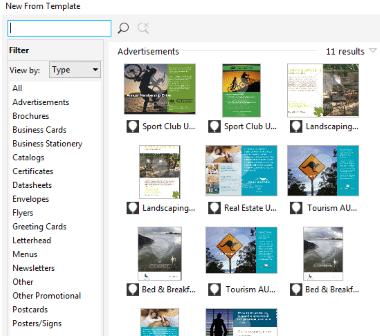
Above is an example of some templates. Just pick one—there are plenty. As shown on the right, you can browse categories and easily find what you need. Templates are, well, templates: once you select one you like, you can edit and customize it to fit your needs. They work great for inspiration and are equally helpful if you don’t want to design everything from scratch. There’s no shame in starting from a template—because you can customize so much, your final project often looks nothing like the original. You can, of course, adjust dimensions so you’re working with the correct width and height.
When you’re finished with your project, there are many formats you can save in. We’ll cover those next.
Formats and compatibility
CorelDRAW supports all the most popular formats—and then some.
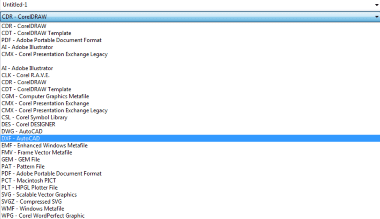
As you can see above, there’s plenty to choose from when saving your project. Notably, you can export to Adobe Illustrator, which means CorelDRAW plays nicely with other graphic design apps.
The same goes for the formats you can open.
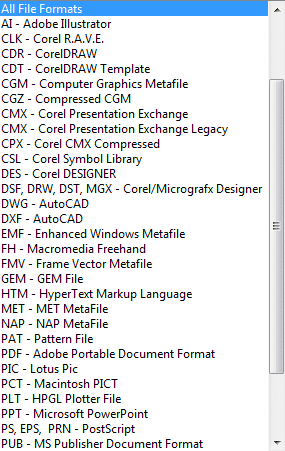
Here you can see just a portion of the many file types CorelDRAW can open. The odds you’ll run into an unsupported format are minimal.
Tools
Like other image editors, the toolbars sit on both the left and right, with some functions at the top. Unlike most, the toolbar is quite compact, which leaves more room for your canvas and reduces accidental clicks.
That said, this design takes a little getting used to—especially because the icons are small, which can make onboarding harder for beginners. As in other apps, you can hover over tools to read a short description.

For example, the Text tool shows a brief tooltip when you hover over it.
Design & usability
Too many editors lean on dark interfaces—black and gray—and they can feel dull over time. CorelDRAW doesn’t try to copy that look, and its color choices stand out while staying fairly neutral.
CorelDRAW primarily uses white and light gray, which work perfectly together. The bright UI keeps your design front and center while you work. In past reviews we wished more developers would break from the norm—CorelDRAW did, and it’s a breath of fresh air.
Alternative programs
You can use CorelDRAW free for 15 days; after that, it becomes a paid product. If you’re on a tight budget, there are free alternatives that cover many of the same tasks, though not all.
Paint.NET is our go-to favorite image editor: it’s completely free and packed with useful features. Paint.NET can easily handle simpler image editing tasks, but if you want to design larger projects, you’ll probably need something else. Feel free to browse our billedbehandlingskategori to see if there’s an option that fits your needs when Paint.NET isn’t enough.
Conclusion on CorelDRAW
CorelDRAW can do more than most image editors, so it does cost money after the trial. That said, it handled every task we threw at it. It isn’t limited to a single purpose—the range of projects it supports is enormous, which is a big plus. The software is deep and can be confusing for newcomers, but give it some time and it may become your new favorite.
All in all, CorelDRAW is a fantastic graphic design program that can deliver excellent results across a wide variety of tasks.



