
 Martin Jørgensen
Take better notes with Evernote — now updated to Evernote 11
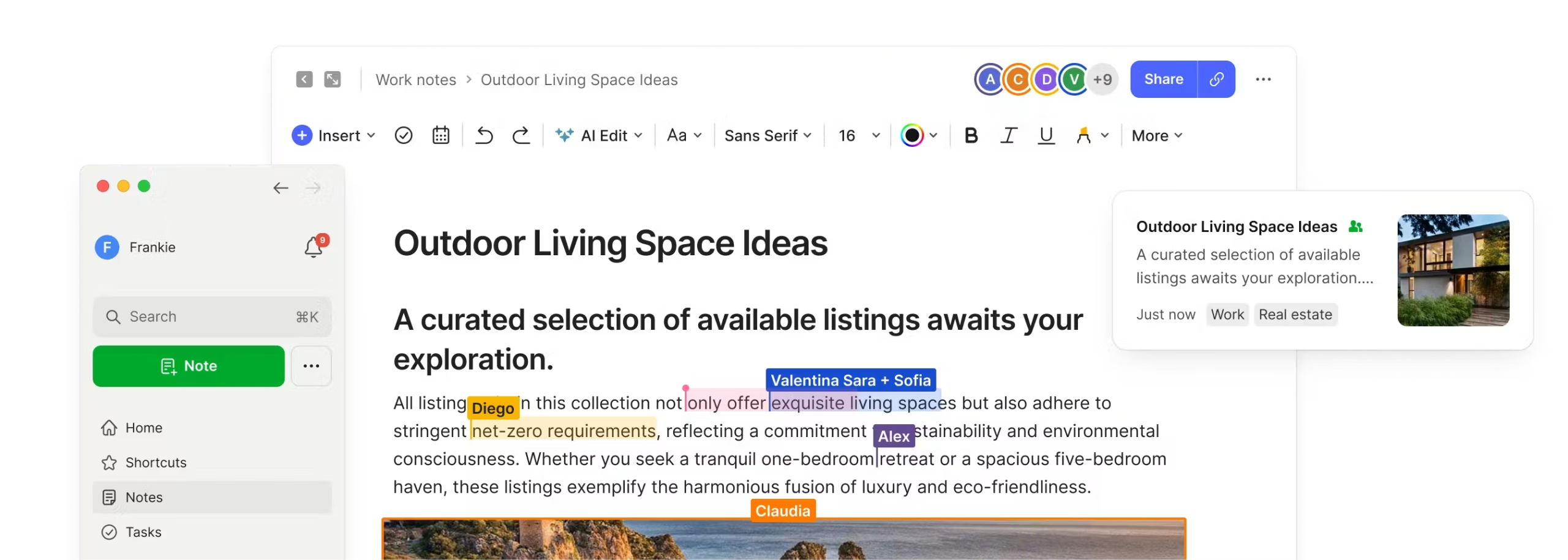
Evernote is one of the most popular, widely used note-taking apps on the market, trusted by students, individuals, and professionals. With the release of Evernote 11, the app gets a major update focused on speed, simplicity, and better everyday organization.
In our testing of the newest version, we noticed the app launches faster than before, and the interface feels cleaner and more modern — especially compared to older Evernote versions.

What can you use Evernote for in practice?
At its core, Evernote is a digital archive for everything you don’t want to forget. That can be quick notes, longer text, checklists, images, PDFs, or entire web pages.
We used Evernote 11 for both work notes and personal to-dos — including task planning, gathering research, and saving articles. It works equally well whether the note is a quick checklist or a longer document.
Use cases include:
- Recipes and meal plans
- Study and meeting notes
- Project planning
- Travel plans and personal journals
- Archiving receipts and PDFs
Web Clipper — Evernote’s most powerful feature

Evernote’s Web Clipper remains one of the app’s biggest draws. It’s a browser extension that lets you save full web pages, articles, recipes, images, and excerpts directly to your notebooks.
During testing, we used Web Clipper extensively in both Chrome and Microsoft Edge, and it worked reliably. You can choose to save the entire page, just the text, or a selection — and then add tags and file the note so it’s easy to find later.
More structure — less paper
Evernote naturally encourages a more paperless routine. The app makes it easy to collect documents, notes, and files in one place, and in Evernote 11, working with PDFs and images has been further streamlined.
We tested PDF annotation and document scanning, which work well for both schoolwork and office tasks. In practice, that means you’ll rarely need to print — everything can be saved, highlighted, and shared digitally.
How to use Evernote in everyday life

When you open Evernote for the first time, you’re greeted with a clear overview of your notes and notebooks. In Evernote 11, navigation is simpler, making it easier to focus on your content.
When you create a new note, you can:
- Select a notebook
- Add tags
- Create reminders with date and time
- Write text, insert images and files
We found the reminder feature especially helpful for tasks you must not forget — notes with reminders are automatically gathered in a dedicated view.
Checklists, sharing, and collaboration
Evernote makes it easy to build to-do lists you can check off as you go. It’s perfect for both work tasks and personal to-do lists.
You can also share notes with others — either view-only or with editing access. In testing, we shared notes across multiple devices and users, and syncing worked reliably.
Light and dark theme

Evernote supports both light and dark themes and follows your system settings on Windows and macOS by default. Switch to dark mode to make the entire interface easier on the eyes during long work sessions.
Student discount for college and university students
Evernote continues to offer a student discount for select college and university students. If your student email address is eligible, you can get a Personal plan at half price for one year. That makes Evernote especially appealing for schoolwork, especially if you manage lots of notes and projects.
Why Evernote is still relevant in 2026
Evernote has been around for many years, but with Evernote 11 the developers clearly focused on making the app modern and efficient again. In our testing, we found a solid, stable, and polished note-taking app that still ranks among the best in its category.
Top 5 Evernote tips
1. Use tags consistently
Create fixed tags (e.g., “work,” “school,” “personal”) so your notes are always easy to find.
2. Save articles with Web Clipper — not bookmarks
That ensures the content won’t disappear if the page changes or gets removed.
3. Use reminders for important notes
Set a date and time so Evernote pings you when the note is relevant.
4. Combine PDFs in dedicated notebooks
It gives you a quick overview of documents, contracts, and study materials.
5. Use dark mode on long workdays
It’s easier on the eyes and helps you focus.



