
 Martin Jørgensen
Fences makes a cluttered Windows desktop far more usable
Fences is a Windows utility from Stardock that helps you organize desktop icons, files, and folders into fenced areas so you can find what you need faster. In our Windows 11 test, it worked especially well when the desktop had become a mix of screenshots, downloads, documents, and shortcuts that usually just pile up.
The smart thing about Fences is that it doesn’t try to change all of Windows. holder sig til skrivebordet and makes that specific area easier to manage. You can create groups for work, games, images, projects, or temporary files, then move things around until the layout makes sense for you. It sounds simple, but in practice it makes a bigger difference than you might think—especially if you use the desktop as a kind of quick workspace.
What can Fences do today?
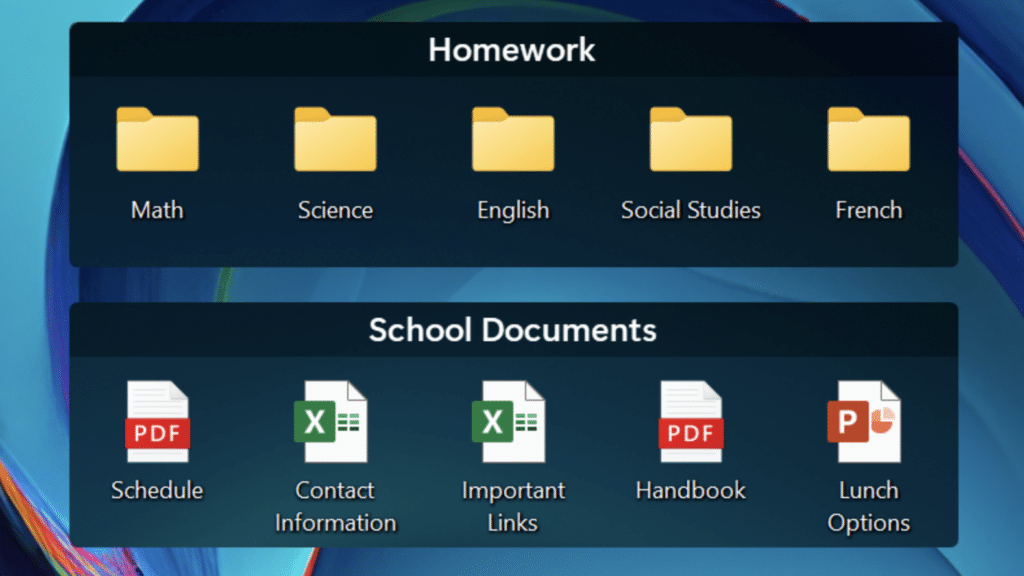
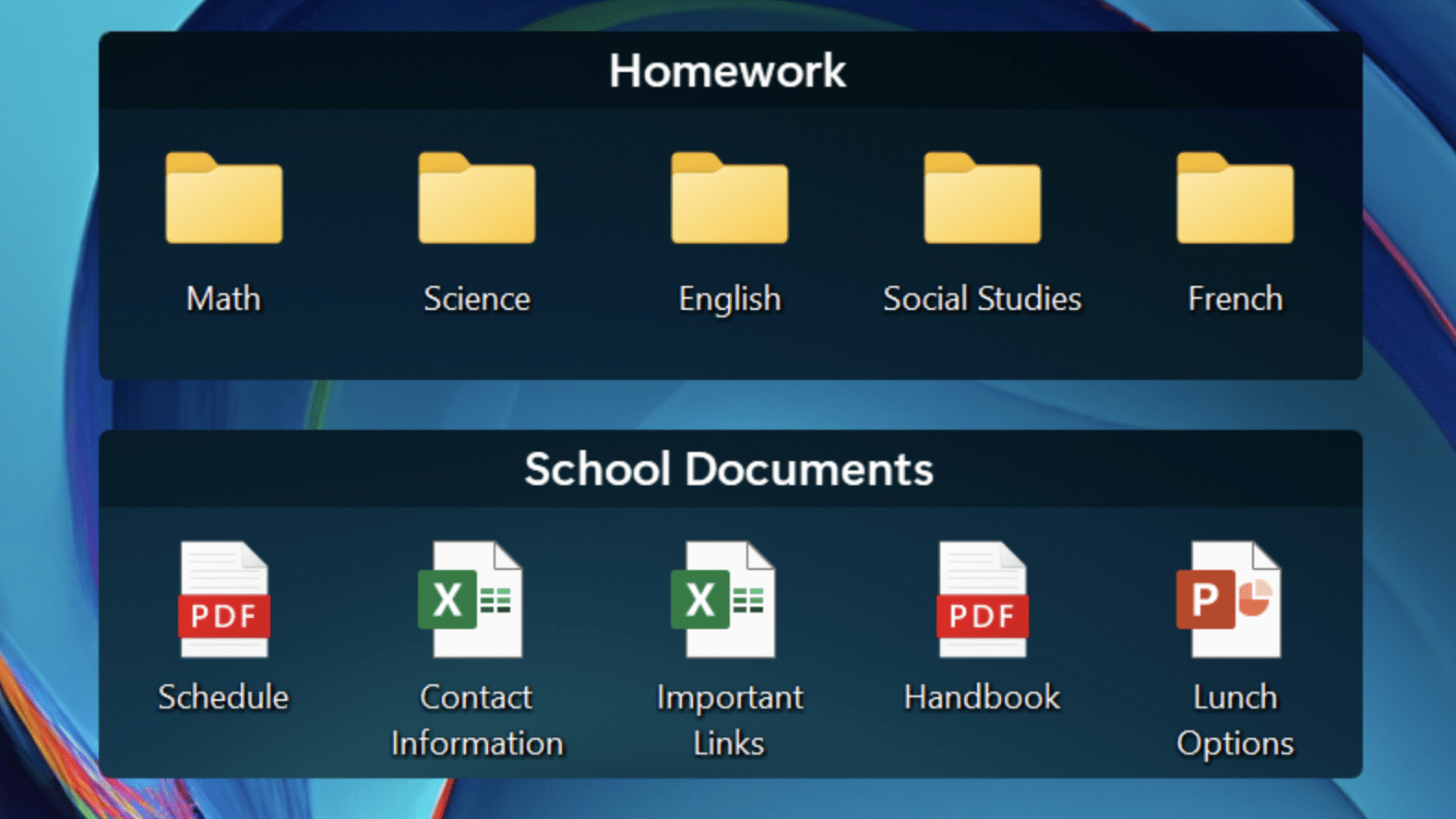
Fences is still built around the classic “fences,” but Stardock has expanded the concept. Today it highlights automatic sorting rules, Folder Portals, the Peek feature, and the ability to combine multiple groups into tabs. The app also lets you quickly hide or show desktop content to clear visual noise when you need to focus.
In practice, these are the highlights that make the app compelling:
Desktop structure that doesn’t feel heavy
You can create fixed areas for specific content types so Word files, images, downloads, and app shortcuts don’t end up scattered. It’s exactly the kind of small improvement that saves time day to day.
Automatic rules save manual cleanup
Stardock notes you can organize content by file type, name, time, and location. It’s one of the features that makes Fences more useful than just creating a few folders on your desktop.
Peek and quick access are surprisingly handy
Peek gives you access to your fences on top of other windows via a keyboard shortcut. It sounds niche, but once you get used to it, it actually feels faster to pull up files and shortcuts than constantly minimizing everything.
Folder Portals are powerful for power users
If you often work with Downloads, cloud folders, or project directories, Folder Portals are a real strength. You can surface a folder’s contents directly on the desktop in a more controlled view.
User experience and our impressions
We tested Fences on a Windows 11 PC with a desktop that honestly looked like something we’d been putting off for six months. Fences made a difference fast. It’s easy to get started, and the core idea clicks in just a few minutes.
The best part is there’s no steep learning curve. You can get value almost immediately, but there are also plenty of extra features for experienced users to build a very effective desktop setup. Conversely, it makes the most sense if you actually use the desktop actively. If you already file everything in folders and rarely see your desktop, the benefit is smaller.
Top 5 tips for Fences
1. Create one fence just for new downloads
We had the best results by creating a fixed area only for freshly downloaded files. That way new files don’t drown among old shortcuts and folders.
2. Use colors and names that make sense day to day
It sounds basic, but “Work,” “Personal,” “Screenshots,” and “Urgent” work better than clever names you forget after two days.
3. Keep games and launchers in their own area
If you have Steam, Epic, Battle.net, and a few loose game shortcuts, the desktop gets messy fast. A separate gaming fence helps more than you’d think.
4. Pair Fences with a clean wallpaper
In our test, a simple wallpaper and fewer visible icons made all the difference. Fences works best when you also think a bit about visuals.
5. Use the hide feature actively
The ability to quickly hide desktop content is great when you want to focus, share your screen, or just enjoy some visual calm.



