
 Martin Jørgensen
Download Google Chrome Free – Fast, Secure Web Browser
Download Google Chrome – fast, secure, and user-friendly browser
Google Chrome is one of the most widely used web browsers in the United States — and for good reason. In our testing, we experienced a very fast browser with excellent stability, a clean design, and access to thousands of extensions. Chrome works well for everyday browsing, streaming, work, and casual gaming, but it can use relatively high amounts of RAM on older computers.
On this page, we cover what you get with Google Chrome, how the browser performs in practice, the main pros and cons — plus our top tips to get the most out of it.
Our test of Google Chrome
We tested Google Chrome on both Windows and macOS in everyday use. What stood out:
- Very fast page loading
- Stable performance — even with many tabs open
- Tight integration with your Google Account and Google services
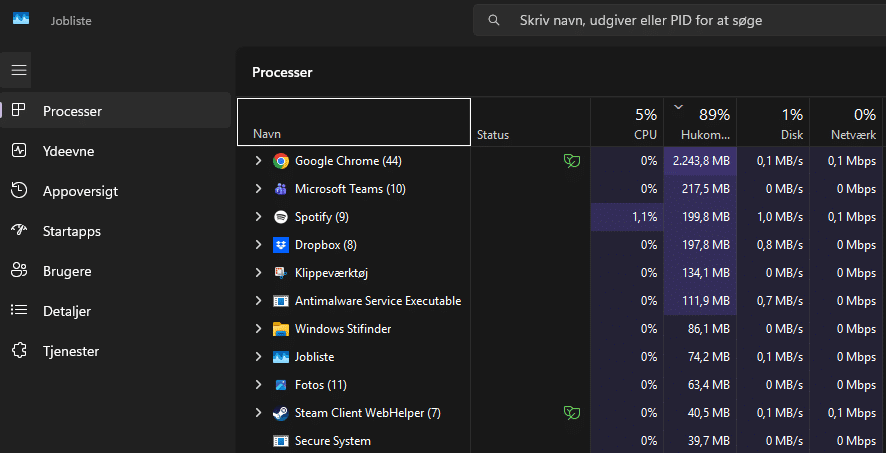
- Higher RAM usage compared with some alternatives
Chrome feels extremely responsive, but on older computers you can clearly tell the browser is resource‑hungry.
Countless extensions and customization options
One of Chrome’s biggest strengths is its extensions. Through the Chrome Web Store you can install everything from ad blocking and security tools to productivity and writing assistants.
During our test, we used ad blockers, password managers, and tab-management tools — all worked flawlessly. Most extensions are free, and installation takes only a few seconds.
You can also customize Chrome visually with themes so the browser matches your personal style.
Lightning-fast and simple design
Speed is one of Chrome’s key selling points — and that’s still true. Even with many tabs open, pages load quickly and navigation feels smooth.
The design is minimalist and straightforward, making it easy to find features like bookmarks, downloads, and settings. Chrome is built for quick access to Google Search, but you’re free to choose a different start page if you prefer.
Chrome is developed by Google
Google Chrome is developed by Google, which means:
- Frequent updates
- Rapid security fixes
- Tight integration with your Google Account, Gmail, Drive, and YouTube
The browser is available in English and many other languages, and it updates automatically in the background so you’re always on the latest, most secure version.
Security in Google Chrome
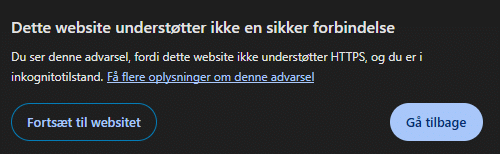
Security is a clear strength of Google Chrome. In our test, the browser blocked suspicious sites and clearly warned about unsafe downloads.
Chrome automatically scans files you download and protects against phishing, malware, and dangerous websites. It’s important to note that Chrome doesn’t replace a dedicated antivirus program — it serves as a strong additional security layer.
Alternatives to Google Chrome
Although we recommend Chrome, there are solid alternatives:
- Mozilla Firefox – focus on privacy and lower resource usage
- Microsoft Edge – fast and lighter on RAM in Windows
If you’re on an older computer, an alternative may provide a better experience.
Should you choose Google Chrome?
Google Chrome is a fast, stable, and user-friendly browser with extensive customization options. It’s a great fit for most users, but can feel heavy on older systems.
If you want maximum speed, robust security, and access to the world’s largest library of browser extensions, Google Chrome is an excellent choice.
Top 5 tips and tricks for Google Chrome
Want to get the most out of Google Chrome? Here are five practical tips to make your browsing faster, more efficient, and easier to manage.
1️⃣ How do you sync data in Google Chrome?
When you sign into Chrome with your Google Account, you can sync bookmarks, passwords, history, extensions, and settings across devices. In our test, syncing was fast, letting us switch from desktop to mobile without losing anything.
2️⃣ Which Chrome extensions are best for productivity?
Chrome has thousands of extensions for ad blocking, writing help, tab management, password management, and dark mode. In our experience, a few well‑chosen extensions offer the most value — too many can increase RAM usage and slow the browser.
3️⃣ How do you make Google Chrome faster?
If Chrome feels slow, open Chrome’s Task Manager with Shift + Esc to see which tabs or extensions use the most resources. Remove unused extensions and clear cache/cookies for a snappier experience.
4️⃣ How do you install Chrome quickly on new devices?
Chrome installs in minutes on Windows, macOS, and mobile devices. Once you sign in, your bookmarks, passwords, and settings are automatically restored via sync so you’re ready to go immediately.
5️⃣ What are Chrome Flags, and are they safe to use?
Chrome Flags are experimental features found at chrome://flags. They can unlock new features and speed improvements, but aren’t always stable. Enable only a few at a time and disable them if you notice issues.
💡 Bonus tip: You can do quick calculations right in the address bar — type 50*8/2 to see the answer instantly.
Google Chrome FAQ
Here are quick answers to the most common questions about Google Chrome — everything is shown directly on this page.
Can you add extensions to Google Chrome?
Yes. Chrome has a large extension store (Chrome Web Store) where you can install extensions for everything from ad blocking and password management to productivity tools and themes.
How do you change the home page in Google Chrome?
Open Settings, go to “On startup,” and choose whether Chrome should open a new tab, continue where you left off, or open a specific page as your home page.
Is Google Chrome faster than other browsers?
Chrome is known for high speed and solid stability, but it can be more resource‑intensive than some alternatives — especially on older computers with limited RAM.
How does Google Chrome improve security?
Chrome warns about suspicious websites, helps block phishing, and scans downloads for potential threats. The browser also receives frequent security updates.
Can you use Google Chrome on different operating systems?
Yes. Chrome is available for Windows, macOS, iOS, Android, and Linux, so you can use it on computers, phones, and tablets.
How can I personalize Google Chrome?
You can customize Chrome with themes and extensions, change your home page and search engine, and organize bookmarks and shortcuts to fit how you work.
Is Google Chrome free to use?
Yes. Google Chrome is free to download and use, and many extensions are free as well.
How does Google Chrome handle lots of open tabs?
Chrome handles many tabs reliably, but each tab uses RAM. On lower‑spec computers, too many open tabs can slow things down.
Can you use Google Chrome for streaming?
Yes. Chrome supports modern streaming technologies and typically works very well with services like YouTube and Netflix.
What are the alternatives to Google Chrome?
Two popular alternatives are Mozilla Firefox and Microsoft Edge. Both are fast and secure, and may be better if you want to save resources or prioritize privacy differently.



