 Martin Jørgensen
There’s no need to pay for expensive subscriptions just to make small fixes in a PDF. Whether you need to correct a typo, add an image, remove a page, or insert your signature, free solutions make it easy.
In this guide, we’ll show you how to edit PDF files for free, step by step — both directly in browseren and with programs you can install on your computer — for example in Windows 11.
Top 5 tips for editing a PDF for free
💡 Tip: Browser-based or installed?
If you only need to change a single sentence or remove a page, browser-based solutions are often the fastest. If you work with PDFs frequently, an app like PDF-XChange Editor is worth installing.
🔐 Is it safe to use online PDF editors?
Generally yes—if you use reputable tools. PDF24 and Sejda typically delete your files automatically after a few hours. Avoid uploading sensitive documents to unknown sites.
📄 Can I edit text in every PDF?
No. Many PDFs are scanned images and require OCR (text recognition) before they can be edited. Use, for example, Sejda or PDF-XChange Editor with OCR.
🖼️ How to add images to a PDF
In most editors, you can insert images via "Insert" or "Add image." In PDF24, it’s under 'Add element.' Remember to save your changes afterward.
🧽 Remove a page from your PDF — fast
Use the “Remove pages” feature in browser-based tools like PDF24 or Sejda. Select the page you want to delete and save your new PDF. It takes under a minute.
Which free PDF editing tools can you use?
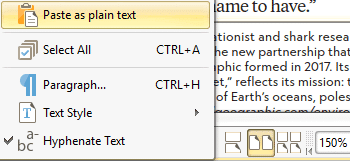
There are now plenty of free PDF tools—here are some of the most reliable:
- PDF-XChange Editor (Windows): Lightweight program with powerful editing features.
- LibreOffice Draw (Windows, Mac, Linux): Part of the LibreOffice suite and great for text and graphics.
- PDF24 Tools (Browser): Danish browser-based solution with 30+ PDF tools.
- Sejda PDF Editor (Browser): Clean and easy web-based editor with hourly limits.
- PDFescape (Browser): Basic editing directly in your browser.
ℹ️ Did you know? You can also edit PDFs on mobile—PDF24 and Sejda work right in the browser on Android and iOS.
What can you edit in a PDF?
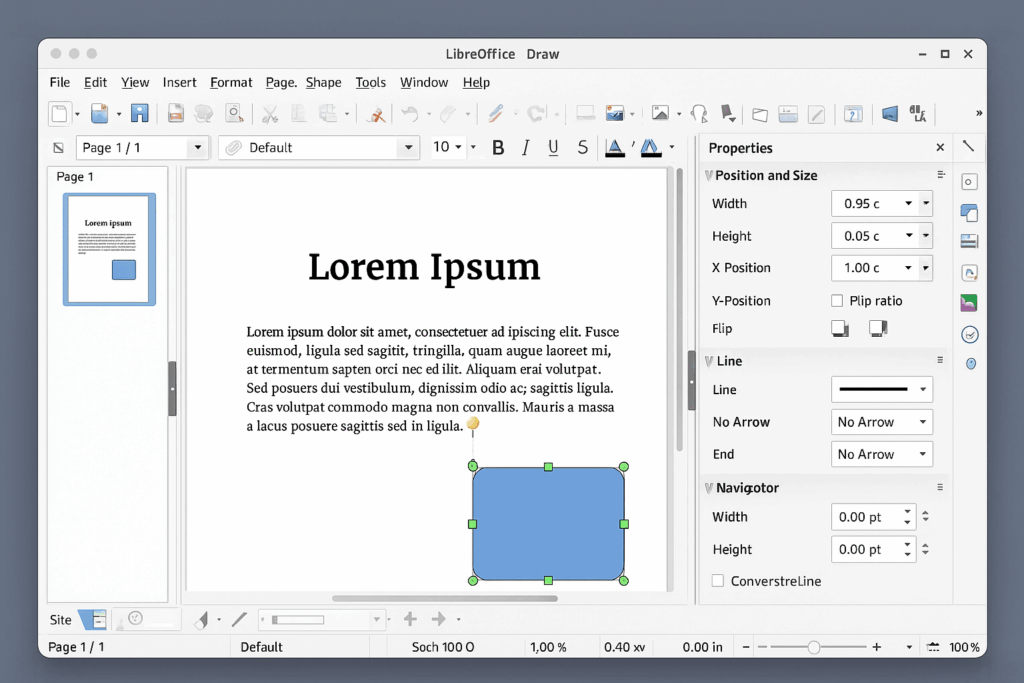
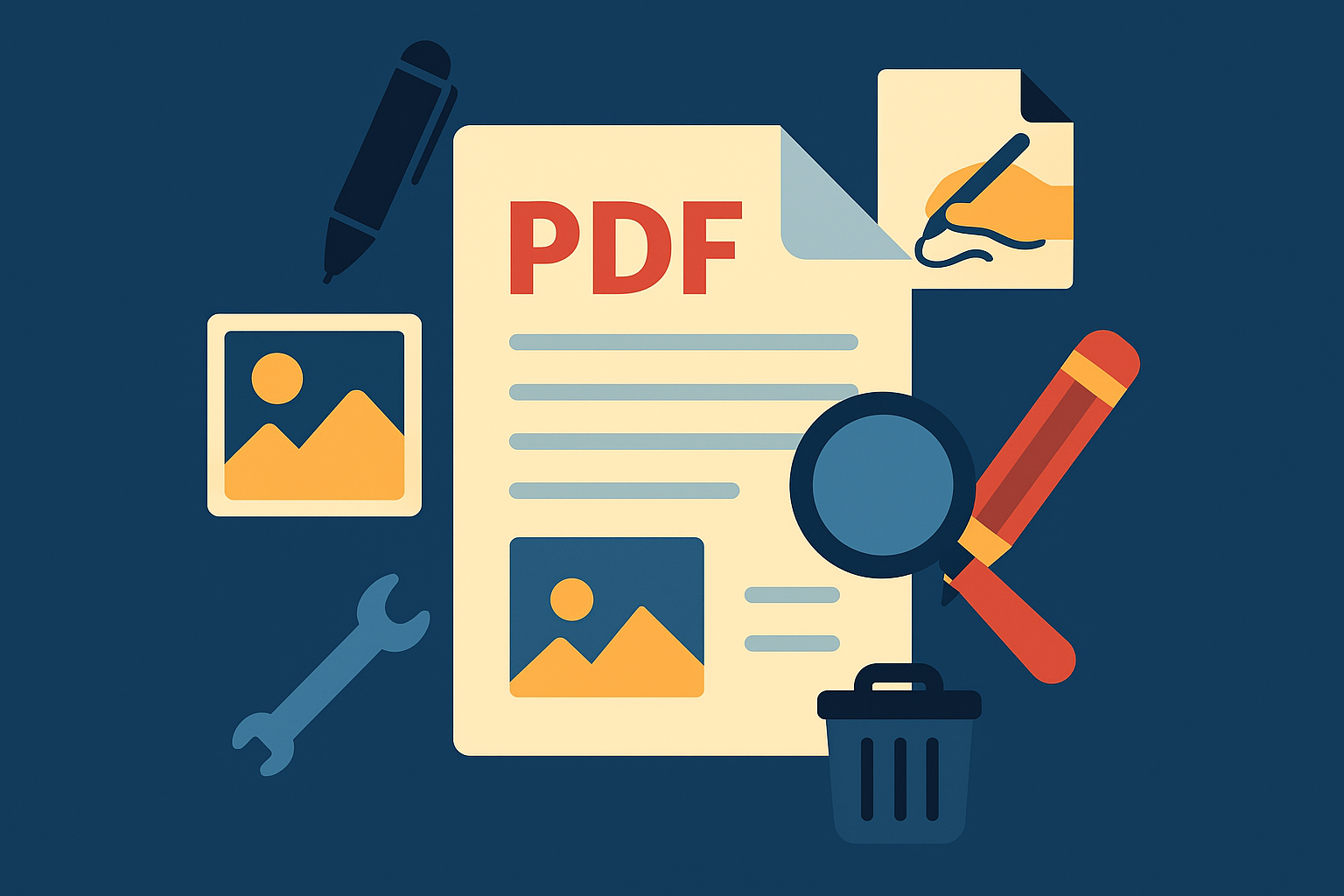
Depending on the tool, you can:
- Delete or add text
- Insert images and shapes
- Sign documents
- Fill out forms
- Delete or rearrange pages
- Merge multiple PDFs
- Convert PDF to Word or image files
Example: How to edit a PDF with PDF24 Tools (browser)
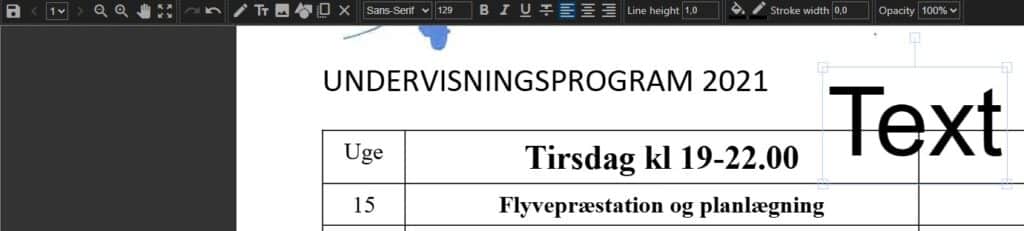
- Go to PDF24 Tools.
- Choose “Edit PDF.”
- Upload your PDF.
- Use the tools to add text, lines, or images.
- Click “Download” to save the edited file.
📎 Conclusion You don’t need to spend money to edit a PDF. With the right free tools, you can handle both small and larger tasks—quickly and safely.
👉 Also check out our overview of de bedste gratis PDF-programmer her.