 Martin Jørgensen
In a world where cyberthreats are getting increasingly sophisticated, it’s more important than ever to know how to protect your PC—and what to do if something goes wrong. Fortunately, it doesn’t have to cost anything to fjerne virus and malware effectively from your Windows 11-pc. This guide gives you step-by-step instructions to clean your computer for free.
Start in Safe Mode
Before you begin, it’s recommended to start your PC in Safe Mode. This limits how many programs run and makes it easier to identify and remove malware.
- Click Start >Settings >System >Recovery.
- Under Advanced startup, click Restart now.
- Select Troubleshoot >Advanced options >Startup Settings >Restart.
- Select Safe Mode with Networking (press F5, for example).
Use Microsoft Defender Offline Scan
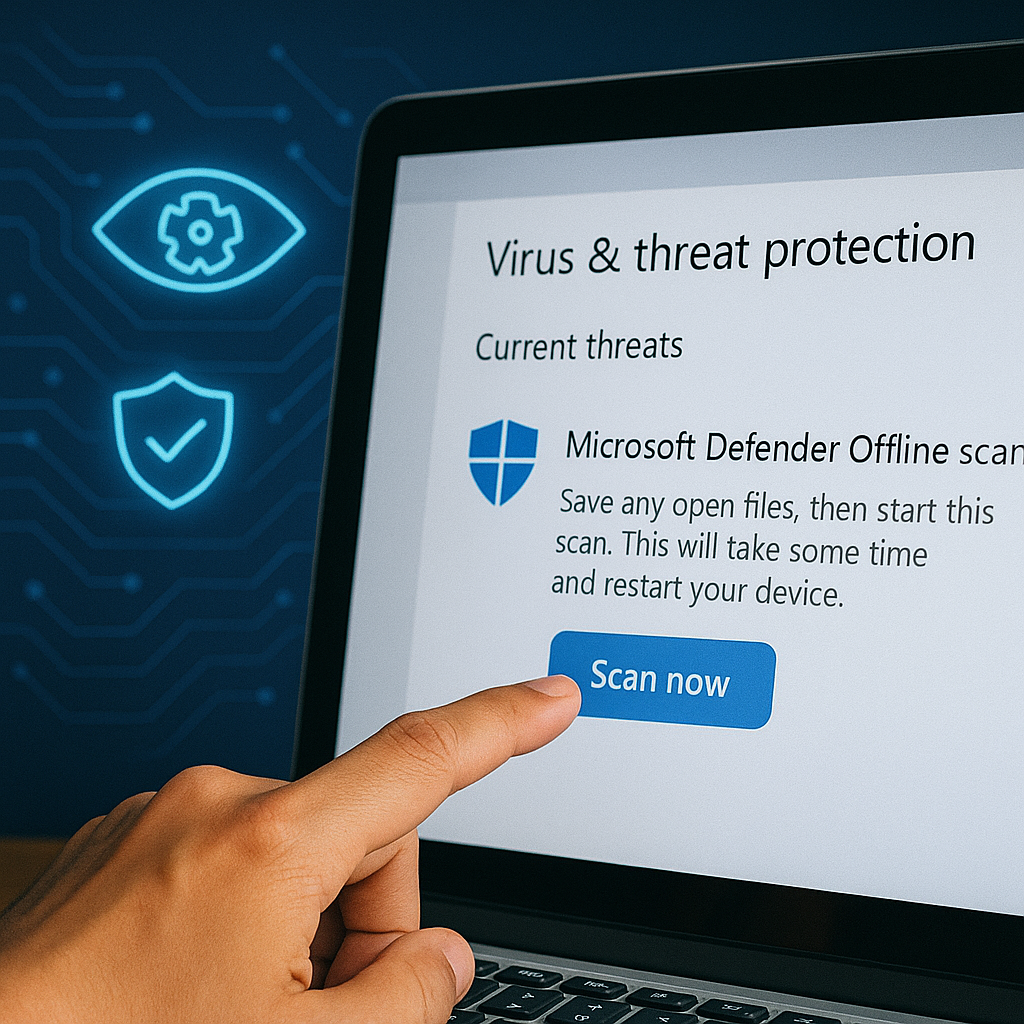
Microsoft Defender has become one of the most reliable gratis antivirusløsninger til Windows 11 in 2026. With its powerful offline scan, Defender can find and remove threats that hide deep in the system—often missed by regular scans.
How to start an offline scan:
- Go to Settings >Privacy & security >Windows Security >Virus & threat protection.
- Click Scan options.
- Select Microsoft Defender Offline scan from the list.
- Click Scan now and confirm the restart.
When you start the scan, your PC will restart and run a full check outside the normal Windows environment. This means malware that tries to hide by running alongside Windows can no longer protect itself.
Why use an offline scan?
Some types of malware—especially rootkits and advanced spyware—are designed to avoid detection by starting before antivirus tools can catch them. An offline scan tackles the problem from another angle:
- Malware isn’t allowed to start because Windows isn’t active during the scan.
- Removal is easier and more effective since the malicious software can’t defend itself.
How long does it take?
An offline scan with Microsoft Defender typically takes 15 to 30 minutes, depending on how many files you have and your hardware. During the scan, you’ll see a simple black screen with the Windows Defender logo and status.
What happens after the scan?
After the scan, your PC restarts automatically and returns to Windows. If Defender found threats, you’ll get a detailed report with:
- Which files or programs were found.
- What action was taken (removed, quarantined, or requires further action).
Review the report and make sure any suspicious items are fully removed.
Tip: Run an offline scan regularly
While real-time protection catches most threats, running an offline scan once a month is a great habit—especially if you download lots of files, install third-party software, or browse lesser-known websites.
Use free specialized tools
Some malware needs more specialized tools. Here are three of the best free options in 2026:
- Malwarebytes Free: Fjerner avanceret malware og adware. Remember to choose the free edition.
- 1: Særligt god til at fjerne browser-hijackere og uønskede programmer.
- Sophos Home Free: Cloud-based antivirus with advanced cleanup features.
Download and scan your PC with these programs to ensure all threats are removed.
Manually remove suspicious programs
Some infections start with an innocent-looking software install. Remove suspicious apps manually:
- Right-click Start and choose Apps & features.
- Review the list and uninstall unknown or suspicious programs.
Remove suspicious browser extensions and reset your browser
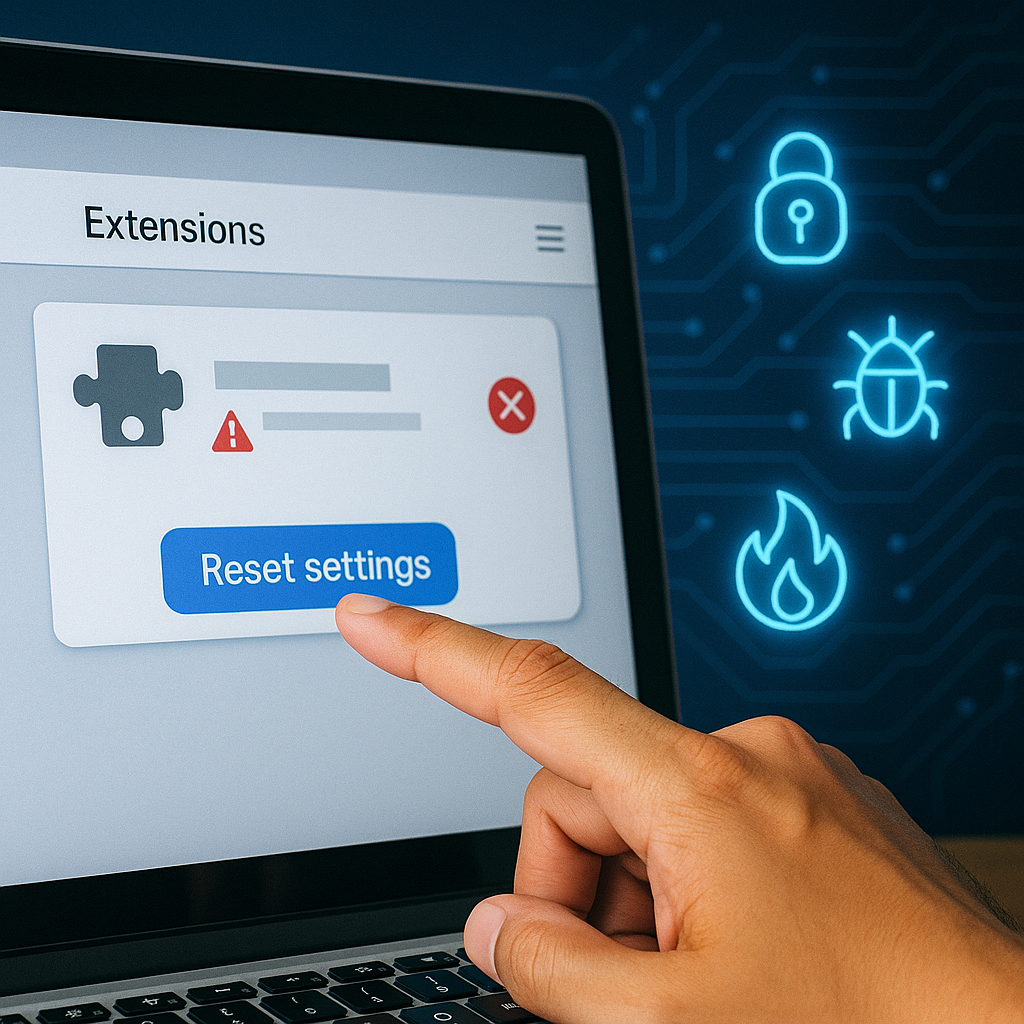
Browser-based malware has become more common. Here’s how to clean it up:
- Chrome: Settings > Extensions > Remove suspicious extensions.
- Edge: Settings > Extensions > Remove suspicious extensions.
- Firefox: Add-ons and Themes > Remove unknown add-ons.
Consider resetting browseren to default settings.
How do you know if you have a virus?
Viruses and malware often show up like this:
- Your computer suddenly slows down
- Unexpected pop-up windows appear
- Programs start or close by themselves
- You’re redirected to unfamiliar websites
- Your antivirus is disabled without your permission
If you experience several of these symptoms, you should immediately scan and clean your PC.
Are free antivirus programs good enough?
Yes, most free antivirus solutions cover the basics for everyday users. However, you won’t always get access to:
- Ransomware protection
- Parental controls
- Web protection against phishing
But for everyday use and removing viruses, gratis programmer like Microsoft Defender, Malwarebytes, and Sophos Home are a solid choice.
What about viruses on your phone?
Many people forget that today’s smartphones function like small computers—and are attractive targets for hackers and cybercriminals. Android devices are especially vulnerable compared to iPhones because Android allows installing apps outside Google Play, which opens the door to malware.
How do phones get infected?
Mobile malware often arrives via:
- Fake apps that look official but contain hidden malicious code.
- Phishing texts or social media messages that lure you into clicking infected links.
- Unsecured Wi‑Fi networks where attackers can intercept your data if you’re not protected.
- Downloading APK files from unofficial sites, where there’s no guarantee of legitimacy.
How to protect yourself effectively
To minimize the risk of mobile malware, follow these steps:
- Install a free security app: Programs such as Bitdefender Free for Android or Kaspersky Security Lite offer real-time protection without slowing your device.
- Avoid APK installations: Only download apps from official stores like Google Play or the Apple App Store. If you must use an APK, verify the source carefully.
- Always update your phone: Many exploits target known vulnerabilities already patched in newer updates. Keeping your OS and apps up to date greatly reduces your attack surface.
- Be careful with app permissions: If a simple calculator app asks for access to your contacts, texts, or camera, be suspicious. Install apps only from reputable developers with strong reviews.
- Use a VPN on public networks: When using coffee shop Wi‑Fi or other open networks, a VPN helps prevent eavesdropping on your traffic.
Are iPhones safe?
While iPhones are generally more secure due to Apple’s tight controls, they aren’t immune. Phishing, poorly behaving apps, and rare iOS vulnerabilities can still put you at risk. The same basic caution applies—regardless of platform.
Bonus tips: Stay protected going forward
- Use real-time protection from Microsoft Defender.
- Keep Windows and apps up to date.
- Download software only from trusted sources.
- Be skeptical of unfamiliar links and e-mails.
- Back up regularly so you can restore files after an attack.
By following this guide, you can remove viruses and malware effectively without paying—and make your PC more secure going forward.