

 Martin Jørgensen
Update all your software with one click—without the hassle
IObit Software Updater is a free Windows app that puts all your software updates in one place. Instead of being interrupted by pop-ups and manual installers, you get a clear overview and can decide exactly when updates should be installed.
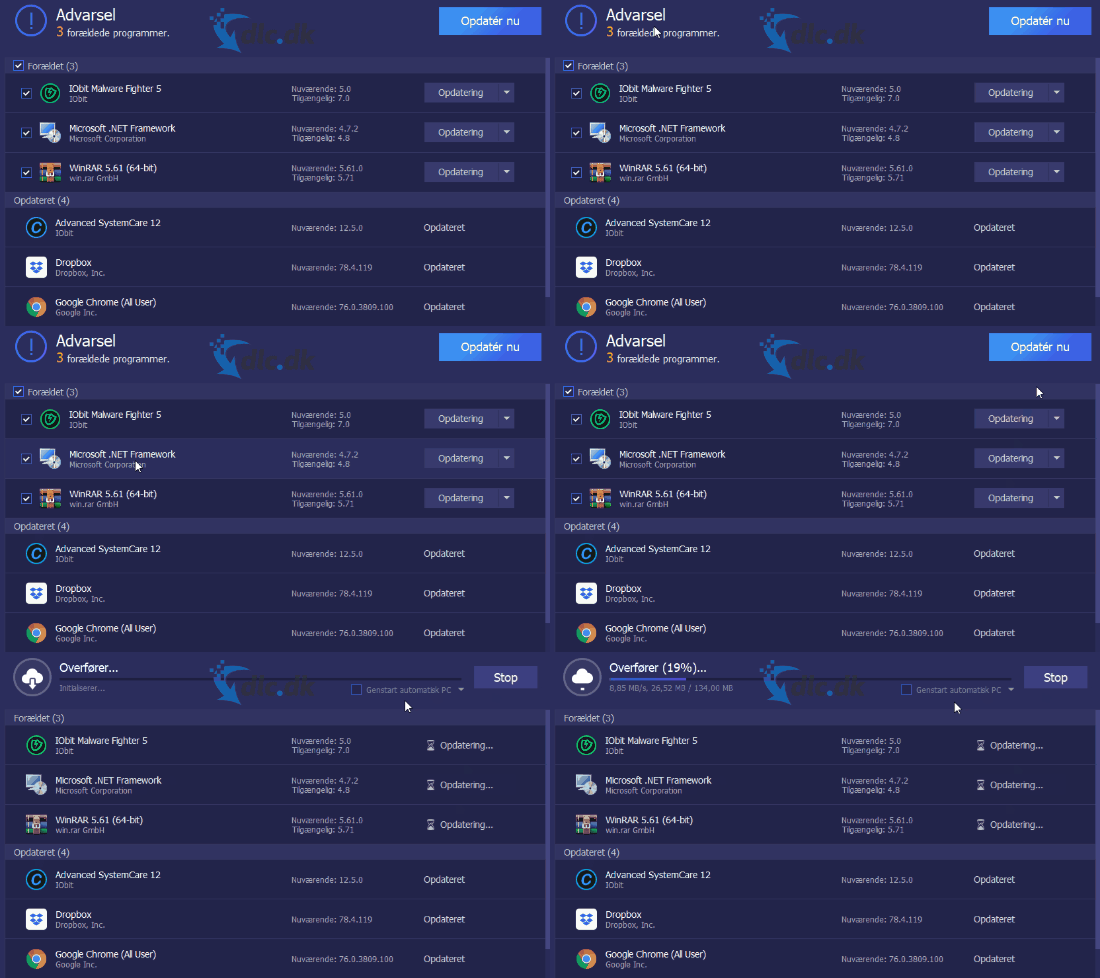
We tested the app on a standard Windows 11 PC with both newer and older software installed. Installation took under a minute, and on first launch it already found several outdated programs that Windows itself hadn’t flagged.
How IObit Software Updater works in practice
Once installed, the app automatically scans your PC and presents a clean list of installed software.
At the top you’ll see apps that need updates
At the bottom you’ll see apps that are already up to date — including the date of the latest opdatering
You can choose to:
- update all programs at once
- update individual programs manually
When you run a bulk update, updates are downloaded and installed automatically without additional setup windows. That makes a big difference if you have many programs installed.
Discover and download new software via recommendations
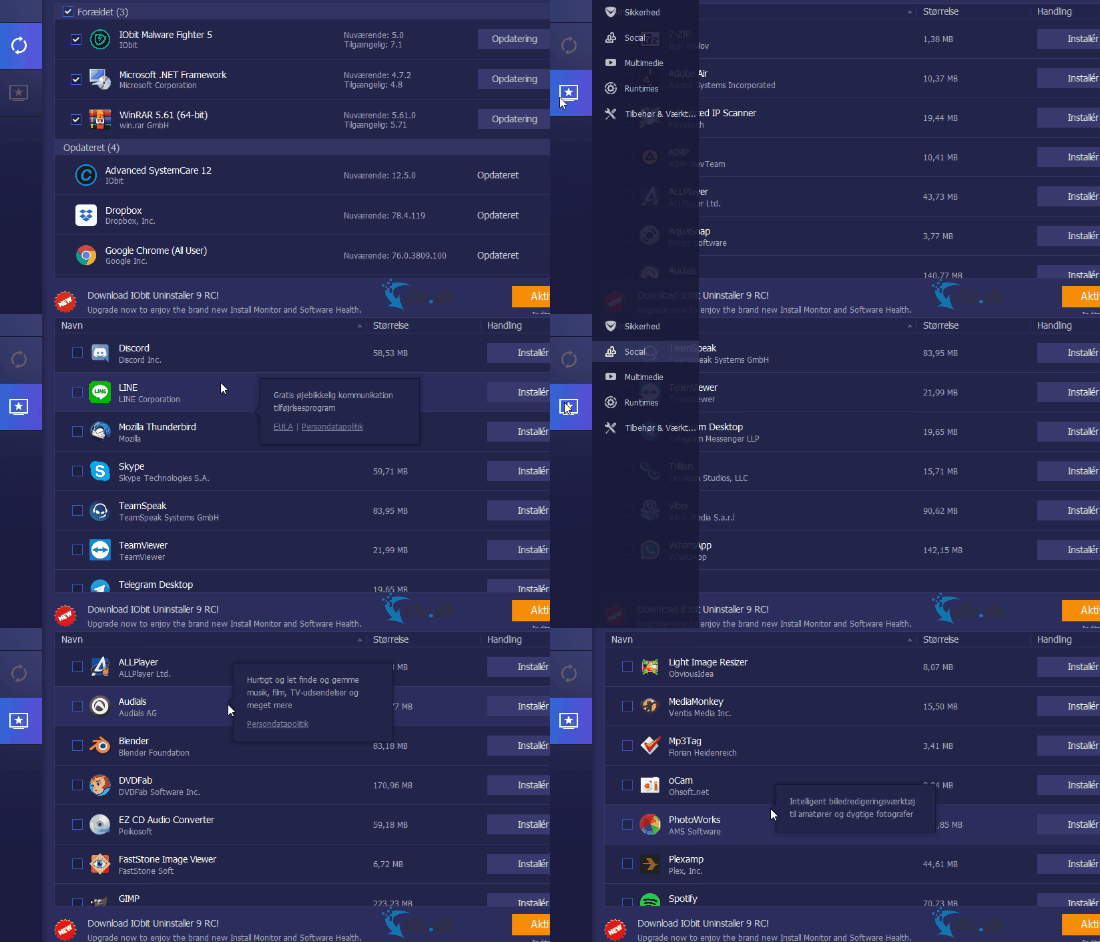
IObit Software Updater also works as a software catalog. In the Recommendations tab, you’ll find programs that aren’t already installed on your computer.
Here you can:
- browse software by categories such as security, systemværktøjer, and multimedia
- find both IObit’s own programs and software from other developers
- install programs directly without searching for download links yourself
During our test, we didn’t encounter aggressive pop-ups or hidden installs, which is often a problem with free system tools. Downloadhastigheden virkede stabil og hurtig compared to manual downloads from the developers’ own websites.
Settings, languages, and support
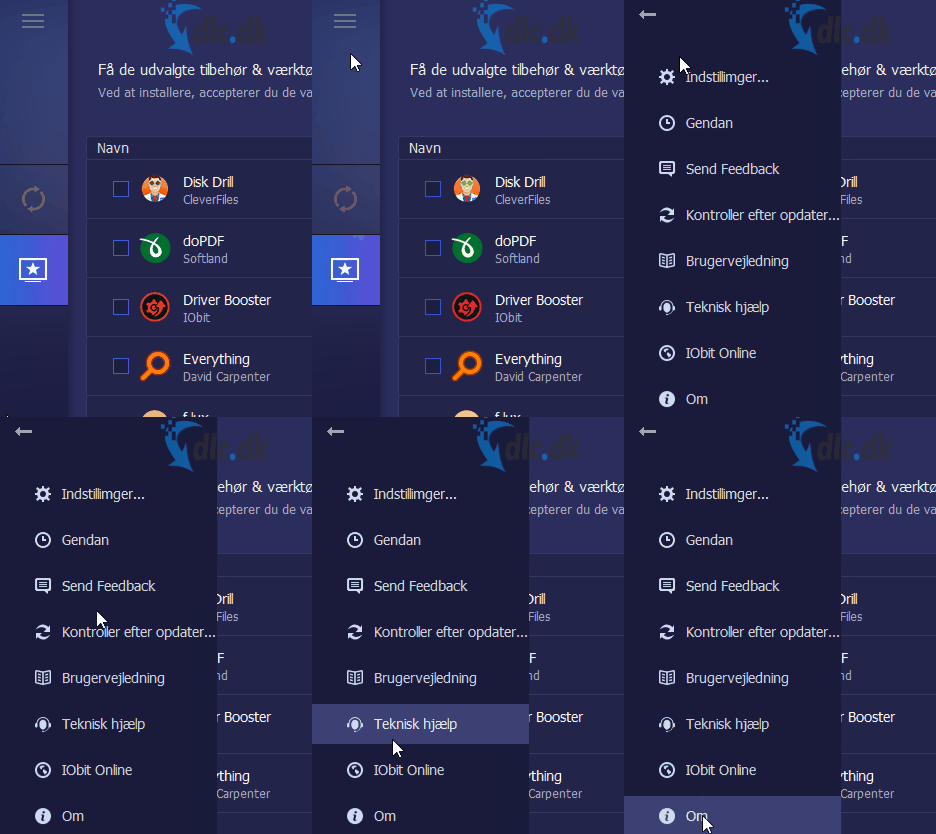
The app is simpelt opbygget og let at gå til – even for less experienced users.
From the menu in the top-left corner, you can:
- change language
- adjust update settings
- read about the program and its developers
- access support and help pages
Most things work without any configuration, but advanced users can fine-tune behavior to match their preferences.
Top 5 tips for IObit Software Updater
1. Run updates manually once a week
It gives you better control and ensures updates don’t interrupt your work.
2. Review recommendations critically
Installer kun software, du reelt har brug for – not everything that’s recommended is necessary.
3. Use the app after Windows updates
Windows updates often leave third-party software out of date.
4. Remove old programs first
The fewer programs you keep, the more accurate the update list will be.
5. Close apps before major updates
This reduces the risk of errors when installing major version upgrades.



