
 Martin Jørgensen
Download Word from Microsoft – The ultimate word processing tool.
Updated: August 14, 2025
Microsoft Word is undoubtedly one of the most widely used word processing programs in the world. As part of Microsoft 365-pakken, but also available as a standalone application (that’s the one you can download from here), Word offers a complete solution for creating, editing, and sharing documents. Whether you’re a studerende, a professional, or simply need a reliable writing tool, Microsoft Word is one of the best options on the market.
Top 5 tips for Microsoft Word – Be more productive and efficient
Want to work faster in Word? Learn to use keyboard shortcuts instead of the mouse. It’s one of the easiest ways to save time—especially for students and office users.
Examples of handy Word shortcuts:
Ctrl + B → Bold text
Ctrl + I → Italicize text
Ctrl + U → Underline text
Ctrl + Z → Undo last action
Ctrl + Shift + C / Ctrl + Shift + V → Copy and paste formatting
Tip: You can find a complete list of shortcuts under Help in Word.
Do you often use the same phrases in letters, emails, or reports? Word’s Quick Parts feature lets you save phrases and insert them with just a few clicks.
How to save a phrase as Quick Parts:
– Type the phrase and select it
– Press Alt + F3
– Save it as a "building block" (AutoText)
Next time you type the first words, Word will suggest the rest automatically. Perfect for legal documents, HR templates, or customer responses.
Sharing a document for review? Turn on Track Changes in Word to make collaboration easy and transparent.
How to turn it on:
– Go to the Review tab
– Click Track Changes
– Save and share the document
When others make changes, you’ll see them marked and can choose whether to accept or reject them. Ideal for proofreading, contract reviews, and group assignments.
If you write long documents such as theses, reports, or manuals, using an automatic table of contents in Word is almost a must.
How to do it:
– Use Heading 1, Heading 2, etc. in your sections
– Go to References > Table of Contents
– Choose a style—Word will generate a clickable table of contents
You can update it anytime if you change the content. It saves time and gives a professional look.
Do you have two versions of a document and want to see what changed? With the sammenlign Word-dokumenter side-by-side feature, it’s easy to review differences.
How to do it:
– Open both documents
– Go to the View tab
– Click View Side by Side
When you scroll one document, the other follows—ideal for comparing contracts, revisions, or group work.
💡 You can also use "Compare Documents" under the Review tab for an automatic overview of forskelle.
With these five tips, you can work faster, smarter, and more professionally in Microsoft Word—whether you’re writing school assignments, reports, or business documents.
Features in Microsoft Word
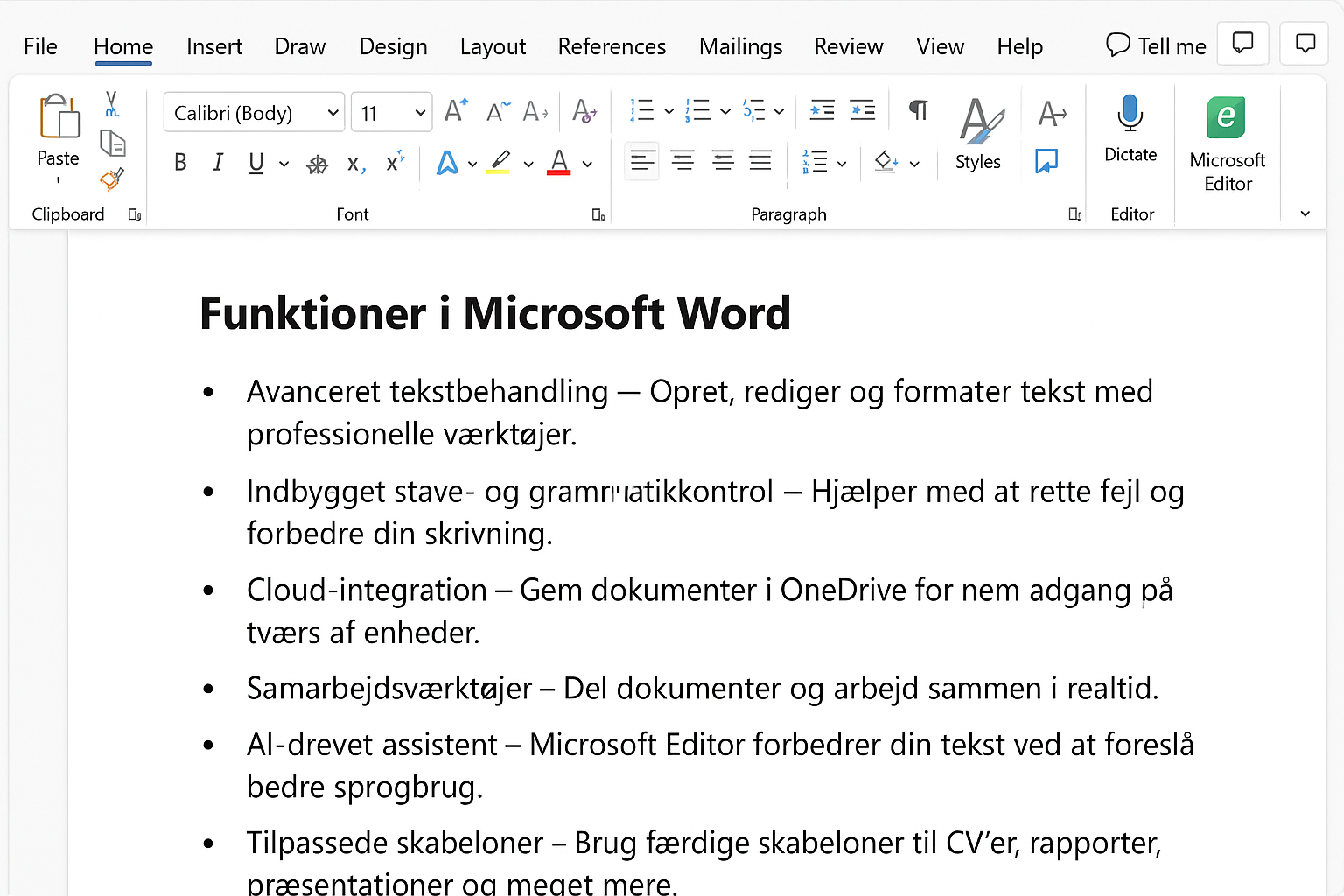
- Advanced word processing – Create, edit, and format tekst med professionelle værktøjer.
- Built-in spelling and grammar checker – Helps correct errors and improve your writing.
- Cloud integration – Save documents in OneDrive for easy access across devices.
- Collaboration tools – Share documents and work together in real time.
- AI-drevet assistent – Microsoft Editor improves your writing by suggesting better phrasing.
- Custom templates – Use ready-made templates for resumes, reports, presentations, and more.
- Contract templates directly in Microsoft – Create legally binding contracts with templates that simplify document management.
Download Word and get more than word processing
Download Word from Microsoft and get a tekstbehandlingsprogram that’s more than a tool for writing text. It also works as a powerful document management tool, letting you create everything from budget plans to interactive forms. Its integration with Excel lets you import and visualize data directly in documents, while the integration with PowerPoint allows you to build presentations without switching apps.
Advanced document formatting in Word
One of the most useful features in Microsoft Word is its ability to handle advanced document formatting. If you work with long reports or academic papers, you can use features like an automatic table of contents, footnotes, and references to organize your work professionally.
Microsoft Word’s cloud-based features
With OneDrive integration, users can save documents online and access them from any device. This means you always have the latest version at hand, whether you’re working from a computer, tablet, or smartphone. Word also offers AutoSave, so you won’t lose your work even if your device crashes.
Real-time collaboration support
Microsoft Word also supports real-time collaboration, making it easy for teams to work on the same document simultaneously. With comments and Track Changes, you can provide feedback and see exactly what was changed and by whom.
Microsoft Word for businesses and professionals
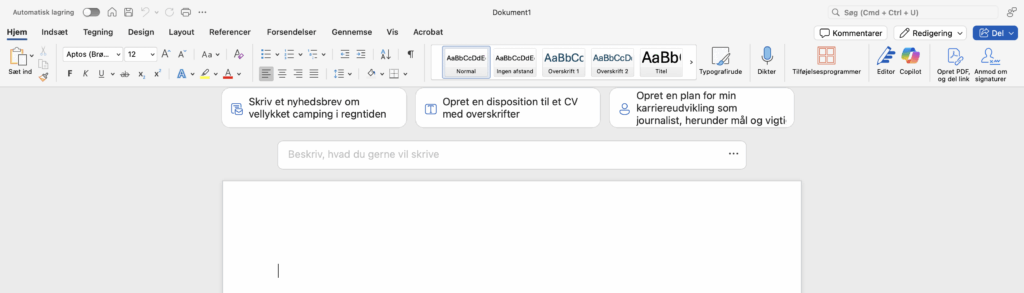
Word is an essential tool for businesses. Create and maintain contract templates directly in Word so teams can quickly produce professional, legally binding agreements and documents. The feature lets you customize standardized contracts, saving time and reducing the risk of errors.
Benefit from automated macros
For organizations working with large volumes of text, Word supports automated macros and integration with Power Automate to streamline repetitive tasks.
Download Word
Download Word from Microsoft directly from Microsoft’s official servers, so you get the newest, most secure version of Word in Danish. Get started by clicking "Download Word" on the blue button below. It redirects you to Microsoft’s own website and servers.



