
 Martin Jørgensen
CapCut – free video editing with AI that actually works
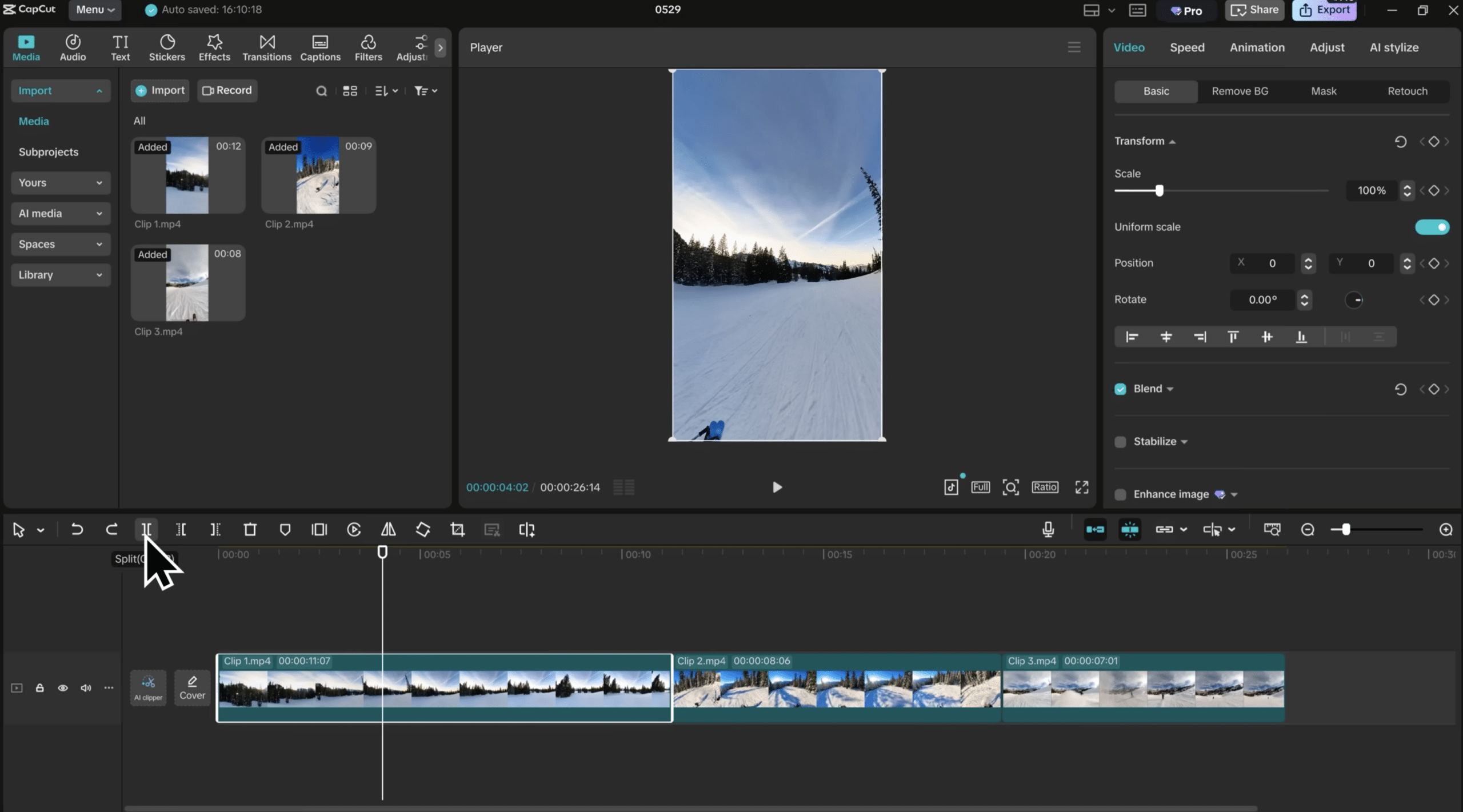
CapCut is a gratis videoredigeringsprogram from ByteDance (the same company behind TikTok), and it’s one of the few editor apps that feels truly “pro” without getting in the way. It has become especially popular with content creators because you get AI features like auto captions, templates, and background removal—without spending an afternoon learning the software.
In our tests on a standard Windows 11 PC and a phone (Android), we were up and running in minutes. Installation was straightforward, the timeline felt snappy, and the most-used tools are exactly where you expect them. The most surprising part was how close CapCut gets to pricier editors when you’re working with short-form, fast-turnaround content.
CapCut is ideal for TikTok, Instagram Reels, YouTube Shorts, and ad creatives where pacing, captions, and effects matter more than heavy color grading or film workflows. If you want to klippe hurtigt, få teksten in place and export in high quality without fuss, CapCut hits a rare balance between “easy” and “advanced.”
Features and capabilities in CapCut
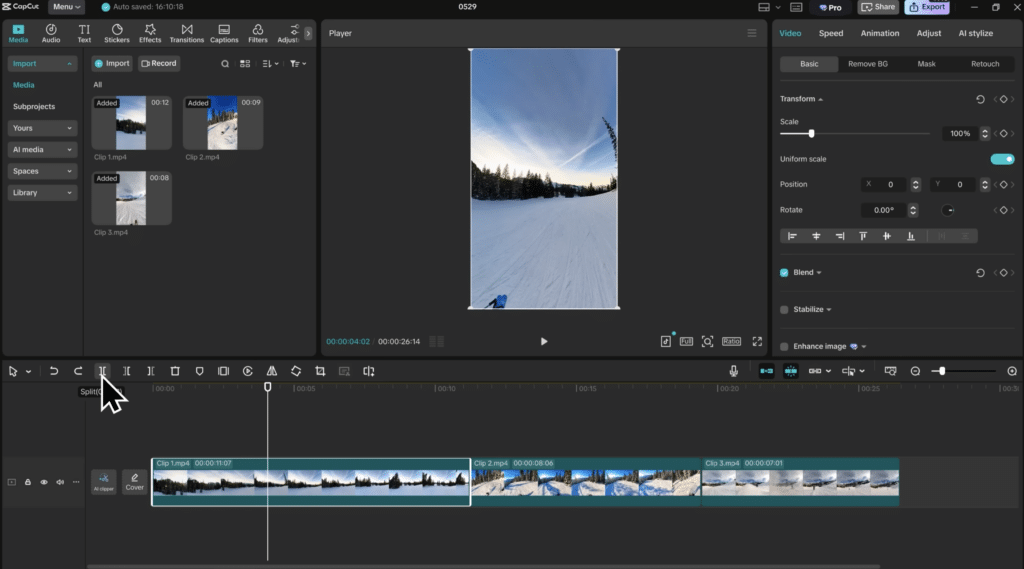
CapCut includes more features than you’d normally expect from free software:
- AI-powered background removal without a green screen
- Automatisk generering af undertekster in English
- Layer-based video editing with keyframes
- Large library of templates, effects, and transitions
- Export up to 4K with no watermark
In testing, we found that AI-værktøjerne sparer enormt meget tid compared with manual editing.
CapCut on PC, Mac, and mobile
One of CapCut’s biggest strengths is that it works across platforms:
- Windows and macOS for longer editing tasks
- iOS and Android for quick mobile videos
- Cloud sync between devices
We started a project on mobile and finished it on PC without issues—something many free editors struggle with.
CapCut vs Premiere Pro – which option makes the most sense?
The comparison between CapCut and Adobe Premiere Pro comes up a lot, especially among U.S. content creators.
CapCut is best if you:
- Create videos for social media
- Want to work fast with templates and AI
- Don’t want to pay for a subscription
Premiere Pro is best if you:
- Work professionally in film or broadcast
- Need advanced color grading
- Collaborate on larger productions
For most Holyfile.com users, CapCut will be more than enough.
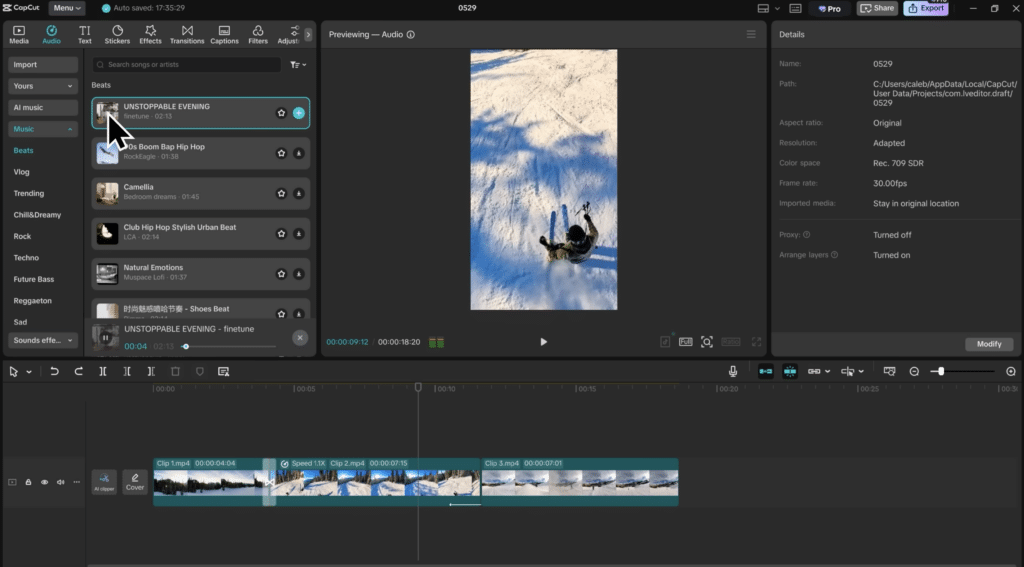
How to add subtitles, effects, and music
Subtitles are an area where CapCut really stands out.
- Import your video
- Select “Text” → “Auto captions”
- Adjust font, timing, and animation
- Add music from the built-in audio library
We found the automatic speech recognition surprisingly accurate in English.
Instagram launches edits – why CapCut still matters
Instagram has introduced its own editing tools, but they’re still fairly simple. CapCut gives you far more control over effects, pacing, color, and captions before you upload.
Many U.S. creators use CapCut for prep and Instagram for final polish—a combo that works really well.
Top 5 tips for CapCut
Top 5 tips for CapCut
Use automatic background removal (no green screen)
CapCut includes an AI-powered background remover you can use without a green screen. It analyzes the subject and separates it from the background in seconds. In our testing, results were best when there was clear contrast between the subject and background—good lighting and a calm backdrop. Perfect for product videos, presentations, and content where you want to change the background or layer effects.
Turn on auto captions early in your workflow
Auto captions are one of CapCut’s strongest features. Enabling them early makes it easier to cut, control pacing, and build transitions that match the text. We found the speech recognition surprisingly accurate in English, but always proofread—names, jargon, and mixed-language terms can still trip it up.
Use templates for Reels and Shorts to speed up your workflow
CapCut’s templates are built for short formats like TikTok, Instagram Reels, and YouTube Shorts. You get ready-made animations, pacing, and transitions that match what these platforms reward. If you produce a lot of content, templates can save loads of time and keep your style consistent—especially handy for small businesses and creators who want to post often without tinkering for hours.
Use keyframes for zoom and motion (to keep shots lively)
Keyframes give you smooth zooms, movement, and rotation in your clips. It noticeably elevates the overall feel versus static shots and can make even simple videos look more “finished.” We recommend a subtle zoom on talking heads or products—especially in short videos, where attention drops fast if nothing changes on screen.
Export in 4K (even for social) for a sharper result
Even if your video is mostly for social media, 4K export can yield a crisper final result. Instagram and TikTok will downscale, but higher export quality often preserves more detail. CapCut allows 4K export without a watermark, which is unusual for a free editor. Use H.265 (HEVC) if you want high quality with smaller file sizes.
CapCut FAQ
Yes, CapCut is free to use and doesn’t require a subscription. You can redigere videoer, bruge effekter og eksportere in high quality with no watermarks. Some extra features require sign-in, but the core tools are completely free.
Yes, CapCut is available for both Windows and macOS. You can also use CapCut on mobile via iOS and Android, and your projects can sync across devices.
Yes, CapCut supports English, including menus and automatic captions. Its speech recognition is often surprisingly accurate in English compared with many other free videoredigeringsprogrammer.
CapCut isn’t a direct replacement for Premiere Pro, but for many users it’s the better pick. CapCut is faster, easier, and free, while Premiere Pro is best for professional film and video with advanced color and lydredigering.
Tip: If you want to compare alternatives, you can also explore other videoredigeringsprogrammer on Holyfile.com.
Yes, CapCut is developed by ByteDance and used by millions worldwide. As long as you download it from the official source, it’s safe to install and use on PC, Mac, and mobile.



