
 Martin Jørgensen
MultCloud – bring all your cloud services together in one place
MultCloud is a free tool that lets you connect and manage all your cloud accounts from one unified platform. We tested it with Google Drive, Dropbox, and OneDrive, and found everyday work much easier when files and folders were accessible with a single login.
Features and capabilities
MultCloud works as a central hub where you can bring all your cloud services together. We found these features especially useful during testing:
- Connect popular services like Google Drive, Dropbox, OneDrive, Box, Amazon Drive, and SugarSync. Adding accounts takes just a couple of clicks, and they appear instantly in a single, unified view.
- Add multiple accounts from the same service. We connected both a personal and a work Dropbox, and MultCloud kept them separate, making it easy to switch between them.
- Transfer files directly between clouds. We moved a folder from Google Drive to OneDrive—without downloading anything locally. The transfer was fast and continued in the background even after we closed the browser.
- Set up scheduled syncs and automated transfers. If you regularly need to keep folders in sync across services, this is a major time-saver.
- Search across all connected accounts. Instead of remembering whether a deck was on Dropbox or Google Drive, we searched in MultCloud and got results in seconds.
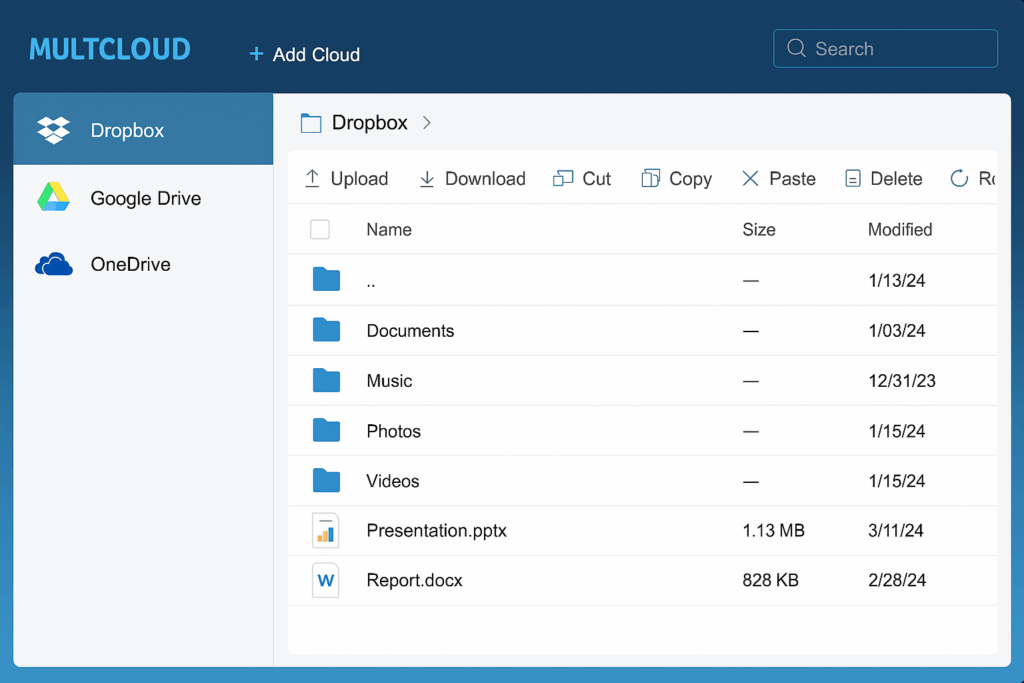
In practice, MultCloud feels like a mix of a classic file manager and a productivity tool. During testing, we saved time by avoiding constant sign-ins and could complete tasks—like copying folders or creating backups—in a much more streamlined way.
User experience and speed
We tested MultCloud in a browser on Windows 11 and found that file transfers between Dropbox and Google Drive were fast and error-free. The interface is in English and very intuitive—you get a classic File Explorer–style view that most people will recognize.
One thing that stood out is that you can let MultCloud run in the background. This means even large transfers keep going, even if you close the browser.
MultCloud security
When you work across multiple cloud services, security matters. MultCloud uses 256-bit AES encryption during transfers and supports two-factor authentication via the connected services. Your data isn’t stored by MultCloud; it’s relayed securely and encrypted between providers.
Strengths and weaknesses
MultCloud’s biggest strength is eliminating the need to jump between different cloud services, while letting transfers run automatically. However, advanced features like scheduled sync require a Pro subscription, which can be a drawback if you only want the free plan.
Frequently asked questions about MultCloud
Yes, MultCloud offers a free plan with the most important features. Advanced options like scheduled syncs and larger data transfers require a Pro subscription.
Yes. For example, you can connect both a personal and a work Dropbox account, and MultCloud treats them as separate accounts.
Transfers happen directly between the two services via MultCloud’s servers. You don’t need to download files to your computer first.
Yes. MultCloud uses 256-bit AES encryption during file transfers, and your login details aren’t stored by MultCloud. Two-factor authentication is also supported via the connected services.
Yes. MultCloud works well in the browser on both Android and iOS, so you can access and manage your files on the go.



