
 Martin Jørgensen
Record and livestream with professional results — for free
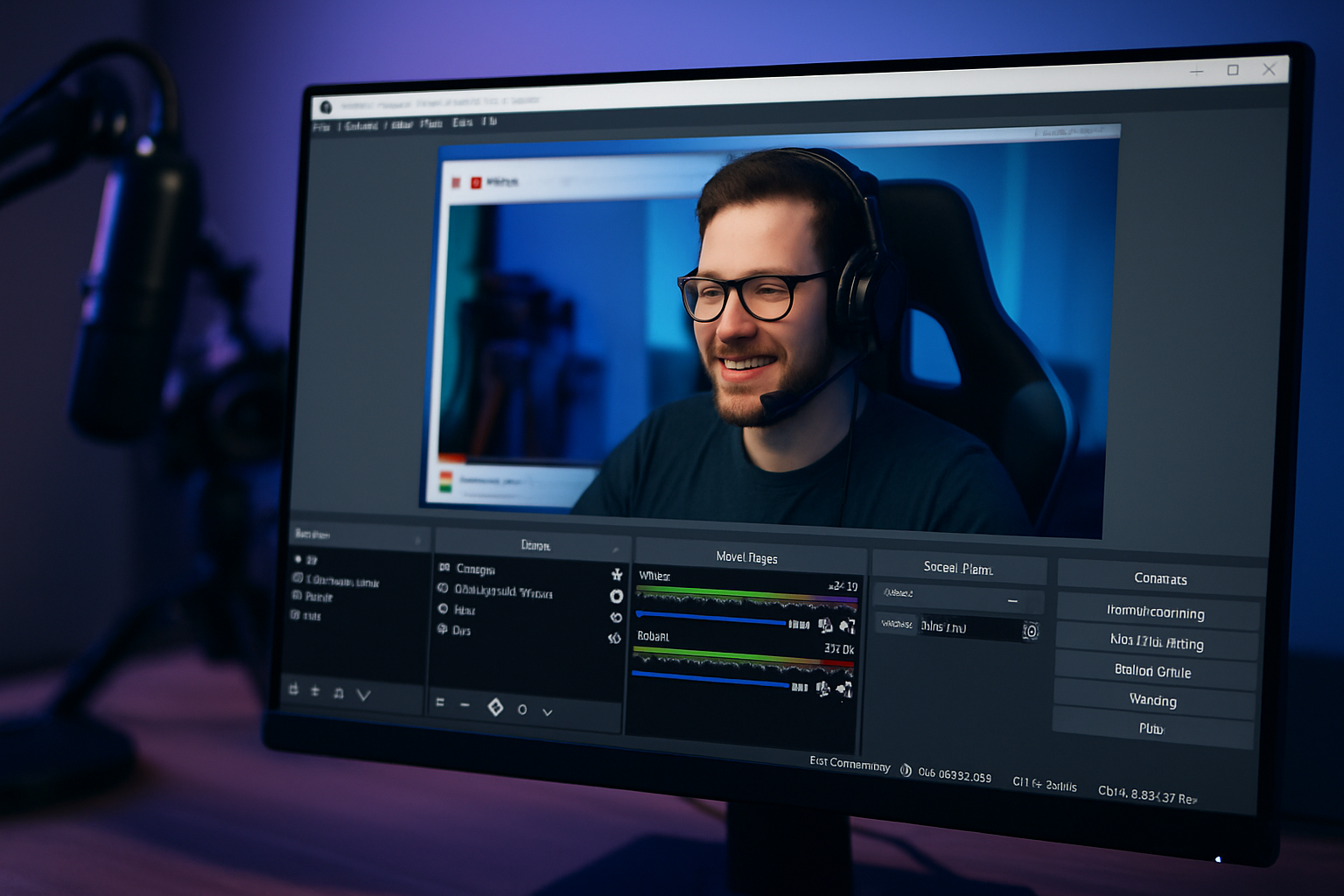
OBS Studio (Open Broadcaster Software Studio) is one of the most powerful and flexible tools for video recording and live streaming — and it’s completely free. Whether you’re a YouTuber, gamer, educator, or hosting a video conference, OBS Studio is a rock‑solid choice.
The software is open source and works on Windows, macOS and Linux, making it highly versatile. It supports high‑resolution capture, advanced scene setup, and direct streaming to services like Twitch, YouTube, and Facebook Live.
Features and capabilities in OBS Studio
Flexible scene and source setup
Create multiple scenes and switch between them during your stream. Each scene can include multiple sources: screen or display captures, webcam, images, text, audio, animations — or live feeds from your browser.
Advanced audio mixer
The built‑in mixer gives you precise control over every audio source. Add filters like noise gate, compressor, and gain so your audio sounds crisp and professional, even without external processing.
High‑quality streaming
OBS Studio supports streaming up to 1080p at 60 FPS, and with the right encoder settings you can go live with minimal lag and low CPU usage — ideal for gamers or webinars.
Local video recording
You can save recordings locally in MP4, MKV, and FLV with adjustable bitrate and quality settings. This makes OBS Studio ideal for both live and pre‑produced content.
Overlays and graphics
Add static or animated overlays — from your logo to chat boxes and donation trackers. A must for serious streamers and content creators.
Browser sources
Insert HTML‑ and CSS‑based overlays directly via browser sources — e.g., StreamElements, Streamlabs, or live comments from a website.
Ease of use and customization
OBS Studio can feel overwhelming for beginners, but thanks to the large community and countless English tutorials on YouTube, you’ll get up and running quickly. The software offers unlimited profiles and scenes, and you can import/export your setups so it’s easy to switch between different productions.
There are also many plugins and themes, letting you tailor the interface to your needs — both visually and functionally.
Performance and stability
OBS Studio is known for efficient code and modest system requirements. Even older computers can often handle quality streaming. On modern systems, you can stream in high resolution without CPU spikes — especially when using hardware encoders like NVENC or Apple VT.
It’s important to test your settings, as incorrect configuration can cause dropped frames or poor A/V sync.
Top 5 tips for OBS Studio users — gain more control and better performance
1. Install the OBS WebSocket plug‑in — control everything from your phone or Stream Deck
OBS WebSocket lets you remotely control OBS Studio via apps or hardware. For example, you can:
- Switch scenes from your phone or tablet
- Start/stop streaming and recording
- Toggle overlays or mute your mic — with one tap
🔌 Tip: Use apps like Touch Portal, Deckboard, or Elgato Stream Deck to get an intuitive control surface with buttons and icons.
2. Use Studio Mode to preview the next scene before going live
Enable “Studio Mode” in OBS to split the screen into Preview and Live. This lets you:
- Check that the next scene looks correct
- Adjust overlays, audio, and camera before you go live
- Avoid mistakes like switching to a scene with the camera off
🎯 Tip: Use transition effects like “Fade” or “Slide” to give your scene switches a professional look.
3. Enable hardware encoding (NVENC/AMD/VT) for better performance
OBS supports hardware‑accelerated encoding, meaning your GPU offloads work from your CPU when you stream or record. This gives you:
- Lower CPU usage
- Fewer dropped frames
- Headroom to run games or other apps at the same time
🛠️ How to: Go to Settings → Output → Encoder and choose, e.g., NVENC (NVIDIA) or AMF (AMD) instead of x264 (CPU‑based).
4. Save your recordings as MKV to avoid data loss
The MKV format is more robust than MP4. If OBS crashes mid‑recording:
- MP4 can become corrupted and unusable
- MKV preserves everything up to the crash
📂 Tip: OBS can automatically convert MKV to MP4 afterward via File → Remux Recordings if you need MP4 for editing or upload.
5. Use hotkeys for quick scene switches and audio control
Hotkeys save clicks and create a smoother live production. For example, assign shortcuts to:
- Switch scenes
- Mute/unmute microphone and desktop audio
- Start/stop streaming and recording
- Toggle camera zoom or overlays
🎹 Tip: Go to Settings → Hotkeys and assign, e.g., F1 to “Intro,” F2 to “Main Scene,” F10 to “Mute microphone.”
Download OBS Studio til Windows, Mac eller Linux her
OBS Studio FAQ
How do I record my screen with OBS Studio?
Open OBS Studio, add a new source (click + under “Sources”) and choose “Display Capture” or “Window Capture,” depending on whether you want to record the entire screen or a specific window. Then click “Start Recording.”
Can I stream directly to YouTube and Twitch with OBS?
Yes. Go to “Settings” → “Stream,” select your platform (YouTube, Twitch, etc.), and paste your stream key. You’ll typically find it in your platform’s streaming dashboard.
Is OBS Studio free?
Yes, OBS Studio is 100% free and open source. There’s no paid version, no ads, and no features locked behind paywalls.
Is OBS Studio safe to use?
OBS Studio is safe to use when downloaded from the official site. It’s open source, meaning the code is public and constantly reviewed by developers and users.
How do I improve audio quality in OBS?
Use audio filters like “Noise Suppression” and “Compressor” under the audio source in the mixer. Whenever possible, use an external microphone rather than your computer’s built‑in mic.
Where are my recordings saved?
By default, your recordings are saved in your “Videos” folder. You can change this under “Settings” → “Output” → “Recording Path.”
Does OBS Studio work on Mac and Linux?
Yes. OBS Studio supports Windows, macOS, and Linux, and it works almost the same across all platforms.
My video is stuttering — what should I do?
Check your encoder settings. If your CPU is overloaded, switch to hardware encoding (NVENC or AMD). You can also lower resolution and bitrate under “Output.”
Can I use OBS Studio with Zoom or Teams?
Yes, with the OBS Virtual Camera feature you can send your OBS output to Zoom, Teams, and other apps as if it were a webcam.
What does bitrate mean in OBS?
Bitrate is the amount of data sent per second. Higher bitrate = better quality, but it also requires more bandwidth. For example, 4500 kbps is often suitable for 1080p/30fps streaming.
Is OBS available in other languages?
Yes, you can change the language under “Settings” → “General” → “Language.”



