

 Martin Jørgensen
Need a calendar, calculator, or RSS reader right on your desktop? Get that and much more with Widget Launcher, which you can download for free!
With Widget Launcher for Windows, you can place different widgets anywhere on your desktop—essentially “mini apps” with various functions. These include a calendar widget, a calculator widget, and an RSS widget. If the included widgets aren’t enough for you, you can also expand the tool with even more, but those aren’t free and must be purchased through Microsoft’s app store. You can read much more about it in our review on this page!
To give you a visual idea of Widget Launcher, we’ve added a GIF below where we add three different widgets to our desktop!

This review is divided into several sections. First, you can read about Widget Launcher’s availability and how to download and install the tool. Then we cover the interface and the different settings in Widget Launcher, and we also briefly describe the option to purchase extra widgets. Finally, there’s a summary of our overall assessment of Widget Launcher. Enjoy!
Availability and installation
First and foremost, we think it’s worth mentioning that Widget Launcher is only available for Windows. The tool also requires that you have one of the latest versions of Windows installed on your PC, because it’s downloaded and installed through Microsoft’s official app store, Microsoft Store. If you use another operating system, such as macOS or Linux, we recommend checking out some of the many other programs we’ve covered here on Download.dk.
Installing Widget Launcher is a quick and easy process. Start by scrolling to the bottom of this page and clicking our download button. You’ll then be automatically redirected to Widget Launcher in Microsoft Store, where you simply click the Install button.
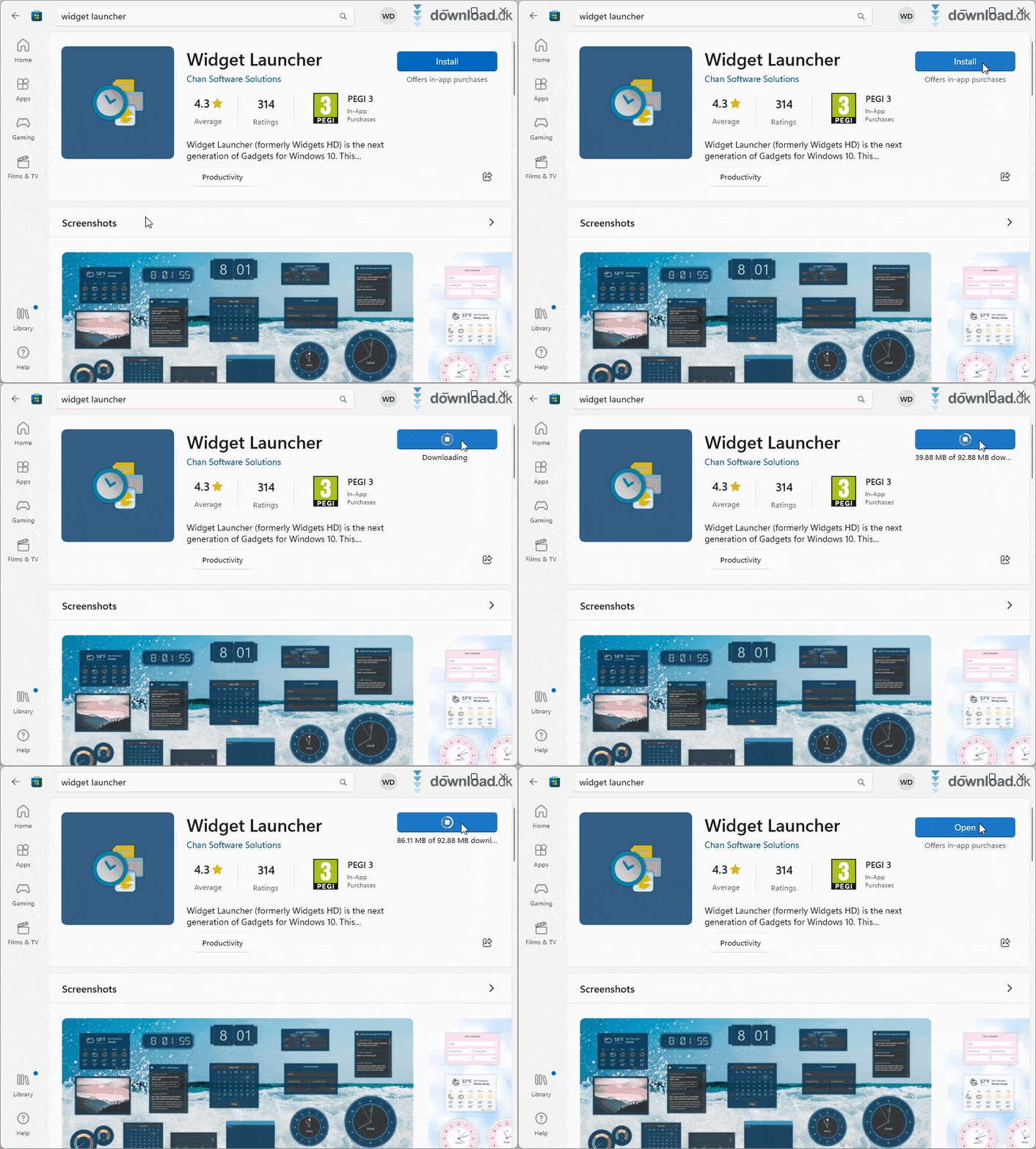
We tested Widget Launcher on Windows 11, and as you can see in the GIF above from our computer, the installation only takes a moment.
While we’ve reviewed plenty of software with Danish language support here on Download.dk, Widget Launcher unfortunately is only available in English. However, the tool is super easy to use, so in our view this won’t be a problem for most people.
Interface
Once the installation of Widget Launcher is complete, it doesn’t take long to get started and pin lots of widgets to your desktop. The interface is very clear and simple to understand.
As mentioned later in the review, it’s possible to purchase more widgets, but by default on our own PC we had access to the following 12 gratis widgets: Calculator, Calendar, CPU Meter, Currency Converter, Digital Clock, Notes, RSS Feed, Slideshow, Square Clock, Unit Converter, Weather, and World Clock.

Widgets can be placed anywhere on the desktop, and you can also tweak their appearance. First, you can choose between two different skins: one dark (adjustable in various shades of blue) and one light (adjustable in various shades of green). The dark skin is shown in the GIF at the top of this review, and in the screenshot above we’re using the light skin. You can also control the transparency level, which determines how see-through your widgets are.
While Widget Launcher has a nice interface, we unfortunately think the tool falls a bit short in terms of functionality. The different widgets aren’t very advanced. For example, even though there are several clock widgets and a calendar widget, none of them include an alarm function if you want reminders at a later time. They’re mostly visual widgets that only show the time and date. That might be all you need, but we think Widget Launcher would benefit from a few more features.
One of our favorite widgets is the tool’s RSS reader, which can be set to display news from any RSS site. Many news sites, newspapers, and blogs offer RSS, so with this widget you can access all the latest posts from your favorite websites right on the desktop. Super smart!
Settings in Widget Launcher
You can access Widget Launcher’s settings by opening the tool and clicking “Settings” in the lower-left corner. Since Widget Launcher is a very simple tool, there aren’t many settings to worry about.

The most important setting is the option to choose whether your widgets should stay on top or behind on the screen. If you place them on top, they’ll always be visible on the screen. For many, it’s preferable to have widgets placed behind so they never overlap other open programs, which is also the tool’s default setting.
Buying additional widgets
Finally, we’d like to mention that you can purchase extra widgets for Widget Launcher. You’ll find these paid widgets by opening the tool and clicking the “Featured” button on the left. We should emphasize that we haven’t used this option ourselves, as we only tested the free widgets that come included by default.
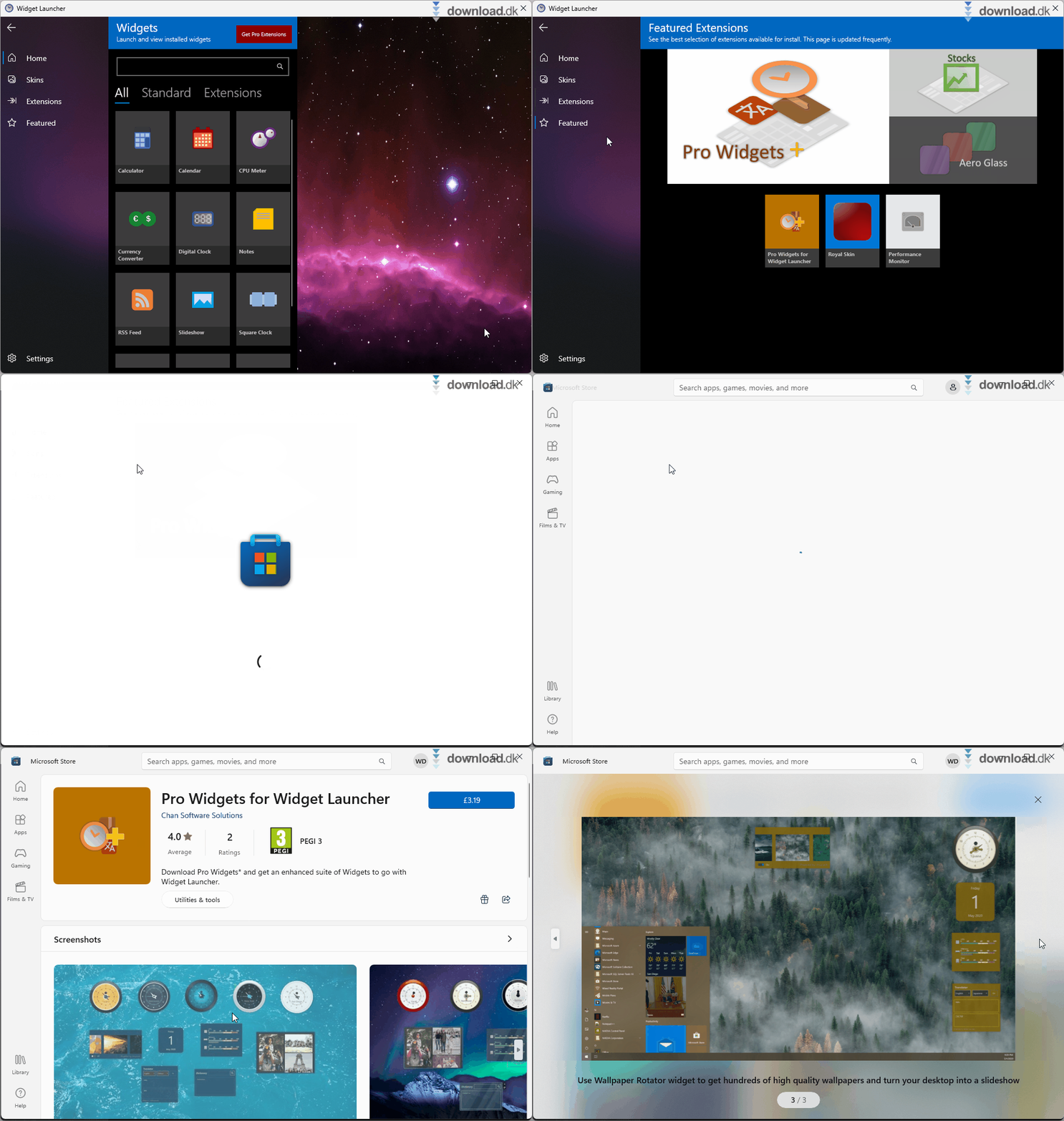
As you can see in the GIF above, you can click “Pro Widgets for Widget Launcher,” which takes you to Microsoft Store where you can read more about this add-on. It costs £3.19 and includes, for example, a translator widget, a dictionary widget, and a feature to automatically change the background image on skrivebordet.
Conclusion
Widget Launcher is by no means perfect, but overall we think it’s a fine tool.
The biggest weakness is that the different widgets are very simple, and we therefore miss a few more functions. On the other hand, Widget Launcher deserves praise for its simplicity and good interface. We’re especially fond of the RSS widget, which gives you mulighed for at se de seneste nyheder and blog posts directly on the desktop. And you can also udvide programmet by purchasing more widgets, even though we haven’t tested that option ourselves.
If you decide to download Widget Launcher yourself, we wish you the best of luck with the tool! Also, we’re constantly updating Download.dk with new content, so we hope you’ll visit our website again soon!
Download Widget Launcher


