
 Martin Jørgensen
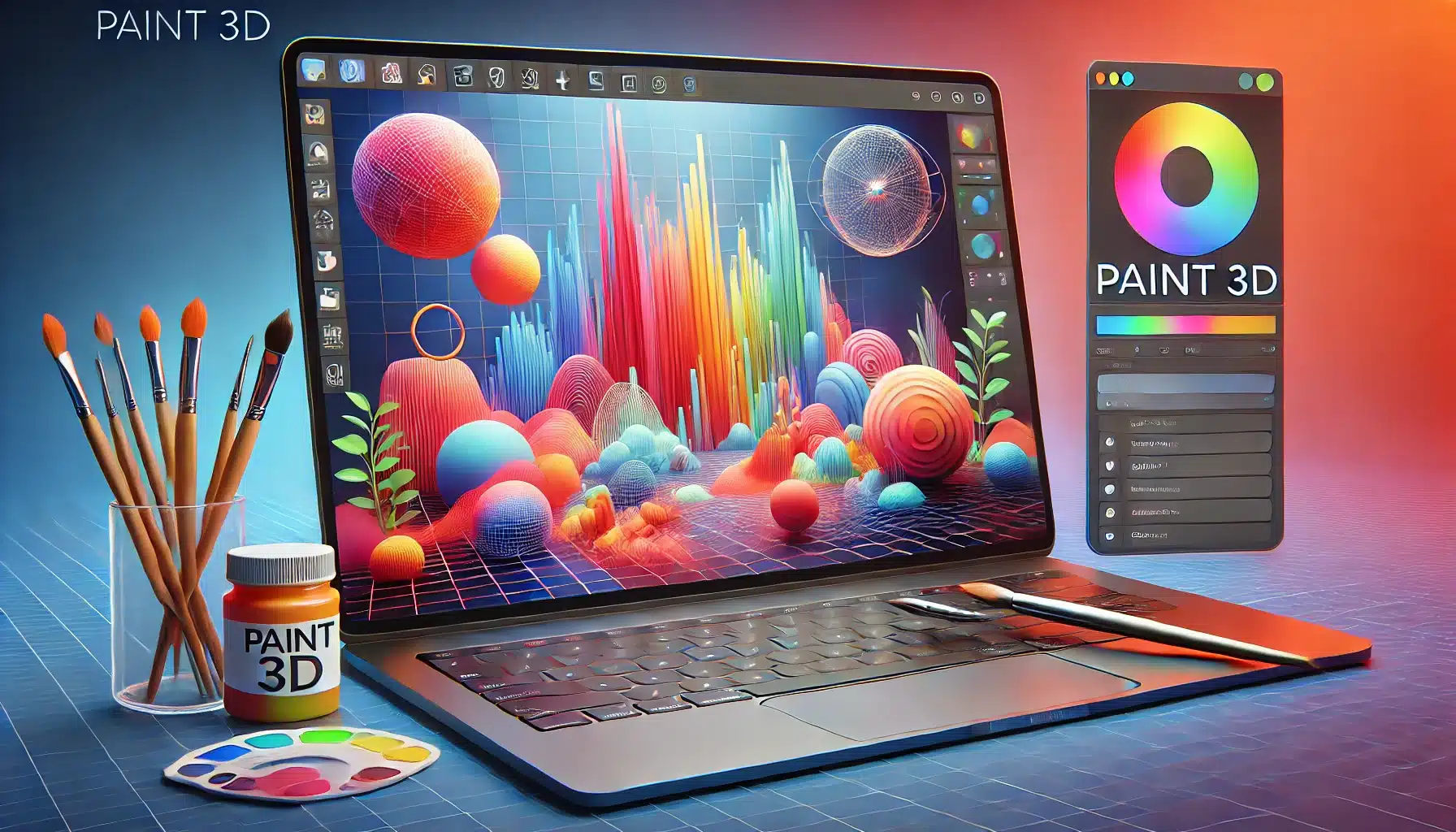
🎨 Paint 3D – A new generation of creativityand a free 3D drawing program!
Microsoft Paint has been around since 1985 and has been a staple of Windows for decades. With Paint 3D, Microsoft has given the app a modern makeover with a wide range of creative tools.
In Paint 3D you can:
🖌 Draw in 2D and 3D – Create art in multiple dimensions.
🖼 Add effects and stickers – Make your creations unique.
📂 Import and export 3D models – Perfect for further editing.
🔄 Rotate and pan in 3D view – Get full control of your objects.
📥 Browse ready-made 3D models – Find inspiration in the built-in 3D library.
📥 How to download and install Paint 3D
The software is downloaded through the Microsoft Store, which is built into Windows 11. Follow these steps:
1️⃣ Click the download button on this page.
2️⃣ Open Microsoft Store, where the app will be ready to install.
3️⃣ Press “Get”, and Paint 3D installs automatically.
4️⃣ Launch the app and you’re ready to draw!
The app updates automatically via Microsoft Store, so you always have the latest version without manually downloading and installing updates.
🖌 Draw in both 2D and 3D – Easy and fun creativity
The app offers two drawing modes:
✏ 2D drawing – Just like classic Microsoft Paint. Choose different brushes, adjust thickness, colors, and transparency.
🔲 3D drawing – Lets you create 3D shapes, either from scratch or by painting on existing models.
When working in 3D, you can rotate, move, and adjust your objects from multiple angles using the 3D view. The app also includes ready-made 3D models, so you can easily make fun designs without being a 3D modeling expert.

📚 Get more 3D models in the library
If you want even more options, you can download ready-made 3D models from Paint 3D’s 3D library. You’ll find, among others:
🐶 Animals – Dogs, cats, dinosaurs, and more.
🌱 Plants – Trees, flowers, and nature models.
🚗 Vehicles – Cars, motorcycles, and planes.
🚀 Sci‑Fi & Space – Futuristic space figures and planets.
Although the library doesn’t include thousands of models, Microsoft updates it regularly, and we hope even more creations will become available over time.
⭐ Our verdict on Paint 3D
🔹 Ease of use: ⭐⭐⭐⭐⭐ – Easy to learn, intuitive interface.
🔹 Features: ⭐⭐⭐⭐☆ – Plenty of tools, but not a professional 3D suite.
🔹 Fun factor: ⭐⭐⭐⭐⭐ – Fun for all ages.
🔹 Updates: ⭐⭐⭐⭐☆ – Regular improvements via Microsoft Store.
🔹 Overall rating: 4.5 out of 5 stars ⭐⭐⭐⭐✨
Paint 3D is a fantastic free tool that makes 3D design accessible to everyone. While it can’t compete with pro tools like Blender, it’s the perfect starting point for anyone who wants to try 3D art.
🎨 Professional alternatives to Paint 3D
If you’re looking for a more advanced drawing or 3D modeling app, we recommend:
🖼 GIMP – Powerful free photo editor, a great Photoshop alternative.
🖌 Paint.NET – Perfect for digital drawing and photo editing.
🎭 Blender – Advanced 3D modeling and animation for professionals.
📥 Download Paint 3D today!
Paint 3D is a fun and user‑friendly upgrade to the classic Paint, perfect for beginners and hobbyists. Try it today and explore your creative side in 3D.
Top five tips for Paint 3D
Use stickers to bring your 3D figures to life
Paint 3D lets you add detailed textures and stickers to your 3D objects. For example, drag and drop a pattern or graphic directly onto a 3D model to give it a unique look with minimal effort. It’s perfect for both fun and presentations.
Create flashy 3D images with effects and lighting
Want your 3D creations to shine? Use the “Effects” tool to add glow, light, and reflections. Combine with metallic materials and strong contrast colors to make flashy 3D images that truly catch the eye.
Use Magic Select for easy background removal
One of Paint 3D’s most powerful tools is Magic Select. With just a few clicks, you can remove a background and isolate a person, object, or logo — then turn it into a 3D element.
Export as glTF for the web
When you’re done with your 3D model, export it as a glTF file, which is great for viewing in browsers and on websites. It’s ideal for web design or education when you want to show models interactively.
Use Remix 3D (archive) for inspiration
Although Microsoft has shut down the Remix 3D service, there are still many archives of earlier 3D models you can download and use as inspiration or a starting point. Use Paint 3D’s import feature to quickly bring them in and continue editing.
Frequently asked questions about Paint 3D
What’s the difference between Paint and Paint 3D?
Paint 3D is a modern take on the classic Microsoft Paint, but with support for both 2D and 3D graphics. You can still draw with brushes and a color palette, and you also get tools to create and manipulate 3D objects directly in the app.
Is Paint 3D free?
Yes. Paint 3D is completely free and can be downloaded from Microsoft Store if it’s not already installed on your Windows 10 or Windows 11 PC.
Can I use Paint 3D to edit photos?
Yes, you can absolutely use Paint 3D for basic photo editing — including cropping, resizing, drawing, and adding text or shapes. It doesn’t offer the advanced tools you’ll find in Photoshop, but it works well for light edits.
Does Paint 3D support transparent backgrounds?
Yes. When you use Magic Select to remove the background and save as a PNG, transparency is preserved. That’s ideal for exporting images for presentations or websites without a background.
Can I share my 3D projects with others?
Yes, you can save your projects as 3D models in formats such as .glb or .fbx, which can be used in other programs or shared online. You can also take images of your models and share them as standard .jpg or .png files.
Does Paint 3D work on Mac or Linux?
No. Paint 3D is only available on Windows 10 and Windows 11. However, there are alternatives for Mac and Linux, such as Tinkercad (web‑based) or Blender (open source), depending on your needs.



