
 Martin Jørgensen
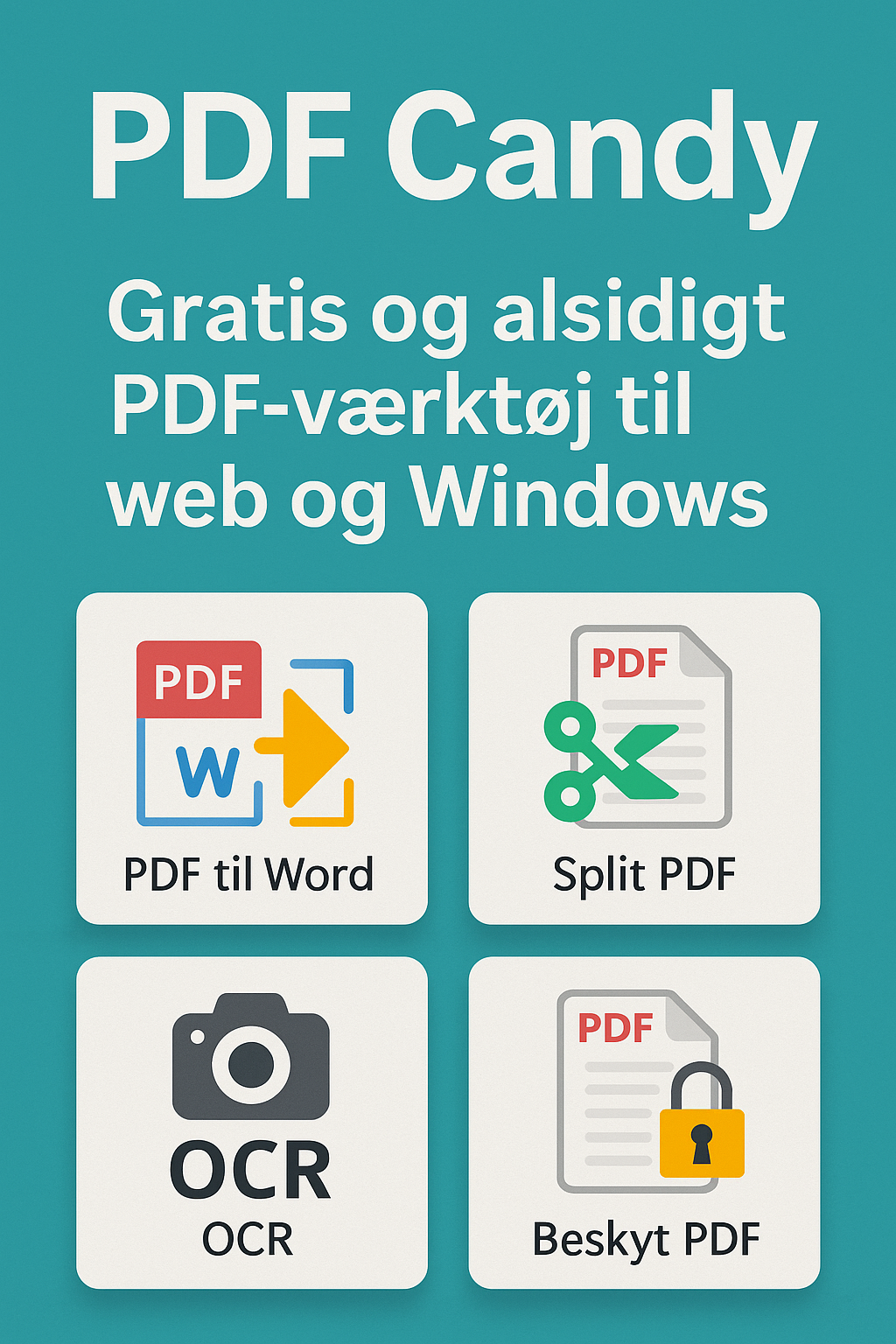
PDF Candy – versatile and elegant PDF tool for web and desktop.
PDF Candy is a modern PDF solution that combines sleek design, rich features, and excellent ease of use. The service is available both as an online platform and as a standalone offline desktop version for Windows. That makes PDF Candy a great choice for both personal and office use if you want an all-in-one PDF editor and converter with no mandatory subscription.
The free version gives access to many tools, and the interface is intuitive even for beginners—everything is presented as “modules” with icons and clear explanations.
Features and user experience
1 offers more than 45 PDF tools, including:
- Convert to and from PDF (Word, JPG, ePub, Excel, PowerPoint, HTML, etc.)
- Merge and split PDF files
- OCR (text recognition)
- Add and remove passwords
- Rotate, crop, and rearrange pages
- Extract text and images
- Compress PDFs
- Create PDFs from images or text
- Edit metadata and remove protections
All tools are accessible via color-coded icons, and everything works with drag & drop—both online and offline.
Free vs. paid version
The free version allows processing one PDF at a time and limits batch features as well as OCR and conversion. The paid plan (PDF Candy Premium) removes these limits and adds:
- Unlimited access and speed
- Offline access to the desktop app
- Access to OCR and advanced conversions
Pricing is about $15/month or $75/year—with a one-time purchase option.
Platforms and operating systems
PDF Candy supports:
- Web version in your browser (Windows, Mac, Linux, Chromebook)
- Offline desktop app for Windows
- No mobile apps, but the online version works in mobile browsers
Linux users can use the browser version, but only Windows users benefit from the powerful desktop edition.
Security and privacy
The online version runs over HTTPS and deletes uploaded files after a short time. The desktop version works completely offline to maximize data security. PDF Candy does not require an account for basic use, which improves anonymity.
Tips for using PDF Candy
- Use “PDF to Word” to preserve layout and fonts—better than many free alternatives
- Install the desktop app to unlock OCR and fast batch conversion
- Convert multiple images into a single PDF with the “Images to PDF” tool
- Remove passwords from your own documents without losing content
- Use “Metadata Editor” to clean documents before publishing
Is PDF Candy worth it?
PDF Candy is ideal for both beginners and advanced users who want a polished, capable PDF tool. It delivers many features you normally pay for in an easy, ad-free package. The desktop version is especially valuable for users with heavier workloads.



