
 Martin Jørgensen
ShareX – free, advanced tool for screenshots and screen recordings
ShareX is one of the most flexible and powerful screenshot tools for Windows, offering far more than the classic Snipping Tool. The app is open-source and completely free—and it handles images, video recordings, GIFs, and automated uploads.
We tested ShareX on a Windows 11 PC, and installation took under a minute. The many features take a little getting used to, but once you set up your hotkeys and workflows, your work goes almost twice as fast as with traditional screenshot tools.
Features and capabilities
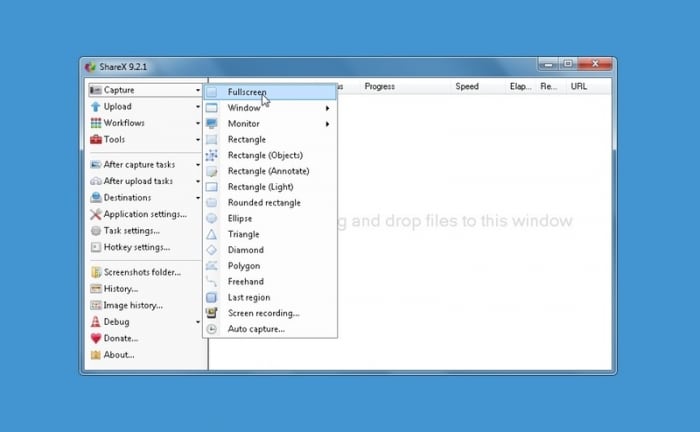
ShareX stands out by combining screenshots, skærmoptagelse, file uploads, and automation in one app. You can capture:
• Rectangle, window, and full-screen screenshots
• Freeform and polygon selections
• Video recordings (MP4) and GIF captures
• Scrolling screenshots (perfect for long web pages)
After capture, ShareX can automatically upload the file to 25+ services, including Imgur, Dropbox, OneDrive, Google Drive, and FTP.
Design, workflow, and user experience
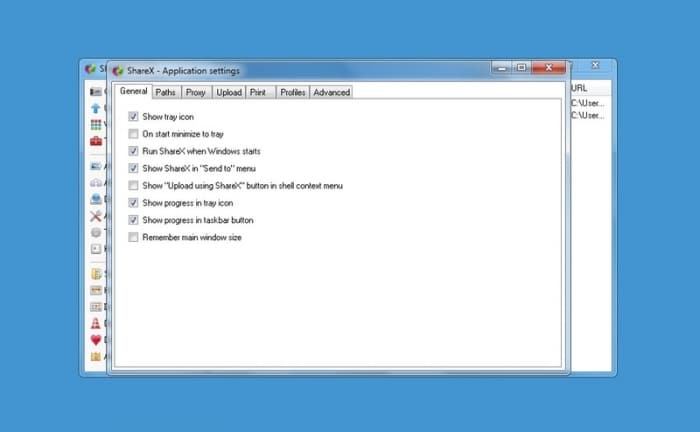
Although the design is simple, that’s exactly what many Windows users appreciate. Nothing feels overdesigned—you get quick, direct access to the features.
ShareX uses a workflow-based system where you decide exactly what should happen after a screenshot: open the editor, save locally, upload, copy directly to the clipboard, omdøbe filen automatically, etc.
In our tests, screen recordings were most stable with FFmpeg enabled, which ShareX downloads automatically on first use.
Challenges and learning curve
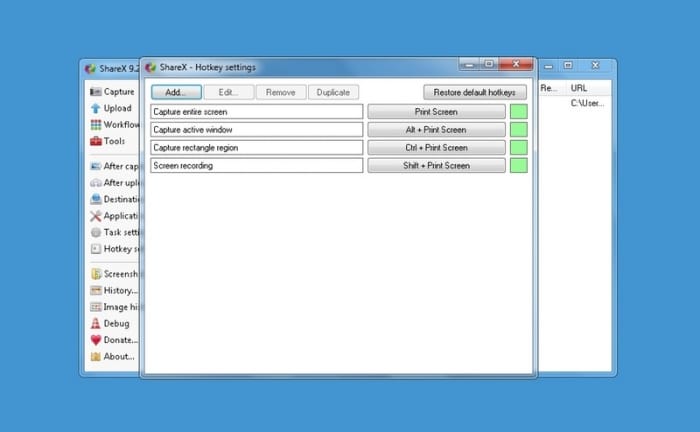
If you’re coming from simpler screenshot tools, ShareX can feel overwhelming at first. There are lots of menus, and the automated workflows take a few minutes to set up. But once it’s configured, you’ll quickly save time.
Some users also find that ShareX can “hang” if Windows is running a full-screen game. This is typically fixed by switching the capture method in the settings.
Why ShareX is still one of the best screenshot tools in 2026
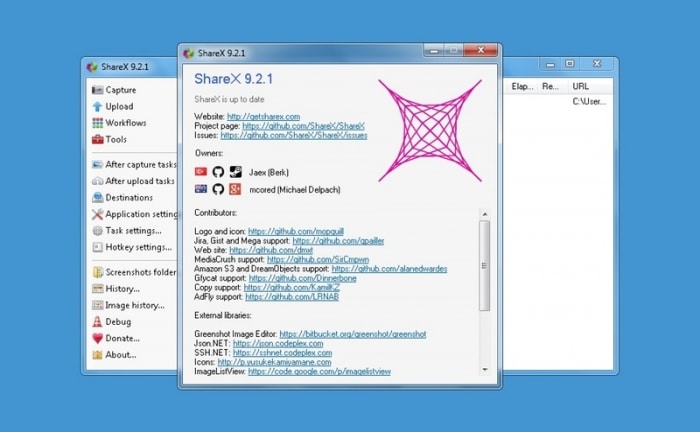
ShareX is one of the few apps where the developers consistently release updates based on community feedback. The changelog shows frequent bug fixes and improvements, especially for screen recording and clipboard handling.
Because it’s open-source, there are no ads, limits, or “pro” features locked behind a paywall—everything is free.
Top 5 ShareX tips
Use hotkeys for everything
Set up hotkeys for screenshots, recording, and uploads—they save the most time day to day.
Enable “After capture tasks”
Let ShareX automatically open the editor, upload, or copy the file to the clipboard.
Use Scrolling Capture for web pages
Capture entire pages in one file—perfect for documentation and articles.
Install FFmpeg
For the best video recordings, FFmpeg should be installed. ShareX downloads it automatically the first time.
Build your own workflows
Combine, for example: Tag screenshot → compress → add watermark → upload → copy link.
ShareX FAQ
Open ShareX, press your chosen hotkey (e.g., Print Screen), and the image is saved automatically or opens in the editor depending on your settings.
ShareX uses FFmpeg for video recording. If audio is missing, select the correct input device in the recording settings and make sure FFmpeg is installed.
Yes. Under Upload Destinations you can choose Imgur, Dropbox, Google Drive, and more, and ShareX will upload automatically after each screenshot.
Select Scrolling Capture in the menu and mark the area to scan. ShareX will scroll the page automatically and stitch the image into one file.
Yes. ShareX is open-source, and the source code is publicly available. The app contains no ads or hidden paid features.



