 Martin Jørgensen
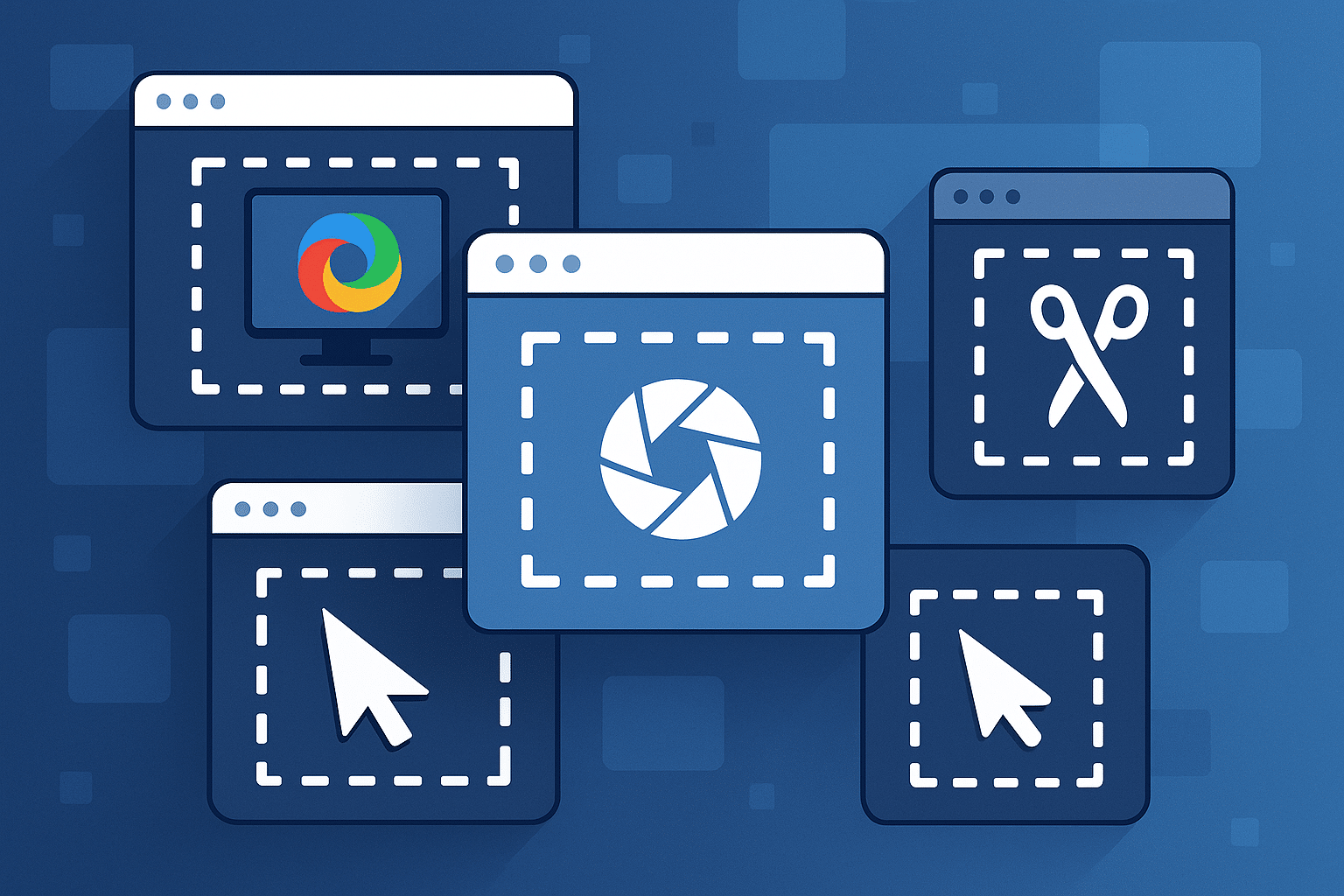
If you want to capture screenshots like a pro—fast, precise, and with full automation—one tool consistently tops the recommendations: ShareX. It’s free, open source, and extremely flexible. For power users, it’s one of the most indispensable tools on Windows, but it can feel a bit overwhelming the first time you open it.
Here’s a practical, easy-to-follow guide to getting the most out of ShareX, plus a direct comparison with Greenshot so you know which one to choose.
Why ShareX is so powerful – features you should know
ShareX can do far more than just screenshots. Its biggest strengths are:
🟦 Advanced capture methods – region, full screen, window, scrolling capture, and area monitoring.
🟦 Built-in editor – markup, blur, highlight, arrow tips, text, shapes, and pixelation.
🟦 Screen recording (MP4 and GIF) – far better than Windows’ built-in tools.
🟦 Workflows – automatic actions after capture: upload, compress, convert, rename, and much more.
🟦 Hotkeys for everything – create your own turbo shortcuts for every single feature.
That makes ShareX one of the most efficient tools for gamers, developers, support agents, educators, and anyone who works visually.
Step-by-step: How to get the most out of ShareX
1. Choose how you want to take screenshots
Press Shift + Print Screen to open the most-used feature: Region Capture.
Here you can freely select an area, and ShareX opens the editor afterward.
2. Use the editor to make your image clear
Add arrows, highlights, blur sensitive information, underlines, and more. The editor’s tools are simple and fast—perfect for guides and documentation.
3. Record video and GIFs
Under Capture → Screen recording you can record your screen with FFmpeg, which ShareX can download for you automatically.
GIF recording is perfect for short instructions and web‑friendly clips.
4. Use automations to save time
Under After Capture Tasks, choose for example:
• Upload to Imgur
• Copy to clipboard
• Open in editor
• Save to a specific folder
You can build complex workflows, or keep it extremely simple.
5. Set up your own hotkeys
Under Settings → Hotkey Settings we recommend:
• Alt + 1 = Region Screenshot
• Alt + 2 = Full screen
• Alt + 3 = Region GIF
• Alt + 4 = Screen Recording (video)
This makes ShareX lightning-fast in everyday use.
ShareX vs Greenshot – which should you choose?
For many users, the choice is between ShareX and Greenshot. Both are great, but they focus on different needs.
ShareX
🟦 Very advanced and extremely flexible.
🟦 Better for video, GIFs, and workflows.
🟦 Massive feature set for power users.
Greenshot
🟩 Simpler and quicker to grasp.
🟩 Best for users who only need screenshots + annotation.
🟩 Fewer features, but very stable.
Who should choose what?
• Choose ShareX if you want maximum control, video capture, automation, and flexibility.
• Choose Greenshot if you want a simple screenshot + editor without extra complexity.
In the Nordics, ShareX performs best in search—especially because users look for “pro tools,” “free screen recorder,” “better than Print Screen,” etc.
Top 5 tips for ShareX
Use “Delayed Capture” for menus and tooltips
Perfect when things disappear before you can click.
Create workflows for faster support replies
Upload → Copy link → Paste into email in one second.
Create your own templates
If you often edit images the same way.
Use the OCR feature
Especially strong for extracting text from screenshots.
Save your hotkey profiles
Perfect if you use ShareX on multiple machines.