
 Martin Jørgensen
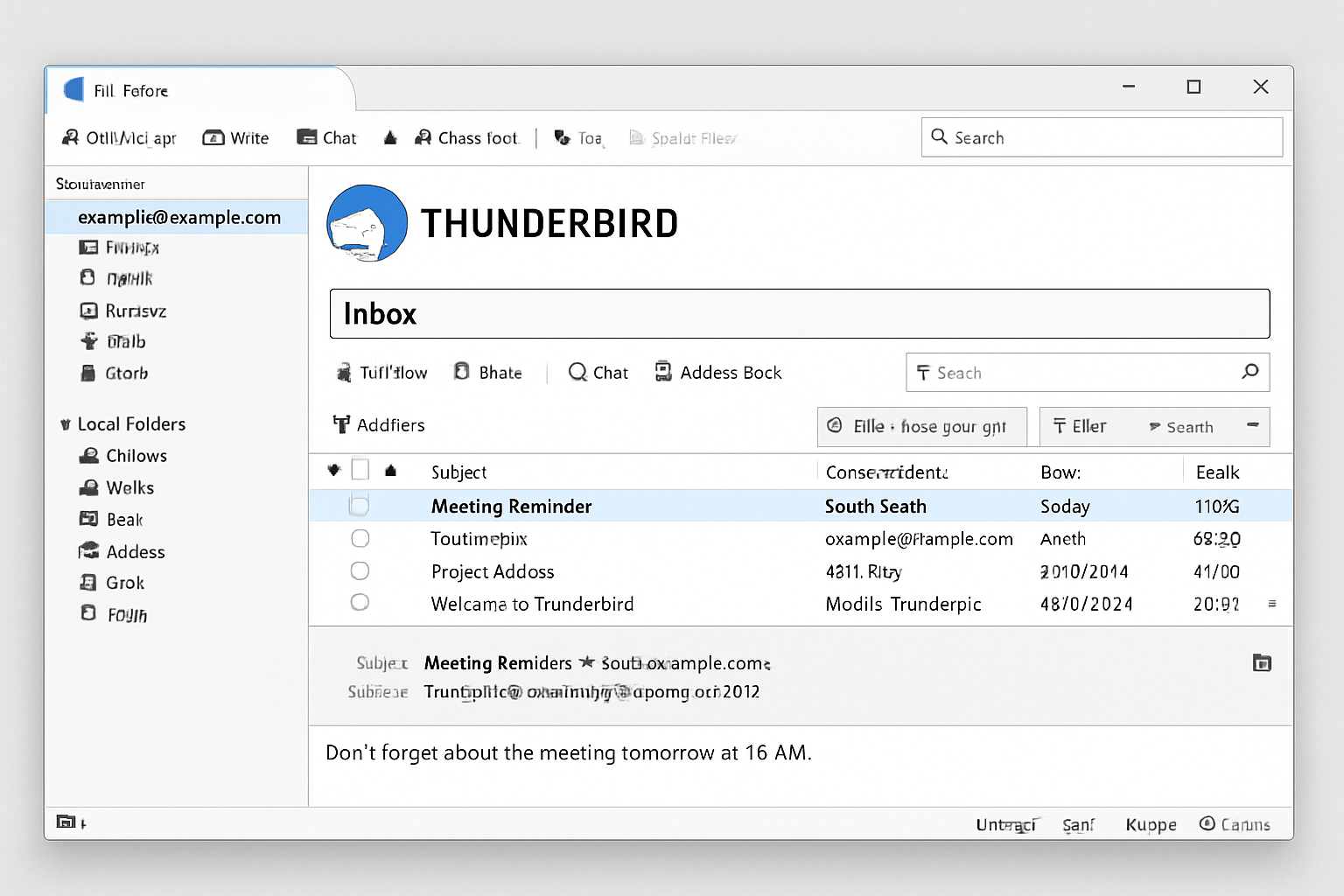
Thunderbird – a reliable and advanced email client.
Thunderbird from Mozilla is a free, open-source email client that has gained wide popularity—especially because it’s easy to use, highly secure, and packed with smart features. It works especially well alongside Mozilla’s Firefox browser, but it’s also a complete, stand-alone solution for both home and professional users who want full control of their email.
Email management made easy
One of Thunderbird’s biggest strengths is how easy it is to import existing email accounts—from webmail and from other clients like Outlook or Windows Mail. Whether you use IMAP or POP3, setup is handled automatically in most cases, so you’re up and running fast.
Thunderbird supports multiple accounts at the same time and makes it simple to switch between them in a unified interface. There’s also a built-in calendar, task list, and contact integration—especially if you install the right extensions.
Security and spam filtering
Thunderbird takes security seriously. It protects users against phishing and suspicious links and includes a robust spam filter that learns from your actions. You can easily train the app to recognize spam and protect you from unwanted mail before it reaches your inbox.
Additionally, the app supports encryption via OpenPGP and S/MIME—hugely beneficial when you send sensitive information.
Powerful search and filtering tools
With advanced search features and the ability to create your own filters and rules for handling messages, it’s easy to keep even large inboxes organized. For example, you can automatically move messages from specific senders to folders, color‑code them, or set follow-up reminders.
Extensions and customization
Thunderbird supports a wealth of add-ons and themes, so you can tailor the experience precisely to your needs. The Lightning calendar extension is especially popular among users who want a combined email and scheduling solution.
Thunderbird is available in English and supports Windows, macOS, and Linux.
🧠 Top five tips for Thunderbird
1. Use tabs like a browser
Thunderbird lets you open messages, searches, calendars, and settings in tabs—just like Firefox. Press Ctrl + T (Cmd + T on Mac) to open a new tab and Ctrl + Tab to switch between them.
2. Create custom filters for automatic organization
Go to Tools > Message Filters and create rules based on sender, subject, or keywords. Automatically move, label, or delete messages—perfect for newsletters, receipts, or work email.
3. Enable threaded view
Make your inbox easier to scan by enabling threaded view so messages and replies are grouped. Click the “Subject” column header and choose “View as Thread.”
4. Use the “Quicktext” add-on for canned replies
Install the Quicktext extension to insert standard responses with a click—ideal for customer service, support, or recurring emails.
5. Back up your mail and profiles
Be sure to back up your Thunderbird profile folder (typically located at C:\Users\[Username]\AppData\Roaming\Thunderbird) to preserve your settings, messages, and accounts. Use MozBackup (on Windows) or copy it manually.



