
 Martin Jørgensen
Create a multiboot USB drive easily with Ventoy
Ventoy is a free, open-source tool that lets you create a multiboot USB drive, allowing you to boot multiple operating systems and utilities directly from ISO files—without having to format the USB drive every time.
We tested Ventoy on a standard Windows 11 PC with a 64 GB USB drive, and within minutes we were booting both Windows installers and Linux distributions directly from the same drive. This is exactly where Ventoy stands out from traditional USB tools.
What makes Ventoy different from other boot tools?
Instead of “burning” one ISO at a time to the USB drive, Ventoy installs a small bootloader. After that, you can freely copy ISO files to the USB drive as if it were a regular folder.
When you boot the computer from the USB drive, you get a menu where you choose which ISO image to boot.
In practice, that means:
- No reformatting
- No reinstalling
- One USB drive for everything
Ventoy features and capabilities
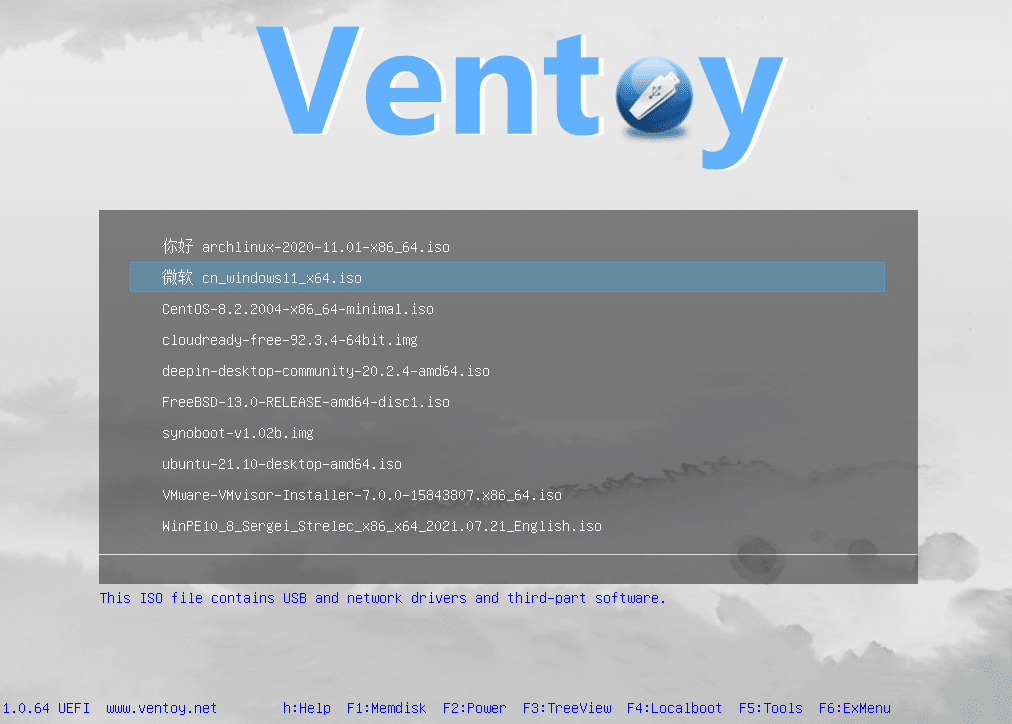
Ventoy supports a wide range of features that would normally require several separate tools:
- Boot Windows, 1, and utility ISOs
- Supports both Legacy BIOS and UEFI
- Secure Boot (optional)
- Persistence for Linux (save changes)
- GPT and MBR
- Themes and a customizable boot menu
In our testing, Ventoy handled large ISO files reliably—including Windows installation images that can cause problems in other programs.
Ease of use and setup
The setup is surprisingly simple, even though Ventoy can look a bit technical at first glance.
You install Ventoy on the USB drive once. After that, you use it like a normal storage drive and copy your ISO files to it. That’s it.
The boot menu is text-based but clear, and on newer machines the ISOs start quickly and without errors.
For more advanced users, you can also:
- Create custom configurations
- Use plugins
- Apply themes
- Add persistence files for Linux
Ventoy vs. Rufus and balenaEtcher
Many PC users know 1 and balenaEtcher—and they’re still great tools. But Ventoy solves a different problem.
- Rufus: Best for a single, quick bootable USB
- balenaEtcher: Simple and polished, but limited
- Ventoy: One USB drive for everything
If you frequently install operating systems, test Linux, or work with recovery tools, Ventoy is clearly the most flexible solution.
Top 5 Ventoy tips
Choose a USB drive of at least 32 GB
Ventoy technically works on smaller USB drives, but in practice you’ll hit limits fast. Windows ISOs are often 5–6 GB by themselves, and when you combine them with Linux distributions and utilities, 32 GB is a realistic minimum. In our tests, a 64 GB USB drive offered the best flexibility without breaking the bank.
Organize your ISO files in folders
Ventoy supports folders, which is an underrated advantage. By organizing ISO files into folders like “Windows,” “Linux,” and “Tools,” the boot menu becomes much easier to navigate—especially if you keep many files on the drive. It saves time and reduces the risk of picking the wrong ISO during installation.
Enable Secure Boot only if necessary
Secure Boot may be required on newer systems, but on older computers it can cause unnecessary errors and slow startup. If your machine doesn’t require Secure Boot, we recommend disabling it in Ventoy’s settings. In our tests, that led to fewer compatibility issues, especially on older laptops.
Use persistence for Linux live systems
One of Ventoy’s strongest features is persistence for Linux. With persistence, you can save files, settings, and updates between reboots—even when booting from a live ISO. It’s ideal for troubleshooting, test environments, or if you run Linux from USB day to day.
Update Ventoy without deleting your ISOs
Unlike many alternatives, Ventoy can be updated without touching your existing ISO files. When you update Ventoy, both folders and files on the USB drive are preserved. That makes it far less risky to stay up to date and is a clear advantage if you use your multiboot USB often.
Is Ventoy safe to use?
Ventoy is open source and actively maintained. The code is publicly available, and the tool is widely used by individuals, technicians, and system administrators.
We didn’t encounter any warnings from Windows Defender during testing, and no unwanted software or ads are installed.
Ventoy FAQ
Ventoy is a free tool for creating a multiboot USB drive. You can keep multiple ISO files on the same USB and choose between them at startup—for example Windows installers, Linux distributions, and troubleshooting tools.
Yes, Ventoy is completely free and open source. There are no ads, no paywalled features, and no functional limitations.
Yes, Ventoy supports Windows 11 ISO files. It can be used for installation and troubleshooting, and works on systems with both UEFI and Secure Boot when configured properly.
No—that’s Ventoy’s biggest advantage. You install the USB drive once, and then you can freely add or remove ISO files without formatting it again.
Ventoy is open source and used by millions worldwide. In our tests, antivirus software showed no warnings, and no unwanted software is installed.



