
 Martin Jørgensen
Whois – look up domain and IP information directly from Windows
Whois is a free command-line tool for Windows used to query WHOIS servers worldwide and retrieve detailed information about domains and IP addresses. You run it from Command Prompt, and it’s aimed primarily at technically inclined users, administrators, and network professionals who need fast, accurate lookups without relying on web-based services.
In our test on a standard Windows 11 PC, Whois ran fast and reliably with no setup beyond extracting the files. It clearly favors function over modern design — which is part of its charm.
What is Whois useful for in practice?
Whois lets you look up information about:
- Domain names (e.g., registrant, registrar, and creation date)
- IP addresses and associated networks
- DNS-related registration data
- Contact details, when they aren’t hidden by privacy protection
The tool automatically selects the correct WHOIS server based on your query, which saves time compared to manual lookups via web-based services.
In our testing, IP lookups were especially useful, as the tool quickly identified the correct registry (ARIN, RIPE, APNIC, etc.) without errors or timeouts.
Interface and workflow
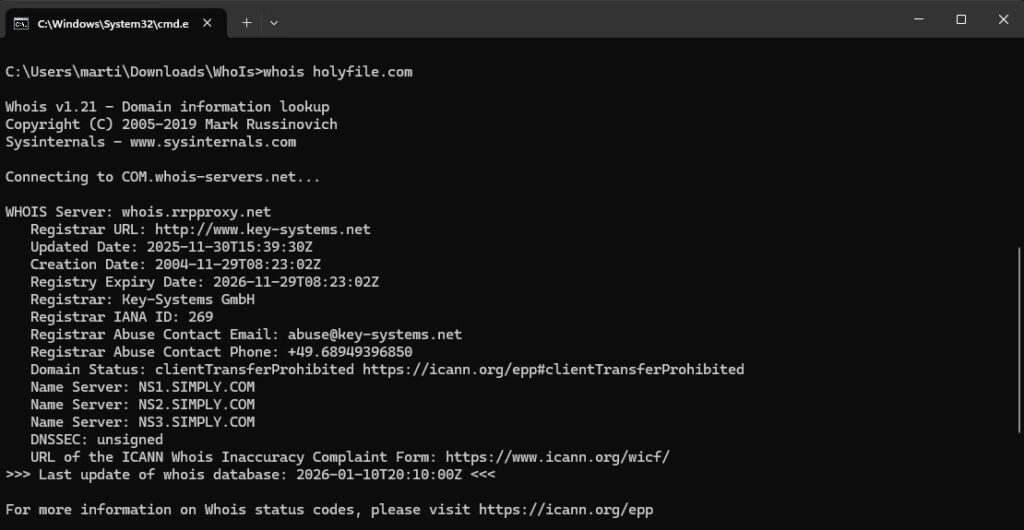
Whois has a very simple interface. You type a domain or IP address and press Enter — the result is returned as plain text.
During testing, we found it especially handy for networking, troubleshooting, or security work where you need fast lookups without ads, cookies, or rate limits.
It doesn’t try to be “smart” or flashy — it’s fast, lightweight, and does exactly what it promises.
Whois vs. online WHOIS services
Compared to web-based WHOIS lookups, this tool offers clear advantages:
- No limit on the number of lookups
- No tracking or ads
- Faster workflow for repeated queries
- Can be used offline in certain network scenarios (e.g., internal WHOIS servers)
On the flip side, you won’t get the visual dashboards and historical data some online services provide.
Who is Whois most relevant for?
Whois isn’t for everyone — but it’s a solid tool for:
- IT administrators
- Network engineers
- Developers
- SEO and domain professionals
- Anyone who frequently looks up IP or domain data
In the United States, tools like this are widely used for troubleshooting, security, and domain administration — and Whois still fits right in.
Top 5 tips for Whois
Tip 1: Use IP lookups for troubleshooting
IP queries are often faster and more precise than domain lookups, especially when diagnosing network issues.
Tip 2: Copy raw data directly
The plain-text output is perfect for documentation, email, or logs.
Tip 3: Combine with ping and traceroute
Whois pairs well with classic networking tools when tracking down connection problems.
Tip 4: Check domains before you buy
Review registration dates and ownership before purchasing a used domain.
Tip 5: Avoid web service limits
If you run many lookups, a local tool is far more efficient.
How to use Whois in Windows
Whois is used directly in Windows Command Prompt. In our test, every query worked without extra configuration as long as Whois.exe was available in the system PATH or the same folder.
Example 1: Look up a domain
Use this to find registrant details, the registrar, and the registration date for a domain.
whois facebook.comThis shows, among other things:
- Registrant and organization
- When the domain was created
- When the registration expires
- The domain’s current status (locked, transfer-protected, etc.)
Example 2: Look up an IP address
Ideal for network troubleshooting and security work.
whois 8.8.8.8Here, Whois returns information about:
- Who owns the IP address
- Which network and region it belongs to
- Contact information for the responsible organization
Example 3: Get more detailed output
With extra parameters, you can obtain more technical information in the output.
whois -v google.comThis provides a more extensive response that can be useful if you work professionally with domains or networks.
Tips from our testing
If the whois command isn’t recognized, you can:
- Navigate to the folder containing Whois.exe
- Or add that folder to Windows’ PATH environment variable
After that, the command works from any Command Prompt.
How to use Whois in practice – and why it sometimes “doesn’t work”
During our testing, we noticed that results vary depending on the domain you query. That can make it seem like the tool isn’t working — but in reality it’s due to differences in domain registry rules.
Here’s what you need to know to get the most out of Whois.
Step 1: Run Whois from the right folder
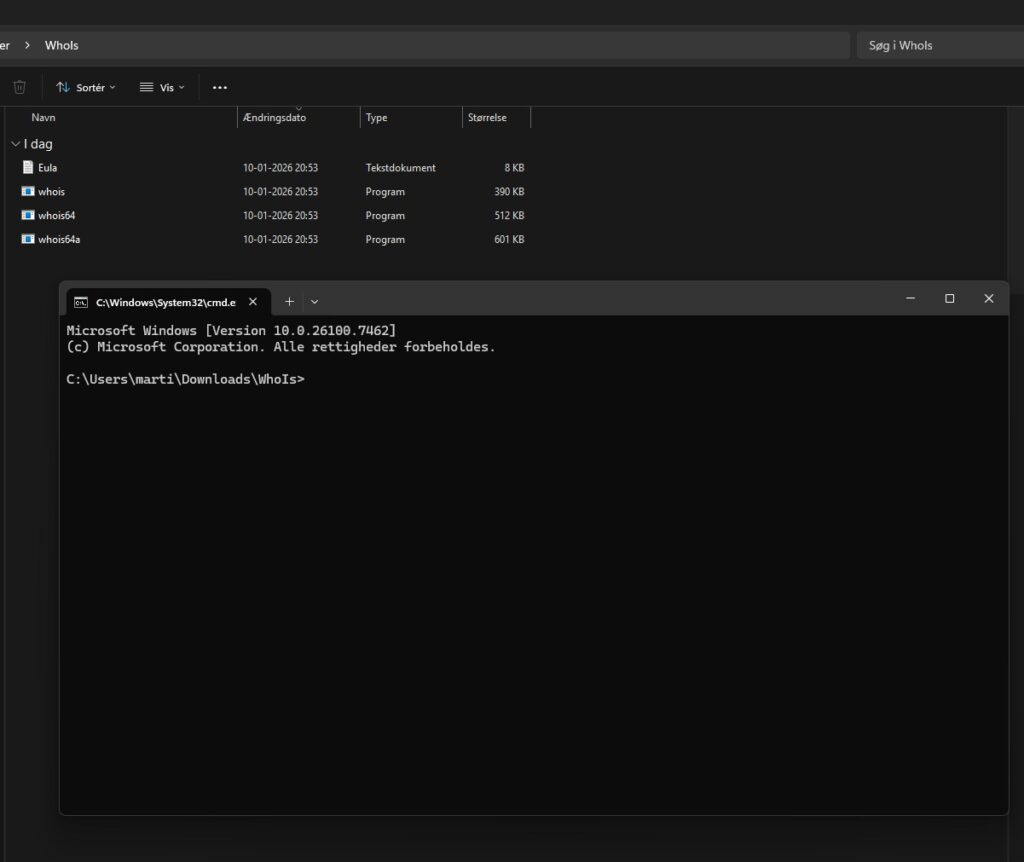
Whois is a command-line tool and doesn’t start on its own. After you download and extract it, you should:
- Open the folder with whois.exe / whois64.exe
- Type
cmdin the File Explorer address bar - Press Enter
Command Prompt will now open directly in the correct folder.
Step 2: Look up an international domain (works immediately)
When you look up an international domain, for example:
whois holyfile.comWhois immediately returns details such as:
- which registrar the domain is registered with
- when the domain was created
- when it expires
- technical status codes
This is where Whois really shines.
Step 3: Why .dk domains often show nothing
When we looked up a .dk domain, we received the message:
No entries found for the selected source
This is not a Whois error.
Danish .dk domains are administered by Punktum dk, and due to GDPR and local privacy rules, registrant and contact details are not provided via public WHOIS queries.
Whois connects correctly to the Danish WHOIS server — but the server is simply not allowed to display that data.
Step 4: When Whois is most useful today
Based on our testing, Whois is especially suited for:
- lookups on .com, .net, .org, and other international TLDs
- IP address lookups and network troubleshooting
- technical analysis and security work
- fast queries without using web-based services
Conversely, Whois is less useful if your goal is to find private owner details for .dk domains.
Short conclusion from our test
If Whois returns detailed information for international domains (like holyfile.com) but not for .dk domains, the tool is working exactly as expected. The limitation is legal — not technical.



