
 Martin Jørgensen
WinCleaner One Click review – easy PC cleanup, not a miracle
WinCleaner One Click is a Windows utility that promises to speed up a slow PC with one click by clearing junk files, browser data, startup programs, and registry errors. It’s clearly made for people who don’t want to mess with advanced Windows settings themselves, which explains why it’s been marketed so broadly over the years.
In short, WinCleaner One Click can be useful for basic cleanup on an older or neglected PC, but don’t expect it to turn a tired computer into a brand-new machine. That’s still not how things work. What it can be is a quick shortcut for users who want a simpler solution than Windows’ own tools.
We compared its feature set with what Windows 11 already offers today, and it’s clear that much of the benefit can also be achieved via Storage Sense, managing startup apps, and manually clearing browser data. WinCleaner simply puts more of this in one interface — and that’s actually its biggest strength.
What does WinCleaner One Click do?
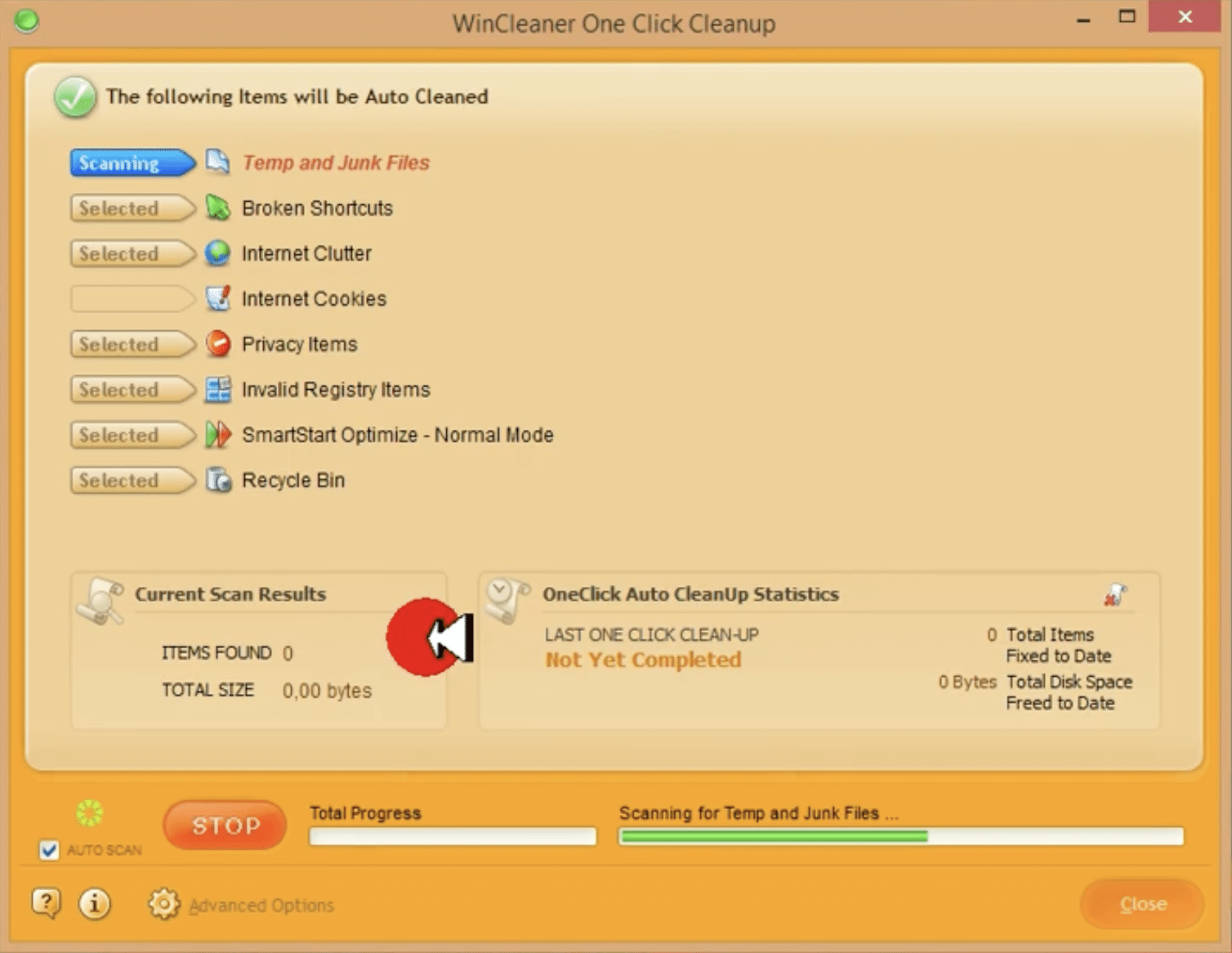
According to the developer, WinCleaner is built to clean, repair, and speed up Windows. The official site highlights clutter cleanup, faster startup, private browsing, and better system stability. The manual also shows several modules, including a junk cleaner, net cleaner, privacy cleaner, shortcut cleaner, and startup cleaner.
In practice, that means:
- deleting temporary files and other junk
- cleaning up browser history, cookies, and cached data
- scanning for unnecessary or invalid shortcuts
- managing which programs start with Windows
- scanning the registry and removing entries the program deems unnecessary
The first three bullet points are the most useful for most people. If your drive is full of temporary files or too many apps launch at startup, you can often feel a difference afterward. It’s more doubtful how much “registry cleaning” helps on modern Windows machines.
Does WinCleaner One Click actually make your PC faster?
Yes — sometimes. But not in the way ads often suggest.
If your PC is slow because it’s overloaded with startup programs, cache, temporary files, and old browser data, then a cleanup tool can make a noticeable difference. Microsoft itself points out that Windows can be optimized by managing startup apps and automatically clearing unnecessary files via Storage Sense.
So think of WinCleaner One Click as a convenient shortcut — not a magic performance boost.
On a typical Windows 11 PC, you’ll usually notice the most impact when:
- the machine starts up slowly
- you’re running low on free disk space
- your browser feels sluggish after long-term use
If you have a newer PC with an SSD, plenty of free space, and you already manage startup apps, the difference is often modest.
Registry cleaner: be a bit more critical
WinCleaner also markets registry cleanup as part of the package — and this is where a review should be more candid than many others.
Microsoft’s official support policy says the company does not support the use of registry cleaning utilities because serious problems can occur if the registry is modified incorrectly. That doesn’t mean WinCleaner will break your PC, but it does mean you shouldn’t buy the program solely for its “registry optimization” promises.
The more realistic advice is:
- use it primarily for file cleanup, browser data, and startup management
- make a backup or create a restore point if you use more aggressive features
- don’t expect major speed gains from registry cleaning alone
That’s exactly the kind of nuance many reviews miss.
User experience and target audience
This is where WinCleaner One Click is actually quite strong.
The design targets people who want to press one big button and move on. The manual also emphasizes that the more detailed features aren’t recommended for beginners, and that the automatic OneClick options are the easiest route.
That makes the program a good fit for:
- older users
- people with limited technical experience
- anyone who wants to tidy up without opening five different Windows menus
- those who find tools like Glary Utilities or other “suite” programs a bit much
Power users, on the other hand, will find it less compelling. If you already know your way around Storage Sense, browser data, Task Manager, and Apps > Startup in Windows, you probably don’t need another paid optimization tool.
Is WinCleaner One Click worth the money?
That depends more on your patience than your hardware.
WinCleaner for Windows is sold on the official site for $19.99, and the developer highlights that it’s “trusted since 1996” and recommended by many users.
For that price, you’re not getting anything revolutionary in 2026. You’re mostly paying for:
- simplicity
- automation
- one place to access multiple cleanup features
- an experience that’s easier than digging through Windows’ own menus
For some users, that’s perfectly fair. For others, it will feel like paying for something Windows already does to a large extent.
If you prefer a single “scan and fix” button, the program makes sense. If you’re even a little bit technical, you can save the money and use Windows’ built-in tools instead.
WinCleaner One Click vs. Windows’ built-in tools
It’s worth mentioning because many readers search for “how do I make my PC faster.”
Windows 11 already includes features that can:
- free up space automatically with Storage Sense
- control which apps launch with Windows
- manually clear browsing history and cookies in Edge
WinCleaner One Click bundles this more conveniently, but parts of the package overlap with what you already have. So its biggest selling point isn’t “unique technology,” but rather “easier access.”
When does WinCleaner One Click make the most sense?
The program is best for you if:
- your PC feels sluggish after years of use
- you don’t want to clean up Windows yourself
- you want a single tool for browser data, junk files, and startup apps
- you help a family member who just wants it done quickly
It makes less sense if:
- you use a new, fast PC
- you already manage Windows’ built-in features
- you’re skeptical of registry cleaners
- you expect a huge performance jump on very old, weak hardware
Top 5 tips for WinCleaner One Click
1. Start with files and startup – not as a registry fix
The most tangible gains usually come from junk files and startup apps. The registry component should be secondary.
2. Keep important cookies when you clean your browser
The WinCleaner manual notes you can protect certain cookies so you don’t get logged out everywhere afterward.
3. Don’t run “aggressive” cleanup blindly
Just because something can be disabled at startup doesn’t mean it should be. Pay special attention to audio software, cloud sync tools, and security apps.
4. Combine it with Windows’ built-in tools
Storage Sense remains great for ongoing maintenance, even if you run WinCleaner occasionally.
5. Use it for maintenance – not to fix everything
If your PC crashes, makes noise, overheats, or is infected with malware, WinCleaner alone isn’t the right solution.
FAQ about WinCleaner One Click
Is WinCleaner One Click safe?
The program is still sold by the official developer, so it’s not abandoned or obviously fake. However, be cautious with any features that modify the registry, as Microsoft generally doesn’t support registry cleaners.
Does WinCleaner One Click work on Windows 11?
The developer currently markets it as WinCleaner for Windows, but the public site is light on exact compatibility details. Always check the official sales or support page before you buy.
Can WinCleaner make an old PC faster?
Yes, in some cases — especially if the machine is burdened by many startup programs and temporary files. But it’s not a miracle tool.
Is WinCleaner better than Windows’ built-in tools?
Not necessarily better — just more consolidated and easier for some users.
Is WinCleaner the same as antivirus?
No. It’s an optimization and cleanup utility, not a full security solution.



