
 Martin Jørgensen
Recover lost files with Windows Data Recovery Software from Disk Doctors
Disk Doctors Windows Data Recovery Software is an effective tool for anyone who has lost important files on a Windows PC—whether due to deletion, formatting, a crashed hard drive, or corrupted partitions. The program uses advanced technologies like TurboScan™ and File Tracer™, enabling recovery of even severely damaged files and partitions.
Features and technologies for file recovery
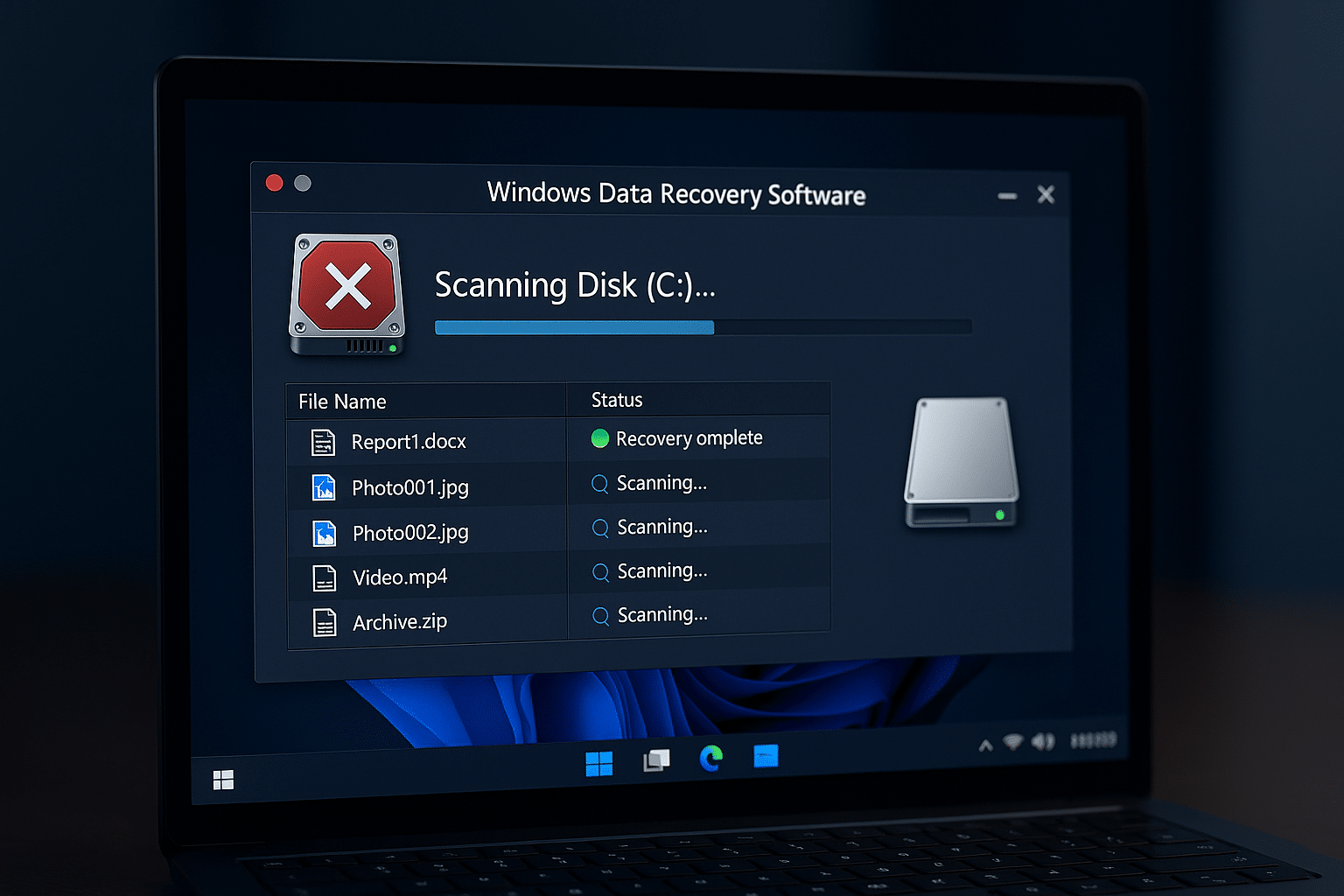
Even when the drive no longer appears correctly in File Explorer, or the partition table is damaged, Windows Data Recovery Software from Disk Doctors can analyze the underlying sectors and restore lost data. The software scans both allocated and unallocated areas of the disk, which means even deleted partitions without a drive letter can be identified and recovered.
TurboScan™ works at a low level with sector analysis and recognizes known file-type signatures—e.g., JPEG, DOCX, and ZIP—even if the file system has been erased. File Tracer™ goes a step further by analyzing metadata and relationships between file fragments, enabling recovery of partially overwritten or fragmented files.
In addition, the software offers:
- Raw Recovery, where data is recovered solely based on file signatures—ideal for severely damaged drives
- Snapshot support, allowing you to save a scan and return to it later without rescanning
- Sorting by file type and folder structure so you can quickly find specific documents, photos, videos, or emails
- Support for RAID 0, RAID 5, and RAID 10, especially useful for professional users and server environments
These features make the program especially suitable for both home users and IT technicians who need a deep and reliable data recovery solution for Windows.
Ease of use and interface
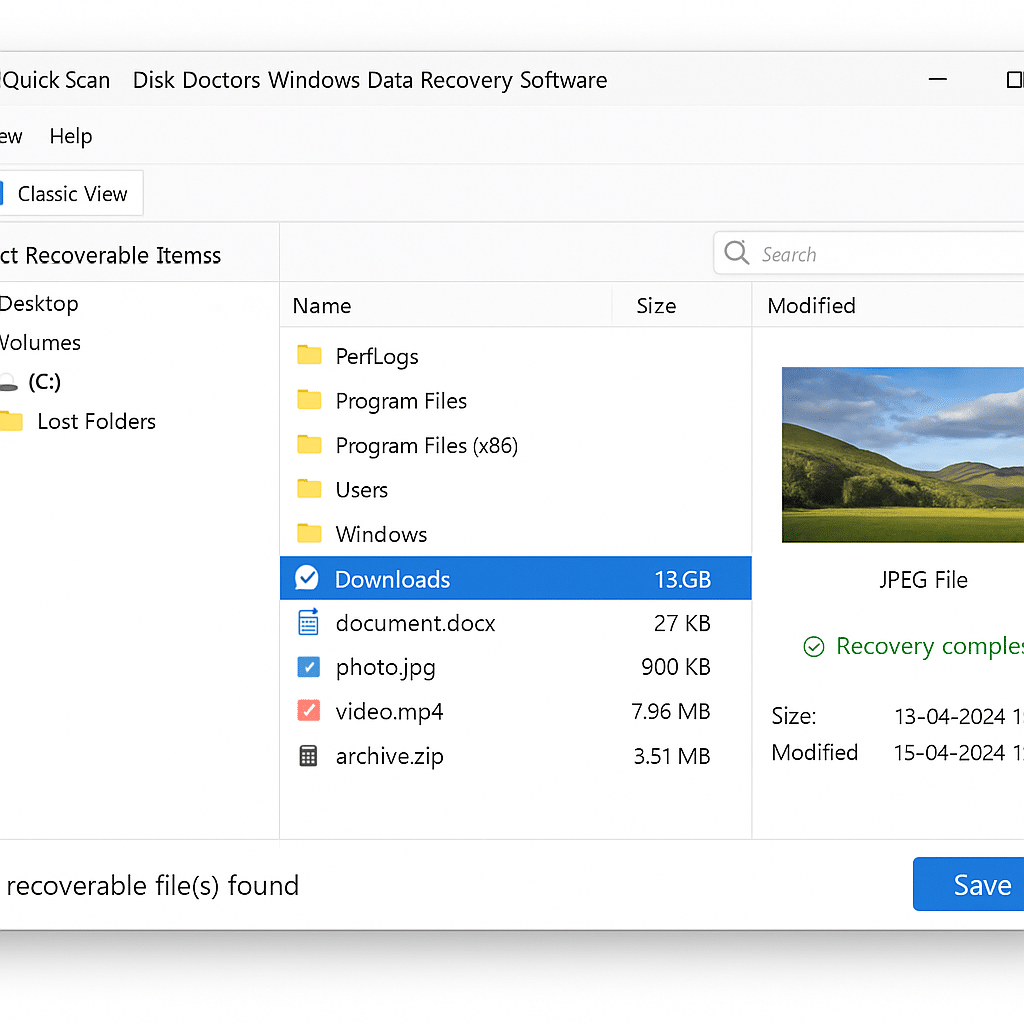
The program opens with a clear start menu where you select the type of recovery you want—e.g., deleted files, lost partition, or full disk recovery. After you choose a drive, the software begins a thorough scan and displays results in a familiar folder view reminiscent of Windows File Explorer. You can easily navigate and search for specific files or file types.
A major plus is the preview feature, which supports documents, images, and media files. This lets you confirm a file is intact before you spend time and space recovering it. For large data sets, use filters and search to quickly find what you need—such as only .PDF files or only items created after a certain date.
Even for users without a technical background, the program is intuitive. Every step of the recovery process is explained with clear tooltips and brief descriptions, and there’s no need to tinker with the BIOS, disk clones, or command lines. The entire process can be completed in just a few clicks.
For more advanced users, the software also lets you load disk images (e.g., .dd or .img files), recover from virtual drives (VHD/VMDK), and set advanced scanning parameters such as sector ranges and cluster signatures. All these options are neatly tucked away under an “Advanced” tab so beginners aren’t distracted by technical details.
Overall, the interface is well thought out and accessible—regardless of your experience level.
Strengths and weaknesses
The software excels with its deep scanning engine and ability to handle complex data-loss scenarios. On the other hand, the design feels a bit dated, and the price of the Pro version can seem high compared to newer alternatives like Stellar and EaseUS.
Top 5 tips for Windows Data Recovery Software
Start recovery right away
The sooner you start scanning after data loss, the better your chances. New files saved afterward can permanently overwrite deleted data.
Use Deep Scan for formatted or corrupt drives
If you’re dealing with formatted or inaccessible partitions, use Deep Scan. It takes longer but often finds far more files than a standard scan.
Save recovered files to a different drive
Avoid saving files to the same drive you’re recovering from—it can overwrite data that hasn’t been rescued yet. Use an external hard drive or USB stick instead.
Use the Preview feature
Preview documents, photos, and videos before recovery. It saves time and ensures you only bring back the files you actually need.
Save your scan as a snapshot
If you don’t have time to review everything immediately, save the scan as a snapshot and return later without rescanning the entire drive.



