
 Martin Jørgensen
Acronis True Image – secure backup and fast recovery on Windows
Acronis True Image is a backup app for Windows and Mac that creates a complete image of your PC, so you can restore everything if an update goes wrong, a drive fails, or you’re hit by ransomware. What sets Acronis apart is that backup and active protection live in the same solution (so you don’t have to juggle multiple tools).
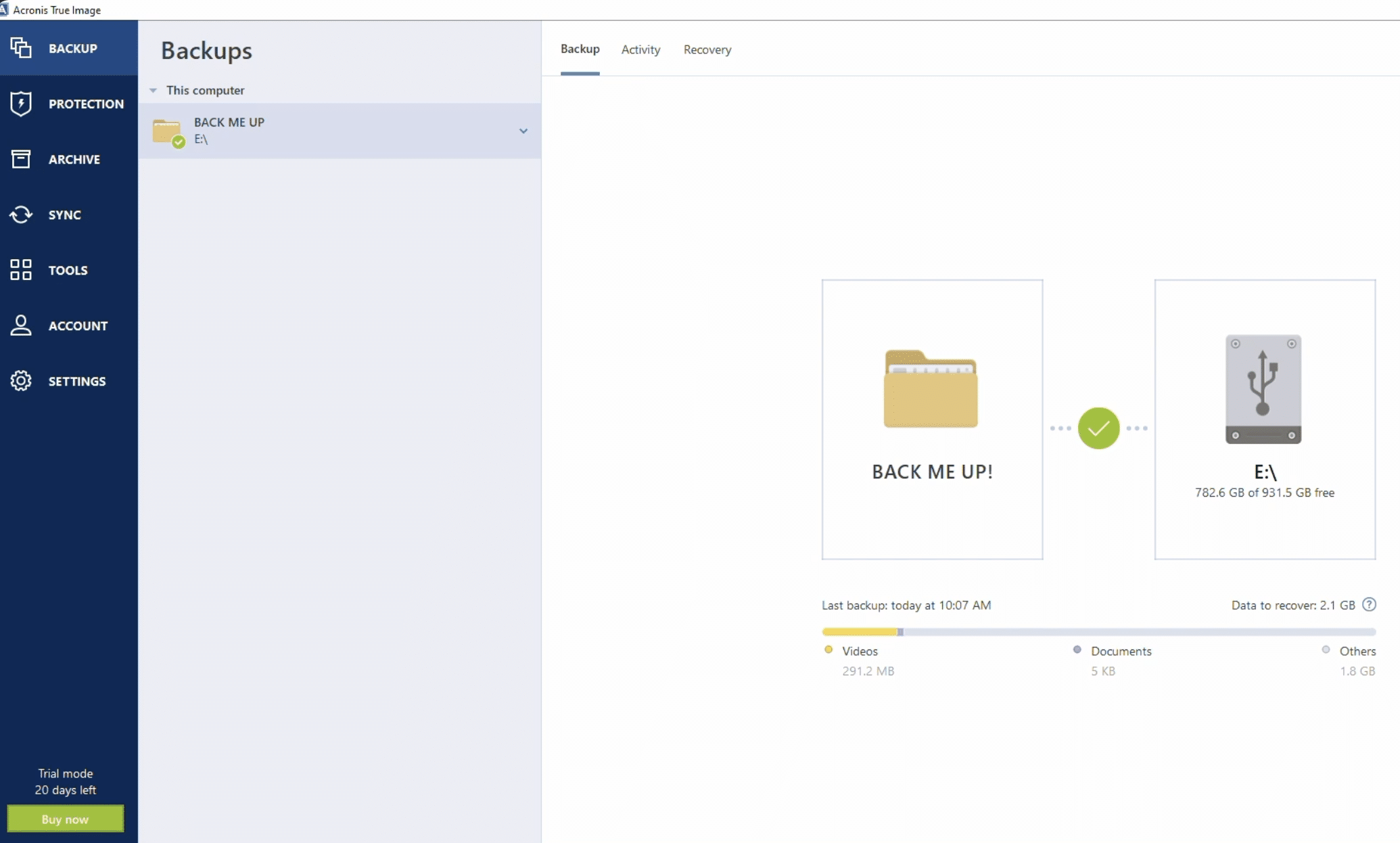
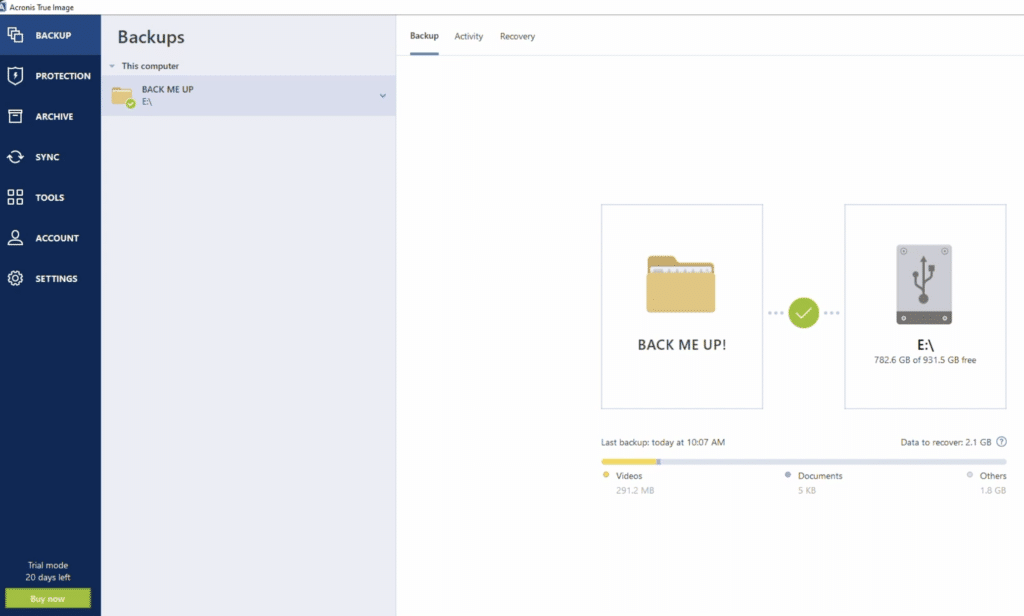
In our tests on a standard Windows 11 PC, setup was straightforward: choose what to back up (the entire PC or selected folders), point to an external drive or the cloud, and set a schedule. The most practical difference-maker was being able to take a full system image before “big things” (like driver updates or major Windows changes) — so you can roll back to a working PC without starting from scratch.
What Acronis True Image is great for in everyday use
If you want to avoid the classic “I thought OneDrive was a backup” trap, True Image makes the most sense in these scenarios:
✅ You want to restore all of Windows including apps and settings (not just files)
✅ You’re moving to a new SSD and want to migrate everything without reinstalling
✅ You want to combine local backup + cloud (the 3-2-1 rule, made easier)
✅ You want anti‑ransomware that also protects your backups in the same package
Backup types: the key choices (so you don’t waste space)
Acronis typically offers:
✅ Full image/mirror (the entire system — fastest in “disaster” scenarios)
✅ File and folder backup (great for documents, photos, and projects)
✅ Cloning (especially relevant when switching to a new SSD)
In practice, many people end up with a combo: file backups run frequently, and a full image backup is taken weekly or before major changes. That strikes a good balance between safety and disk space.
Ransomware and “can it actually save me?”
Acronis often gets mentioned because it’s not just about backup, but also about reducing the risk that your data gets locked. In tests and reviews, the anti‑ransomware feature is frequently highlighted as a plus — but be honest with yourself: the best protection is still having an offline/external backup that isn’t always plugged into your PC.
Try & Decide: smart — but not for everyone
Try & Decide is a safe test environment (sandbox) where changes can be rolled back if something goes wrong. It’s great before you install something questionable or tinker with system settings. But it can be finicky on machines with Secure Boot/firmware locks, and you may need to disable those temporarily to make the feature work.
Product name and what to look for
Acronis previously sold the home version as “Acronis Cyber Protect Home Office,” but the True Image name is back. So if you see both names, it’s the same product family — not two entirely different apps.
Top 5 tips for Acronis True Image
Frequently asked questions about Acronis True Image
There’s usually a trial, but most features (especially cloud and the bigger security components) are part of a subscription. If you only need very basic backup, free alternatives can be enough — but they often lack the same all‑in‑one recovery.
File backup covers your documents, photos, etc. A system image backup captures the entire system: Windows, apps, settings, and everything on the drive. If the PC won’t start, an image backup is often the fastest way back.
Yes, via cloning. It’s especially useful if you’re upgrading from HDD to SSD or to a larger SSD and want to avoid reinstalling. Clean up first so you don’t clone unnecessary clutter.
Yes, the True Image name is back. If you see both names in guides or from retailers, it’s typically the same product line and idea: backup + security in one solution.
Test recovery. At a minimum, check that your PC can boot from the recovery media and that you can see your backups. Backup without a tested recovery path gives false confidence.



