
 Martin Jørgensen
Stay on top of ideas, projects, and notes with XMind
XMind is a modern mind mapping app that makes it much easier to get thoughts, tasks, and plans out of your head and into a visual overview. In our Windows 11 test, it worked especially well for brainstorms, meeting notes, and quickly structuring larger projects where a regular document gets messy fast. XMind is available for Windows, Mac, and Linux, and the developer still offers a free edition alongside paid plans with more features.
The first impression is genuinely positive. The interface is cleaner and more streamlined than many older mind mapping tools, and you can get started quickly without spending half an hour on setup. It helps a lot that XMind includes templates and multiple diagram types, so you’re not stuck with the same classic mind map every time. It’s also clear the app is no longer just about simple mind maps, but aims to handle planning, presentations, and collaboration as well.
XMind is best when you want to think visually
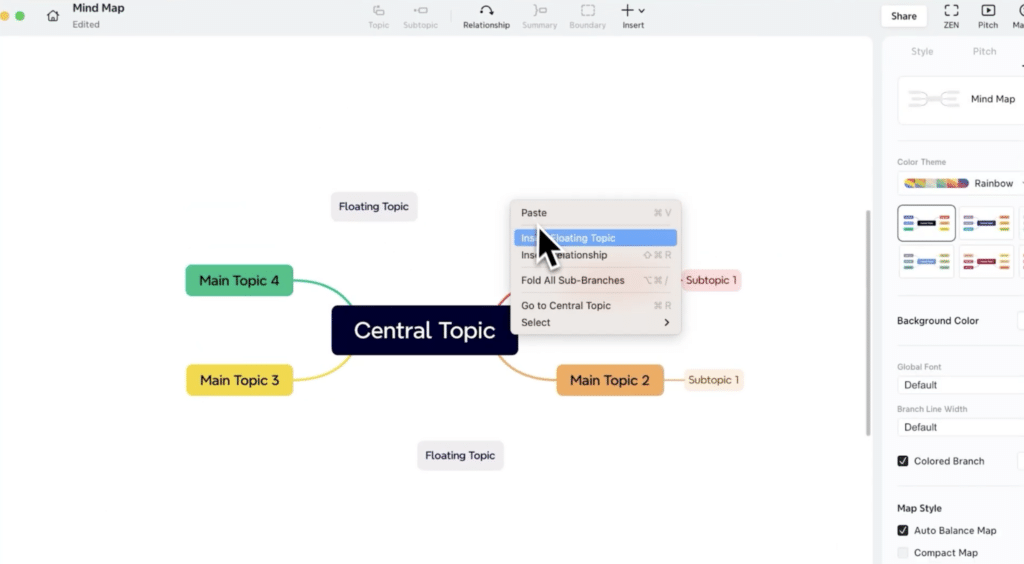
The great thing about XMind is how fast it feels in practice. Starting with one central topic and building out with subtopics, relationships, notes, and markers creates a more natural workflow than shuffling paragraphs around in Word. We tested it for article planning, content clusters, and a larger to-do structure, and it was especially helpful that you can rearrange branches easily without losing the big picture.
XMind also exports to a range of formats including PDF, PNG, SVG, Word, Excel, PowerPoint, and Markdown, which makes it far more useful day to day. That’s a clear advantage if you brainstorm visually first and then need to share the material with coworkers or clients in a format they can actually open. XMind also supports combining multiple mind maps in a single file, which is handy for larger projects.
Free version or paid plan?
Let’s be honest: XMind isn’t as “free” as many users hope. The free plan is fine for trying the app and creating smaller mind maps, but there are limits. According to the current pricing page, the free edition is capped at up to 10 maps, while the paid plans unlock more export options without watermarks, more slides in Pitch, better collaboration, and additional history.
In practice, the free version suits students, personal use, and anyone who only needs a few maps. If you work more seriously with planning, presentations, or team projects, you’ll quickly hit the limits that make the paid version more appealing. That’s not necessarily a downside, but it should be clear so users don’t expect a completely free alternative to pricier diagram tools.
New features make XMind more relevant than ever
XMind isn’t a stagnant app collecting dust. The developer still updates it actively, and the changelog shows ongoing bug fixes, stability improvements, and new features across desktop, web, and mobile. Recent plans also highlight AI features, real-time collaboration, and a Gantt view, making XMind more relevant for people using it for work and project management—not just classic mind maps.
In our review, XMind was most convincing as a tool for ideation and structure. That’s still where the app feels strongest. The extra features are nice, but its biggest strengths remain that it opens fast, is easy to grasp, and lets you work quickly. It’s the kind of software you actually keep using because it never feels heavy.
Is XMind worth downloading?
Yes—especially if you often work with brainstorming, project structure, notes, teaching, or visual planning. XMind strikes a good balance between ease of use and features. It may not be the most advanced tool in the category, but it’s one of the most approachable for everyday users who just want to get started.
Top 5 tips for XMind
Start with a simple map instead of the “perfect” structure
When we tested XMind on Windows 11, it worked best to start with one main topic and get ideas down quickly. You can always tidy up later. Many people get less out of mind maps because they spend too long on design at the beginning.
Use markers and labels to separate ideas from tasks
If everything is just text bubbles, large maps quickly become hard to read. Use labels, priorities, and small visual markers to show what’s an idea, a deadline, a problem, or the next step.
Export to PDF or PowerPoint when others need to review
XMind is great for the creative phase, but not every coworker wants to work directly in a mind map. Exporting makes it much easier to share a brainstorm with people who just need to read or approve the content.
Split big topics into smaller maps and merge them later
If you create a huge mind map from the start, it gets messy fast. We had better results by building smaller maps for subprojects and then merging them once the structure was solid.
Try the free edition first before you pay
XMind is the kind of app that either clicks right away or doesn’t fit your workflow at all. So it makes sense to start free and only upgrade if you actually need export, collaboration, or more maps.



