 Martin Jørgensen
Automate your apps without coding
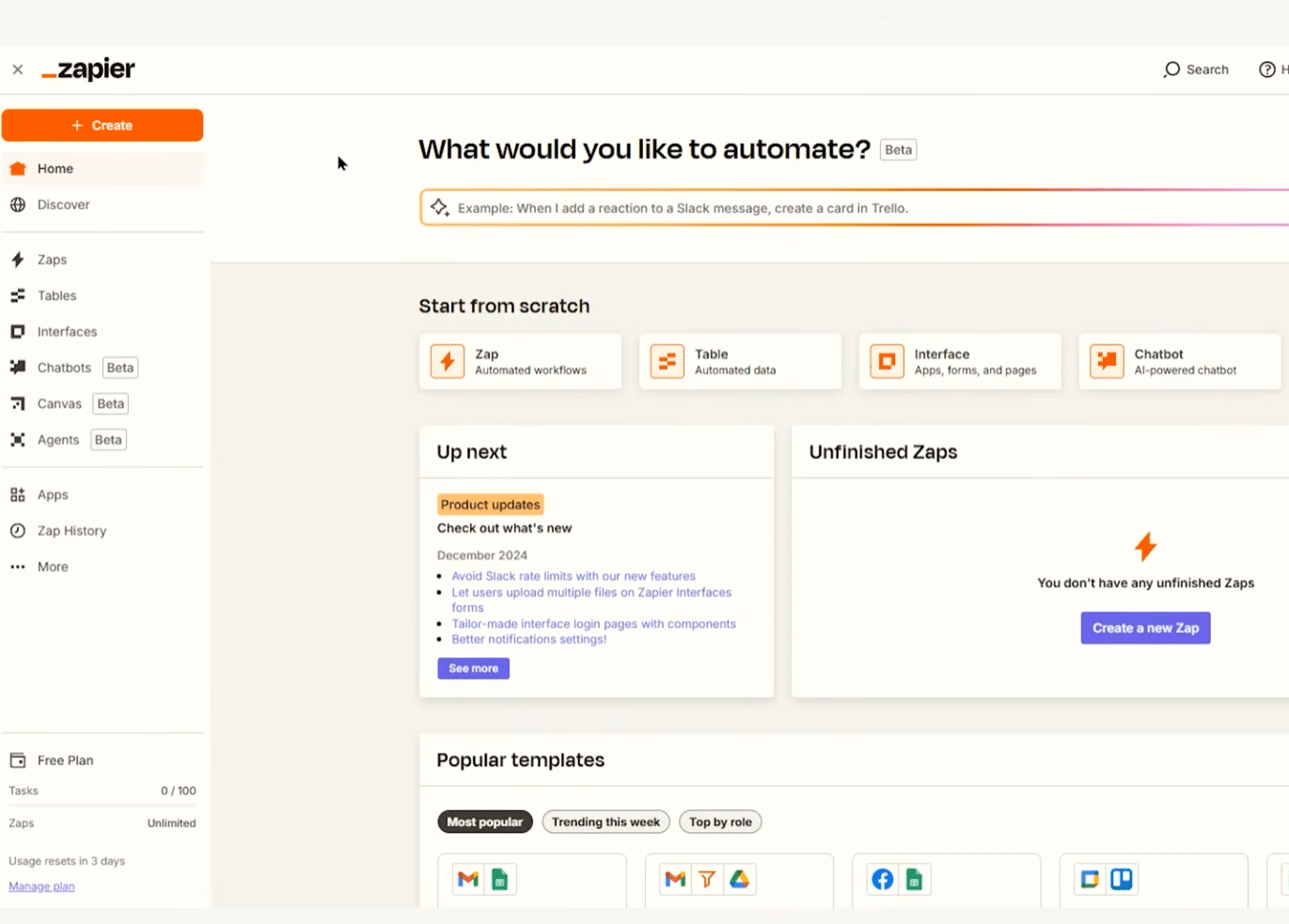
Zapier is a web-based automation platform that connects your apps and services so repetitive tasks can run automatically in the background.
Instead of manually copying info from Gmail to Google Sheets, sending Slack messages for new leads, or moving data between your CRM, newsletter, and project management, Zapier can do it for you. It may sound a bit dry, but during our test on a Windows 11 PC it quickly became clear why Zapier has become so popular among freelancers, online stores, marketers, and små virksomheder.
The key thing to know is that Zapier isn’t a traditional program you install like a normal Windows app. You primarily use it in your browser, but there’s also an official Chrome extension so you can run automations directly from the browser. Zapier says it supports over 9,000 apps and automations across marketing, sales, AI, support, and operations.
What is Zapier?
Zapier works with so-called “Zaps.” A Zap typically consists of a trigger and one or more actions. For example:
✅ When a new form submission arrives, automatically add a row in Google Sheets
✅ When a customer books a meeting, send a Slack message to the team
✅ When you get a new order, automatically create a task in Trello, Asana, or Notion
✅ When a new lead email hits your inbox, push the details to your CRM
✅ When a document is uploaded, AI can help summarize or categorize the content
The smart part is you don’t have to build integrations yourself. Zapier sits between your apps and makes them talk to each other. For many danske brugere it’s especially relevant for Google Workspace, Microsoft 365, Slack, HubSpot, Mailchimp, Shopify, WordPress, Notion, Trello, and similar tools.
Our Zapier test on Windows 11
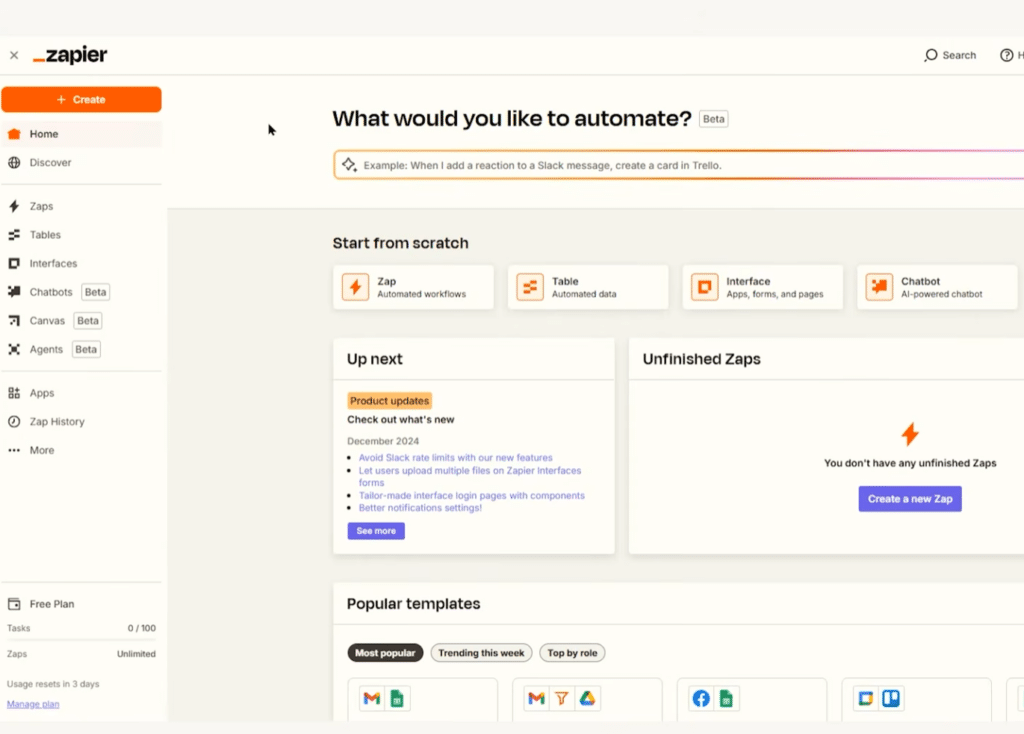
During our test, we used Zapier directly in Chrome on Windows 11. Our first impression is that Zapier is far more user-friendly than many classic automatiseringsværktøjer. You’re guided step by step, and the system often suggests relevant fields when two apps are connected.
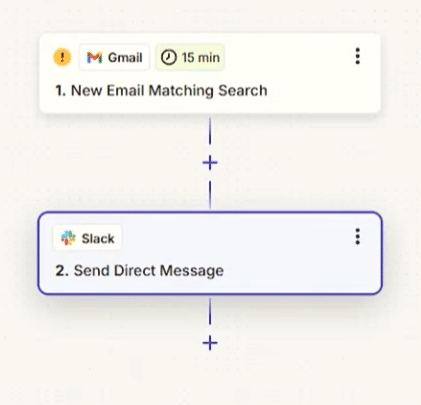
We also built a simple test where a new form submission was sent to a spreadsheet and triggered a message at the same time. It only took a few minutes to get the basic flow running, but it took a little tweaking to map the fields precisely. This is where Zapier shows both its strength and its weakness: beginners can get started quickly, but the best results come when you test your automations thoroughly.
A small detail we like is the testing feature. Before you turn a Zap on, you can preview the data that will be sent. That makes it easier to catch mistakes before an automation sends the wrong messages, creates duplicates, or fills a spreadsheet with clutter.
Zapier download – how to use the service
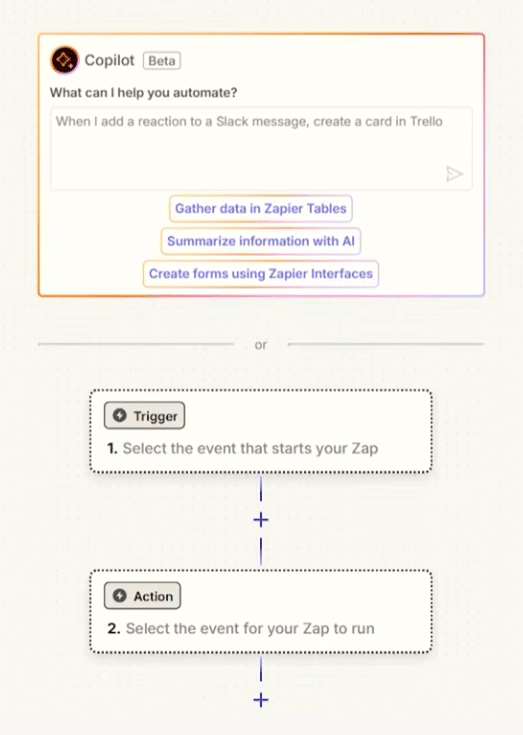
Zapier typically isn’t downloaded like a traditional program. Use the service via the official website, where you log in and build your automations. If you want Zapier closer to your browser, install the Zapier Chrome extension, which lets you create and run shortcuts directly from Chrome. According to Zapier, the extension can send and fetch information and run workflows right from the browser.
Zapier integrations: where it really shines
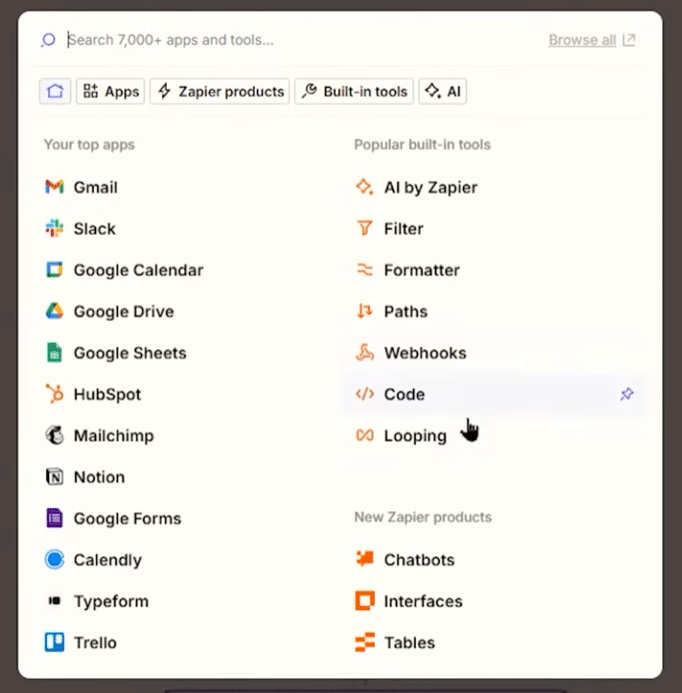
Zapier is especially interesting because the integrations list is so broad. It’s not just the big apps like Gmail, Google Sheets, Slack, and Microsoft Teams. You finder også værktøjer for accounting, advertising, email marketing, customer service, CRM, AI, social media, project management, and online stores.
This means Zapier can often serve as practical “glue” between tools that otherwise don’t work well together. If you run a US online store, a newsletter platform, a CRM, and a spreadsheet, Zapier can be the difference between a heavy manual workflow and a flow that mostly runs itself.
Zapier isn’t magic, though. If your setup is messy, your automations will be messy too. In our testing, it clearly paid off to start with small Zaps and build from there. An overly complex automation with many steps can quickly become hard to troubleshoot.
AI in Zapier
In recent years, Zapier has moved strongly into AI automation. That means you can not only move data between apps, but also have AI help analyze, rewrite, categorize, or summarize information as part of a workflow. Zapier describes its AI features as a way to connect AI tools with the apps og systemer, virksomheder allerede bruger.
A practical example: new support messages can be automatically analyzed, categorized, and routed to the right person. Another example: leads from forms can be qualified and enriched before they land in your CRM system.
It’s powerful, but you should use it carefully. AI steps should be tested extra thoroughly, especially if they’ll handle customer data, sensitive information, or messages that are forwarded automatically.
Is Zapier free?
Zapier can be used for free with limits, but more advanced features typically require a paid plan. That’s especially true if you want to run many automations, use multiple steps, add advanced filters, or connect lots of apps.
For personal use and small projects, the free tier can be enough to test your ideas. For businesses, online stores, and marketing teams, Zapier quickly becomes a paid tool. Think about which tasks actually save enough time to justify the price.
Who should use Zapier?
Zapier makes the most sense for people who work with many different online tools. That includes entrepreneurs, freelancers, marketers, agencies, support teams, sales reps, online store owners, and companies that want to automate repetitive processes without hiring a developer.
For everyday home users, Zapier is less obvious—unless you love optimizing small digital routines. But if you work daily with email, spreadsheets, forms, CRM, newsletters, or project management, Zapier can quickly save a lot of manual clicks.
Zapier’s best feature is also what to watch out for
Zapier makes automation accessible to almost everyone. That’s also why it’s easy to over-automate. A poorly designed Zap can create duplicates, post messages to the wrong channels, or move data in a way that’s hard to clean up later.
Our best advice is to name your Zaps clearly, test them with real examples, and enable notifications at first. It might feel a bit nerdy, but it saves time when something needs troubleshooting three months later.
Top 5 Zapier tips
Automation1Start with one simple Zap
Don’t make your first workflow too advanced. Start with one trigger and one action—for example, saving a form submission to Google Sheets. Once it’s stable, add more steps.
Troubleshooting2Always test with real data
Zapier shines when fields map correctly. Use realistic test data before you activate a Zap to avoid empty fields, duplicates, or messages sent to the wrong place.
Overview3Name your Zaps clearly
Names like “Test 2” and “New Zap” get useless fast. Use names like “Contact form to CRM and Slack” so you can see exactly what the automation does later.
AI4Use AI steps thoughtfully
AI in Zapier is great for summarizing, sorting, and tekstbehandling, but automatic AI replies should be tested thoroughly—especially for customer support, sales, or sensitive data.
Pricing5Only automate what saves real time
It’s tempting to automate everything, but the best Zaps remove repetitive work. Look for processes you do every week where errors or manual effort cost time.