
 Martin Jørgensen
Systweak PDF Editor makes PDF editing easier on Windows
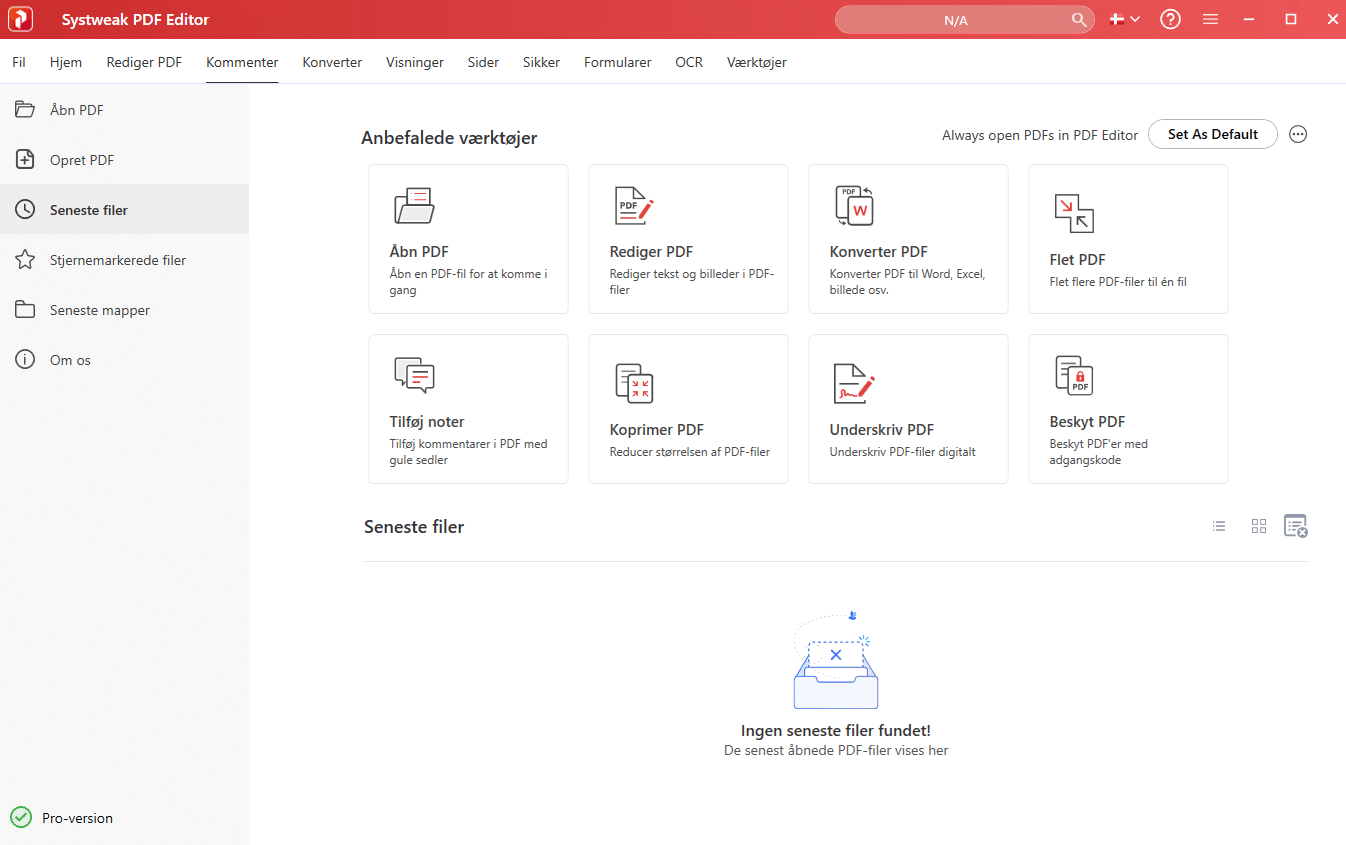
Systweak PDF Editor is a Windows PDF app that combines editing, converting, compressing, signing, and organizing PDFs in one tool.
We tested Systweak PDF Editor on a Windows 11 PC with a mix of standard PDFs, scanned files, and a few heavier, image‑rich documents. Our first impression is that it’s aimed at users who find Adobe Acrobat too expensive or too heavy, but still need more than just a free PDF reader.
It’s not the most modern-looking PDF app we’ve tried, and some menus feel a bit classic. On the plus side, features are placed logically, so you can quickly get to the tasks most people actually need: fix text, combine pages, protect files with a password, compress large PDFs, and convert documents to other formats.
Edit PDFs without uploading them
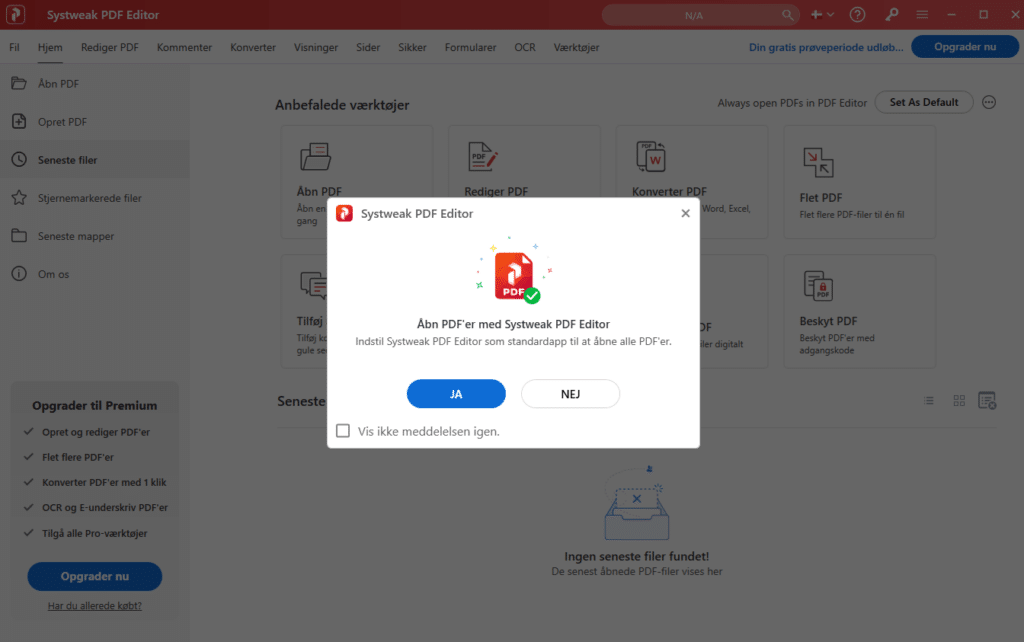
One thing we like about Systweak PDF Editor is that it works as an offline PDF tool. That means you can work with documents directly on your PC instead of uploading them to a random online PDF service.
That’s especially relevant if you’re handling contracts, invoices, exam papers, customer data, or other documents that shouldn’t be sent online just to remove a page or fix a line of text.
In our testing, it was easy to open a PDF, click into text fields, and correct small errors. The layout didn’t always stay perfect with very complex files, but it worked well for typical documents. It’s still important to save a copy of the original before you start making changes to a critical PDF.
PDF conversion, OCR, and compression
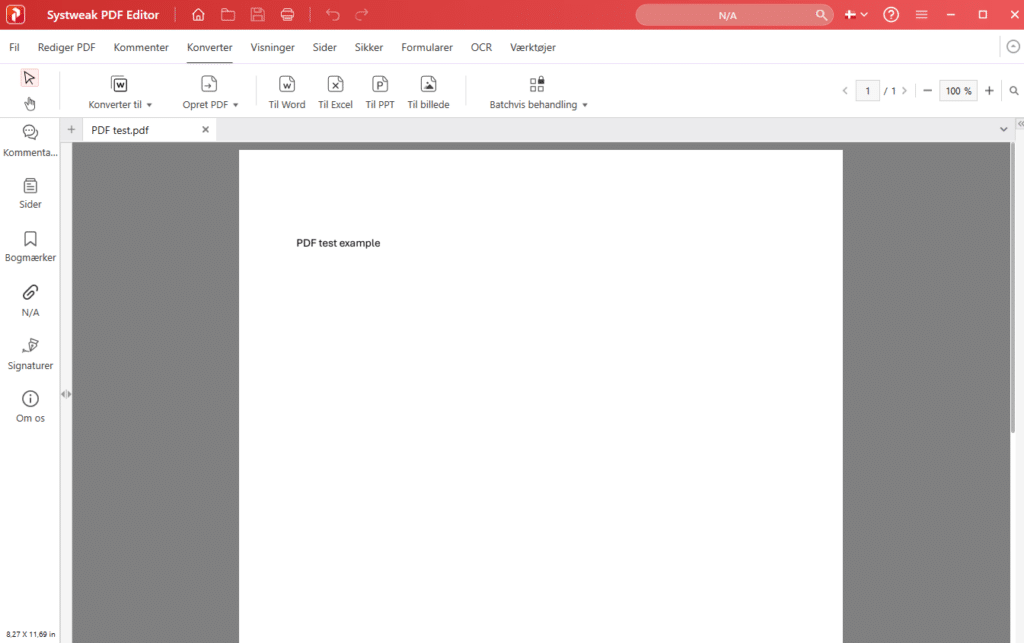
Systweak PDF Editor also works as a PDF converter. You can convert PDF files to Word, Excel, PowerPoint, and image formats, which makes it far more useful than a simple PDF viewer.
The OCR feature is especially helpful if you work with scanned documents. It tries to recognize text in image-based PDFs so the content can be searched and edited. It’s not magic, and quality depends heavily on the scan. A skewed scan with poor contrast will still give uneven results, but on clean, clear documents the output was good enough to save a lot of manual typing.
Compressing PDFs is handy, too. Many of us know the problem of a PDF that’s too large to email or upload to an online portal. Here Systweak PDF Editor can reduce file size without sending the file through a browser-based service first.
Organizing pages and documents
The app makes it easy to move, rotate, delete, and merge pages. It might not sound exciting, but in practice these are often the exact PDF chores that eat up time.
We tested combining several smaller PDFs into one document and removing a couple of unnecessary pages from a report. It was quick, and the interface is simple enough that you won’t spend long hunting for the right buttons.
You can also add watermarks, notes, highlights, and signatures. That makes Systweak PDF Editor useful for students, small businesses, and home users who regularly handle documents.
Not completely free — but more serious than many free alternatives
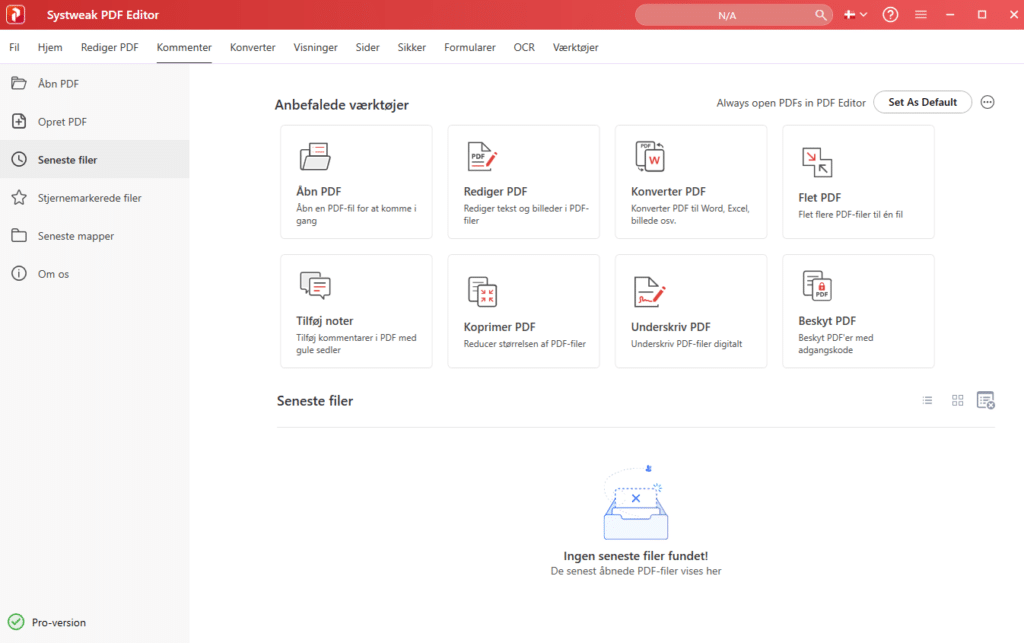
Systweak PDF Editor isn’t just a free PDF reader, and that’s worth noting. Some users might expect all PDF tools to be free because there are many small online solutions. But if you want to edit PDFs locally on Windows, use OCR, and convert documents, this is typically where paid software comes into play.
That also means Systweak PDF Editor isn’t necessarily the best choice if you only open a PDF once in a while. For pure reading, a free PDF reader is enough. But if you often edit, combine, sign, or convert PDFs, this app makes far more sense.
A solid choice for Windows users with lots of PDF tasks
Systweak PDF Editor strikes a practical middle ground. It’s more comprehensive than small free PDF tools, without feeling as heavy as the biggest professional PDF suites. In our testing, it worked best for everyday office tasks: fix text, rearrange pages, compress files, convert documents, and work with scanned PDFs.
It isn’t a perfect app. The design could be sleeker, and advanced PDF edits can still introduce minor layout issues in complex documents. But as an all‑in‑one PDF tool for Windows, Systweak PDF Editor is a solid pick—especially if you prefer handling your documents locally on your computer.
Top 5 tips for Systweak PDF Editor
Always save a copy of the original first
PDF editing can change the layout, especially in files with many images, tables, or special fonts. Save a copy before editing the document directly.
Use OCR for scanned documents
If the text in a PDF can’t be selected, the document was likely scanned as an image. The OCR feature can make the text searchable and easier to work with.
Compress PDFs before you send them
Large PDFs can be a pain in email and online forms. Try the compression feature if the document is too big.
Combine attachments into one PDF
If you have multiple invoices, receipts, or supporting documents, combine them into a single PDF. It makes archiving and sharing easier.
Use password protection for sensitive files
If you share documents with personal information, contracts, or financial data, consider protecting the PDF with a password.



