

 Martin Jørgensen
AnyDesk – Remote control your PC or Mac with one click.
AnyDesk is one of the most popular and effective tools for remote desktop control—whether you work from home, provide IT support, or just forgot a document on your home office PC. It’s free for personal use, lightning-fast to set up, and works on Windows, Mac, Linux, Android, and iOS.
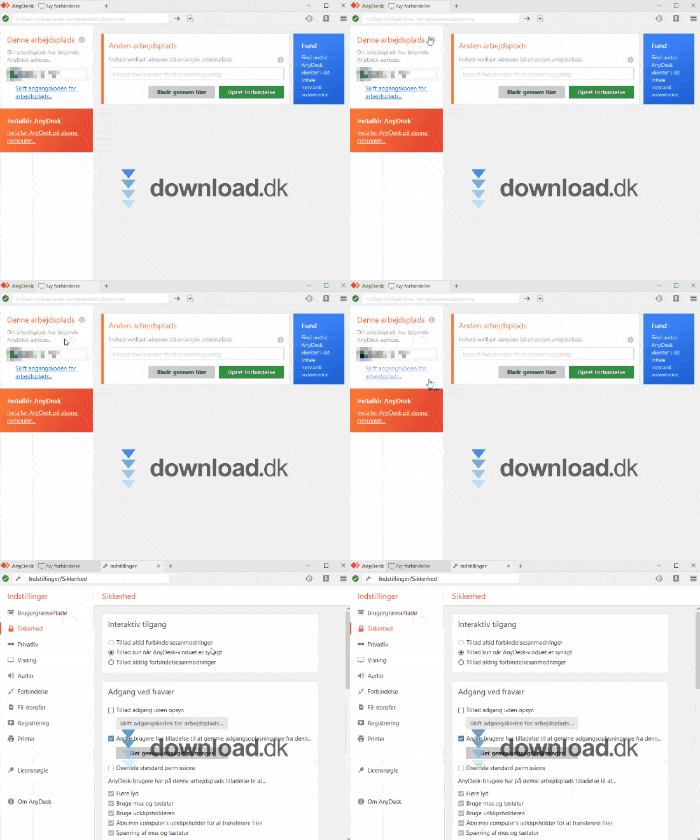
Remote access wherever you are
With AnyDesk, you can:
- 🔗 Connect to your home computer from any device
- 📂 Transfer files, edit documents, and control apps
- 💡 Access computers outside your network – ideal for remote support or remote work
- 📱 Use the mobile app to remotely control a Windows or Mac computer
AnyDesk is a great choice for both individuals and businesses that want to work more flexibly.
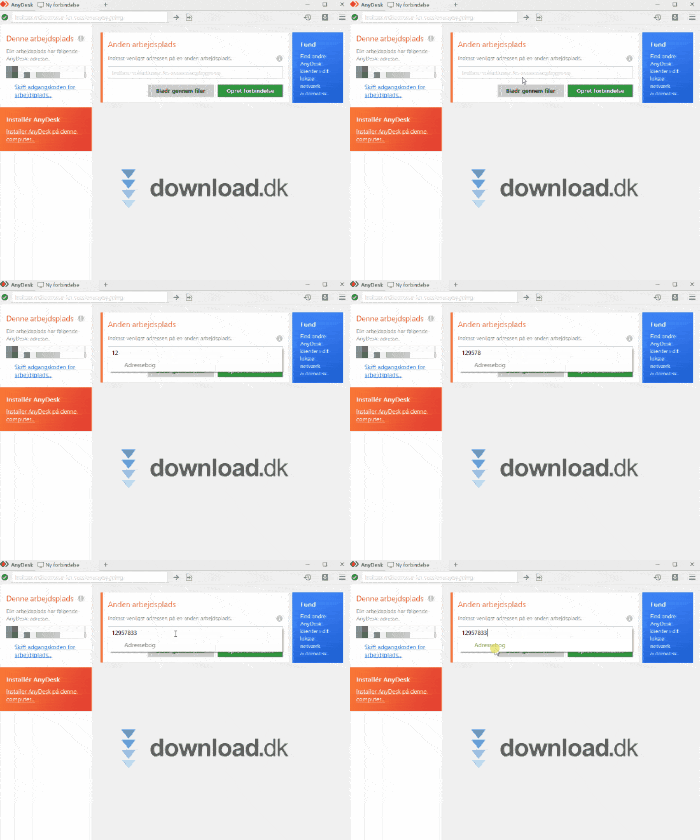
High performance and low latency
We put AnyDesk to the test on a standard Windows 11 machine and were pleasantly surprised. The software delivers a stable experience even on poor connections, and it’s clear the developers have prioritized speed and security.
During our test, we saw high image quality and low latency — even when we throttled the connection to around 100 kb/s, we could still control the remote desktop without stutter.
The built-in compression and codec technology make a noticeable difference. Screen sharing felt smooth, even with heavy applications running in the background.
Security is solid. We inspected the traffic and confirmed that AnyDesk uses TLS 1.2 as well as asymmetric RSA encryption — the same level you’ll find in online banking.
We also tested the extra security layers: password protection and key exchange between trusted devices worked flawlessly and gave peace of mind when opening remote access to sensitive data.
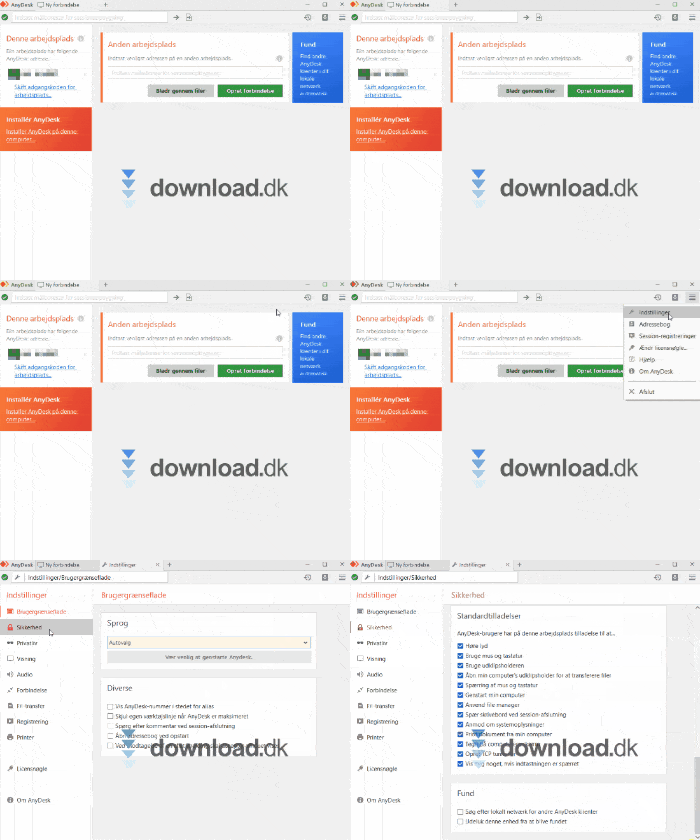
Perfect for both personal and professional use
The software is especially ideal for:
- 👨💻 IT support and remote troubleshooting
- 🧳 Remote work without a VPN
- 🏢 Companies that want to remote-control many machines with MSI deployment
- 👨👩👧👦 Home users who need to access a shared computer
AnyDesk is under 5 MB, requires no installation, and starts instantly.
Alternatives to AnyDesk
Although AnyDesk is among the best on the market, there are alternatives to consider:
RustDesk – open-source alternative with solid security, but still under development
TeamViewer – more widely used, but heavier and requires installation
Chrome Remote Desktop – browser-based and easy to use, but with fewer features
Top 5 tips and tricks for AnyDesk
1. Use a password for quick access (Unattended Access)
Want to access your computer without approving every time? Enable "Unattended Access" and set a password. Then you can log in to your home PC even if no one is at it. The feature is found under Settings → Security.
2. Run AnyDesk without installation – perfect from USB
AnyDesk requires no installation. Save it to a USB stick and run it directly — ideal for technicians or when you don’t have administrator rights. Just double-click and connect.
3. Add permanent connections to the address book
If you frequently connect to the same computers, create shortcuts in the address book. It makes it lightning-fast to find and connect — especially useful for businesses or families with multiple devices.
4. Adjust image quality for better speed
If the connection stutters, boost performance by going to View → Quality and choosing "Balanced" or "Performance." It slightly reduces graphics but makes the connection much faster and more stable.
5. Grant (or revoke) access during the session
Need to give the other side access to file transfer or the clipboard — but not mouse and keyboard control? Use the in-session toolbar to toggle specific permissions on/off in real time. Maximum flexibility!



