
 Martin Jørgensen
Brave Browser: faster, ad‑free, and more private than Chrome
Tired of bloated browsers, pop‑ups, and trackers following you around? Brave is a free web browser that feels like Chrome to use—only with built‑in ad and tracker blocking, so pages often load faster and look cleaner. Brave is available for both desktop and mobile.
Who is Brave best for?
Brave makes the most sense if you like the “Chrome‑style” browsing experience but are fed up with the web feeling like one big ad experiment. In our testing, the difference stood out most on many US news, recipe, and how‑to sites—Brave delivered a calmer experience with fewer distractions around the content.
If you already use Chrome extensions, Brave also feels familiar from minute one. We imported bookmarks and saved logins from another browser, which made the switch painless—no “where did I save that site?” feeling.
If you spend time on sites that are very sensitive to ad‑blocking/privacy filters (for example, certain streaming or payment solutions), Chrome eller Edge can still be the most “everything just works” option. Brave can still work, but occasionally you’ll want to dial down Shields for that specific site.
Installation on Windows and first‑time setup

We tested Brave on a standard Windows 11 PC, and installation was straightforward: download the file, run it, done. What really matters comes right after—onboarding. You can make Brave feel like your old browser in two minutes by importing history, bookmarks, and passwords immediately. It’s a small thing that makes the difference between “I’m just testing” and “okay, I can actually use this.”
If you browse on both desktop and phone, it also pays to enable Sync early so you don’t end up with two separate browsing lives.
Speed in practice: where you’ll notice the difference
Brave promises a lot on speed, but in practice it’s mostly about stripping “ballast” from pages. In our tests, sites with lots of ad slots and tracking felt clearly faster in Brave because there were simply fewer elements to load and rearrange.
With many tabs open, Brave can still use a fair bit of RAM (it’s Chromium‑based, after all), but the experience is often more stable because pages aren’t constantly pulling in extra scripts in the background.
Brave Shields: ad blocking without tinkering
Shields is what makes Brave stand out day to day. It’s built in, on by default, and you control it per site via the lion icon in the address bar. That matters because it’s also how you “rescue” the few pages that can break when blocking is too strict. We had a couple of cases where the layout looked odd, and it was fixed in under a minute by adjusting Shields for that site—without making the rest of the browser less private.
Tor in Brave: a handy shortcut (with the usual caveats)
Brave’s Tor window is convenient when you want a quick dose of discreteness without installing anything extra. But it’s not a magic anonymity switch. It can be slower, and some websites may be more finicky because Tor traffic can be flagged. Use it as a tool—not a guarantee.
Extensions and compatibility
Because Brave is Chromium‑based, you can usually use Chrome Web Store extensions. That makes switching easy, especially if you rely on a password manager or a few must‑have tools. Our advice: go easy on extensions—too many can make Brave feel heavy again.
Brave Rewards: great for some, optional for others
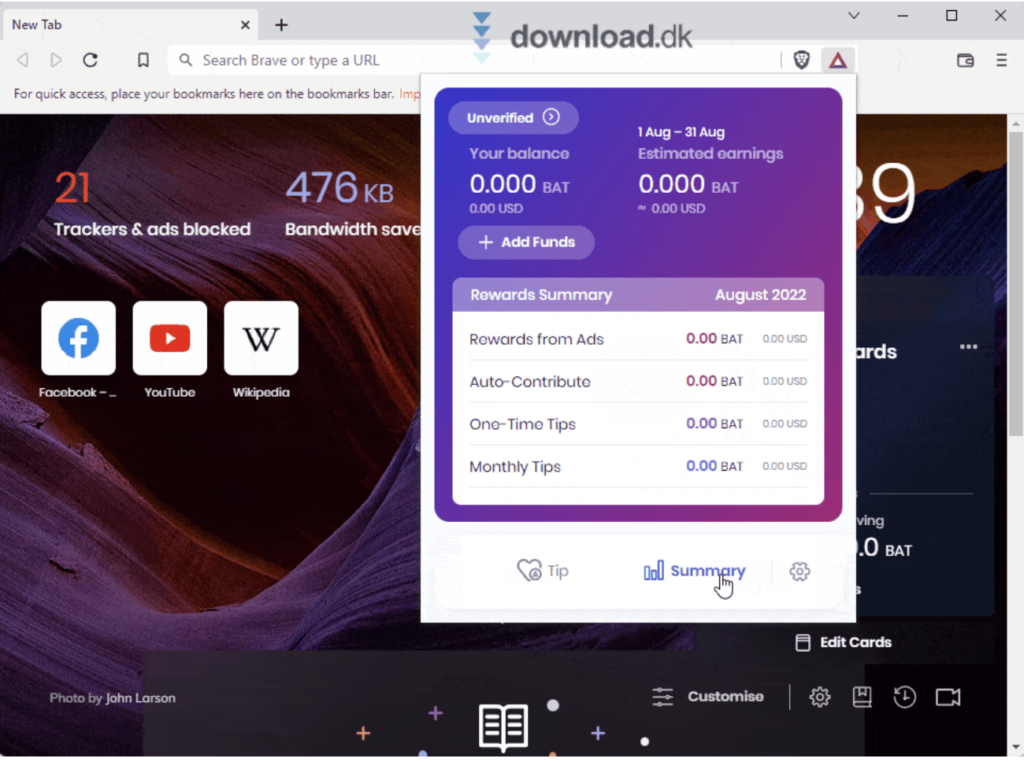
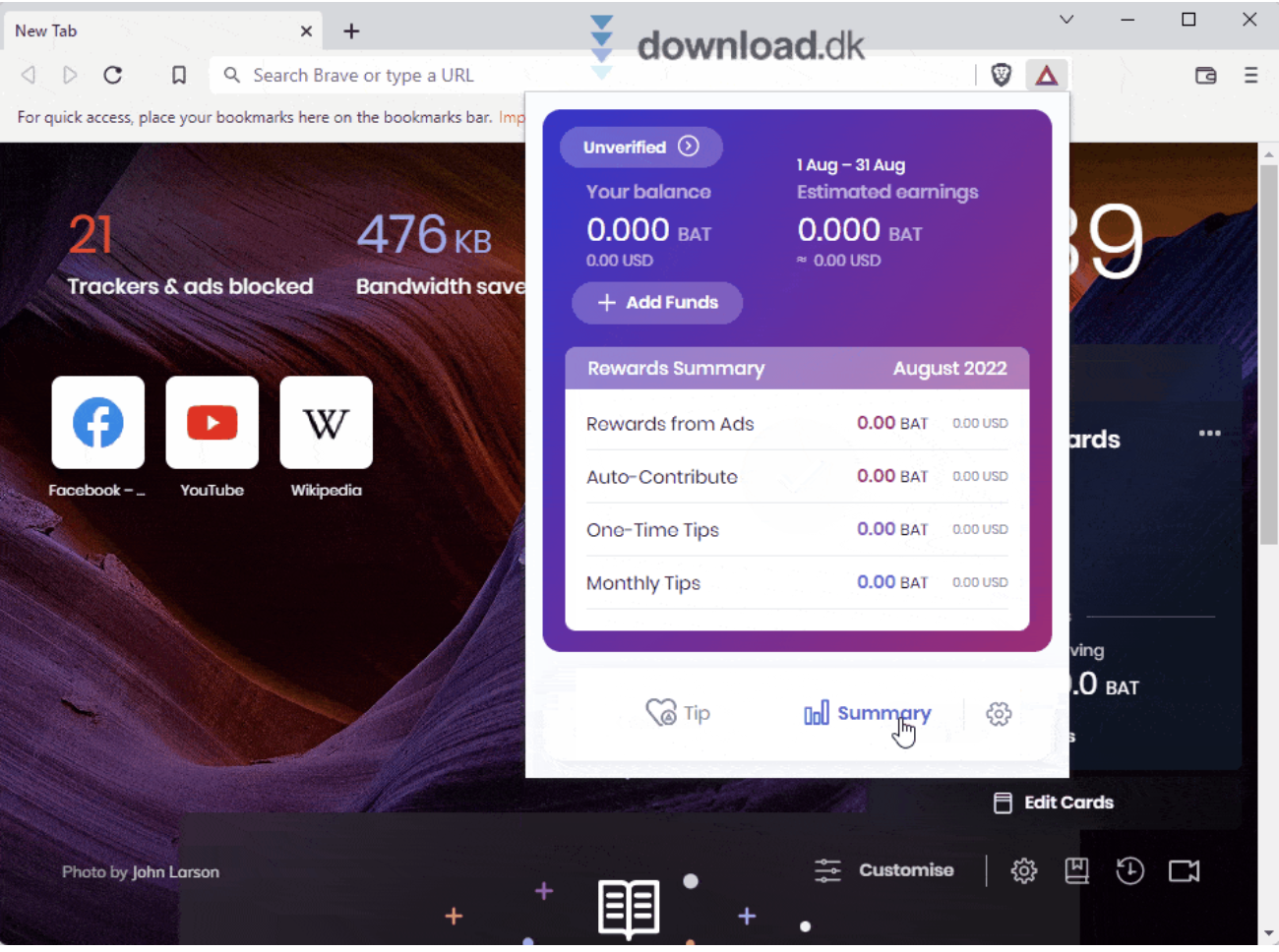
Brave Rewards is a bit different: you can opt in to “private ads” and earn BAT. If you’re not into crypto or point systems, ignore it and you’ll still get the whole point of Brave—fewer ads, more calm, and better privacy. We focused on Shields and speed—that’s where the real value is for most people.
Brave vs. Chrome/Edge/Firefox without the ad talk
Brave is the obvious pick if you want a Chromium feel with privacy and blocking by default. Edge is strong for Windows integration, and Chrome is still the most broadly compatible. Firefox is a solid alternative if you want væk fra Chromium entirely, but Brave is often easier to jump to because it looks like what most people already use.
Get started fast—without making it a project
Start by importing your stuff. Use the Shields icon when a site misbehaves. And keep extensions to a minimum at first. Those three things make Brave a better browser in practice—not just on paper.
Top 5 tips for Brave Browser
Top 5 tips for Brave Browser
Small tweaks we like to make so Brave feels light and stable—without breaking websites.
Adjust Shields per site when a page misbehaves
If a page is missing buttons or looks “off,” click the lion in the address bar and lower protection for that site only. It usually fixes things without reducing privacy elsewhere.
Go easy on extensions at first
Brave has a lot built in. Too many extensions can make any browser heavier and less stable. Start small—and add only what you truly miss.
Use Private window with Tor as a shortcut
The Tor window is handy for more discreet browsing without extra installs. Expect slower speeds—and note some sites may block Tor traffic.
Import bookmarks and logins on day one
When your stuff comes with you, Brave feels like a continuation—not an empty browser. It’s the fastest way to make the switch friction‑free.
Rewards is optional—use it only if you want
If you just want fewer ads and more privacy, leave Rewards off. If you’re curious, try it for a week and see if it’s for you.
Brave Browser – FAQ
FAQ: Brave Browser
Short answers to common questions we see when people switch from Chrome or Edge.



