
 Martin Jørgensen
Updated: July 20, 2026 – latest version: Windows 11 25H2 – the current release for most Windows PCs (26H1 has been released, but it’s a special build that only ships preinstalled on select new PCs with newer hardware.)
Download Windows 11 safely from Microsoft as an ISO, to USB, or with the Installation Assistant below
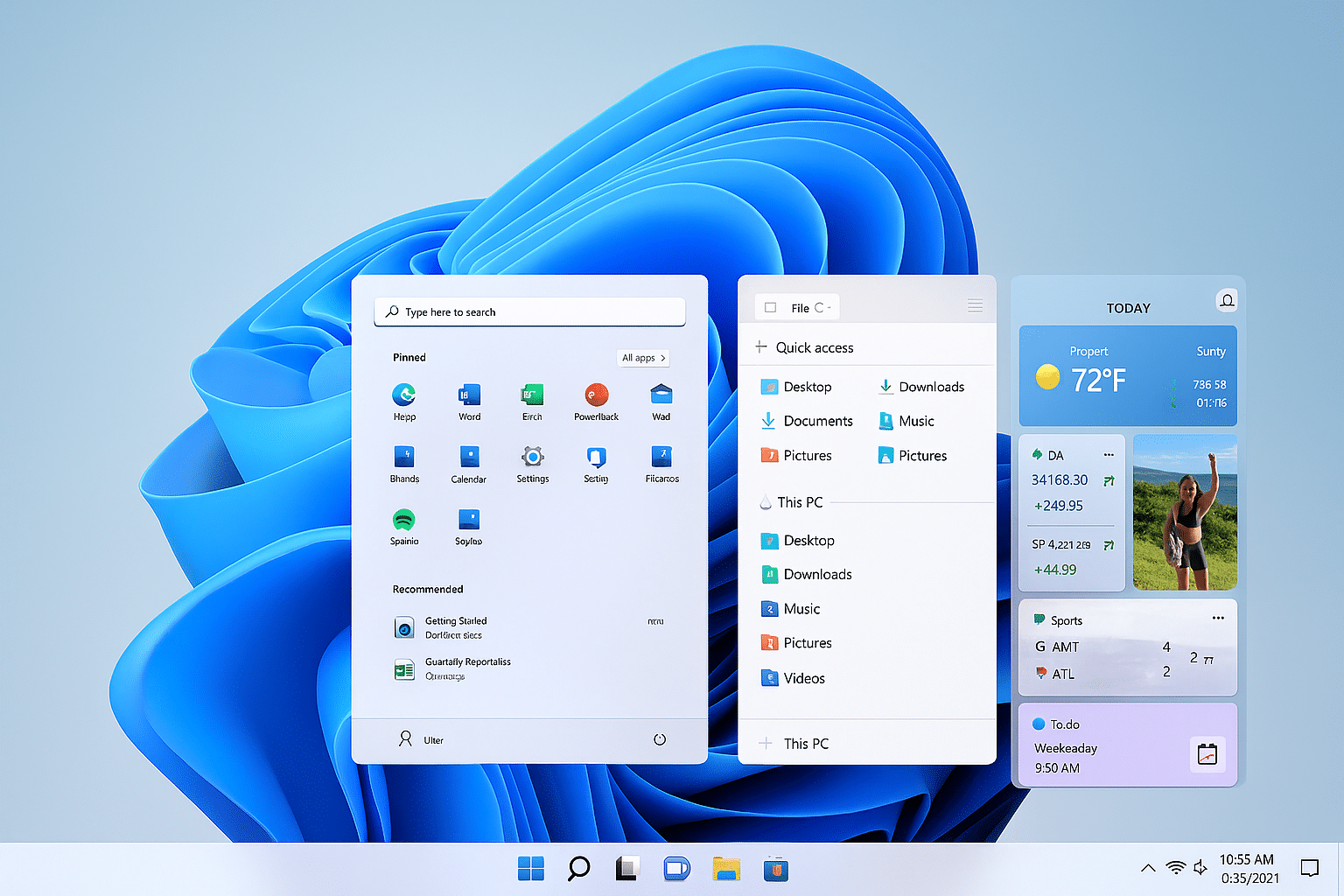
Windows 11 25H2 is Microsoft’s newest feature update with ongoing improvements to stability, performance, and security. With a modern design, better multitasking, and deeper cloud integration, it’s a worthy upgrade from Windows 10.
Microsoft built Windows 11 for both work and entertainment, and you can feel that in daily use. We experienced faster startup and more efficient performance on laptops, with noticeably better battery life than on Windows 10. The interface looks cleaner and calmer with rounded corners, refreshed icons, and a centered taskbar. At the same time, Microsoft Store has become far easier to navigate, making it simpler to find apps, games, and streaming services.
One feature we really enjoyed is Snap Layouts and Snap Groups. When you have many windows open, organizing your workspace suddenly becomes much easier. Teams now sits directly on the taskbar, which makes it nemt (easy) to start a chat or meeting without opening a separate app. For gamers, Windows 11 also has a couple of aces up its sleeve: DirectStorage and Auto HDR deliver noticeably faster load times and better visuals in supported games.
We also tested Windows 11 with a multi‑monitor setup, and there are big improvements here. Virtual desktops are more flexible, and touchscreen devices work far better with the system than before. On the security side, Microsoft raises the bar with TPM 2.0 and Secure Boot, and together with Windows Hello, it feels more robust than previous versions.
If you want to try it yourself, you can download the latest version on this page and get all the details about installation and system requirements.
Our experience with Windows 11 – features and user experience
We’ve run Windows 11 on a standard PC for several weeks, and the first thing you notice is the design.
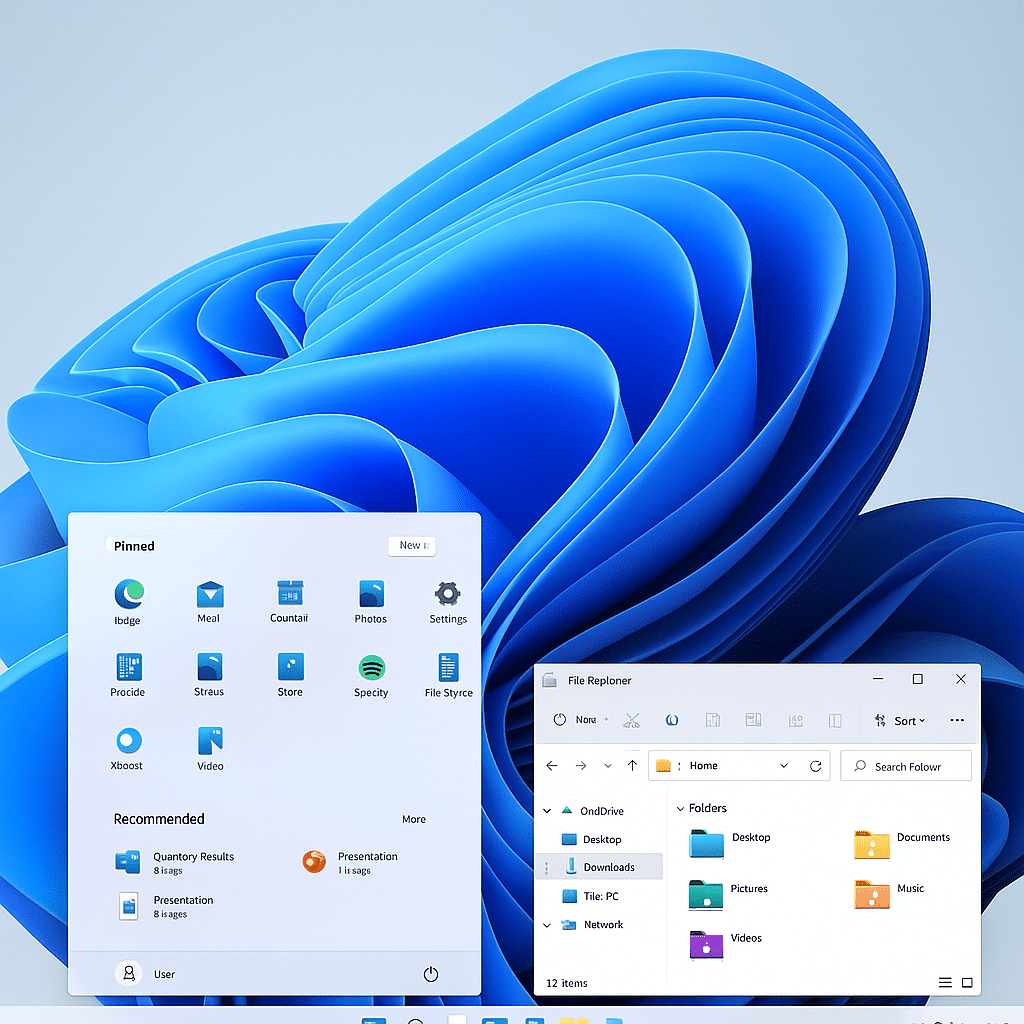
✅ New design – rounded corners, updated icons, and a streamlined UI
It may sound small, but the rounded corners and modernized icons make the whole system feel more pleasant to use. If you spend hours at your PC, it’s a visual detail you notice. The centered Start menu took a little getting used to, but after a few days it felt more natural than the classic left‑aligned placement.
✅ Improved multitasking – Snap Layouts and Snap Groups make organizing windows easy
This is a real upgrade. We tested Snap Layouts with Outlook, Edge, and Word open at once, and it’s impressive how quickly you can tile apps side by side. Snap Groups remembers how your apps were arranged, so you can jump right back into your workflow.
✅ Better ydeevne – optimeret for modern hardware to deliver faster, more efficient performance
In our tests, Windows 11 generally felt faster than Windows 10, especially at startup and when switching between heavy apps like Photoshop and Premiere Pro. Resource usage was lower than expected, and it’s clear the system is tuned for newer hardware with SSDs and modern CPUs.
✅ Teams integration – chat and video calls straight from the taskbar
We tried the taskbar Teams chat, and it was handy to start a quick conversation without opening the full Teams app. For private brugere (home users), it may not be a must‑have, but for remote work or frequent online meetings, it’s a small yet useful improvement.
✅ Stronger security – TPM 2.0 and Secure Boot for better protection
Windows 11 requires modern security features like TPM 2.0 and Secure Boot. One of our older PCs couldn’t upgrade, which was a bit frustrating, but the system feels more robust on supported machines. It’s clear Microsoft takes security seriously—for both businesses and home users.
How to download and install Windows 11
1. Use the Windows 11 Installation Assistant This tool guides you through upgrading from Windows 10 to Windows 11 without losing your files. Perfect if you want a quick and simple upgrade.
Download the Installation Assistant
2. Create installation media (USB or DVD) If you want a clean install or need to install Windows 11 on a new device, use the Media Creation Tool. It can create a bootable USB drive or DVD.
Download the Media Creation Tool
3. Download the Windows 11 ISO Advanced users can download a Windows 11 ISO file and install the OS manually.
Windows 11 ISO (25H2) – Home/Pro in English (US)
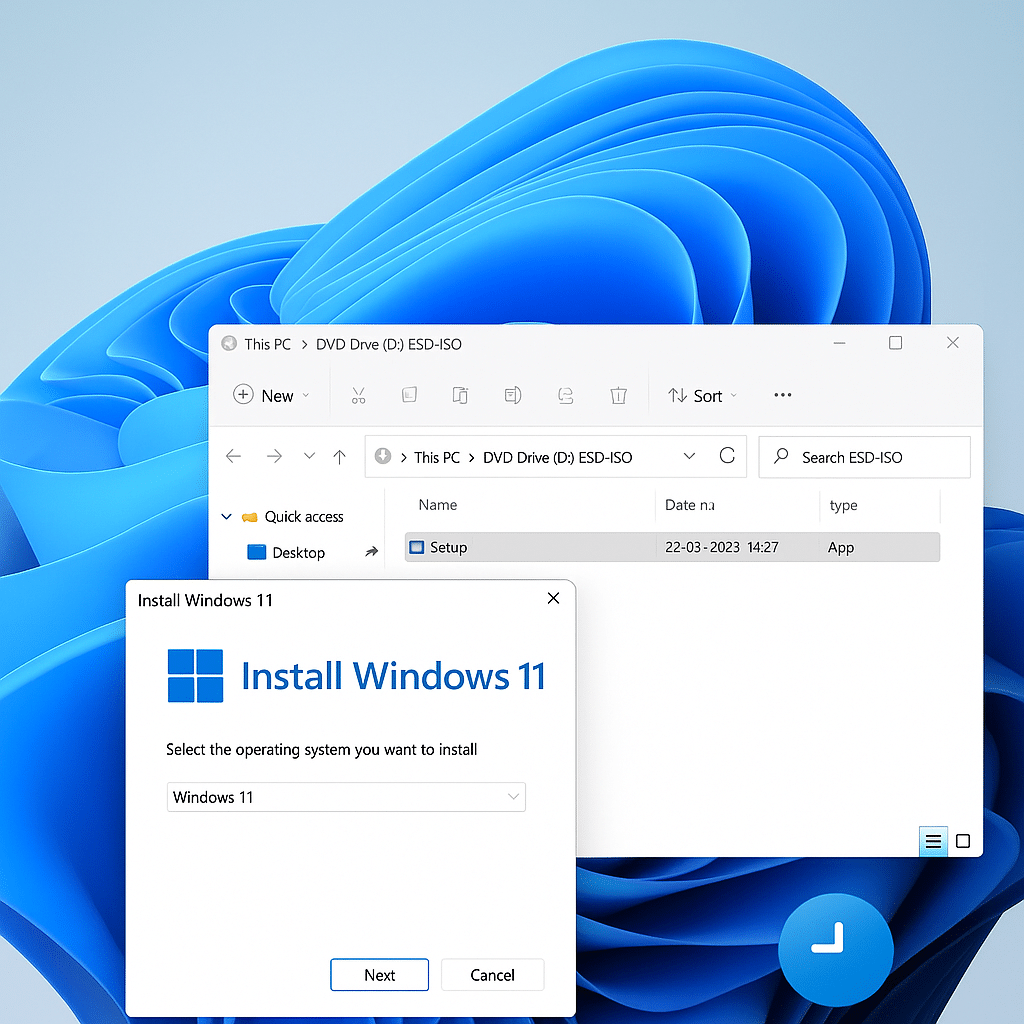
If you want a clean installation or prefer to keep the file for later, a Windows 11 ISO is the flexible option. You get the official Disk Image (ISO) directly from Microsoft. The ISO is multi‑edition (Home/Pro)—your license/activation decides which edition is enabled. Vælg blot dansk som sprog under download, or choose English (United States) during download for the US edition.
- Edition: Samme ISO til Home og Pro (consumer editions). Your key/digital license determines which edition is activated.
- Architecture: 64‑bit (x64) – Windows 11 is not available in 32‑bit.
- Language: Choose “English (United States)” for the US ISO download.
How to get the ISO quickly
- Go to Microsoft’s download page and scroll to “Download Windows 11 Disk Image (ISO).”
- Select “Windows 11 (multi‑edition ISO),” click Confirm, choose “English (United States),” then confirm again.
- Download the .iso file and use it for USB, a virtual machine, or mount it directly in Windows.
ISO vs. Media Creation Tool – which should you choose?
Choose the ISO when…
- you want a clean install or to install on multiple PCs.
- you need the ISO for a virtual machine (VMware, VirtualBox, Hyper‑V).
- you prefer creating a USB with Rufus/Ventoy or keeping the ISO as a backup.
Choose the Media Creation Tool when…
- you want to upgrade this PC now with minimal choices.
- you want an automatic bootable USB without extra software.
- you prefer a guided process with fewer manual steps.
Download the ISO file
Frequently asked questions about Windows 11
Frequently asked questions about Windows 11
Quick answers about English (US) downloads, the Windows 11 ISO, USB installation, licensing, TPM 2.0, and ARM‑based devices.
How do I download Windows 11 in English (US)?
You can download Windows 11 from Microsoft’s official download page. Microsoft currently lists the Windows 11 2025 Update, version 25H2, as the mainstream release.
You can choose between the Installation Assistant, the Media Creation Tool, or a direct ISO file. When downloading the ISO, select English (United States) as the product language.
Open Microsoft’s official Windows 11 download pageWhat’s the difference between ISO, USB, and the Installation Assistant?
The Windows 11 Installation Assistant is the easiest way to upgrade the PC you’re on, provided it’s already running a compatible version of Windows.
A bootable USB drive is best for a clean install or installing on another PC. The ISO file is the most flexible option and can be used for USB, DVD, virtual machines, or a manual in‑place upgrade.
For most standard upgrades, the Installation Assistant is the simplest choice.Is Windows 11 free?
Downloading Windows 11 is free. If you have a compatible PC with an activated and valid Windows 10 license, you can usually upgrade to Windows 11 without buying a new license.
If you’re installing Windows 11 on a new PC or don’t have a valid digital license, you’ll need a product key or to purchase a Windows license to activate.
Can I install Windows 11 without TPM 2.0?
TPM 2.0 is an official minimum requirement for Windows 11, along with Secure Boot and a supported 64‑bit CPU.
Unofficial methods can bypass requirements, but Microsoft discourages installing on unsupported PCs. You may face driver issues, instability, warranty concerns, and problems with future updates.
First check your PC’s BIOS/UEFI. On some devices TPM 2.0 is present but disabled.How do I create a bootable USB with Windows 11?
The easiest way is with Microsoft’s Media Creation Tool:
- Connect an empty USB drive with at least 8 GB of space.
- Download Microsoft’s Media Creation Tool.
- Select “Create installation media for another PC.”
- Choose language, edition, and 64‑bit architecture.
- Select USB flash drive and follow the prompts.
Everything on the USB drive will be erased, so back up important files first.
Can I download Windows 11 for an ARM64 PC?
Yes. Microsoft provides a separate Windows 11 ISO for ARM64 PCs, such as newer Windows devices with Snapdragon processors.
The regular Installation Assistant and Media Creation Tool only support x64 PCs. Use the dedicated ARM64 ISO instead of the standard ISO for Intel/AMD processors.
Download the Windows 11 ISO for ARM64 from MicrosoftDoes Windows 11 require a Microsoft account?
Windows 11 Home and Windows 11 Pro for personal use generally require an internet connection and a Microsoft account during initial setup.
The account is used for activation, sync, OneDrive, Microsoft Store, and restoring settings. Rules may differ for PCs managed by a company or school.
System requirements for Windows 11
Your PC must meet these minimum requirements to install Windows 11:
- Processor: 1 GHz or faster with at least 2 cores (64‑bit)
- RAM: 4 GB or more
- Storage: 64 GB or more
- Firmware: UEFI with Secure Boot
- TPM: Trusted Platform Module (TPM) 2.0
- Graphics: DirectX 12 compatible
- Display: 720p, at least 9″ diagonal
Use the PC Health Check tool from Microsoft to see if your PC is compatible:
Download PC Health Check:Microsoft’s official page
What if your PC doesn’t support Windows 11?
If your device doesn’t meet Windows 11’s system requirements, you can still use Windows 10, which Microsoft stopped supporting in October 2025.
Download the latest version of Windows 10 here:Microsoft’s official page
Should you upgrade to Windows 11?
After testing Windows 11 on multiple machines, we see it as a substantial upgrade with a fresh design, smarter multitasking, and a strong security focus. If your PC meets the requirements, you get a more modern and fluid user experience that’s worth considering.
That said, Windows 10 is still a stable and reliable choice—especially if your PC doesn’t support Windows 11 or you prefer to stay on a tried‑and‑tested system.
Whichever version you choose, we recommend downloading the newest release so you’re running the latest features and security updates.
Comparison: Windows 11 vs. earlier versions
On mobile, swipe the table sideways to see all versions.
| Category | Windows 11 | Windows 10 | Windows 8.1 |
|---|---|---|---|
| Current status | Actively supported Windows 11 25H2 is the mainstream release for existing PCs. 26H1 is used only on select new devices and isn’t offered as a standard upgrade from 24H2 or 25H2. | Support ended Windows 10 22H2 was the final mainstream version. It still works, but no longer receives regular security and feature updates. | End of life Windows 8.1 is no longer supported and shouldn’t be used on an internet‑connected PC. |
| User interface | Modern design with rounded corners, centered taskbar, a new Start menu, and updated Settings. The taskbar can also be aligned left. | More classic Windows look with the Start menu, Live Tiles, and a familiar taskbar. | Tile‑based Start screen focused on full‑screen apps. Less suited to a traditional desktop workflow. |
| Hardware and performance | Built for newer 64‑bit hardware. Real‑world performance still depends on CPU, RAM, SSD, and drivers. | Can run well on older PCs that don’t meet Windows 11’s requirements. Lack of regular support is a major downside. | May feel light on very old hardware, but modern drivers, browsers, and apps increasingly don’t support it. |
| Security | Requires TPM 2.0, UEFI, and Secure Boot capability. Microsoft Defender and newer security features are built in. | Includes Microsoft Defender but no longer gets routine security updates. Consumer ESU can extend security updates on enrolled PCs. | Receives neither security fixes nor technical support from Microsoft. There’s no official ESU program for Windows 8.1. |
| Multitasking | Snap Layouts, Snap Groups, virtual desktops, and better multi‑monitor handling make it fast to organize windows. | Snap Assist and virtual desktops remain solid, but window management is less advanced than in Windows 11. | More limited options for docking and organizing multiple windows. |
| Gaming | Supports DirectStorage, Auto HDR, and DirectX 12 Ultimate on compatible hardware. Not all games leverage these features. | Broad compatibility with many PC games, but lacks some of Windows 11’s newer gaming features and optimizations. | Many newer games, graphics drivers, launchers, and anti‑cheat systems no longer support Windows 8.1. |
| Apps and software | Supports classic Windows apps, Microsoft Store apps, and ARM64 apps on compatible devices. Official Android support via Amazon Appstore has ended. | Still supports many classic Windows apps, though some vendors are phasing out new versions for Windows 10. | App availability is very limited, and many modern programs and browsers require a newer Windows version. |
| AI features | Supports Copilot and newer AI features. The most advanced Copilot+ features require a compatible PC with an NPU of at least 40 TOPS. | Can use web‑based AI services and standalone apps, but doesn’t support Windows 11’s Copilot+ features. | No modern AI features are integrated into the OS. |
| Requirements | 64‑bit CPU with at least two cores, 4 GB RAM, 64 GB storage, TPM 2.0, UEFI, and Secure Boot compatibility. | Significantly lower hardware requirements and runs on many older PCs. TPM 2.0 isn’t a general installation requirement. | Very low requirements and runs on old hardware, but age makes a secure upgrade difficult. |
| Microsoft account | Windows 11 Home and Pro for personal use generally require internet and a Microsoft account during initial setup. | Can typically be set up and used with a local account without a Microsoft account. | Can be used with a local account, though Microsoft also offered account linking. |
| Support | Windows 11 25H2 Home and Pro receive updates until October 12, 2027. Newer Windows 11 releases have their own timelines. | Mainstream support ended October 14, 2025. Consumer ESU can extend security updates on enrolled devices to October 12, 2027. | Support ended January 10, 2023. No further security updates or technical support. |
| Our recommendation | The clear choice in 2026 if your PC meets the requirements—especially for banking, work, or other sensitive tasks. | Acceptable as a temporary option on older hardware (preferably with ESU). We wouldn’t choose Windows 10 for a new install or new PC. | Should be replaced. It’s hard to justify using it on an internet‑connected PC due to missing security and app updates. |
Windows 11 is undoubtedly the most modern and secure version of Windows, but the higher system requirements can be a hurdle for older devices. If you’re still on Windows 10, it remains a stable platform, though mainstream support ended in 2025. Windows 8.1 is end of life and no longer recommended.



